In the Mass Data Import workspace in Lucanet VAT (Value Added Tax), you import declaration data and reconciliation reports for all companies at once. The process comprises two steps: first the import of the data into the VAT module, then the transfer to the respective company.

Several types of import are available. While the import runs differently depending on the type of import, the transfer of the data to the company is always the same, regardless of the type of import.

To import data for a single company, use the Import workspace instead.

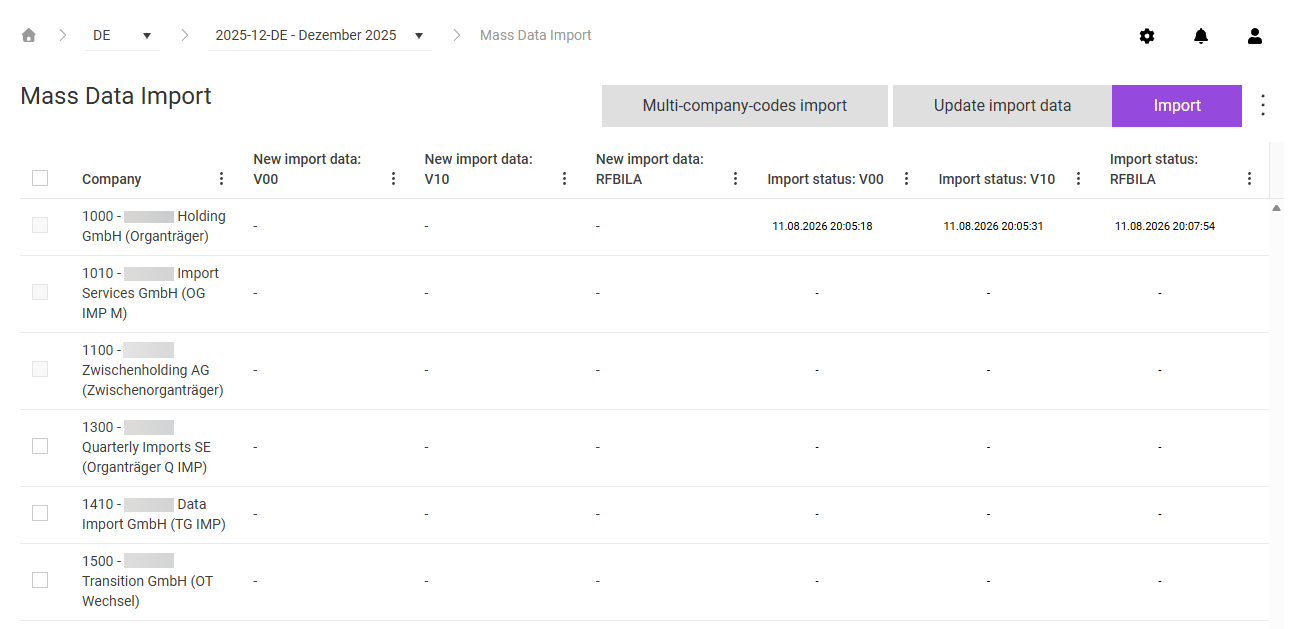
The Mass Data Import workspace can be found under VAT | Value Added Tax | Mass Data Import and is displayed as follows, for example:

Shows the 'Mass Data Import' workspace in VAT for the period '2025-12-DE - Dezember 2025' with the buttons 'Multi-company-codes import', 'Update import data', and 'Import' in the top right corner. The table lists the companies, for example '1000 - Lucanet Holding GmbH (Organträger)' and '1010 - Lucanet Import Services GmbH (OG IMP M)', with a check box and the columns 'Company', 'New import data: V00', 'New import data: V10', 'New import data: RFBILA', 'Import status: V00', 'Import status: V10', and 'Import status: RFBILA'; for company 1000, the 'Import status' columns show time stamps such as '11.08.2026 20:05:18', all other cells show a hyphen (-).
'Mass Data Import' workspace

The table in the Mass Data Import workspace in VAT provides an overview of the import status of all companies. The table contains the following columns:

ColumnDescription
CompanyID and name of the company
Import infoShows the preliminary status of the company. A hyphen (-) means that there are no special features. The following status indicators are possible:
- Additive import (yellow status indicator): For this company, the Additive import check box is activated in the Companies workspace in Master data. VAT adds imported data to the existing data instead of replacing it.
- Locked (red status indicator): The import is locked for this company because a correction declaration exists and critical resubmissions exist in a subsequent period. The check box of the company is deactivated, and the import cannot be performed.
New import data: V00Time stamp of the last import of the RFUMSV00 that has not yet been transferred to the declaration. A hyphen (-) means that there is no new data. If you move the mouse pointer over the time stamp, the number of imported rows is displayed.
New import data: V10Time stamp of the last import of the RFUMSV10 that has not yet been transferred to the declaration. A hyphen (-) means that there is no new data.
New import data: RFBILATime stamp of the last import of the RFBILA00 that has not yet been transferred to the declaration. A hyphen (-) means that there is no new data.
Import status: V00Time stamp of the last transfer of the RFUMSV00 to the declaration. A hyphen (-) means that no transfer has taken place yet. During an active import process, the time stamp is highlighted in color: green for success, yellow for a warning, red for an error.
Import status: V10Time stamp of the last transfer of the RFUMSV10 to the declaration. A hyphen (-) means that no transfer has taken place yet. During an active import process, the time stamp is highlighted in color: green for success, yellow for a warning, red for an error.
Import status: RFBILATime stamp of the last transfer of the RFBILA00 to the declaration. A hyphen (-) means that no transfer has taken place yet. During an active import process, the time stamp is highlighted in color: green for success, yellow for a warning, red for an error.

The first step of the mass data import brings the data from the sources into the VAT module. Which type of import a company uses is usually specified at the start of the project. The following types of import are available.

With the web service import, the source, for example SAP, transmits the data directly to the REST interface of VAT. You do not trigger the import in the workspace. As soon as the transmission has been completed successfully, the New import data columns show the data for the transfer.

If, contrary to expectations, no imports are displayed, analyze the causes in the log files. To do this, click the gear icon in the top right corner and choose Administration | Logs in the overview.

With the network drive import, the source automatically creates the report files and saves them on the network drive. You then trigger the import process manually in the Mass Data Import workspace in VAT:

1

Click Update import data. VAT searches the network drive for new files for the current period and reads in the files found for all companies.

2

In the New import data columns, check for which companies new data is available for the transfer.

The Multi-company-codes import lets you import several company codes – and thus several companies – via a single file, for example via an RFUMSV00 report that contains several company codes.

Proceed as follows to perform the multi-company-codes import in VAT:

1

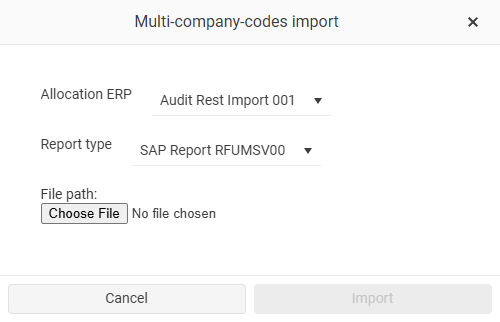
Click Multi-company-codes import in the top right corner. The Multi-company-codes import dialog is displayed:

Shows the 'Multi-company-codes import' dialog in VAT with the 'Allocation ERP' drop-down list (value 'Audit Rest Import 001'), the 'Report type' drop-down list (value 'SAP Report RFUMSV00'), the 'File path:' field with the 'Choose File' button, and the 'Cancel' and 'Import' buttons.
'Multi-company-codes import' dialog
2

In the Allocation ERP drop-down list, choose an ERP group or an ERP server. The ERP allocations are configured in the Connection parameter settings. To access them, click the gear icon in the top right corner and choose Connection parameter in the overview.

3

In the Report type drop-down list, choose RFUMSV00, RFUMSV10, or RFBILA.

4

Under File path, click Choose File and choose the import file on your computer.

5

Click Import to upload the file. VAT distributes the data to the companies based on the company codes it contains.

The second step of the mass data import transfers the imported data to the declaration of the respective company. This step is the same for all types of import.

Proceed as follows to transfer imported data to the declarations in VAT:

1

In the table, activate the check boxes of the companies for which you want to transfer the data.

The check boxes of companies with new import data are already activated. Use the check box in the column heading to activate or deactivate the check boxes of all companies at once.

2

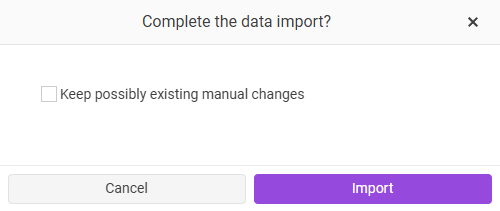
Click Import in the top right corner. The Complete the data import? dialog is displayed:

Shows the 'Complete the data import?' dialog in VAT with the 'Keep possibly existing manual changes' check box and the 'Cancel' and 'Import' buttons.
'Complete the data import?' dialog

The following options are available in the Complete the data import? dialog in VAT:

  • Keep possibly existing manual changes: If activated, manually entered declaration values are kept during the transfer.
  • Import additively and keep already existing import values.: If activated, VAT adds the imported data to the existing data instead of replacing it. This option is only displayed if the additive import is activated in the country settings of the reporting country.
3

Click Import to start the transfer. VAT transfers the available data of all chosen companies to the respective declaration.

4

After the transfer, check in the Import status: V00/V10/RFBILA columns whether the transfer was successful.

For companies with a closed declaration, the check box cannot be activated.

If the transfer fails for a company in VAT, the time stamp in the corresponding Import status column is highlighted in red during the import process. The following table describes the error cases per report:

Error caseDescription
Error with RFUMSV00A common cause is a missing or invalid tax code mapping. Click the error entry to see the exact cause in the pop-up window. The import data is kept – as soon as the mapping has been corrected, start the transfer again via Import without having to import the file again.
Error with RFUMSV10A tax code that has not been created also leads to an error. Create the missing tax code in the master data and start the transfer again.
Warning with RFBILAIf accounts of the RFBILA00 are not stored in the reconciliation accounts, a warning is displayed. The warning does not prevent the transfer. Click the entry to view the details of the warning.

Use the Import log button to retrieve all current errors and warnings for all companies and reports after the transfer.

The general functions, for example exporting the table, are available in the context menu of the three-dot icon (⋮) in the top right corner of the Mass Data Import workspace in VAT.

This content was generated using AI and reviewed by Lucanet subject matter experts before publication.