In the Import workspace, you import the ERP reports that Lucanet VAT (Value Added Tax) needs to create the preliminary VAT return and the related reconciliations. For each company, you import up to three reports in VAT:

  • RFUMSV00: the values of the preliminary VAT return
  • RFUMSV10: the related individual values
  • RFBILA00: the balance sheet values for the reconciliations

To import data for several companies at once, use the Mass Data Import workspace instead.

The Import workspace is only available if manual creation of the VAT declarations is not configured for the chosen company. You make this setting in the master data of the company.

Notes on specific kinds of period in VAT:

  • In annual return periods, importing the reports is only used for the annual import and for comparison, for example for the VAT validation. In these periods, you take over the declaration values from the preliminary returns in the Declaration workspace.
  • In special prepayment periods, the Import workspace is not available.

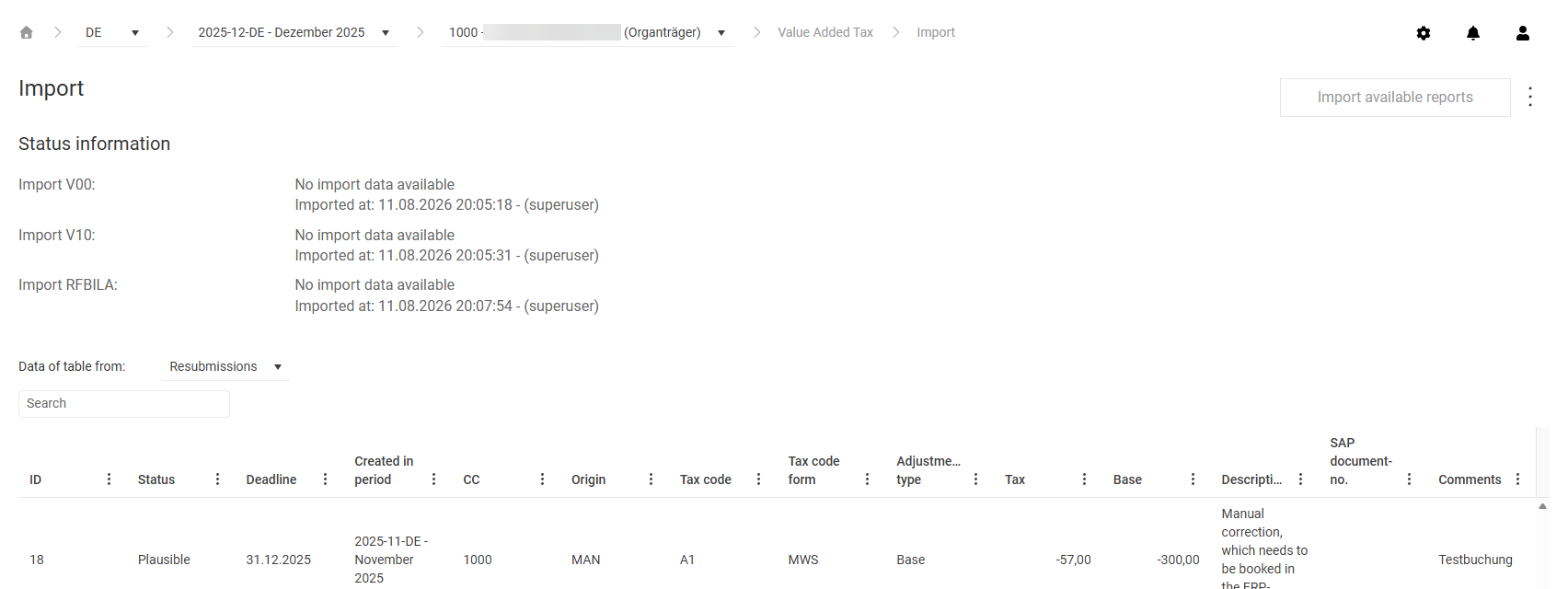
The Import workspace can be found under VAT | Value Added Tax | Import and is displayed as follows, for example:

Shows the 'Import' workspace in VAT for the company '1000 - Lucanet Holding GmbH (Organträger)' in the period '2025-12-DE - Dezember 2025' with the 'Import available reports' button in the top right corner and the 'Status information' section for 'Import V00', 'Import V10', and 'Import RFBILA', each with the text 'No import data available' and the date, time, and user name of the last import, for example 'Imported at: 11.08.2026 20:05:18 - (superuser)'. Below it, the 'Resubmissions' view is selected in the 'Data of table from:' drop-down list; the table shows columns such as 'ID', 'Status', 'Deadline', 'Created in period', 'CC', 'Origin', 'Tax code', 'Tax code form', 'Adjustment type', 'Tax', and 'Base'.
'Import' workspace

In the upper area of the Import workspace in VAT, the Status information section shows the current import status of the three reports. For each report, you see:

  • whether new import data is available
  • the date and time of the last import
  • the user name of the person who performed the import

After the data has been transferred to the declaration, the section shows a check mark, the time of the upload, and the user name for the respective report.

In the lower area of the Import workspace in VAT, a table shows the imported data. In the Data of table from: drop-down list, you choose which data the table displays. The displayed columns depend on the chosen view.

The Data of table from: drop-down list in VAT offers the following four views. When you open the workspace, Resubmissions is preselected:

ViewDisplayed data
ResubmissionsThe resubmissions of the period, that is, the tax adjustments that are flagged for further processing. Each record shows the adjustment type, tax and base amounts, the deadline, and the related comment.
RFUMSV00The data from the imported SAP report RFUMSV00, broken down by tax code. Each record shows the tax rate, the tax base value, and the deductible and non-deductible tax amounts.
RFUMSV10The data from the imported SAP report RFUMSV10. This view is more detailed than RFUMSV00 and shows the amounts per tax code and general ledger account, each with the posting currency.
RFBILA00The data from the imported SAP report RFBILA00. Each record shows an account with account number, account text, account type, and report value.

The following table describes all columns of the import data table in VAT. Which columns are displayed depends on the view chosen in the drop-down list:

ColumnDescriptionView
IDUnique number of the resubmissionResubmissions
RowRow number of the recordRFUMSV00, RFUMSV10, RFBILA00
StatusValidation status of the record:

Plausible: No validation error in this record.

Warning: Possible inconsistencies exist, for example accounts missing in the master data. The import can still be saved.

Error: The record contains an error that must be fixed before saving, for example an unknown tax code.

Note: In the Resubmissions view, only the Plausible and Error statuses exist; the Warning status does not occur there.

RFUMSV00, RFUMSV10, RFBILA00, Resubmissions
NoteError message or note on the recordRFUMSV00, RFUMSV10, RFBILA00
DeadlineDate by which the resubmission must be processedResubmissions
Created in periodPeriod in which the resubmission was createdResubmissions
CCCompany codeRFUMSV00, RFUMSV10, RFBILA00, Resubmissions
OriginSource of the resubmissionResubmissions
Tax code formForm of the tax code, for example output tax or input taxRFUMSV00, Resubmissions
Tax codeTax codeRFUMSV00, RFUMSV10, Resubmissions
General LedgerGeneral ledger accountRFUMSV10
DescriptionName of the tax codeRFUMSV00, Resubmissions
Tax rateTax rate in percentRFUMSV00
Tax base valueTax baseRFUMSV00, RFUMSV10
deductible output/input taxDeductible output tax or input taxRFUMSV00
Output/Input taxOutput tax or input tax amountRFUMSV00
Non deductibleNon-deductible tax portionRFUMSV00
CurrencyPosting currencyRFUMSV10
AccountAccount numberRFBILA00
Account textAccount nameRFBILA00
Account typeType of account, for example assets, liabilities, income, expenseRFBILA00
Report valueReport value of the accountRFBILA00
Adjustment typeType of tax adjustment madeResubmissions
TaxTax amount of the adjustmentResubmissions
BaseBase of the adjustmentResubmissions
SAP document-no.SAP reference number of the related postingResubmissions
CommentsFree-text comment on the resubmissionResubmissions

How you import the reports in VAT depends on the interface type that is set up in the Interface configuration and assigned to the company. You access the Interface configuration via the gear icon in the top right corner; it is usually set up at the start of the project.

Only one interface type is active per company – either the web service import or the network drive import. The manual import is always possible in addition, regardless of the configured interface type. If no interface is configured, the manual import is the only type of import.

With the web service import, the source transmits the reports directly to the REST interface of VAT. You do not trigger the import in the source: as soon as new data has been transmitted, the Status information section shows that new import data is available, and the Import available reports button is active.

Proceed as follows to import the transmitted reports in VAT:

1

Click Import available reports in the top right corner. VAT reads in all transmitted reports and displays them in the import data table.

2

Check the status of the records in the import data table.

3

Save the import and transfer the data to the declaration. For more information, see the section Saving Reports in VAT and Transferring Them to the Declaration.

If, contrary to expectations, no import data is displayed, analyze the causes in the log files. To do this, click the gear icon in the top right corner and choose Administration | Logs in the overview.

With the network drive import, the source automatically saves the report files to a folder on a network drive. The folder and the naming convention for the files are defined in the Interface configuration: VAT recognizes the report type and the company code from the file name. Files whose names do not match the naming convention are not recognized.

The Import from network drive button is only displayed if the network drive interface type is assigned to the company in the Interface configuration. You access the Interface configuration via the gear icon in the top right corner.

Proceed as follows to import the reports from the network drive in VAT:

1

Click Import from network drive in the top right corner. VAT searches the configured folder for new files for the chosen period and reads the recognized reports into the import data table.

2

Check the status of the records in the import data table.

3

Save the import and transfer the data to the declaration. For more information, see the section Saving Reports in VAT and Transferring Them to the Declaration. VAT then moves the processed files to the configured archive folder.

With the manual import in VAT, you upload a report file directly from your computer, for example if the source cannot provide a report automatically.

Proceed as follows to import a report manually in VAT:

1

Click Manual import. If an interface type is configured, you will find the function in the context menu of the three-dot icon (⋮) in the top right corner. The Manual import dialog is displayed.

2

In the Report type drop-down list, choose the report type, for example SAP Report RFUMSV00.

3

Click Choose File, choose the report file on your computer, and upload it. VAT reads the report into the import data table.

4

Check the status of the records in the import data table, and then save the import. For more information, see the section Saving Reports in VAT and Transferring Them to the Declaration.

After each successful import in VAT, you save the imported data and transfer it to the declaration.

Proceed as follows to transfer the imported data to the declaration in VAT:

1

Click Save in the top right corner. The button is only displayed after you have read in report data.

2

Depending on the report type, a dialog is displayed before saving in which you specify, for example, whether manual changes already made are kept. Confirm the dialog. VAT saves the import and transfers the data to the declaration form.

3

Then check in the Status information section whether the report is displayed with a check mark, the time of the upload, and the user name.

During the import, VAT validates the reports and adjusts them to the rules stored in the master data.

When importing the RFUMSV00, VAT checks the following attributes for correctness and availability:

Validation attributeDescription
DateThe date in the report must match the chosen period.
Company codeThe company code must be stored in the Company codes workspace in Master data.
Tax codeThe tax code and the VAT code must be created in the master data.
Deductible tax codeThe deductible tax code must be configured correctly.

If all attributes match, the import data table shows a check mark for each row.

For the RFUMSV10 and the RFBILA00, VAT also checks, for example, the company code and the period during the import. For the RFBILA00, warnings can also occur, for example if the report contains accounts that are missing in the master data.

In addition, VAT automatically adjusts the signs of the imported values so that the values flow correctly into the declaration fields and reconciliations:

  • RFUMSV00: VAT inverts the values of output tax codes, because SAP supplies them with a positive sign. Input tax values remain unchanged.
  • RFBILA00: VAT inverts the values of liability and income accounts.

If a report cannot be imported or saved successfully, VAT displays a message in the upper area of the workspace. The most common causes and how to fix them:

CauseSolution
The company code specified in the report is not stored in the Company codes workspace in Master data.Check the assignment of the company to its company codes in this workspace.
The dates specified in the report do not match the chosen period.Check whether the correct period is chosen or whether the report was exported from the source for the correct period.
No report was chosen for upload.Click Choose File and choose a file.
The date format of the report is not specified correctly.Check the export settings in the source.

When saving the RFUMSV00, VAT checks the tax code mappings. The most common cause of an error in this step is an invalid mapping: either a mapping item is missing – tax codes that are not relevant for reporting must be mapped to the fictitious field 0 – or there are mappings to fields that no longer exist, for example after form changes.

In addition to the general functions, the following functions are available in the context menu of the three-dot icon (⋮) in the top right corner of the Import workspace in VAT:

FunctionDescription
Manual importOpens the dialog for manually importing a report. For more information, see the section Importing Manually in VAT.
Clear PreImportRemoves data that was transmitted to VAT via an interface but has not been saved yet. The removed data is then no longer available for import. Most common use case: the time delimitation of the transmitted data was incorrect, for example data from the 1st to the 30th of a month with 31 days.

This content was generated using AI and reviewed by Lucanet subject matter experts before publication.