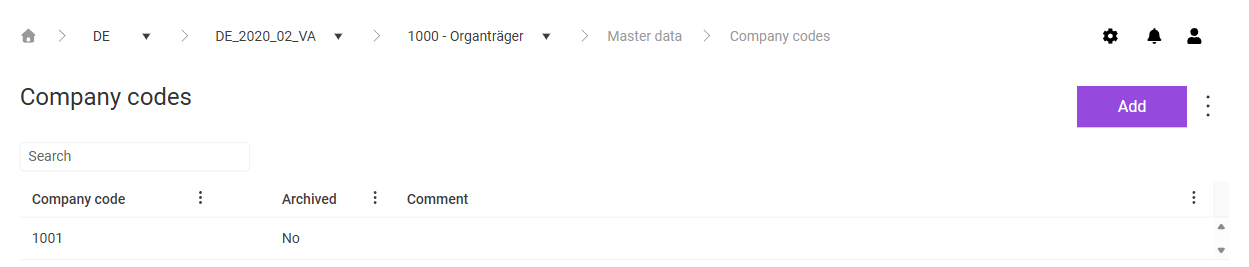
In the Company codes workspace in Lucanet VAT (Value Added Tax), you store the accounting identifier from the ERP system for a company. In SAP, the company code number often differs from the company number. Maintain the company code separately in VAT for this reason.
As a rule, a company has exactly one company code. In special cases, for example with several company codes on different ERP systems or with a change of the company code during the year, you map the company via company subdivisions or via several company codes.
Tax codes and the tax code mapping require a company code. Only companies whose declarations you enter exclusively manually do not need a company code. In addition, you assign reconciliation accounts to a company code.
When you import the declaration values in the Value Added Tax functional area, VAT checks whether the company code from the ERP reports is stored here. For more information, see the Importing Data for a Single Company page.
Proceed as follows to create a company code in VAT:
1
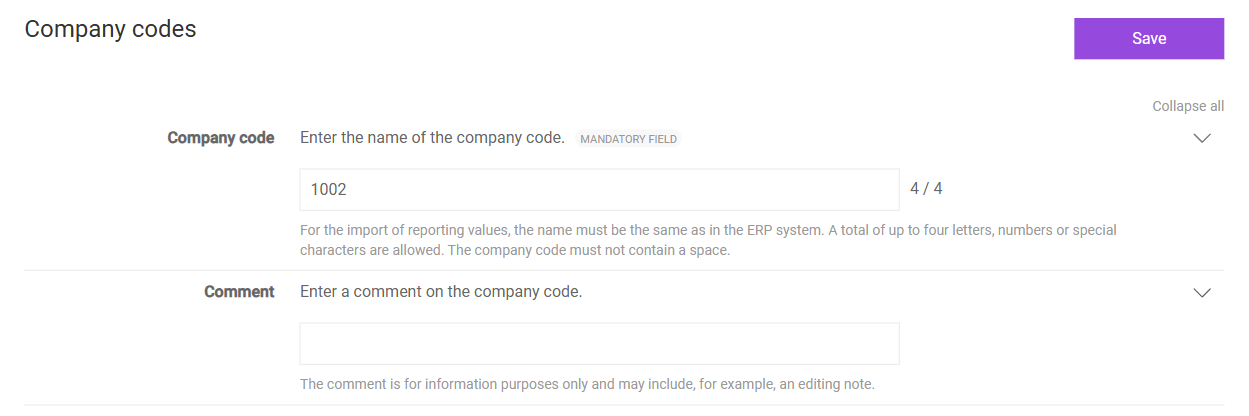
In the Company codes workspace, click Add. The page for creating a company code is displayed:
Page for creating a company code
2
In the Company code field, enter the identifier of the company code. The value must match the identifier in the ERP system exactly so that VAT imports the declaration values without errors. Up to four letters, digits, or special characters without spaces are permitted.
3
If necessary, enter an internal note on the company code in the Comment field. The comment is for information purposes only; VAT does not transfer the comment to the reporting files.
For an existing company code in VAT, you can only edit the comment. To do so, click the company code in the Company codes workspace, adjust the comment, and click Save.
In addition to the general functions, the following functions are available in the three-dot menu (⋮) in the top right corner of the Company codes workspace in VAT:
Function
Description
Show archived
Displays only the archived company codes in the table. To return to the active company codes, select Show active.
Assignment of companies to company codes
Creates an overview of which companies are assigned to which company codes.
This content was generated using AI and reviewed by Lucanet subject matter experts before publication.