In the Send declaration workspace in Lucanet VAT (Value Added Tax), you transmit the preliminary VAT return electronically to the tax office after you have created the declaration and successfully processed all reconciliations. This workspace is only available for standalone companies and representative VAT group members.

Depending on the reporting country and the activated modules, there are three different levels of automation for sending in VAT:

  • Automated sending directly from VAT: VAT sends the declaration directly to the tax office via a web service. This level offers the greatest degree of automation and is currently available for Germany, Austria, the United Kingdom, and the Netherlands.
  • Download of an XML file with subsequent upload: You download the declaration as an XML file and then upload it manually to a portal of the tax office. This function is available for Belgium, Sweden, Romania, and Switzerland.
  • No interface available: For all other countries, you export the declaration as a PDF to transmit it manually to the tax office.

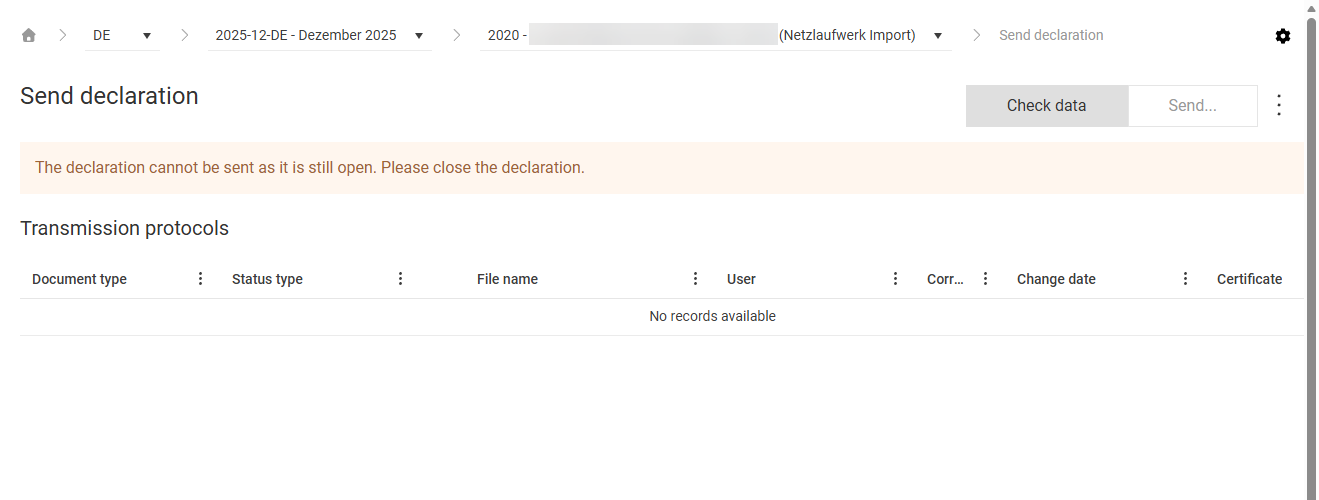
The Send declaration workspace can be found under VAT | Value Added Tax | Send declaration and is displayed as follows, for example:

Shows the 'Send declaration' workspace in VAT for '2020 - Lucanet Network Drive Solutions GmbH (Netzlaufwerk Import)' with the 'Check data' and 'Send...' buttons in the top right corner, the message that the declaration cannot be sent because it is still open, and the empty 'Transmission protocols' table with the columns 'Document type', 'Status type', 'File name', 'User', 'Correction' (shortened to 'Corr...'), 'Change date', and 'Certificate'.
'Send declaration' workspace

The Send declaration workspace in VAT shows the Transmission protocols table and buttons for sending the declaration to the tax office. The available buttons and options vary depending on the reporting country and the level of automation.

The Transmission protocols table in VAT contains all protocols that were created in connection with sending the declaration. It shows the following columns:

ColumnDescription
Document typeType of document (for example protocol, declaration file)
Status typeStatus of the sending process
File nameName of the protocol file. Clicking the file name downloads the file.
UserUser who triggered the sending process
CorrectionThe related correction, if available
Change dateDate and time of the last change to the protocol entry
CertificateName of the digital certificate used for sending

Before you can send a declaration in VAT, the following prerequisites must be met:

  • The declaration must be closed. If the declaration is still open, VAT indicates this.
  • For automated sending, a Connection parameter of the corresponding type must be configured – for example Tax Transfer DE for Germany. If this connection parameter is missing, VAT indicates this.

Depending on the reporting country, VAT transmits not only the declaration data but also certain master data. In Germany, for example, the tax number, the tax office number, the address, and the person responsible with phone number and email address must be stored in the master data of the company. Without this information, VAT cannot send the declaration electronically.

For countries with automated sending from VAT – currently Germany, Austria, the United Kingdom, and the Netherlands – the Test protocol and Productive transmission functions are available.

Always create a test protocol first before you send the declaration for real. The test protocol is only available once the declaration is closed.

Proceed as follows to create the test protocol in VAT:

1

Click Check data to check the plausibility of the declaration data. VAT generates an XML file from the declaration data and checks it for completeness and technical plausibility.

2

Click Send... and choose the Test protocol option.

VAT performs the same validation steps as for the productive transmission and creates an ELSTER transmission protocol. No data is transmitted to the tax authority. You can retrieve the test protocol in the transmission protocols.

If the test protocol contains errors, the generated declaration file is incomplete or not plausible. Process the error in terms of content.

The productive transmission transmits the declaration data to the tax office for real.

Proceed as follows to perform the productive transmission in VAT:

1

If required, click Check data to check the plausibility of the declaration data in advance. VAT generates an XML file and checks it for completeness and technical plausibility.

2

Click Send... and choose the Productive transmission option. VAT sends the XML file with the stored authentication to the tax office.

If the productive transmission from VAT fails, there can be two causes:

  • Connection problems: The configuration on your own connection server is incorrect, or there is no connection to the server of the tax authority. Send the declaration again at a later time. If this does not lead to the desired result, get technical support.
  • Incorrect declaration file: The generated file of the declaration is incomplete or not plausible. Process the error in terms of content.

After a successful productive transmission, VAT sets the status of the declaration to Sent. You can then no longer open the declaration. Changes to the declaration data are only possible via corrections. VAT saves the protocol files of the tax authority in the Transmission protocols.

For countries with the XML download function in VAT – currently Belgium, Sweden, Romania, and Switzerland – you send the declaration as follows:

1

Optional: Check the declaration file before sending. To do this, choose the Download of file to be sent option in the context menu of the three-dot icon (⋮). VAT downloads the XML file; the status of the declaration remains unchanged.

2

Download the XML file via the corresponding sending option. VAT sets the status to File created.

3

Upload the file manually in the portal of the tax office.

4

Mark the declaration as sent after you have successfully submitted the file to the tax office. VAT sets the status to Sent. This step is necessary so that you can create a correction.

The same steps apply to countries without an interface. The difference is that VAT only provides the declaration as a PDF file.

If the review before transfer is configured in VAT, complete it before you export the declaration for sending or perform the productive transmission. The corresponding step in the workspace is only released once the review has been completed.

You set the review after transmission once the declaration has the Sent status.

Optionally, you can document the review by uploading a document. If required, activate this function separately in the country settings. For more information about the review, see the Month Overview page.

After you have successfully transmitted the declaration data and paid the tax to the tax office, you store a payment voucher. VAT sets the status of the declaration to Paid. Activate this function in advance in the country settings. This is the last step in the Send declaration workspace.

In addition to the general functions, the following functions are available in the context menu of the three-dot icon (⋮) in the top right corner of the Send declaration workspace in VAT:

FunctionDescription
Download of file to be sentDownloads the XML file that is used when sending to the tax office. Available depending on the reporting country.
Declaration export (Pdf)Exports the declaration as a PDF file.

This content was generated using AI and reviewed by Lucanet subject matter experts before publication.