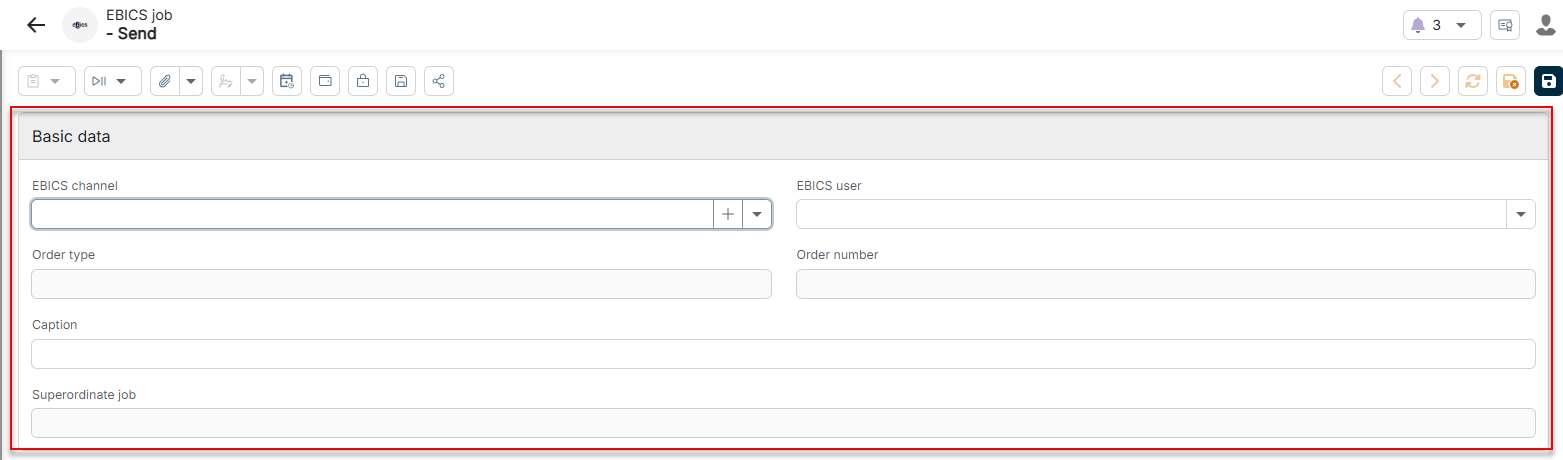
On this page, you will find information about creating and configuring jobs in Lucanet Banking & Cash Management (BCM). The detail view of a job consists of the Basic data area, which defines which channel the job executes, and several tabs with further options. The basic data differs per job type; the further options are the same for all job types.
For communication jobs, after you click the Plus icon, you first select the category and then the job in the context menu. For reporting jobs, you select one of the two job types Reporting job or Dashboard job in the drop-down list.
The basic data of every job contains the following options:
Option
Description
Channel
Channel that the job executes. The option is named after the channel type, for example EBICS channel or Processing channel. You select an existing channel from the drop-down list or create a new channel using the Plus icon. How you configure the individual channel types is described in the Channels functional area.
Caption
Name of the job, for example Daily transfer of SEPA credit transfers Sparkasse
Superordinate job
Job from which BCM created this job if the job is part of a process chain. BCM fills the field automatically; for manually created jobs, the field remains empty.
Communication jobs are grouped into four categories. The following jobs are available per category; each job uses a channel of the channel type with the same name.
Exchanges data via an EBICS bank connection. In addition to the common basic data, the job contains the options EBICS user, Order type, and Order number.
EBICS WSS job
Receives real-time notifications from the bank via an EBICS WebSocket connection. You configure EBICS WSS channels separately from EBICS channels.
ECB euro currency rates job
Fetches the euro reference rates of the European Central Bank (ECB).
J.P. Morgan job
Exchanges data via a bank connection to J.P. Morgan. In addition, the job contains the Order type option.
PayPal job
Exchanges data with PayPal. In addition, the job contains the Order type option.
You usually do not create jobs of the File exchange category manually. BCM creates EBICS server jobs automatically when a client accesses the internal bank server.
Job
Description
EBICS server exchange
Processes incoming EBICS requests from clients to the internal bank server. The EBICS server channel defines the customer IDs, user IDs, and their permissions. In addition, the job contains the options User, BTF parameters, Order type, and Order number.
File exchange job
Exchanges files via the FileExchange REST API interface. In the channel, you define the system ID and, if required, an encryption method.
In addition to the common basic data, EBICS jobs and EBICS server jobs contain the following options:
Option
Description
EBICS user
EBICS user who executes the job. BCM uses the default user stored in the EBICS channel. For EBICS server jobs, the option is named User and defines which client user accesses the EBICS server.
Order type
EBICS order type that BCM executes, for example STA for fetching account statements or CCT for SEPA credit transfers. From EBICS 3.0, you define the order type using the BTF parameters.
BTF parameters
Business transaction format parameters of the EBICS transaction from EBICS 3.0, for example file format, compression, and encryption. You select existing BTF parameters from the drop-down list or create new ones using the Plus icon.
Order number
Number that the bank server assigns to the job when it is submitted. BCM fills the field automatically.
Executes a transformation channel that defines the conversion rules. You select the channel in the Transformation channel field.
Processing job
Executes a processing channel that defines the processing logic. You select the channel in the Processing channel field.
Import job
Executes an import channel that defines the data type of the import, for example account statements, advice transactions, EBICS user data, or currency rates. You select the channel in the Import channel field.
Two types are available for reporting jobs, each of which executes a reporting channel of the same type:
Job type
Description
Dashboard job
Generates a report from a dashboard. In the Dashboard channel field, you select the channel that defines the dashboard, the output format, and the page format. In the Dashboard field, BCM uses the dashboard defined in the channel; you can select a different dashboard.
Reporting job
Generates a report from a predefined report layout. In the Reporting channel field, you select the channel that defines the report, the output format, and the filters.
The further options of the detail view are the same for all job types. Which options and tabs are displayed depends on the job type and the interval type.
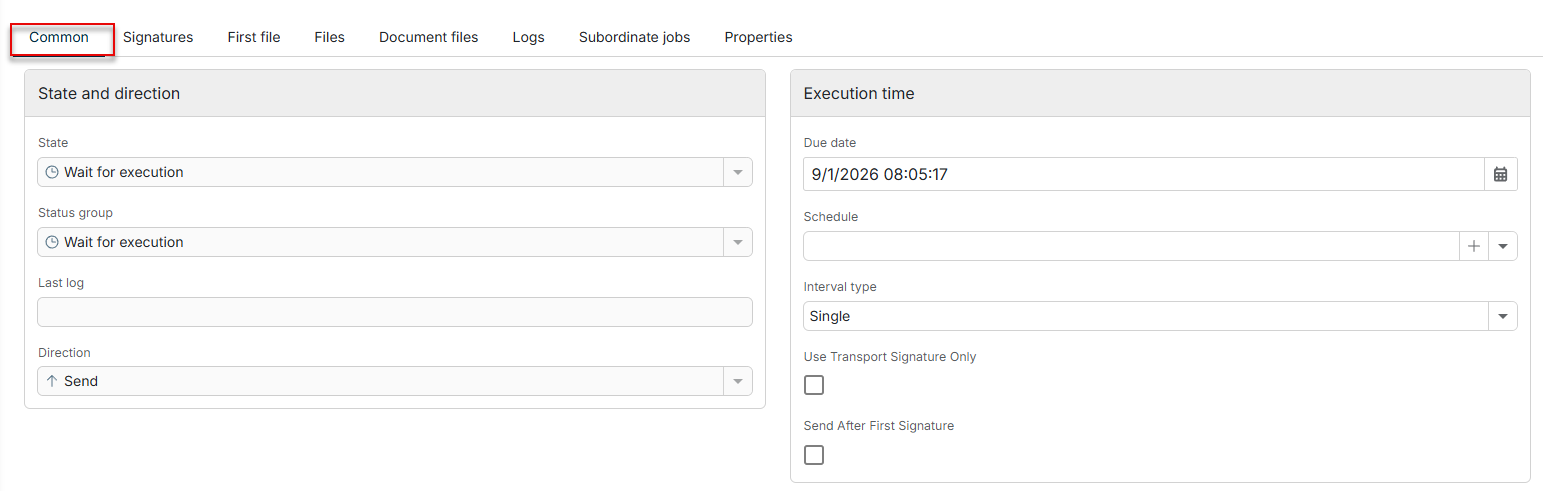
The Common tab is displayed as follows, for example:
'Common' tab in the detail view of a job
The State and direction area contains the following fields, for which BCM enters values automatically:
Field
Description
State
Processing status of the job, for example Waiting for execution or Wait for first authorization
Status group
Superordinate group of the status, for example Pending or Incomplete or waiting for authorization
Last log
Result of the last execution with details on transferred files, error messages, or feedback from the bank
Direction
Direction of the data flow, which results from the order type: Send to the bank or Fetch from the bank
The Execution time area contains the following options:
Option
Description
Due date
Date and time of the next execution. For one-time jobs, this is the only execution time.
Schedule
Schedule that restricts the execution to certain weekdays and times, for example Mon-Fri. You select an existing schedule from the drop-down list or create a new one using the Plus icon.
Interval type
Repetition of the job, for example Single, Minutely, Hourly, or Daily
Interval
Number of units of the interval type between two executions. The interval type Minutely with the interval 30, for example, executes the job every 30 minutes. BCM displays the option only for recurring jobs.
Last execution
Date on which BCM executes the job for the last time. BCM displays the option only for recurring jobs.
Use transport signature only
Activate the check box so that BCM sends the job to the bank with the technical transport signature only and without business signatures. BCM displays the option only for certain EBICS order types.
Send after first signature
Activate the check box so that BCM sends the job to the bank after the first signature. If the check box is deactivated, BCM waits for all required signatures. BCM displays the option only for certain EBICS order types.
For recurring jobs, that is, for an interval type other than Single, the Common tab additionally contains the Error handling area with the following options:
Option
Description
Postpone to next interval on error
Activate the check box so that BCM does not repeat a failed job immediately but at the next regular execution time. This way you avoid retry loops, for example when no data is available on weekends.
Create single job after error
Activate the check box so that BCM additionally creates a one-time single job after an error, which repeats the failed execution outside the regular schedule.
Fetch single job after x minutes
Delay in minutes after which BCM executes the single job; 0 means immediately. This gives the remote station, for example the bank, time before BCM repeats the execution. BCM takes the option into account only if the Create single job after error check box is activated.
Depending on the job type, the detail view of a job contains the following further tabs:
Tab
Description
Signatures
Displays the required and existing signatures of the job. Depending on the job, further tabs are displayed, for example VOP signatures and Internal signatures. For payment runs and fetched bank protocols, the EBICS protocols tab displays the feedback of the bank on the file and signature check.
First file
Displays a preview of the first file to be transferred on the tabs File content, Detailed file content, and Properties. For VOP payments, the tab additionally displays the Payment status report and the Detailed payment status report.
All files
Lists all files of the job with the columns File, File type, Context information, PDF document(s), Caption, Hash method, and Hash value. The hash value enables you to recognize whether a file was changed afterwards.
Document files
Displays the documents attached to the job and enables you to attach further documents, for example an invoice that the signer checks.
Logs
Displays the result of the transfer to the bank server. If a bank protocol for the job already exists, the tab also displays the result of the protocol check.
Child jobs
Lists the subsequent jobs that BCM created from this job, for example the fetch job for the bank protocol, its assignment, or an e-mail job in case of errors in the bank protocol. For each subsequent job, the tab displays, among others, Name, State, Due date, Channel, Last log, and Type.
Properties
Lists the properties of the job with Name and Content
Below the tabs, the detail view contains the following further options:
Option
Description
Permission class
Permission class that defines which users see and edit the job. You select an existing permission class from the drop-down list or create a new one using the Plus icon. You manage permission classes in the System functional area.
Create forecast transactions
Activate the check box so that BCM creates forecast transactions for liquidity planning from the job; planned outgoing payments are then included in the cash forecast. BCM displays the option only for communication jobs.
Transaction property
Transaction property that BCM assigns to the forecast transactions of the job. You select an existing transaction property from the drop-down list or create a new one using the Plus icon. BCM displays the option only for communication jobs.
This content was generated using AI and reviewed by Lucanet subject matter experts before publication.