Cash forecasts, that is, planning data, enable you to display and manage expected future account movements and to include them in liquidity calculations. Lucanet Banking & Cash Management (BCM) displays not only your current liquidity but also your forecast liquidity, taking planned incoming and outgoing payments into account.

BCM distinguishes between two types of cash forecasts:

  • Automatically created cash forecasts: BCM creates these automatically from recorded payments or from payment orders imported from upstream systems, for example, financial accounting. You recognize automatically created cash forecasts by the value Automatic in the Origin column of the list view in the Cash forecasts workspace.
  • Manually created cash forecasts: One-time or periodically recurring cash forecasts that you create manually or import via CSV. For the CSV import, you create an import channel.

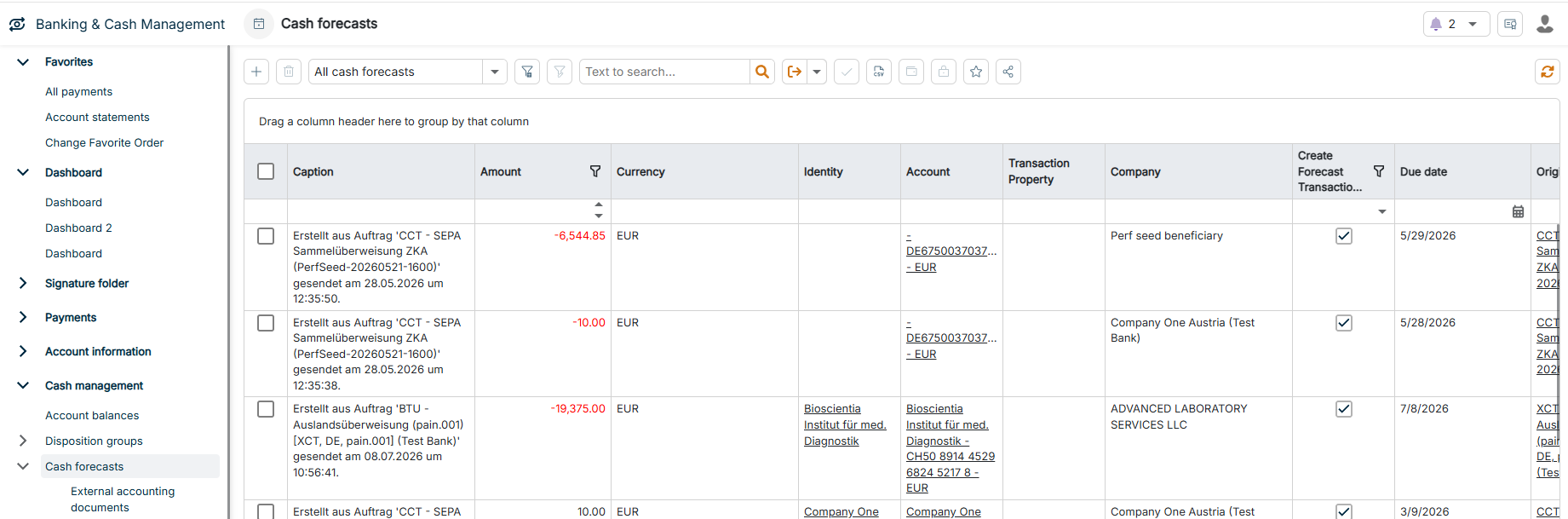
The Cash forecasts workspace can be found under Banking & Cash Management | Cash management | Cash forecasts and is displayed as follows, for example:

The Cash forecasts workspace is displayed.
'Cash forecasts' workspace

You create cash forecasts manually, or BCM creates them automatically:

To create a Cash forecast manually:

1

Navigate to Cash management | Cash forecasts.

2

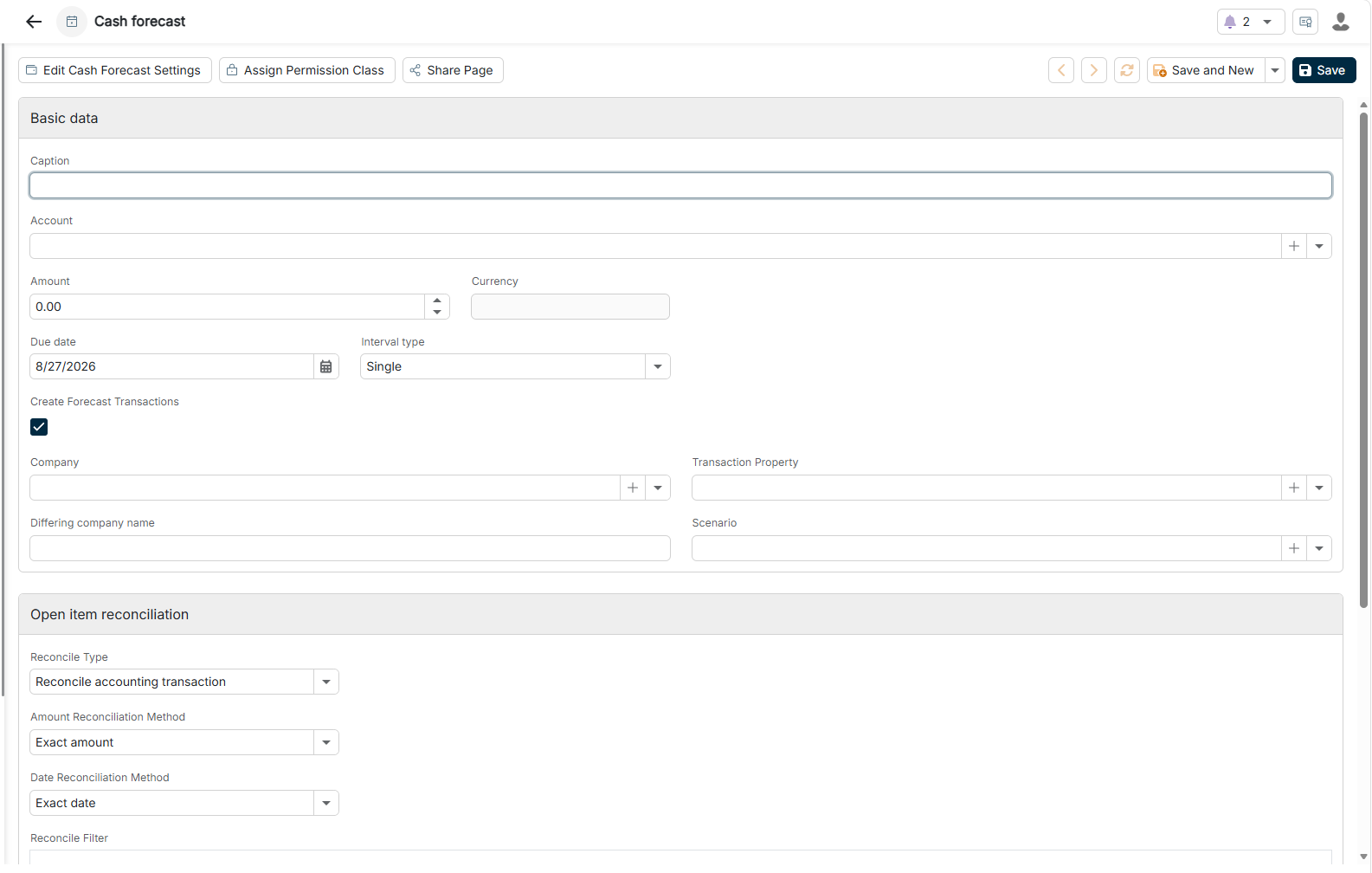
Click the Plus icon in the upper left corner. The configuration of a cash forecast is displayed as follows:

The configuration options for a cash forecast are displayed.
Configuring a cash forecast
3

Configure the cash forecast according to your requirements. For more information, see Configuring Cash Forecasts.

BCM creates cash forecasts automatically in the following cases:

  • Payments in BCM: When you create a payment, BCM automatically creates a cash forecast.
  • Import from upstream systems: When you import payment orders from financial accounting or other ERP systems, BCM also creates cash forecasts automatically.

The configuration options of a cash forecast are divided into two areas: Basic data and Open item reconciliation. At the end of the edit area, you also assign a permission class to the cash forecast.

The Basic data area contains the following options:

OptionDescription
CaptionUnique name or description that identifies the cash forecast
AccountBank account on which the expected account movement will take place. Used to calculate the liquidity development
AmountExpected amount of the account movement
CurrencyCurrency of the expected payment. Taken over automatically from the selected account and cannot be changed manually.
Due dateDate on which the payment is expected. The default value is today's date. The due date serves as the basis for time-based liquidity calculations and for the reconciliation.
Interval typeFrequency of recurring forecasts. Available values: Single (default value), Daily, Work daily, Weekly, Monthly, Quarterly, Semi annually, Yearly.
Create Forecast TransactionsIf activated, BCM automatically creates forecast transactions from the cash forecast, which are visible in the transaction overviews. Whether the check box is already activated for new cash forecasts is controlled under System | Configuration | Cash on the Forecasts tab via the entry for the Cash forecast type.
CompanyReference to a company stored in BCM. Enables precise assignment and automatic completion of payment information for internal payments.

You create new companies via the Plus icon or under Master data | Companies and contacts | Companies.
Transaction propertyCategorization of the transaction for reporting and analysis. You can assign transaction properties manually or automatically. Via the Plus icon, you create new properties with the following details:
- Caption: name of the property
- Default: check box for automatic assignment
- Filter: logical operators — and, or, not and, not or — based on criteria such as IBAN, amount, or remittance information
Differing company nameFree text that records a differing name for the company of this payment, for example, for third-party payments or payments via collective accounts. Serves solely as display and search information and does not overwrite the stored company. BCM does not consider this field when reconciling with accounting transactions — for name-based reconciliation, use the Reconcile Filter. For more information, see Open Item Reconciliation.
ScenarioOptional assignment to planning scenarios for scenario analyses and strategic liquidity planning. Via the Plus icon, you can create new scenarios with the following fields:
- Caption: name of the scenario
- Description: explanation of the scenario
- Include In Account Balances: controls whether the scenario is included in the balance calculation

The Open item reconciliation area contains the following options:

OptionDescription
Reconciliation typeDetermines the type of reconciliation. Options:
- Reconcile accounting transaction: reconciliation against actual postings on the account
- Mark due time as done at due day: automatic closing on the due date without checking transactions
- Mark due time as done at day after due day: automatic closing one day after the due date
- No reconciliation: manual management without automatic reconciliation
Amount reconciliation methodDefines the precision of the amount reconciliation. Options:
- Exact amount: only for a 100% match
- Percental tolerance: deviations in percent are permitted
- Amount range: deviations within absolute amounts are permitted

For automatic forecasts, set to Exact amount by default.
Date reconciliation methodDefines the period for the date reconciliation. Only available if Reconciliation type = Reconcile accounting transaction. Options:
- Exact date (default value): only for an identical date.
- Date range: with a configurable tolerance via the Days to subtract and Days to add fields. Example: 0/3 means that the reconciliation can take place on the due date and up to 3 calendar days afterwards.
Reconcile FilterLogical filter for additional reconciliation criteria, for example, to prevent incorrect assignments when there are several similar payments. BCM evaluates the filter criteria against the fields of an imported accounting transaction — typical fields are IBAN, Bank reference, End-to-end reference, Customer reference, and Remittance information.

Via the Advanced Mode check box, you switch to an advanced mode in which you can enter more complex filter expressions directly.

With a Permission class, you control the visibility of the cash forecast. You can select an existing permission class from the drop-down list or create a new one via the Plus icon — the cash forecast is then displayed only to users to whom this permission class is assigned. Users without the corresponding permission class do not see the record, even if their permissions otherwise grant access. When you create a permission class, you enter a Caption, a Description, and the assigned Users.

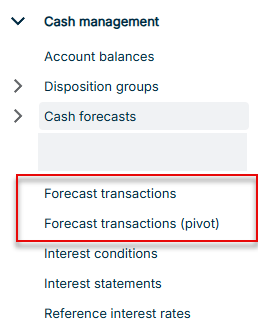
If the Create forecast transactions check box is activated in the basic data of the cash forecast, BCM displays all created cash forecasts in two additional workspaces:

  • Forecast transactions: List view of all individual forecast transactions with detailed information
  • Forecast transactions (pivot): Pivot view of the same data for flexible grouping, filtering, and analysis
The workspaces for forecast transactions are displayed in the menu navigation.
Workspaces for forecast transactions

Both workspaces display the same data — the information entered during creation, such as account, company, amount, and due date — in different forms of presentation.

BCM automatically reconciles open cash forecasts with the actual account movements. Alternatively, you mark cash forecasts as done manually.

After each successful retrieval of advice transactions or account information, BCM compares the retrieved advice transactions and accounting transactions with the open cash forecasts. How BCM compares them is determined by the options that you have configured for each cash forecast in the Open item reconciliation area — the reconciliation type, the methods for amount and date reconciliation, and the additional filter.

If there is a successful match, BCM automatically marks the cash forecast as done and removes it from the list. For recurring cash forecasts, the open subsequent dates are retained.

To perform a manual reconciliation:

1

Navigate to Cash management | Cash forecasts.

2

Select the records to be reconciled.

3

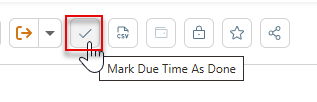
In the toolbar, click Mark Due Time As Done.

The button for marking the due date as done is displayed.
Marking the due date as done

BCM deletes the cash forecast. For recurring cash forecasts, the subsequent dates that have already been created are retained.

BCM permanently deletes reconciled cash forecasts — they cannot be restored. If a Forecast transaction exists for the cash forecast, BCM deletes it as well.

This content was generated using AI and reviewed by Lucanet subject matter experts before publication.