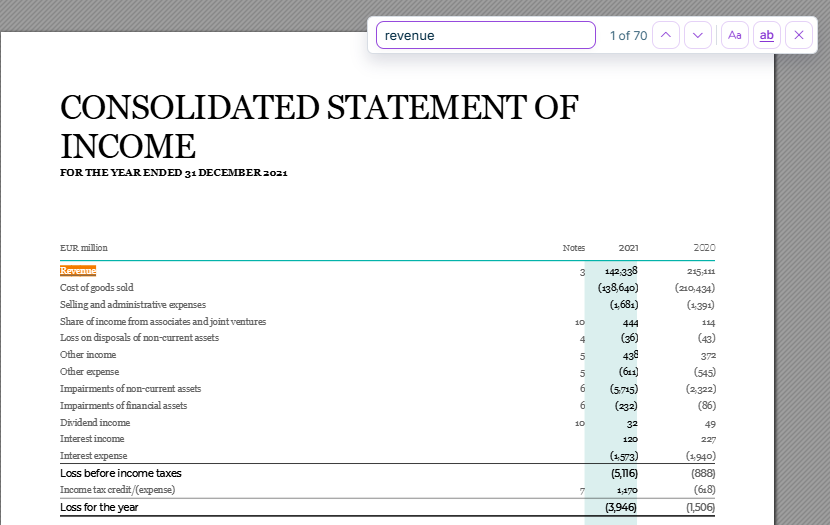
The Find in document function (Ctrl+F) in XBRL Tagger now lets you search Word and PDF documents for words and passages, including text that has not been tagged yet. The search also finds assigned tags by their element label or technical name. XBRL Tagger highlights the matches, and you can move between them. You can narrow the search with the Match case and Match whole word options. Previously, you could only find untagged text by scrolling. In large reports, you can now go directly to the passages you want to tag or review. For details, see Searching for Text in Documents.
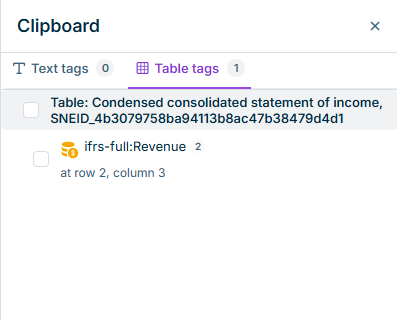
The Clipboard in XBRL Tagger now keeps copied mappings when you open another document. XBRL Tagger saves the clipboard content per user, and the content remains available after you reload the browser. Previously, XBRL Tagger cleared the clipboard each time you loaded a document. You can now paste mappings into other documents instead of creating them again. XBRL Tagger marks clipboard entries that cannot be applied in the open document. For details, see Reusing Mappings with the Clipboard.
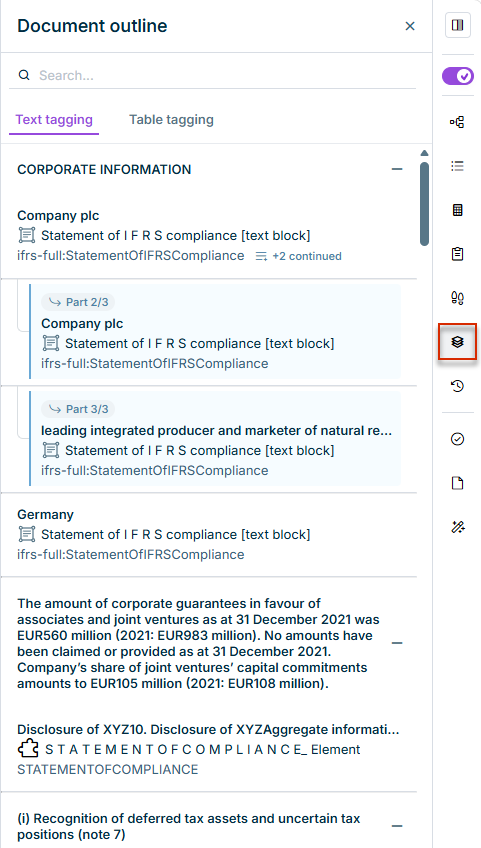
The Document outline in XBRL Tagger is now also available for PDF documents. Previously, the document outline was only available for Word documents. You can now find tagged items in PDF documents through the outline instead of searching the document for them. For details, see Using the Document Outline.
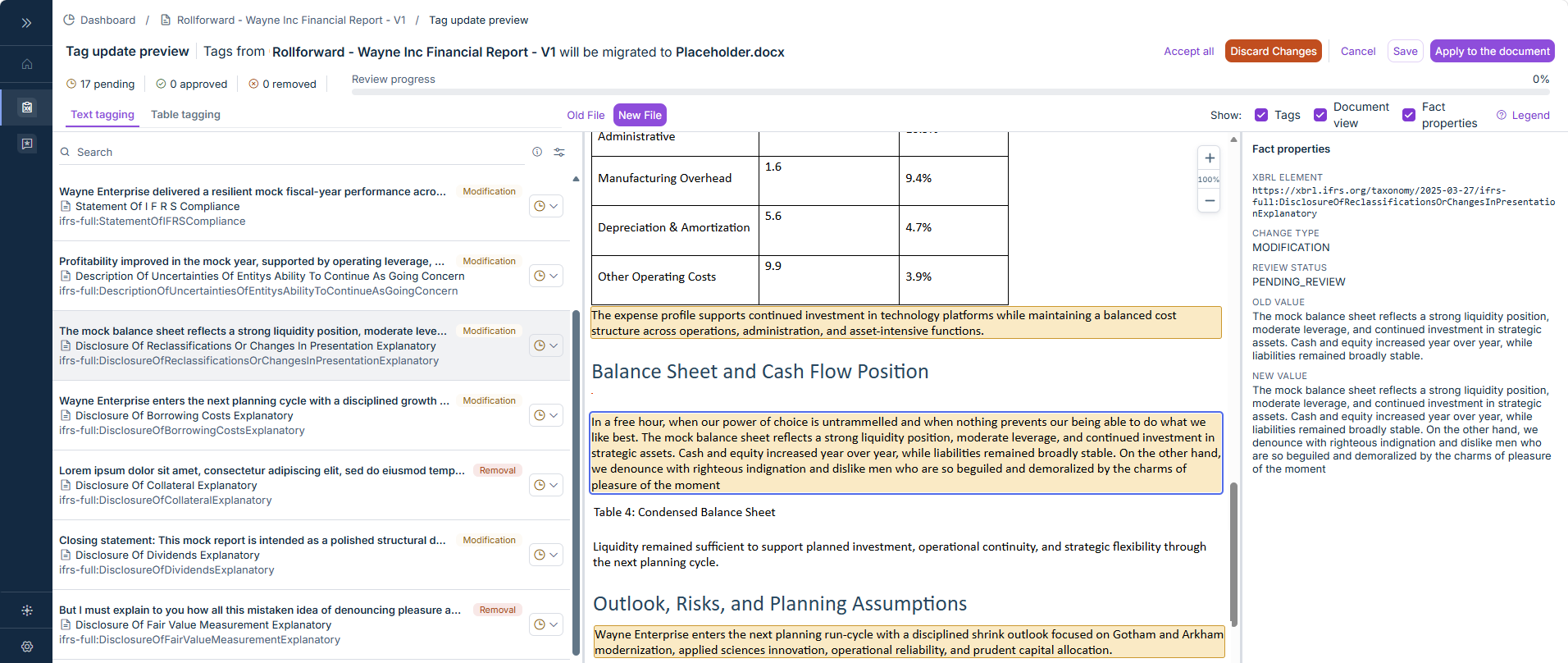
If you reject the removal of a text tag during the roll-forward review in XBRL Tagger and apply the changes to the document, XBRL Tagger now moves the affected tag to the Clipboard. Previously, the tag was lost in this case, so rejecting had no effect. The mapping is now kept: you can apply the tag manually to a passage in the new document instead of creating it again. For details, see Using the Tag Update Preview.
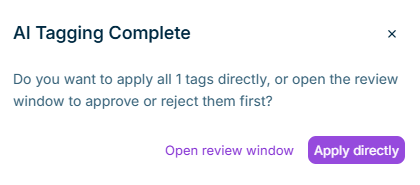
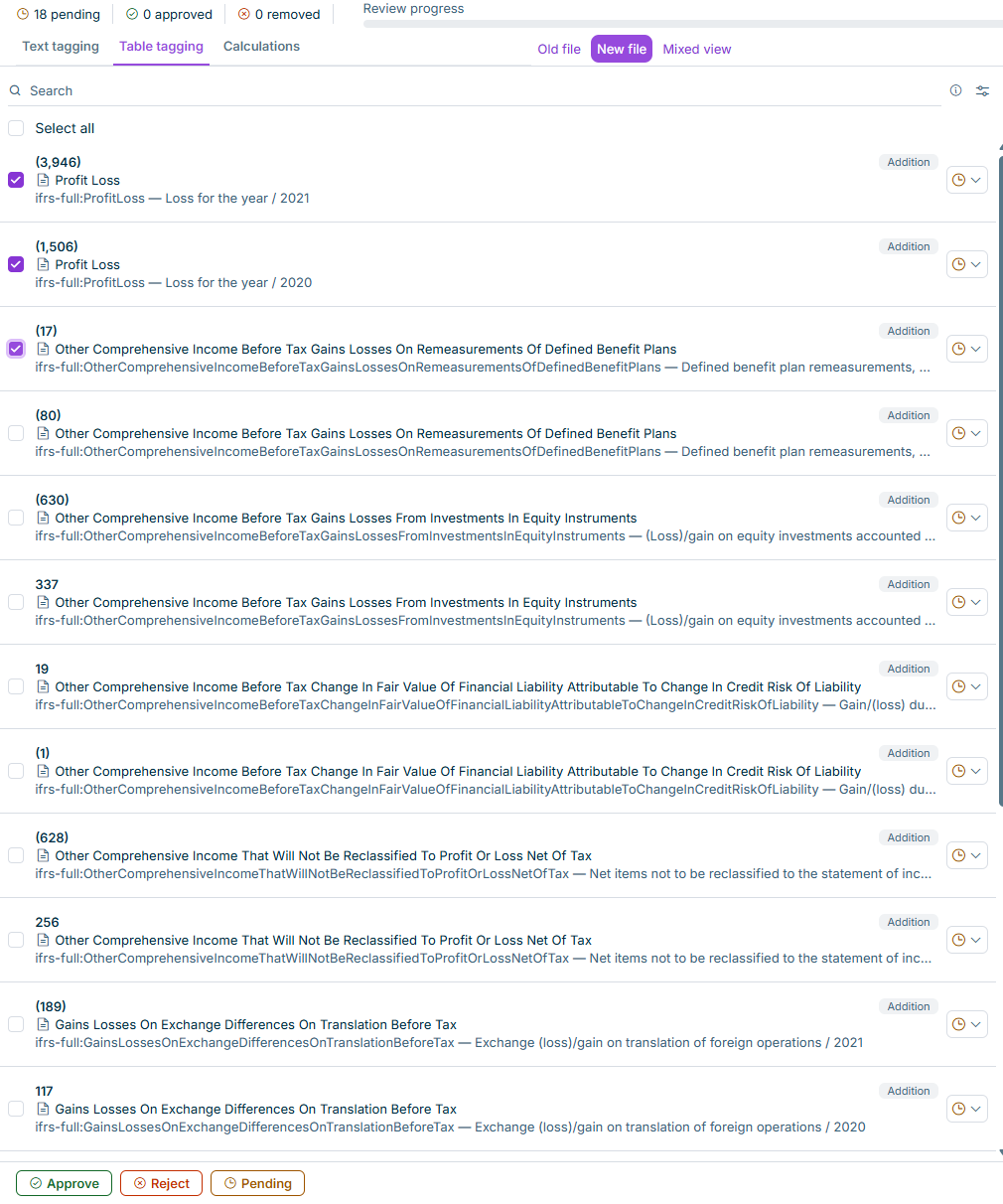
After an AI tagging run, you can now check the suggested tags in advance in a review window instead of only applying them directly. This keeps you in control of what is actually applied to your document and avoids having to correct faulty tags afterwards. If you trust the suggestions, you can continue to apply them directly without review, as before. For details, see Reviewing AI Tagging Suggestions.
Your decisions in the review window after an AI tagging run are saved automatically as soon as you approve, reject, or set a tag to pending. This is especially useful for a larger number of suggested tags: you can pause the review at any time and continue later without losing decisions you've already made. Tags are only applied to the document once you explicitly confirm this. For details, see Reviewing AI Tagging Suggestions.
In the review window — both after a roll-forward and after an AI tagging run — you can now select multiple tags at once using checkboxes, including a checkbox to mark the entire list, and approve, reject, or reset them to pending together with a single click. This saves you from working through longer lists one entry at a time. The previous Cancel and Save buttons have been combined into a single Close button, since every decision is already saved automatically. For details, see Reviewing AI Tagging Suggestions and Using the Tag Update Preview.
Tagging files that still have an outstanding review after importing a new file version are now immediately recognizable in the dashboard by the addition "(Pending Review)" after the file name. This saves you from opening each file individually to find out why editing or a new import is blocked. The indicator disappears automatically once the review is completed or discarded. For details, see Dashboard.
Certain elements of the KVK taxonomy ("-all" elements) are not intended for tagging. These can no longer be dragged from the taxonomy tree onto the document; a tooltip explains why the element can't be used. This helps you avoid invalid tags that would otherwise only surface later, during validation or generation of the XBRL report, and have to be corrected. For details, see Tagging a Document Manually.
Search in the XBRL Tagger dashboard now also finds tagging files by their taxonomy or reporting requirement, for example by typing "IFRS", "KVK", or "EFRAG" – in addition to the existing search by file and report name. This makes it easier to find reports again when you work with many tagging files across different taxonomies and reporting requirements. For details, see Dashboard.
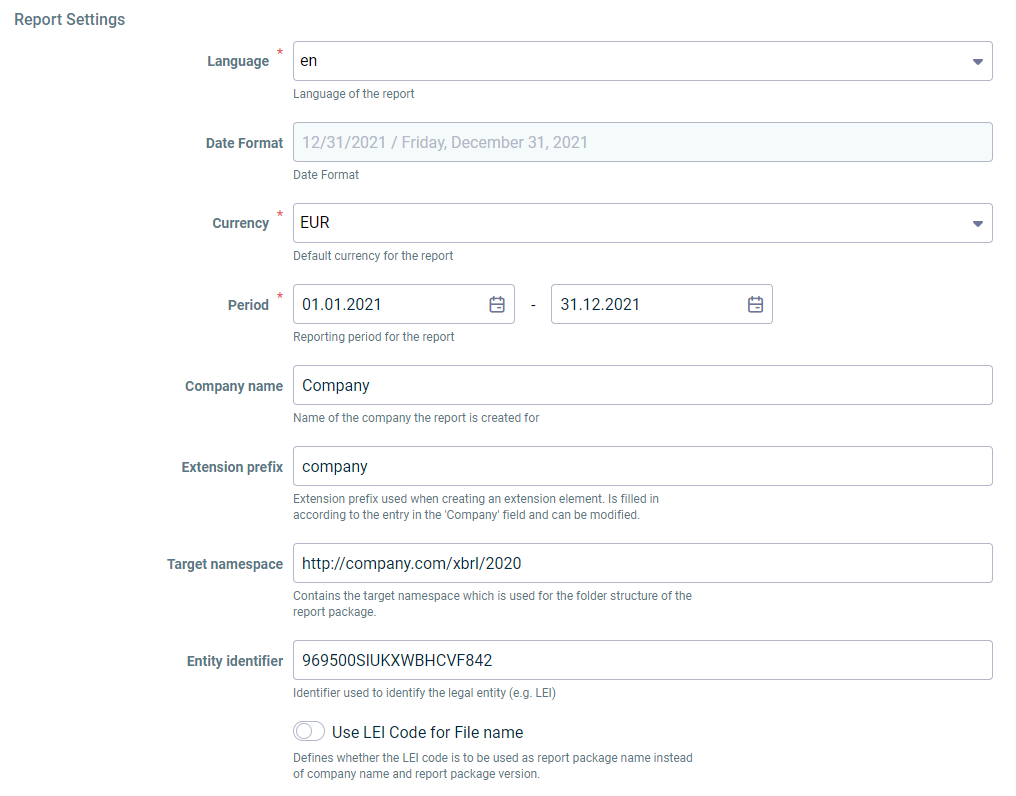
Opening the report settings now automatically derives the extension prefix and target namespace from the company name on file, even if you don't edit the name field. This means a freshly opened document can be saved right away, without having to retype the company name just to trigger the derivation. Existing values are never overwritten. For details, see Configuring Document Settings.
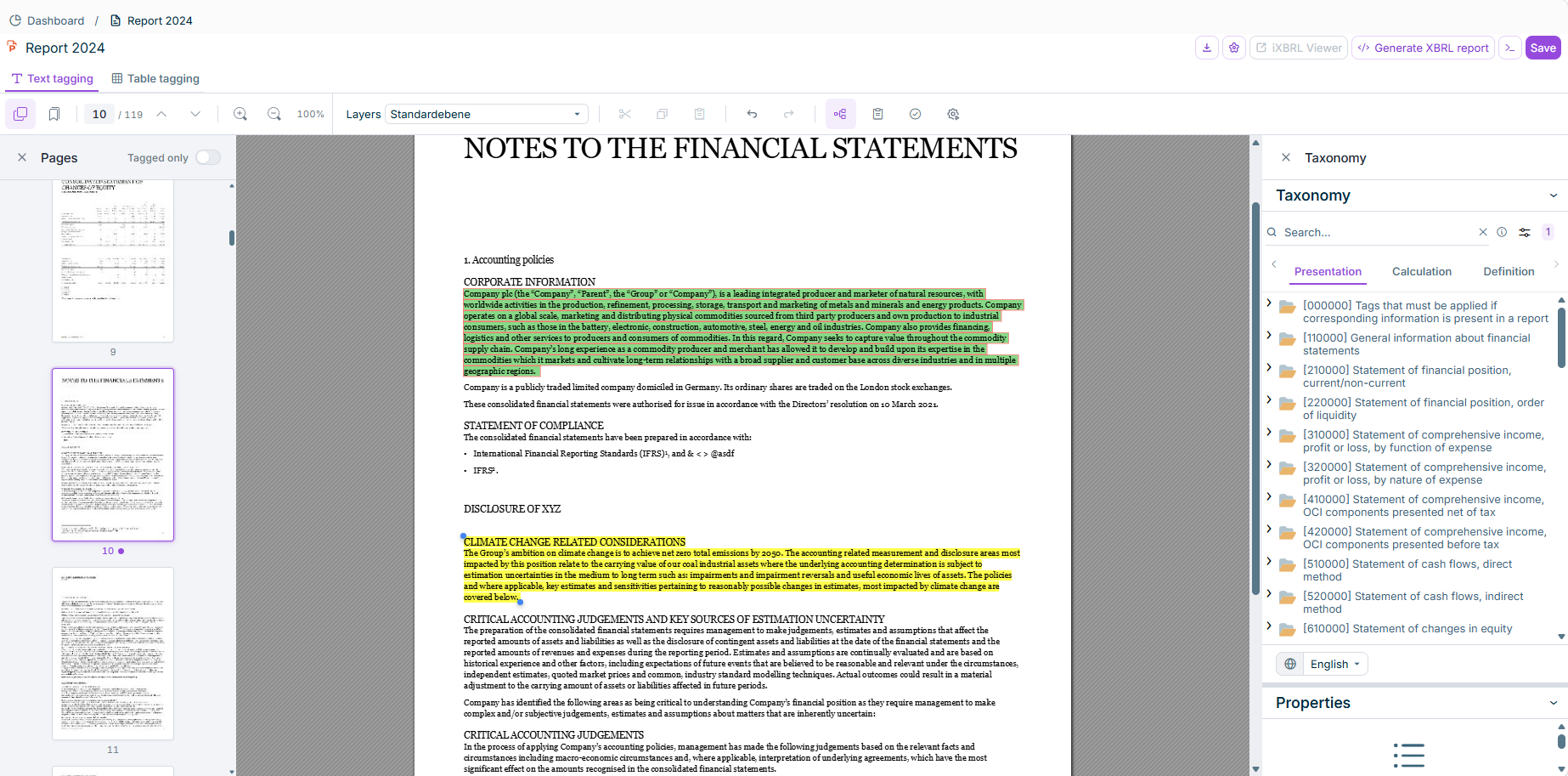
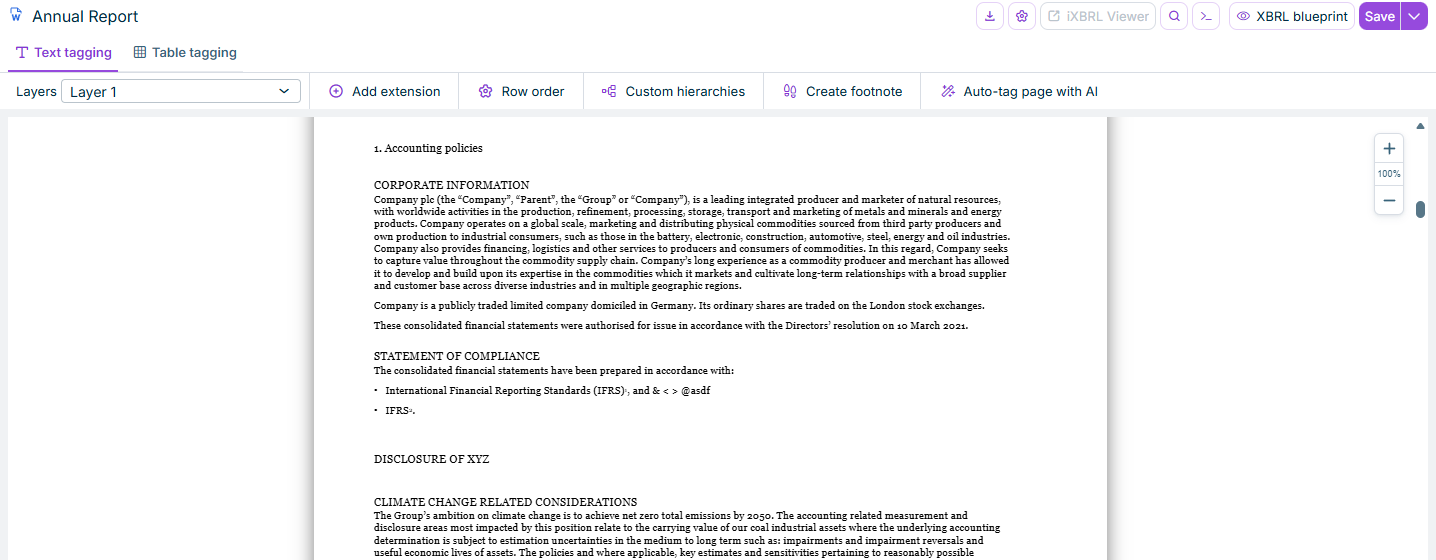
The XBRL Tagger now supports PDF documents. You can upload a PDF from the document dashboard and tag it directly in the XBRL Tagger. The PDF is rendered with its original layout so you can work in a familiar document view, and all text tagging and table tagging functions available for Word documents are available for PDFs as well.
The XBRL Tagger now supports AI-powered tagging for Word and PDF documents. The Tagger Agent analyses the document content and automatically assigns XBRL tags for narrative text blocks, numeric values, and calculation relationships. For tables, the agent detects table areas — including multi-page tables — suggests numeric tags for individual cells, and recommends calculation relationships between tagged numeric values. This significantly reduces the manual effort required to tag financial reports.
The Tagger Agent can analyse the current page and automatically assign tags to all suitable elements, or tag all text content in the entire document in a single step.
Each text element has an AI options context menu. This lets you, for example, quickly and easily tag selected text or retrieve AI recommendations.
AI-powered tagging in the XBRL Tagger
Advisor tab
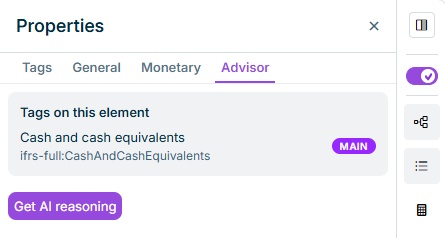
An Advisor tab is available in the tag properties panel for all tag types. Clicking the button in the tab returns an AI-generated explanation for the current tag suggestion. If tag properties are changed after the explanation is displayed, a note indicates that the reasoning is based on settings that have since changed.
Advisor tab in the tag properties panel
Tagged by AI property
The General tab of the tag properties now includes a Tagged by AI field indicating whether a tag was created by AI or entered manually. The Last change by field continues to show the user who initiated the AI tagging.
When you upload a new version of an already tagged Word or PDF document, the XBRL Tagger automatically tries to transfer the existing tags from the previous version to the new document based on text and structural similarity — a process also known as roll-forward. The new preview view gives you a structured overview of the result, so you can review and confirm each tag before the changes are applied to your document.
Once you are satisfied with the result, all confirmed tags are transferred to the new document version with a single click.
Preview when uploading a new file version in the XBRL Tagger
Legend
A Legend is available in the preview view. Clicking the button opens a popup that explains the color coding for tag states and review markers.
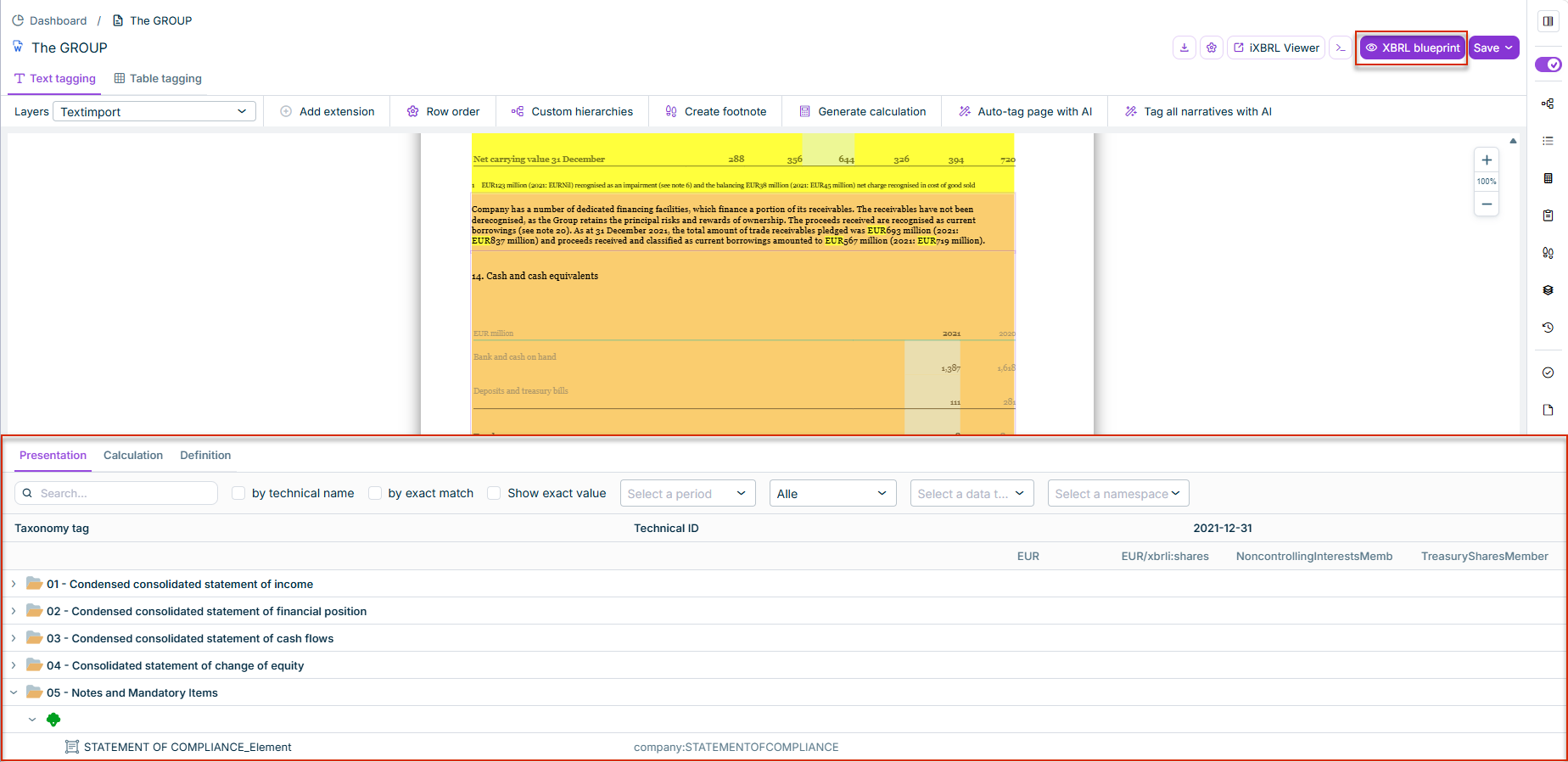
The new XBRL blueprint function lets you inspect your extension taxonomy structure in real time—directly inside the XBRL Tagger, without generating a report package first.
Select XBRL blueprint in the document toolbar to see extension taxonomy elements organized into three linkbase trees: Presentation, Calculation, and Definition. Each element shows its tagged values grouped by reporting period; values with dimensional breakdowns are clearly labeled so you can identify each dimension combination at a glance. Extension taxonomy elements are visually distinguished from base taxonomy elements throughout all three trees.
XBRL blueprint in the XBRL Tagger
Clicking an element in the tree jumps directly to the corresponding tagged location in the document, so you can make corrections without losing your place. The view is live-synced: any tagging change you make in the document is reflected in the tree immediately, with no manual refresh required.
XBRL blueprint is available when the active reporting requirement includes an extension taxonomy.
The new Document Outline panel lists all tagged elements in a structured outline that follows the document hierarchy. Clicking an entry navigates directly to the corresponding tag in the document. The outline also displays elements that were tagged with elements from the extension taxonomy.
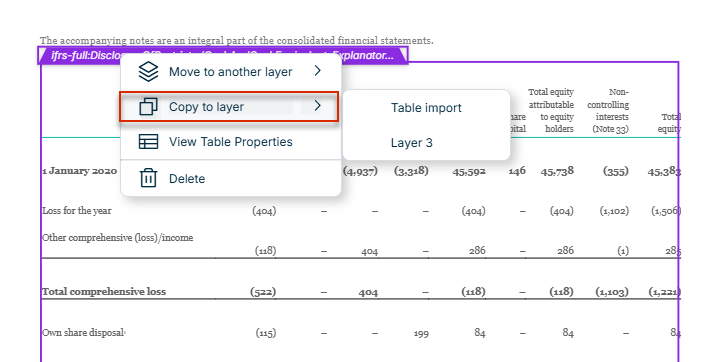
You can now copy a tagged table with all its XBRL tags to another layer — saving you from re-tagging every cell manually when the same table is needed for different calculations on a second layer. Right-click the table in Table tagging and select Copy to layer, then choose the target. Tags on the new layer are independent of the source.
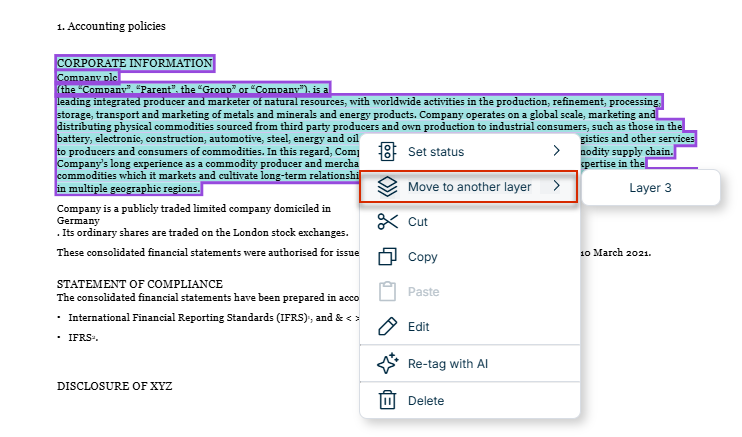
Individual tagged text elements can now also be moved to another layer via the context menu. Right-click the tagged element and select Move to another layer.
The XBRL Tagger now includes manual table detection controls in the Table tagging view. When you switch to Table tagging, the XBRL Tagger detects tables in the document automatically. If a table is missed, click Scan page for tables to trigger detection manually. Boundary refinement tools let you adjust the boundaries of a detected table before tagging.
The XBRL Tagger now validates the KVK registration number format before generating a report package. If the number entered in the KVK filing information panel does not meet the required format, a notification is displayed and the report package cannot be generated until the number is corrected.
As of now, you can perform a roll-forward of existing tags in Word documents in the XBRL Tagger. Via the context menu in the document dashboard, a new version of an already tagged document can be uploaded. The XBRL Tagger automatically reapplies existing tags from the previous version to the new document.
By this means, you will not lose any existing tags when updating a document.
This feature is available for standalone Word documents only and does not apply to documents linked to Disclosure Management. For documents linked to Disclosure Management, a separate update mode is available.
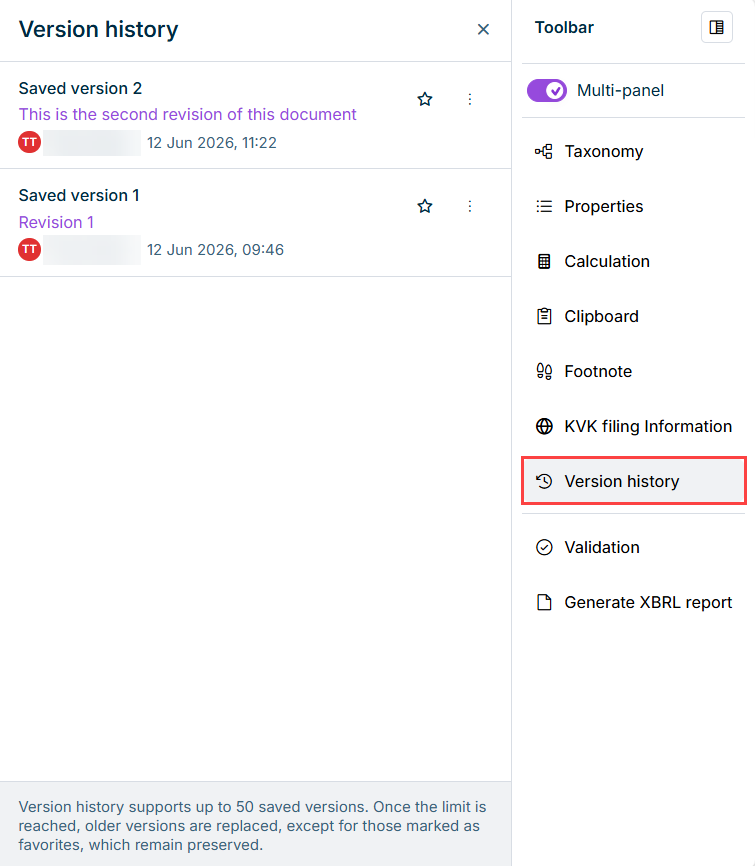
You can now save a named version of a document and its complete tag state. The history of all versions can be opened from the toolbar of a document, allowing you to browse all saved versions, download a previous version, or restore it.
The version history holds up to 50 entries. Individual versions can be marked as favorites to prevent automatic removal beyond the 50th entry.
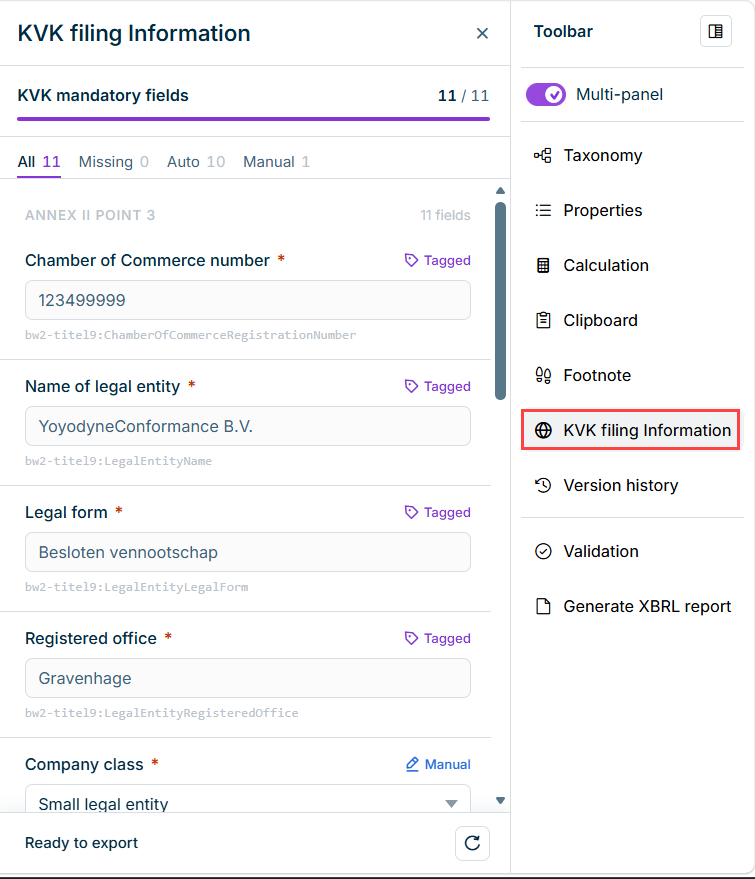
For Dutch reporting, the KVK filing Information panel is now available in the document toolbar in the XBRL Tagger. The panel is only displayed when a KVK taxonomy has been selected, and lists all mandatory fields per Annex II, point 3 of the RTS.
If tagged values in the report match the mandatory fields, they are automatically extracted and marked as read-only. If a manually entered value differs from an automatically extracted value, a conflict notification is displayed. The iXBRL report package can be generated at any time, however it is not valid without all mandatory fields being complete.
KVK filing Information panel in the XBRL Tagger
This content was generated using AI and reviewed by Lucanet subject matter experts before publication.