This page archives the release notes for older versions of Lucanet Data Collection.
The versions of all solutions that you are currently using and those of the CFO Solution Platform are displayed when you select About Lucanet from the Help section in the CFO Solution Platform.
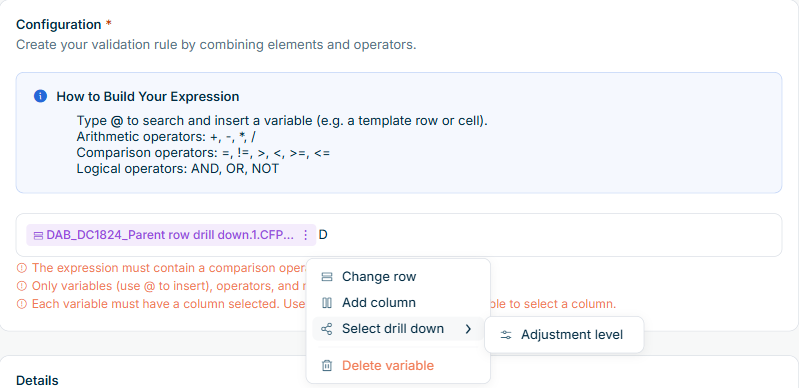
In Lucanet Data Collection, a variable of a regular validation rule can now refer to a single drill down element instead of the aggregated value. This applies to row and column drill downs with the dimensions Partner, Transaction type, and Adjustment level. For example, a rule can check that the partner 000 Default on intercompany accounts equals zero. If the row or column of the variable has a drill down for one of these dimensions, the context menu of the variable contains the options for selecting, changing, and removing the drill down element. For other variables, the context menu does not contain these options. Without a drill down element, the variable refers to the aggregated value.
Context menu of a variable with the 'Select drill down' option
When Data Collection executes the rule, the variable uses the value of the selected element in the form of the reporting entity. If the form contains no row for the element, the variable resolves to zero. If the element is not available in the reporting package, the validation results display the rule as Not evaluated. The validation results display the selected element as part of the variable path.
If an administrator removes the drill down dimension from the row or column in the form template, the rule moves to Invalid status. Intercompany validation rules do not support drill down elements.
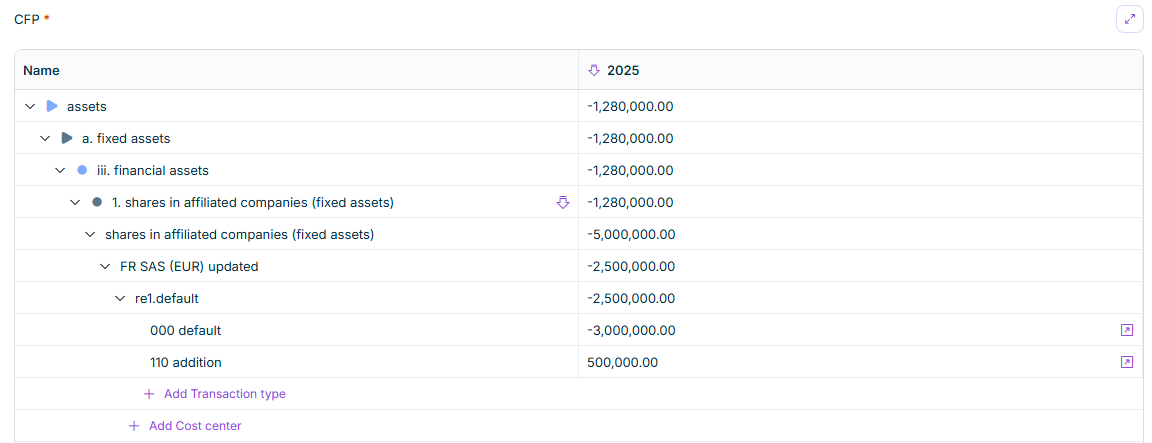
The import from Consolidation & Financial Planning (CFP) now also transfers data into CFP pivot tables with drill down. This applies to row drill downs, column drill downs, and tables with both, and to all five dimensions Local account, Partner, Cost center, Transaction type, and Adjustment level. Previously, the import wrote only the aggregate value to the cell, and tables with Local account drill down were excluded from the import.
For a row drill down, the import creates one subordinate row per element that has a value in CFP. With several levels, the import nests the rows in the level order of the form template. For a column drill down, the drill down dialog displays at each level only the elements that exist in CFP beneath the selected element. If a table has both, the import writes each value to the intersection of the row element and the column element.
Superordinate rows, totals, and the pivot table cell display the sum of the imported values. Only the lowest configured level is editable. If the drill down already contains data, the import first displays a confirmation dialog. Collectors can still add elements manually after the import.
CFP pivot table with drill down rows created by the CFP import
Collectors and administrators can now export a form in status In Progress, Submitted, or Approved to an Excel workbook. To do so, select More actions | Export to Excel in the form header. Data Collection generates the workbook, and your browser downloads the file. The file name combines the names of the form template and the reporting entity with the period. The export is not available while a data import is in progress for the form.
The workbook contains one sheet per table, named after the section and the table. Each sheet contains all rows and columns of the table with the labels displayed in Data Collection, including superordinate rows, total rows, formula columns, and read-only columns. The sheet lists drill down rows at all levels beneath their superordinate row. The sheet of a section also lists the values of form elements that are not tables.
Formula columns contain the calculated values, i.e. not Excel formulas. Empty cells remain empty.
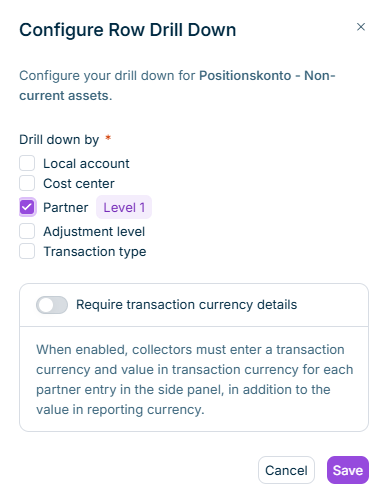
Administrators can now configure a drill down at row level and at column level in the same CFP pivot table. Each of the dimensions Local account, Cost center, Partner, Transaction type, and Adjustment level can be used on only one of the two axes; dimensions already used on the other axis are disabled in the Configure Drill Down dialog. The number of drill down levels per axis is limited only by the number of dimensions not used on the other axis. If you configure a row drill down on a row with subordinate rows, the configuration applies to all subordinate rows at every level, including rows added later. For the Partner dimension, the new Require transaction currency details option in this dialog determines whether collectors must enter transaction currency details for each partner.
'Configure Row Drill Down' dialog with the 'Require transaction currency details' option
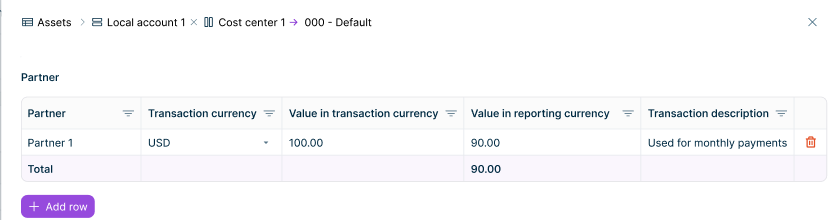
During data collection, row drill down elements are displayed as subordinate rows directly in the table. Collectors add elements with the Add button at each level and enter values directly in the cell. If a column drill down is also configured for the column, collectors enter the values in the drill down dialog, which displays the full path from the table to the column. For partners with required transaction currency details, collectors click the arrow icon on the partner row to open a transaction table in which they record one or more transactions per partner; the cell displays their sum.
Transaction table for a partner row in the drill down dialog
In the column mapping of an Excel import, you can now map the same Excel column to a column in more than one table of the form. Within a single table, each Excel column can still be mapped only once. After the mapping, Data Collection no longer offers the column for that table but keeps it available for all other tables. If you remove a mapping, the column becomes available again for that table. The import writes the value of the Excel column to every mapped target column. Previously, the column had to be duplicated in the Excel file to supply several tables.
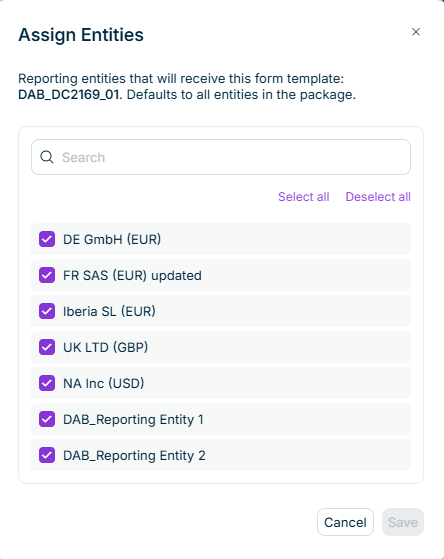
Administrators can now restrict each form template in a reporting package to specific reporting entities. In the Form templates step of the reporting package configuration, the new Reporting entities column displays the reporting entities that receive each form template; by default, all reporting entities in the reporting package are assigned. In the Assign Reporting Entities dialog, you select the reporting entities in a searchable list with Select all and Deselect all actions. Reporting entities added to or removed from the reporting package are added to or removed from every assignment automatically.
When a data collection process is started, forms are created for each reporting entity only from its assigned form templates, and regular validation rules that reference an unassigned form template are skipped for that reporting entity. A reporting package can only be published when every reporting entity has at least one form template assigned and every form template has at least one reporting entity assigned. This way, reporting entities with different reporting obligations no longer require a separate reporting package per entity type.
'Assign Reporting Entities' dialog in the 'Form templates' step
Formula rows and formula columns now treat an empty operand cell as 0 when the formula is evaluated. Previously, the result was empty as soon as one operand cell contained no value. The calculation therefore always runs and resolves correctly at every level of a row hierarchy, including superordinate rows and the Total row, even while a form is still being filled in. The empty cell itself remains empty. This also applies to operands from other tables and form templates, even if the referenced form has not yet been submitted. Division by zero still produces an empty result.
When you create or edit a reporting package, the Group currency drop-down list now displays EUR, USD, GBP, and CHF at the top, separated from the alphabetical list of all ISO currencies. The four currencies are fixed, i.e. they do not depend on the currencies used in your reporting packages, and are also included in the alphabetical list. When you enter a search term, matching currencies are displayed both at the top and in the alphabetical list.
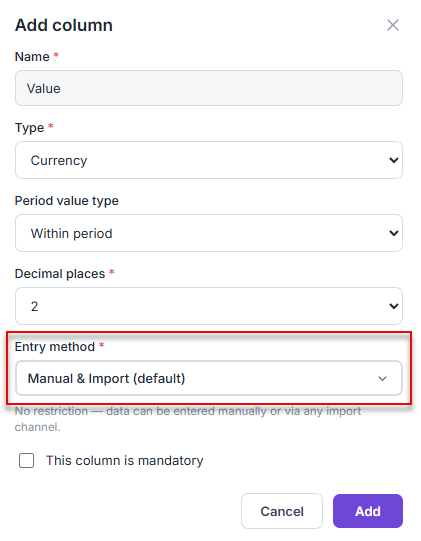
Administrators can now control how data enters an editable column in pivot tables, CFP pivot tables, and dynamic tables. The new Entry method column option offers Manual & import — the default — Manual only, and Import only. Columns set to Manual only or Import only are marked with dedicated icons in the column header. Columns set to Import only are read-only during data collection. Columns set to Manual only cannot be selected in the column mapping step of Excel and Lucanet.Financial Warehouse imports, and CFP imports discard these columns from the import. After an import, a message lists any columns that were skipped because they are configured for manual entry only. Changes to the entry method apply only to new data collection processes.
Administrators can now limit which elements of the partner, transaction type, and adjustment level dimensions are available in drill downs. In the reporting package configuration, you select the elements of each drill down dimension in a searchable list with Select all and Deselect all actions; for partners, the additional In reporting package action selects exactly the partners that match the reporting entities in the package. The package-wide selection applies to all reporting entities, and you can configure a different selection for individual reporting entities. Collectors only see the selected elements, and import rows that contain excluded elements are rejected. Changes apply only to new data collection processes.
The intercompany validation results now display the rule description under the Details heading when you expand a rule — as in the results of regular validation rules. The description is displayed for every rule status. If a rule has no description, No description provided is displayed. The results display the description as it was when the validation was executed; changes to the rule appear only after the validation is executed again.
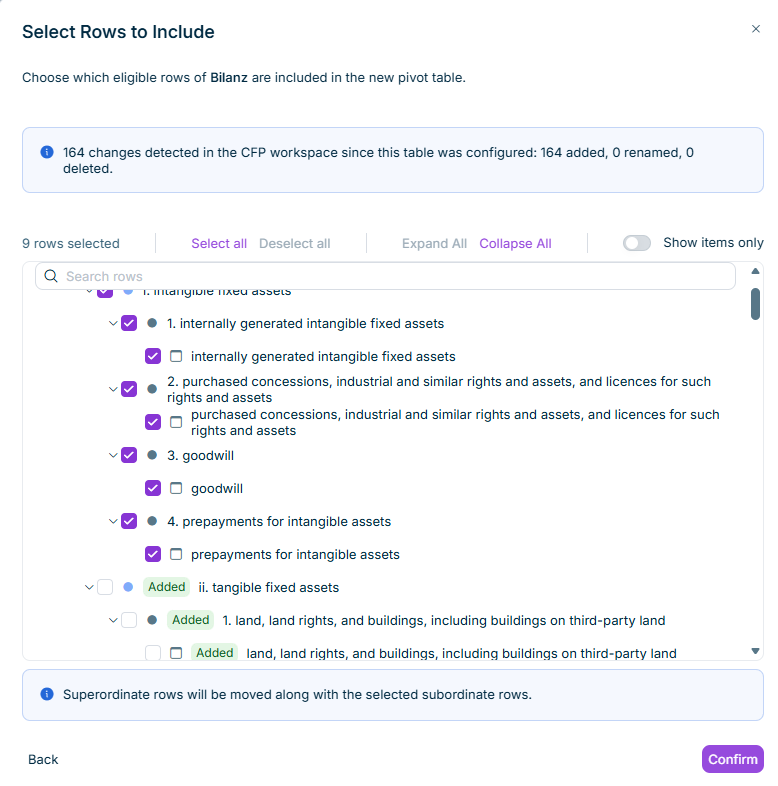
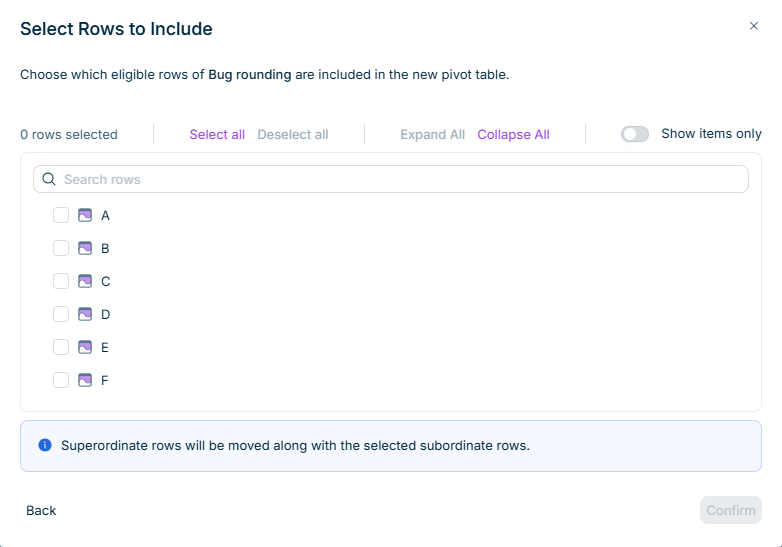
When a CFP pivot table is created, Data Collection records the structure of the source Consolidation & Financial Planning workspace. With the new Sync with CFP icon in the detail view of a form template, administrators can now check an existing table for structural changes in CFP. The Select Rows to Include dialog is displayed; each changed element is marked with a colored label: Added for elements added in CFP, Deleted for elements that no longer exist in CFP, and Updated for elements whose name, superordinate element, or order has changed. A message at the top of the dialog summarizes the number of detected changes per type. You adjust the row selection directly in the dialog. Already collected data is preserved, and changes to the row selection apply only to new data collection processes.
Detected CFP changes in the 'Select Rows to Include' dialog
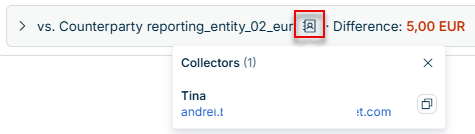
In the intercompany validation results, you can now display the contact information of a counterparty's collectors. Click the phone book icon next to the counterparty name in the section header to open a dialog that lists each collector assigned to the counterparty in the reporting package, with their name and e-mail address. This way, you can follow up on an intercompany difference or missing data without leaving the application.
Contact information of a counterparty's collectors
The results detail table now displays local accounts as expandable sub-rows. Where an item or account has a local account drill down, its local account sub-rows are displayed directly beneath the row, so you can see which local account causes an intercompany difference without returning to the form. Each sub-row displays the local account name and, depending on the configuration, the values in transaction currency, in reporting currency, or in both.
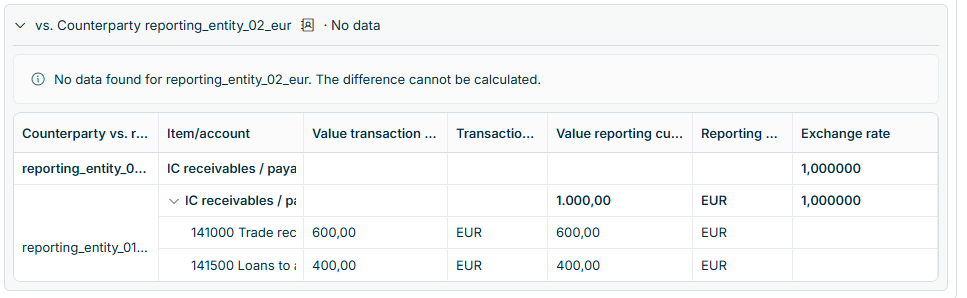
The intercompany validation results now identify counterparties that have not entered any data for a validation rule. The counterparty section header displays No data where the calculated difference normally appears, and the counterparty's rows are displayed with empty value columns. Your own values are displayed unchanged.
A counterparty is treated as having no data when it has not entered a value on any of the items or accounts in the validation rule definition. A validation rule only receives the status Passed when every counterparty has entered data on these items and accounts and the validation rule condition is met.
Counterparty without data in the intercompany validation results
For intercompany validation rules that reconcile aggregated values in group currency, the results detail table now includes an Exchange rate column. Each row displays the numeric rate applied to convert the reporting entity's values to group currency. When the counterparties have different local currencies, each reporting entity's rows display the applicable rate. If a reporting entity's local currency is the same as the group currency, the column displays a rate of 1. For validation rules that reconcile aggregated values in transaction currency, the column is not displayed.
Administrators can now add formula columns and formula rows to pivot tables and CFP pivot tables.
A formula column calculates its values automatically from an arithmetic expression that references other columns in the same or a different table, or numeric constants. Formula columns display the ∫ icon in the column header and are read-only for collectors.
A formula row calculates its values automatically from other rows in the same or a different table. Formula rows display the ∫ icon next to the row name, are excluded from the total row sum to prevent double-counting, and are read-only for collectors.
When a table contains both formula rows and formula columns, you can set a Formula precedence on the element to control which result is displayed in cells at their intersection.
CFP Pivot tables based on Schedule workspaces now automatically include Value query columns. Value query is a transaction type specific to a Schedule in CFP. These columns are read-only for collectors, can be used as operands in total and formula columns, and are included in CFP imports. They are excluded from Excel and Lucanet.Financial Warehouse imports.
Transaction type and adjustment level are now available as drill down dimensions for both rows and columns in pivot table and CFP pivot table elements. Together with local account, cost center, and partner, all five CFP dimensions can now be configured as drill down dimensions.
Published form templates can now be edited at any time — publishing no longer locks a form template. When you edit a published template that is linked to one or more reporting packages, a confirmation dialog lists all affected packages and you can move the template back to Draft state. The linked reporting packages move to Invalid status and cannot be used to start new data collection processes until the template is republished.
If you delete a row, column, or section element that is referenced by a validation rule formula, a warning dialog lists the affected rules before the change is saved. The affected rules are paused automatically and do not execute until they are republished.
Active and completed data collection processes are not affected by template edits.
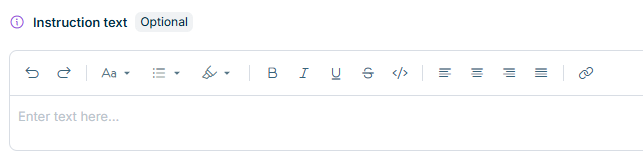
Administrators can now add optional instructions to a form template using a rich text editor in the detail view of a form template. The instructions are copied to each form when a data collection process starts. Collectors access the instructions via the Show instructions button in the form header, which opens a dialog displaying the instruction text.
'Instructions' field in the form template designer
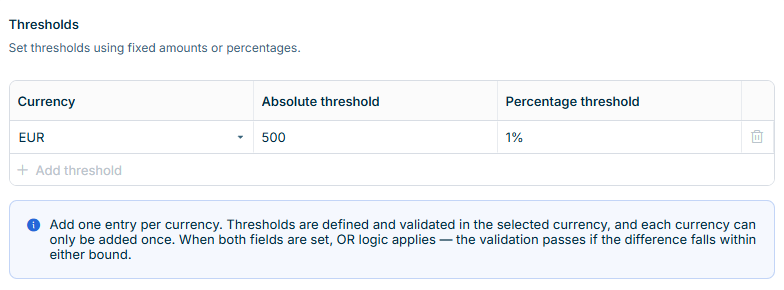
Intercompany validation rules now support optional tolerance thresholds per currency. You can configure an Absolute threshold, a Percentage threshold, or both. When both are set, the rule passes if the difference falls within either threshold.
The intercompany validation results now distinguish four statuses:
Passed — values match exactly, or the difference falls within the configured thresholds
Warning — a difference was found and no thresholds are configured
Failed — the difference exceeds the configured thresholds
Not evaluated — the rule could not be evaluated, for example because no transaction currency values were entered or none of the currencies match a configured threshold entry
The calculated difference is always shown in the results, even when the result is Passed.
Threshold configuration in an intercompany validation rule
Regular validation rules that reference more than one form template are now only executed if all referenced form templates are included in the reporting package. Rules that reference one or more templates that are not in the reporting package are skipped and do not appear in the validation results. No administrator configuration is required.
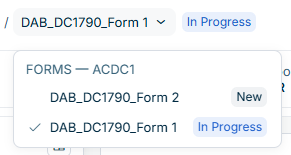
When a form is open, you can now navigate directly to another form for the same reporting entity without returning to the data collection list. Click the form template name in the navigation path at the top of the screen to open a drop-down menu listing all form templates you are authorized to access for the current entity within the current process. The drop-down menu displays each form's name and current status.
Data collection administrators can now reopen a form that has been approved. Reopening transitions the form back to In Progress, notifies the collector, and allows corrections to be made through the normal editing and approval process. Other forms in the same reporting package are not affected.
Reopening a form and changing its data does not automatically update any posting already imported into Consolidation & Financial Planning. A data collection administrator must re-execute the Import from DC data import in Consolidation & Financial Planning after the form is reapproved.
Data Collection now supports exporting postings directly to Consolidation & Financial Planning. Administrators mark one or more currency columns per CFP Pivot table as Used for postings in the form template. CFP then retrieves and imports the postings via the existing workflow for a data source of type Provision via script using the dedicated Import from DC script.
A new element type, Dynamic table, lets data collectors add, duplicate, and remove rows themselves during data collection, up to a maximum that Data Collection administrators configure. This is useful for variable-length data — for example, fixed asset lists, intercompany loan schedules, or provision schedules — where the number of rows differs from one reporting entity to another.
Data Collection administrators define the column structure once in the form template, and each data collector enters as many rows as they need during data collection.
You can now duplicate any element directly from the detail view of a form template. The duplicate inherits the configuration, mappings, required-field status, and all language labels of the original, so you do not have to rebuild similar elements from scratch.
Element duplication is available only while the form template is in Draft state.
You can now change the display order of rows and columns in a Pivot table or CFP Pivot table by drag-and-drop. Rows can also be moved under a different superordinate row to restructure the hierarchy. Collected data, drill down configurations, and aggregations are not affected by reordering — values stay bound to their row and column identifiers.
When you add a CFP Pivot table element, you can now choose which rows to include from the source Consolidation & Financial Planning workspace before the table is created, instead of pulling all eligible rows in automatically. Three selection modes are available — Select all, Show items only, and Custom selection — and the original hierarchy is preserved in the resulting table.
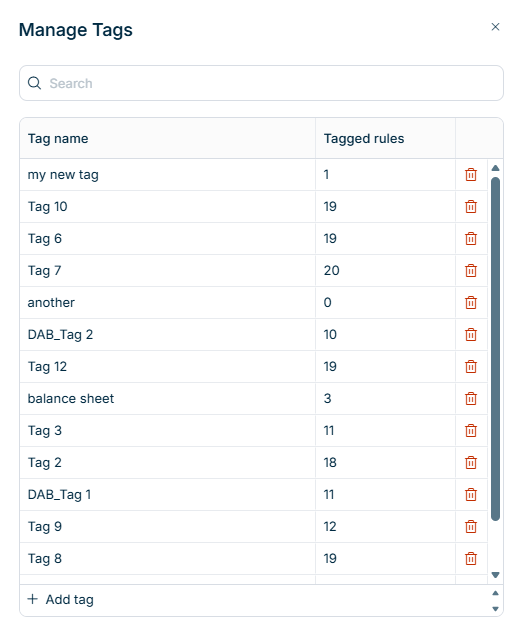
You can now group validation rules by category using free-form tags, then filter the rules list by one or more tags. Tags apply equally to Regular and Intercompany validation rules and have no effect on rule logic or execution.
Tags can be assigned to a single rule directly in the rule's configuration, or to several rules at once from the validation rules list using the new Assign tags and Remove tags bulk actions.
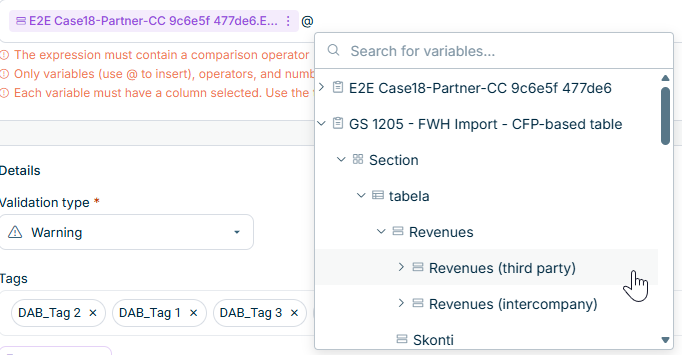
When configuring a Regular validation rule, you can now reference superordinate rows directly, not just the lowest-level rows. The rule uses the aggregated value of the superordinate row — the same value displayed for it in the form. This makes it easier to write rules that compare subtotals without listing each subordinate row individually.
Selecting a superordinate row in a validation rule
The Select items and/or accounts drop-down list in the Intercompany rule configuration now hides form templates and pivot tables that have no partner-related configuration, so only elements that are actually eligible for intercompany validation appear.
In the same drop-down, you can now select a superordinate row to automatically include all of its eligible subordinate rows.
The Data Collection list now shows the result of the last intercompany validation execution in a dedicated IC Validation result column, separate from the existing Validation results column. Process-level and form-level rows show the IC status; entity-level rows are empty. Point at an indicator to see the exact error and warning counts.
The new Lucanet Data Collection solution is now available on our Lucanet CFO Solution Platform!
The Data Collection solution enables you to gather, validate, and enrich financial and statistical data across all your reporting entities. With Data Collection, you can handle the entire process from distributed data entry by local finance teams to central review and approval – all in a single, web-based environment.
The cloud-based platform and seamless integration with Consolidation & Financial Planning (CFP) allow you to reuse your existing structures, dimensions, and translations directly in your data collection forms, without duplicating setup work.
Data Collection supports a decentralized collection model: local teams enter and validate their own data before submitting it for central approval. This makes the solution suitable for organizations of all sizes that want to standardize group reporting and improve data quality at the source.
Data Collection offers you:
Configurable form templates: Create flexible data collection forms from scratch or based on existing CFP structures, such as the general ledger and subledgers.
Robust validation rules: Validate data at the point of entry with customizable rules that check data quality within and across form templates, reducing errors before data reaches central finance.
Reporting packages: Bundle form templates, validation rules, and reporting entity assignments into reusable packages, and start data collection processes with just a few clicks.
Seamless CFP integration: Import reporting entities directly from CFP to keep master data consistent across solutions, with no manual reconciliation needed.
Collaborative workflow: Empower distributed teams with a clear collector-and-approver workflow that combines local ownership with central oversight.
This content was generated using AI and reviewed by Lucanet subject matter experts before publication.