This page describes how to configure Pivot table, CFP Pivot table, and Dynamic table elements in a form template — adding and configuring columns and rows, and setting up drill down. For instructions on how to create a form template and add elements to it, see Creating and Configuring Form Templates.

Configuration options vary depending on the table type:

  • Pivot table and CFP Pivot table support the full range of column types, row configuration, and drill down described on this page.
  • Dynamic table supports all column types. Rows are added by collectors during data collection, so a dynamic table has no row configuration in the template. Drill down is not available for dynamic tables.

When you add a CFP Pivot table element to a form template, the system asks you to choose which rows to include from the selected Consolidation & Financial Planning workspace before the table is created. This row selection step lets you control exactly which eligible rows end up in the new table, instead of pulling all of them in automatically.

To add a CFP-based pivot table:

1

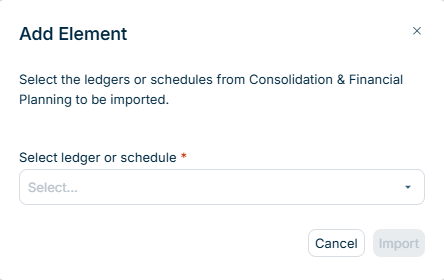
Add a CFP Pivot table element to a section (see Adding Elements). The Add Element dialog is displayed:

The 'Add Element' dialog is displayed.
'Add Element' dialog
2

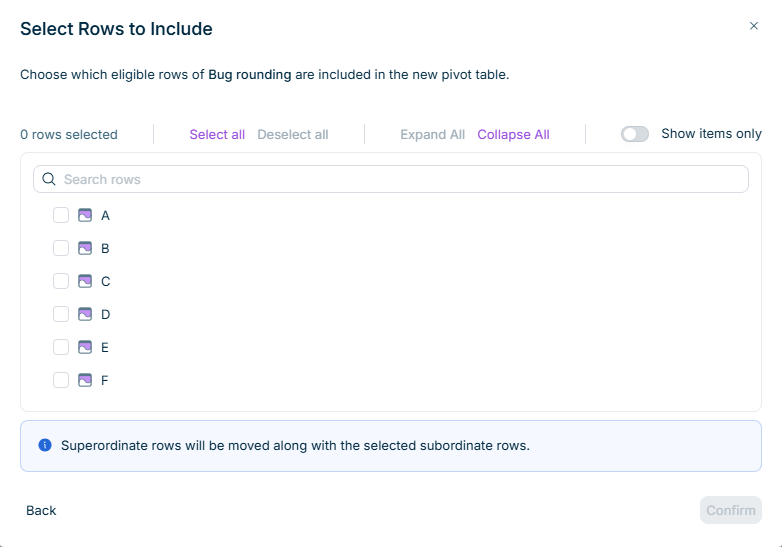
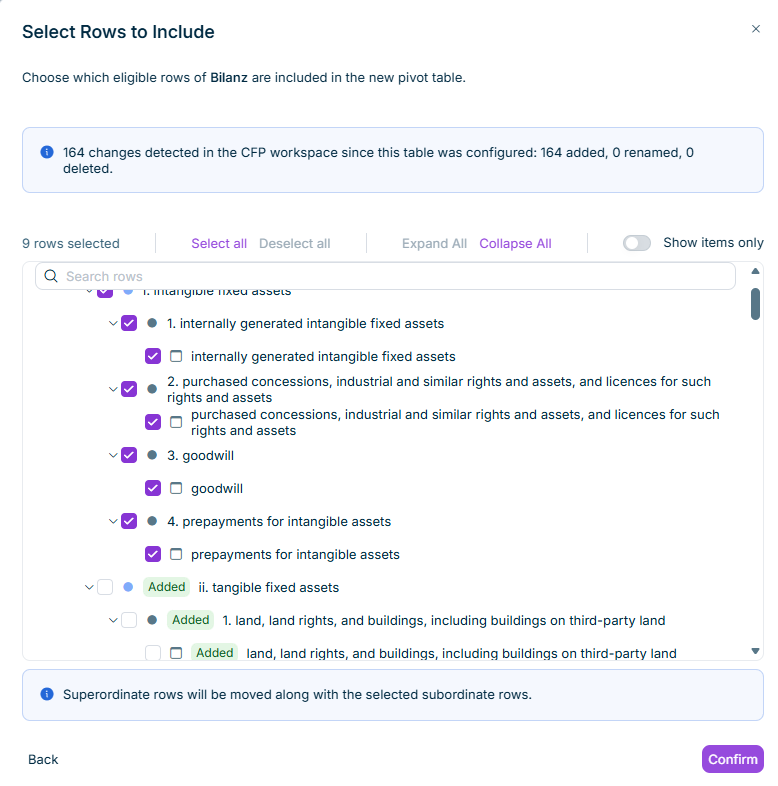
Select the Consolidation & Financial Planning (CFP) workspace whose structure you want to import and click Import. The Select Rows to Include dialog is displayed, showing all eligible rows of the selected workspace in their original hierarchy:

  • For General ledger, Subledger, or Statistical Ledger workspaces, only account hierarchy rows are shown. Formulas, separators, and total lines are excluded.
  • For Schedule workspaces, all workspace structure rows are shown. Formulas and total lines are excluded.
The 'Select Rows to Include' dialog is displayed.
'Select Rows to Include' dialog
3

Choose one of the available selection options:

  • Select all — selects all eligible rows across all levels.
  • Show items only — selects only rows of type Item in the CFP account hierarchy, regardless of their position in the hierarchy.
  • Custom selection — lets you check or uncheck individual rows. Selecting a superordinate row automatically selects all of its descendants (unless Show items only is active).
4

Click Confirm. The CFP Pivot table is created with the selected rows, preserving their original hierarchy.

For Schedule workspaces, columns are also pre-populated from the workspace. For General ledger, Subledger, and Statistical Ledger workspaces, the table starts without columns — add them as described in Adding Columns.

A selected superordinate row whose subordinate rows were not selected is included as a standalone row. If only some subordinate rows of a superordinate row are selected, the superordinate row travels with the selected subordinate rows to preserve the hierarchical structure.

Columns define the data points you want to collect for each row in the table. Click Add column in the table header and select one of the available column types.

The available column types depend on the table type.

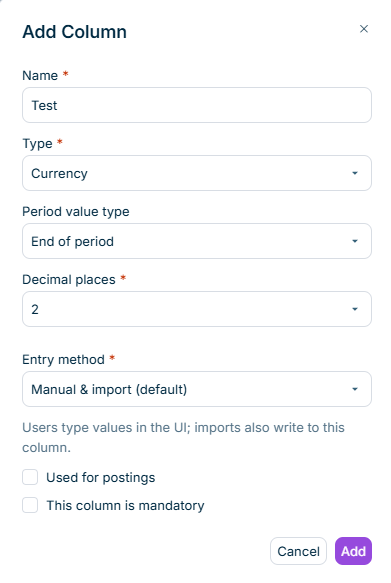
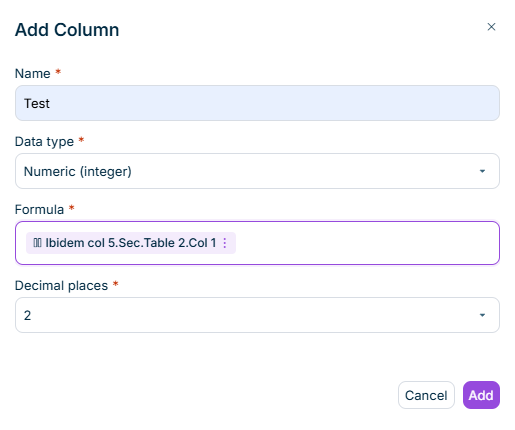
Creates a column from scratch where you define all properties manually.

The 'Add new column' dialog is displayed.
'Add new column' dialog
FieldDescription
NameUnique name for the column within the table.
TypeData type for the column values. Available types: Numeric (float), Numeric (integer), Currency, Text.
Period value typeDefines which type of period data is retrieved when importing from Consolidation & Financial Planning. Available for Numeric and Currency columns. See Period Value Type for CFP Import for details.
Decimal placesSpecifies the number of decimal places. Available for Numeric (float) and Currency column types.
Text typeDefines whether the text field allows single-line or multi-line input. Available for Text column type.
This column is mandatoryWhen activated, data collectors must provide a value for this column.

Period value type is a required setting for Numeric and Currency columns in Pivot tables and CFP Pivot tables. It defines which type of period data the system retrieves when importing from Consolidation & Financial Planning, so that each column gets the right values — for example, opening balances, within-period transactions, or closing balances.

Period value typeDescription
Beginning of periodValue at period start
Within periodChanges during the period
End of periodValue at period end
YTD valueCumulative from fiscal year start
Standard (auto)Lets Consolidation & Financial Planning determine the value based on account type.

Period value type is configured when creating the column. Once data has been collected in the column, this setting cannot be changed.

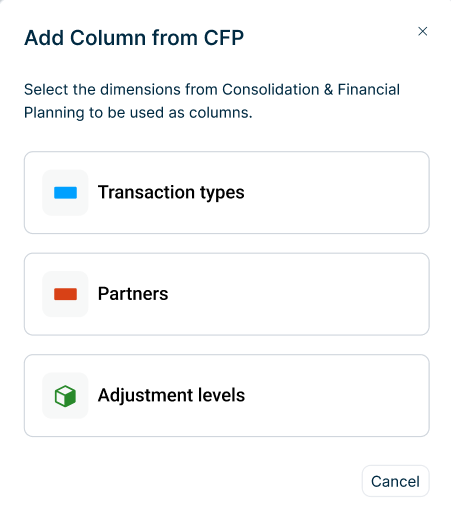
Creates a column based on dimension elements from Consolidation & Financial Planning. The following dimensions are available:

  • Transaction types
  • Partners
  • Adjustment levels
The 'Add Column from CFP' dialog is displayed.
'Add Column from CFP' dialog

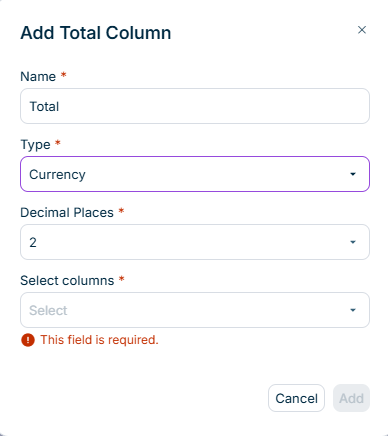
Creates an automatically calculated column that aggregates values from other columns.

The 'Add Total Column' dialog is displayed.
'Add Total Column' dialog
FieldDescription
NameUnique name for the column within the table
TypeData type for the aggregated values. Available types: Numeric (float), Numeric (integer), Currency.
Decimal placesNumber of decimal places for the result. Available when Currency or Numeric (float) is selected.
Select columnsThe columns whose values are aggregated.

The total column is only available when your table contains at least two numeric or currency columns. Calculated columns (such as existing total columns) cannot be included in a new total column.

Row configuration is available only for Pivot table and CFP Pivot table elements. Dynamic table rows are added by collectors during data collection.

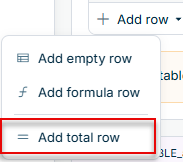
Rows define the items or categories for which you want to collect data. Click Add row at the bottom of the table and select one of the available row types.

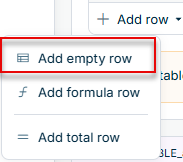
Creates a new row where you define the name manually.

A drop-down menu with an option to add an empty row is displayed.
'Add empty row' option

Creates a row that automatically aggregates values from other rows.

A drop-down menu with an option to add a total row is displayed.
'Add total row' option

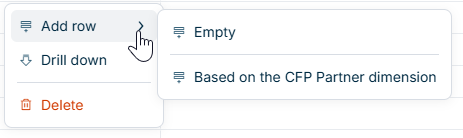
To add a subordinate row under an existing row, right-click the row and select Add row. The submenu offers:

OptionDescription
EmptyAdds an empty subordinate row under the selected row.
Based on the CFP Partner dimensionOpens the Add row based on CFP dialog to add subordinate rows based on the Partner dimension.
Context menu for adding a subordinate row
Adding a subordinate row

The Add row option is not available on total rows.

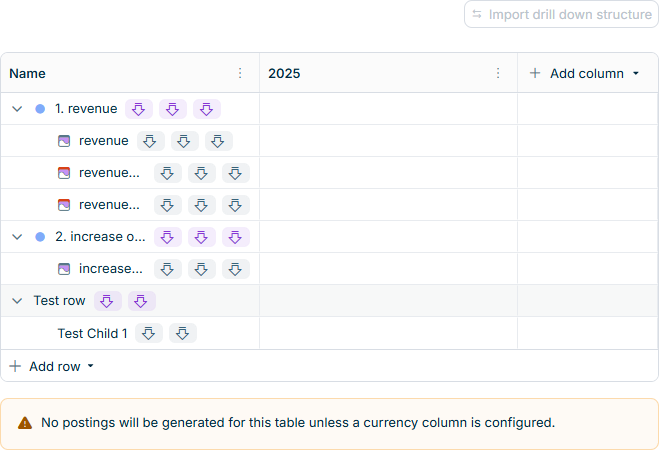
Drill down is available only for Pivot table and CFP Pivot table elements.

Drill down allows data collectors to provide more detailed data at a lower, reporting entity-specific level. You can configure drill down at the row level or the column level.

To configure drill down for a row:

1

Right-click the row.

2

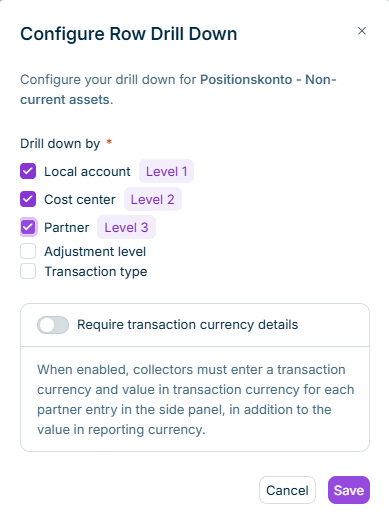
Select Drill down from the context menu. The Configure Drill Down dialog is displayed:

The 'Configure Drill Down' dialog is displayed.
Configuring drill down
3

Select the dimension from the Drill down by drop-down list:

4

Click Save.

The row now displays an indicator showing that drill down is configured. When row-level drill down is configured, data collectors must provide data for all numeric and financial columns of that row for each member of the selected dimension.

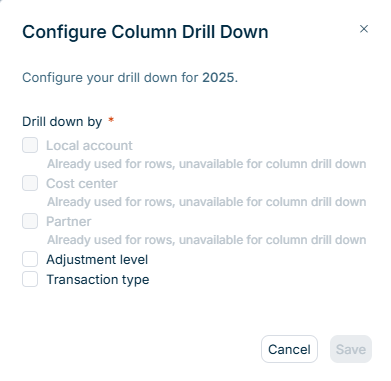
You can configure drill down for columns with Numeric or Currency data types. To configure drill down for a column:

1

Right-click the column.

2

Select Add drill down from the context menu. The Configure Drill Down dialog is displayed.

3

Select the dimension from the Drill down by drop-down list (Local account, Cost center, or Partner).

4

Click Save.

When column-level drill down is configured, data collectors must provide data for that column for each member of the selected dimension, across all rows in the table.

Once drill down is configured for a row or column, you can add a second-level drill down to create hierarchies for more detailed data collection.

To add a second-level drill down:

1

Right-click the row or column that already has drill down configured.

2

Select Configure drill down from the context menu The Configure Drill Down dialog is displayed:

'Add second-level drill down' option is displayed.
'Add second-level drill down' option
3

Click + Add second-level drill down.

4

Select the dimension for the second level from the drop-down list.

5

Click Save.

The row now displays indicators for both drill down levels. Data collectors must provide data for each combination of the selected dimensions.

A table with a second-level drill down is displayed.
Second-level drill down added

This section applies to Pivot table and CFP Pivot table elements. Reordering is only available while the form template is in Draft state.

You can change the display order of rows and columns in a pivot table or CFP pivot table by drag-and-drop. Rows can also be moved under a different superordinate row within the same table. Both operations only change the display structure — collected data, drill-down configurations, and aggregations are bound to row and column identifiers, not to their position, so no data is lost or recalculated unexpectedly.

You can drag any row to a new position among the rows at the same level (rows under the same superordinate row). The Total row is fixed at the bottom of the table and cannot be moved.

When you drag a superordinate row, all its subordinate rows move with it as a single unit. The internal superordinate–subordinate relationships within the moved subtree are preserved.

A horizontal line indicates the drop position during the drag. If you drop a row on an invalid target, it returns to its original position and an error message is shown.

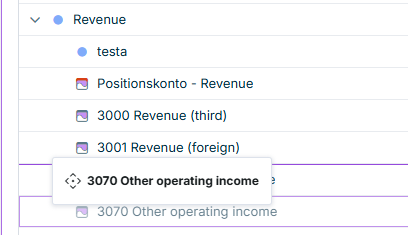
You can drop a row onto another row to make it subordinate to that target row, changing its position in the hierarchy.

A row is being dragged onto another row to make it subordinate.
Moving a row to another superordinate row

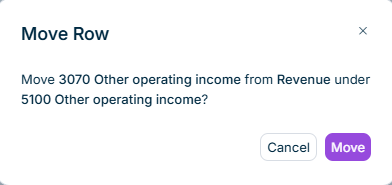
When you drop a row on a valid target, a Move Row dialog is displayed showing the row you are moving, the source superordinate row, and the target superordinate row:

The 'Move Row' dialog is displayed.
'Move Row' dialog

Review the details and click Move to commit the move.

After the move:

  • The aggregation of the source superordinate row decreases by the moved row's contribution.
  • The aggregation of the target superordinate row increases by the same amount.
  • The Total is unaffected — it aggregates the values of all the lowest-level rows regardless of hierarchy.
  • Drill-down configurations travel with the moved row and continue to work.

The following moves are not allowed:

RestrictionReason
A row cannot be moved under one of its own subordinate rows.Circular hierarchy.
A row cannot be moved under the Total row.The Total row is fixed.
A manually-added CFP partner-based row cannot be moved under another CFP partner-based row.CFP partner-based rows are never valid targets.
A row cannot be moved under a lowest-level row that already has drill down configured.Rows with drill down cannot accept subordinate rows.
A row cannot be moved beyond the maximum supported hierarchy depth.Depth limit.

You can drag any column to a new position within the table. All column types are draggable.

Exceptions:

  • The first column of the table is fixed.
  • The last action column is fixed.

When you move a Total column, it continues to reference its source columns by identifier. Moving the total column or its source columns has no effect on the calculated value.

Rows and columns can only be moved within their own table — moving them between tables is not supported.