This page archives the release notes for older versions of Lucanet Disclosure Management.
The versions of all solutions that you are currently using and those of the CFO Solution Platform are displayed when you select About Lucanet from the Help section in the CFO Solution Platform.
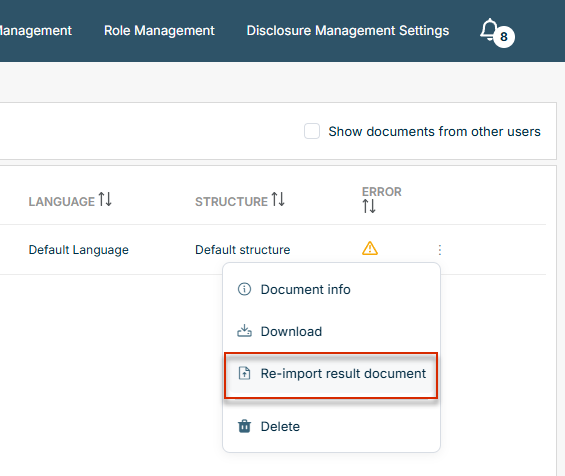
Disclosure Management now supports reimporting result documents. Finance teams can bring externally edited Word documents—for example, after an auditor review or an external translation—back into the existing report structure without having to manually update each changed section.
To simplify the external translation of a report, the Creation workspace now also includes the option Generate as translation document. A document generated this way contains the content in the default language but uses the target-language variants of the out-areas for tables and charts. An external translation team can edit the content directly in the Word document; afterward, the document can be brought back into the target language via reimport from the history.
Command 'Reimport result document'
Reimport is available to all users with the Edit all result documents permission at the Basic license level and requires no additional configuration.
In the Insert body text number dialog, three more number formats using the en dash ("long minus") are now available, this time with three decimal places. As with the existing formats, the preview in the drop-down takes the document's localisation into account and shows, for example, 1,234.567 | –1,234.567 for an English document.
In the Insert body text number dialog, the % unit is now also available for single values. Previously, this unit could only be selected in Percentage Variation mode (a two-period comparison). When you select % as the unit, Disclosure Management automatically multiplies the stored raw value by 100 and appends the percentage symbol. For example, a value stored as 0.42 in Excel appears in the running text as 42 %. The percentage symbol is taken from the document settings and can be configured there. The number format (decimal places, separators) remains freely selectable as usual.
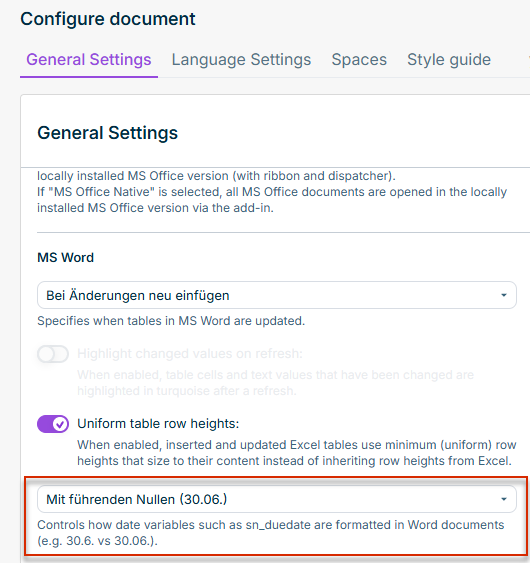
In the document settings, you can now define the date format for document variables (such as sn_duedate). You can choose between a format without a leading zero (for example, 30.6.) and a format with a leading zero (for example, 30.06.). This ensures that IF formulas in tables that compare date values match the displayed format. Existing documents are not affected—the default setting preserves the current behavior.
MS Word settings — date format for document variables
A new toggle Uniform table row heights is now available in the document settings (formatting section). When enabled, the row heights of inserted Excel tables are normalized so that rows size to their content instead of inheriting the heights from Excel. This gives tables a consistent appearance throughout the report without the need to adjust each table individually. The toggle is disabled by default, so existing documents are not affected. The feature is available for Office for the Web and Office Native.
The Highlight changed values on refresh option in the MS Word document settings is now coupled to the Update values within table insert mode. With the other insert modes, the option is greyed out. If you disable the option, existing table highlights are removed on the next refresh.
When configuring a mapping in Import Management, two additional transformation types are now available:
Split splits a text value into parts using a configured separator and writes the part at the selected index to a new column—for example, to extract the country code "DE" from a composite key such as "Berlin;DE;10115".
Take over fills empty cells of a source column with the most recent non-empty value above and writes the result to a new column—for example, to transform source data in a grouped layout into complete rows.
Two additional aggregation types are now available:
Filter numeric retains only rows in which the source column contains a numeric value and removes rows with text values, empty cells, or mixed content—for example, to filter out header rows or labels that would disrupt subsequent numeric processing steps.
Filter not empty removes all rows in which the source column is empty—for example, to exclude rows without a programming key from the import data set.
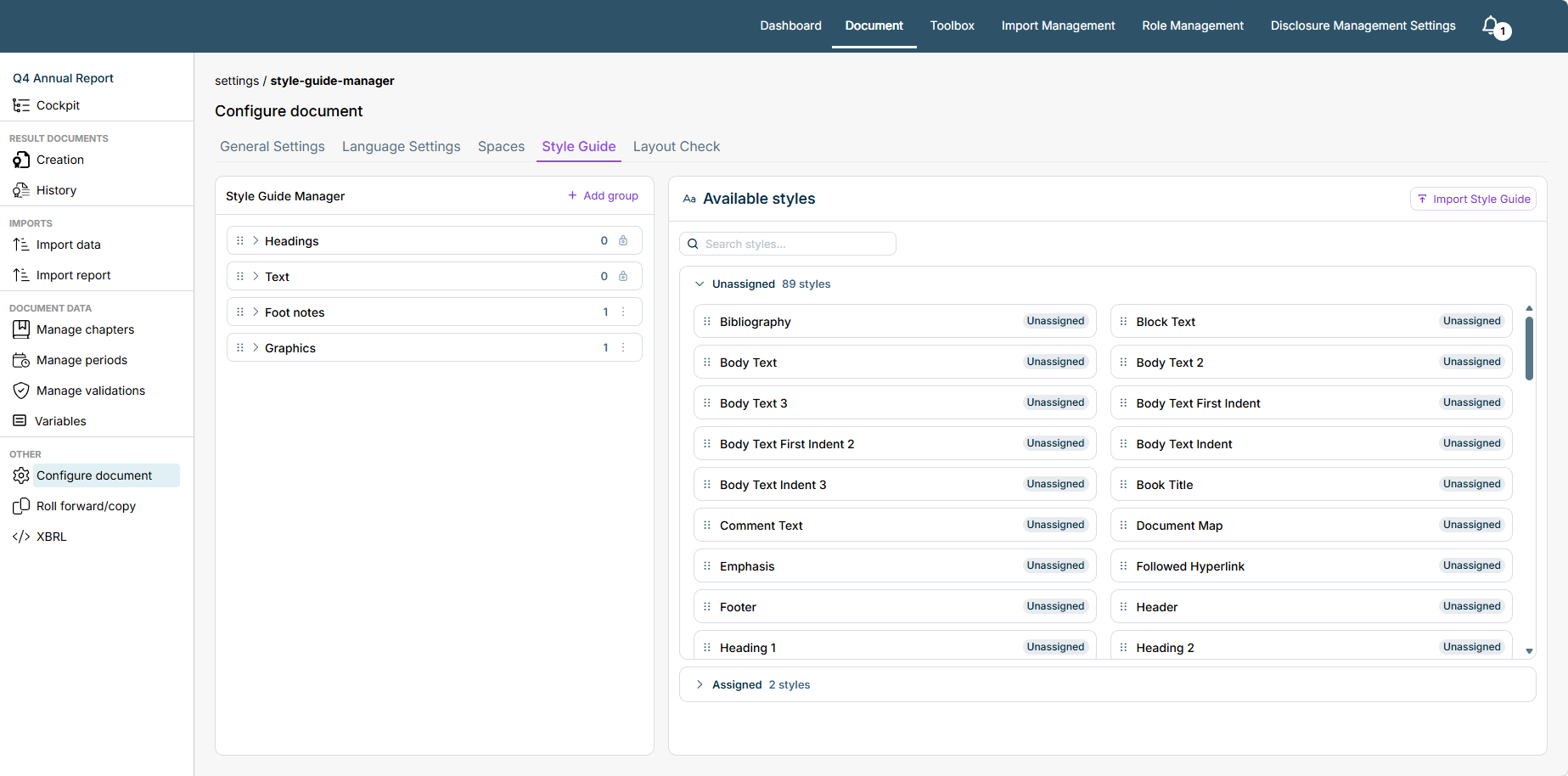
Disclosure Management now includes the Style Guide. The Style Guide gives you a central tool for binding the design of your reports to your corporate design in a consistent way. With the Style Guide, you store your company's formatting rules as an XML file centrally in Disclosure Management. As a result, all authors work with the same specifications for fonts, headings, body text, and other text elements. This prevents visual inconsistencies between chapters or contributors from the outset and reduces the effort required for the final layout alignment.
The Style Guide has the following characteristics:
Importing a Style Guide: You can import your style guide once as a file (for example, an existing firesys style guide) and thus provide company-wide consistent formats for headings, body text, tables, and other text elements.
Style Guide Manager: The Style Guide Manager is integrated as a ribbon in Word and opens a panel that displays the configured styles.
Language-specific style guides: You can store a separate style guide for each language and thus ensure a consistent appearance even in multilingual reports.
Groups: In the Style Guide Manager, you assign the individual formats to clearly arranged groups—for example, Headings or Body Text.
Custom groups: You can create your own groups, such as Table formats, Captions, or Footnotes. This lets you structure the Style Guide according to the logic of your report, and your authors find the right formats faster. You can create all groups freely and thereby determine the order in which the formats are offered to your authors in Word.
Permissions: Managing the Style Guide is reserved for administrators. Authors select the released formats but cannot change them.
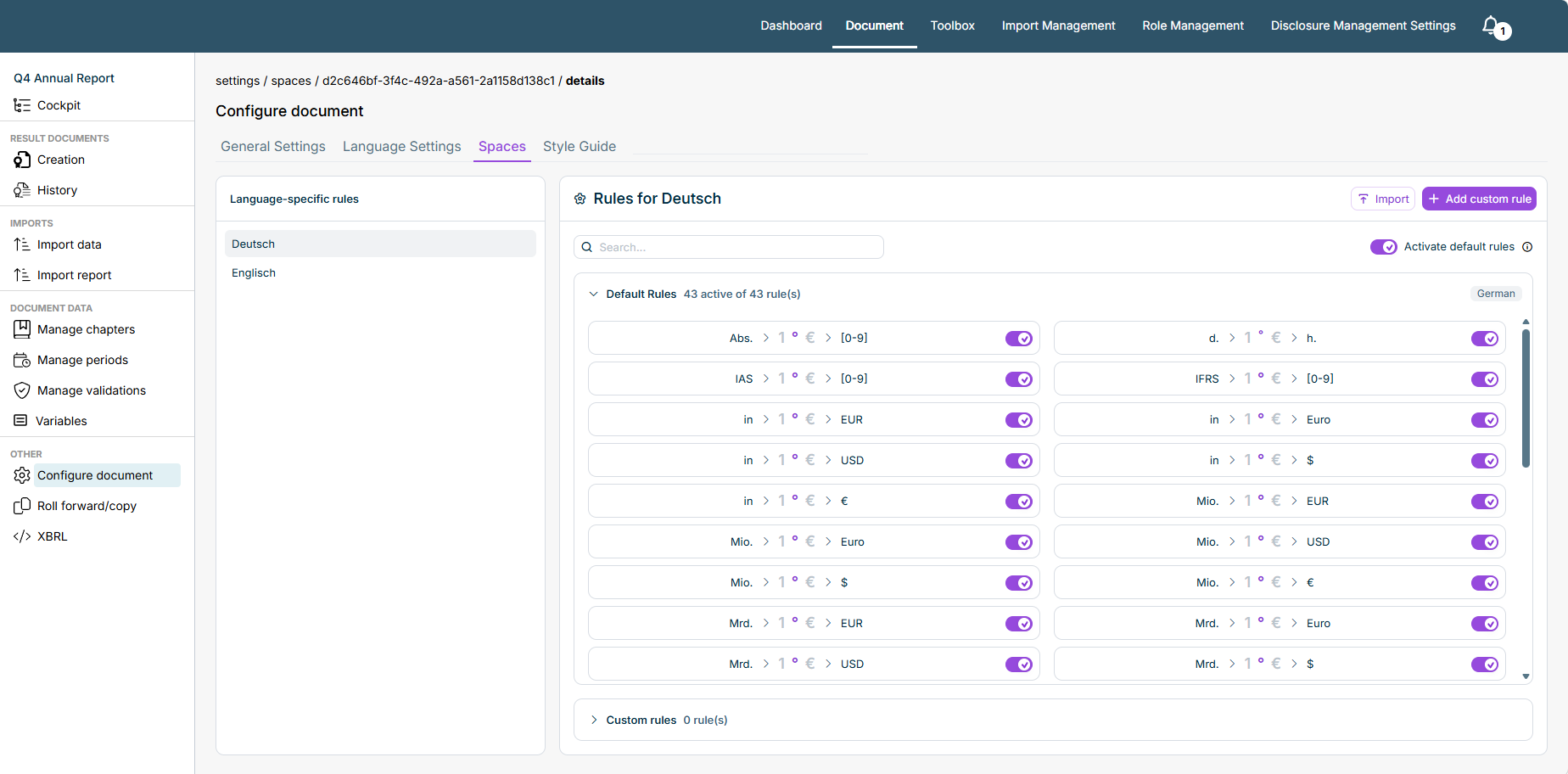
Disclosure Management now has a typography correction feature that automatically applies non-breaking spaces, narrow non-breaking spaces, and space suppression in Word chapters, and enables global administrators and document administrators to manage the underlying rules per language. The new Spacing tab under Configure document provides a central overview of the defined typography rules. In the typography rules, you define how certain expressions in your document are to be separated from one another or kept together. Separate rules can be defined for all languages used:
The 'Spacing' tab in the 'Configure document' work area
The feature has the following characteristics:
Default rules: Predefined default rules are available for German and English. A global switch enables or disables all default rules for the selected language; in addition, each rule has its own switch. When the global switch is enabled, default rules that conflict with an existing custom rule are automatically disabled. Default rules cannot be edited or deleted.
Custom rules: In the Custom rules section, you can add your own rules per language to cover specific requirements, such as non-breaking spaces between certain terms. The system validates required fields, placeholder logic, rule type, duplicates, and conflicts with default rules.
Searching rules: A search bar for rules makes it easy to quickly find a rule you are looking for.
Automatic correction on check-out: When you check out a Word chapter, the typography rules for the document language are applied automatically. Body text, table cells, and text in text boxes are processed; headers and footers, Word comments, Word form fields, and deleted areas are excluded. Track changes is temporarily disabled during the correction and restored afterward. Coupler changes are not marked as tracked changes. Corrected spots are highlighted in gray.
Removing highlights in Word: A new button in the Disclosure Management ribbon removes the coupler highlights in the currently checked-out Word section. The typography corrections themselves are retained. Only coupler highlights are removed; other highlights are not affected.
Importing rules from firesys: Existing spacing rules from firesys customers can be imported into Disclosure Management at the push of a button.
MS Office Native is now available as a mode for MS Office in which you can use the ribbons for Office for the Web together with the locally installed Office programs (MS Word and MS Excel). MS Office Native is the mode in which Disclosure Management runs directly as an add-in in the locally installed MS Word or MS Excel desktop application (as opposed to Office for the Web, which runs in the browser). You enable the use of MS Office Native by selecting MS Office Native under Configure document in the MS Office variant area.
The Office ribbon for MS Word has been reworked. To keep the ribbon clear and to group related functions, the ribbon now has two new tabs: The DM-Content tab contains all content-related functions, and the DM-Layout tab contains all layout functions. For MS Office Native, two separate manifest files (for layout and content) are therefore now available in the Toolbox.
An Excel ribbon is now also available for MS Office for the Web. Previously, MS Office for the Web was only available for MS Word—in MS Excel, only the ribbon for MS Office for Desktop could be used. With the new Excel ribbon, you can now also edit MS Excel documents directly with MS Office for the Web in the browser.
On the Layout tab of the Disclosure Management ribbon in Word, a new Special characters button is available. The button opens a drop-down menu with five options: Em Dash, Non-Breaking Hyphen, Soft Hyphen, Non-Breaking Space, and Soft Line Break. Each entry shows the name of the character, an icon, and a tooltip describing its purpose. Selecting an option inserts the character at the cursor position as a regular Unicode character that is retained during check-in and check-out, versioning, and copying and pasting. The characters are visible when the formatting marks (¶) are enabled in Word. The feature is available to users with write access and is included in the Basic license.
With this feature, you get typographically correct business documents without taking the detour via Unicode codes or keyboard shortcuts. The characters are retained as regular Unicode characters—even during check-in/check-out, versioning, and copy-paste. All authors of a business or sustainability report access the same selection, which reduces typographical inconsistencies between chapters by different authors.
The Remove data change highlights function is now available in the ribbon of the Office Online add-in. It allows you to reset manual formatting at the paragraph and character level easily and quickly, so that the original styles are restored.
The DM-Layout tab of the Word ribbon gains additional functions for fine-tuning the layout:
Hanging indent and page break: You can create, expand, reduce, or reset a hanging indent from the cursor position and insert a page break at the cursor position. Available in MS Office for the Web and MS Office Native.
Character spacing and word spacing: In the Typography area, you can adjust the character spacing and word spacing of the selected text. These functions are available in MS Office Native only.
In the Insert body text number dialog of the Word add-in, six additional number formats for text values are now available to you. The new formats use the en dash ("long minus") for negative values—either directly in front of the number or with a thin space as a gap. You can choose between three variants with a different number of decimal places (none, one, two).
The preview in the drop-down takes the document's culture into account: In a German document, for example, 1.234,56 | −1.234,56 appears, and in an English document, 1,234.56 | −1,234.56. Inserted text values are formatted according to the selected format string.
When configuring a mapping in Import Management, two additional transformation types are now available. Multiply multiplies each numeric value of a source column by a defined factor and writes the result to a new column—for example, to convert values reported in thousands into single units or to flip the sign of a column. Substring extracts a defined portion of a text value—starting at a given position for a defined number of characters—and writes it to a new column, for example to derive clean programming values. For more information, see Defining a Data Source.
When creating a Word result document, the new Remove content controls option is now available in the Word functions section of the Create Result Document dialog. When enabled, all content controls are removed from the generated result document, while the content within them (text, values, and so on) remains intact—only the control wrapper is removed. The option is disabled by default, so existing result documents are unaffected unless you opt in.
This gives you a clean result document that is free of structural Word helper elements, which can be disruptive for external recipients or downstream processing steps. The option applies to Word result documents only and does not affect the source documents of the report instance. For more information, see Creating Result Documents.
When defining a table template, you can now use the new Cell margins button in the Layout configuration area to set consistent cell margins (top, bottom, left, right) and, optionally, spacing between cells. As a result, all tables inserted from the template have a consistent, professional cell layout, without you having to format each table individually. This feature is currently limited to the Office for Desktop variant.
Disclosure Management now saves the scroll position in the Cockpit between page visits. When you exit the Cockpit and return to it—or switch the document language—the Cockpit opens at the same scroll position, so you no longer have to manually scroll back to your last position.
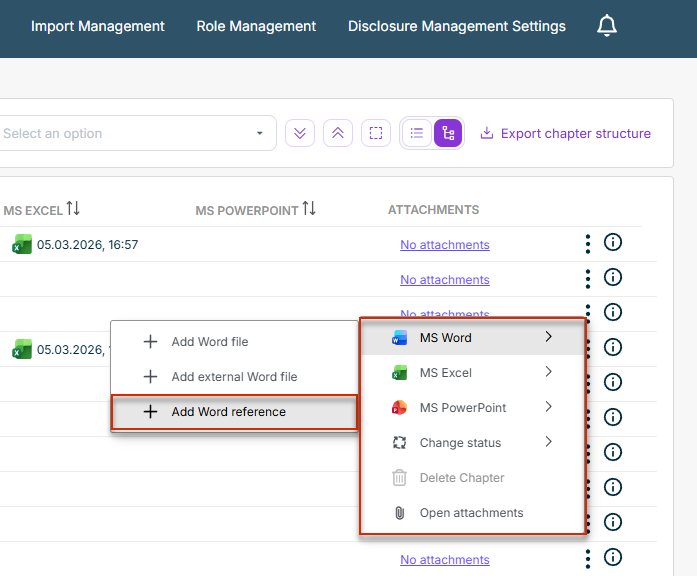
In Lucanet Disclosure Management, you can now create Word references to chapters from other documents. This allows you to maintain identical content just once in a single source and apply updates in a controlled manner to all linked reports. In the Cockpit, the three-dot icon of an empty chapter now includes the new option Add Word references. When you open the Word editor, the reference is automatically checked in and created in the target chapter. A reference icon appears in the Cockpit with a tooltip showing the source document and its latest update and status.
From now on, structures used in SmartNotes will be carried over to Disclosure Management during migration. Structures are used as follows: Each document has a default structure that contains all chapters. Additional structures may exist that contain only specific chapters. A document’s chapters can be assigned to existing structures or removed from them. This allows you to create any number of variations of a document. When creating a final document, you can select one of the existing structures.
Creating, deleting, or renaming structures is not yet possible and will be implemented in a later version.
You can now cancel the following processes in the notification window:
Result document creation
Execution of an import
With these new features, you can directly cancel an accidentally started result document creation or import process and no longer have to wait for the process to complete. This allows you to stop unwanted processes early, and the next process in the queue can be started more quickly.
Dispatcher and Ribbons will now only be updated when their software has actually changed (for example, the program code of these components). Other product changes — such as updates elsewhere in the solution — will no longer automatically trigger a new Dispatcher or Ribbon version. As a result, you will receive fewer updates that do not involve any actual changes to these components.
It is now possible to cancel a running import process. The Cancel button is available for this purpose in the notification area. After clicking Cancel, a confirmation prompt appears first. If the cancellation is confirmed, the process is stopped and the next process in the queue can be started.
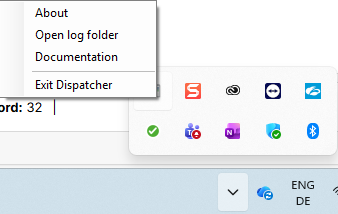
An icon for the Dispatcher—the component that opens documents from Lucanet Disclosure Management in MS Word or MS Excel—is now displayed in the MS Windows system tray. You will now receive status messages, e.g., when a document is opened. This allows you to easily see whether the Dispatcher is running, idle, or processing data. Right-clicking on the icon in the taskbar opens a context menu with various options. Among other things, you can close the Dispatcher without Task Manager or open the log files:
Kontextmenü des Dispatcher im System Tray von MS Windows
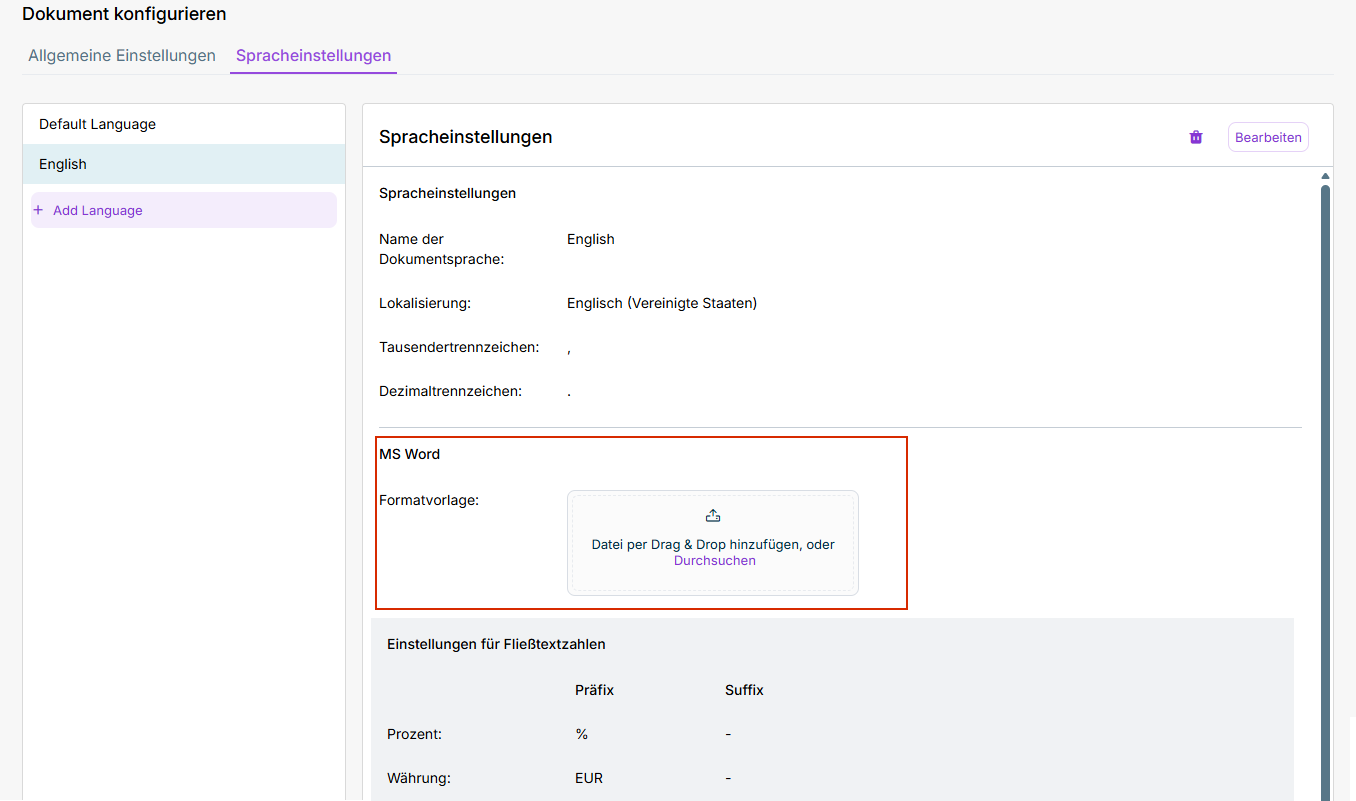
Uploading format templates has been moved from the Edit Language dialog to the Language Settings area. Once you select a language, the Word area where you can upload a format template is now displayed in the language settings. This means you no longer have to open the Edit dialog to upload a format template.
Formatvorlagen in den Spracheinstellungen hochladen
You can now create, edit, rename, and delete templates for tables in Lucanet Disclosure Management for MS Word. You can define layout configurations, including table width, alignment, positioning, margins, and column widths, and save them for reuse as templates.
When inserting or editing tables in Lucanet Disclosure Management, you can choose from your saved templates or start from scratch. Select a template to apply predefined formatting immediately, or adjust individual parameters manually. When you change the formatting of a table, you can save your changes as a new template, restore the original template settings, or apply the changes as a one-time adjustment.
This feature helps you maintain consistent layout standards in your reports while significantly reducing manual effort.
You can now assign additional XBRL taxonomies in the settings for a document. Taxonomies are now available for Malaysia MBRS, Italy GAAP, Singapore ACRA, and three FRC variants (FRS-101, FRS-102, IFRS).
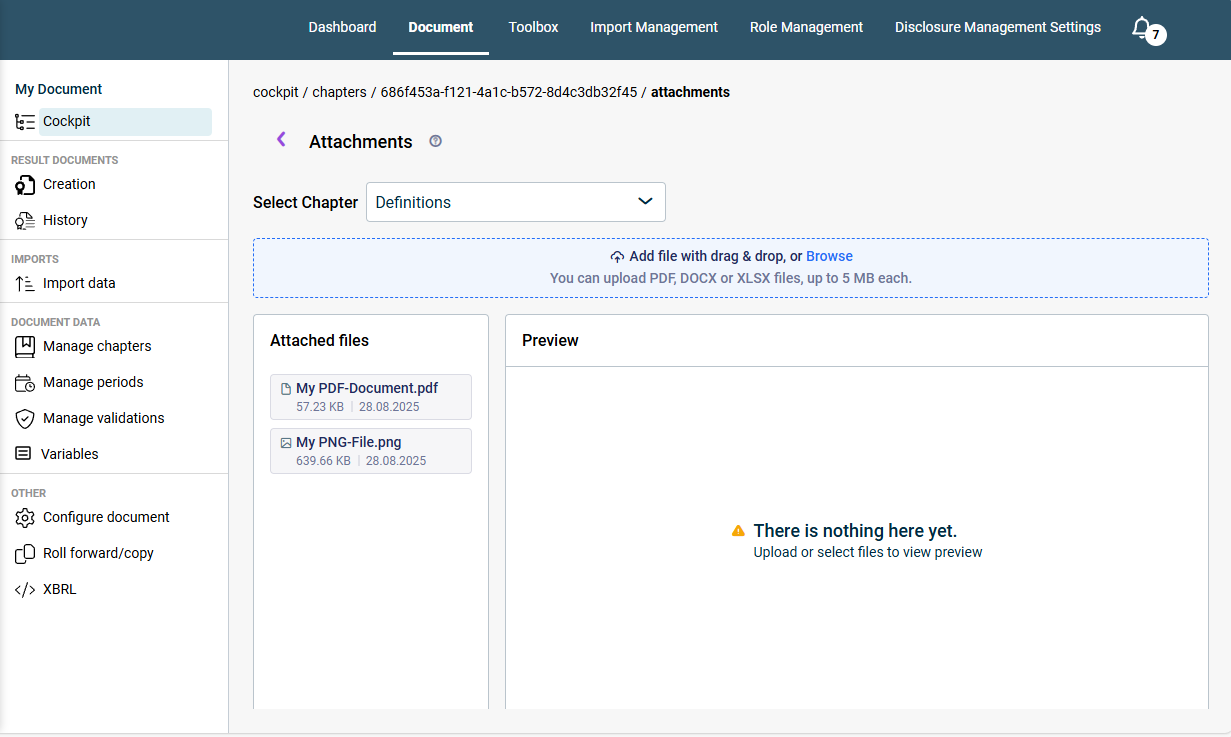
Additional information in the form of attachments can now be added to all chapters of a Disclosure Management document. This functionality allows you to link important supplementary documents directly with your reports, thereby collecting all relevant information in one place.
A document's attachments are managed centrally in a dedicated area.
The attachments for all chapters can be managed centrally in the ‘Attachments’ area
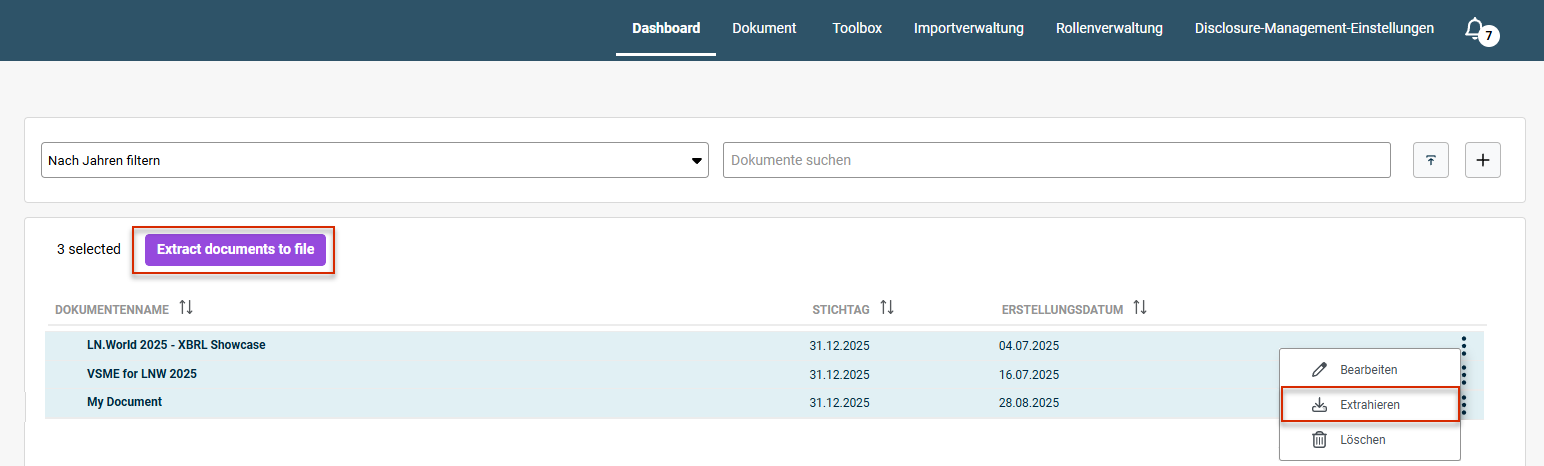
You can now use the Disclosure Management Dashboard to extract multiple documents simultaneously into a single file. This new feature saves time when you need to work with multiple documents. Extracts can be generated, for example, for report auditing or inspection. Once the extract is complete, a new message is displayed in the notification window, from which you can download the extracted report.
You can now assign Chapter roles in the role management. With the help of the new roles, permissions can be granted at the chapter level, i.e., for example, read and write permissions for chapters, MS Office documents, and the data view. A distinction is made here between the Chapter Reader and the Chapter Editor. Users can only see or edit the chapters for which they have been granted permission.
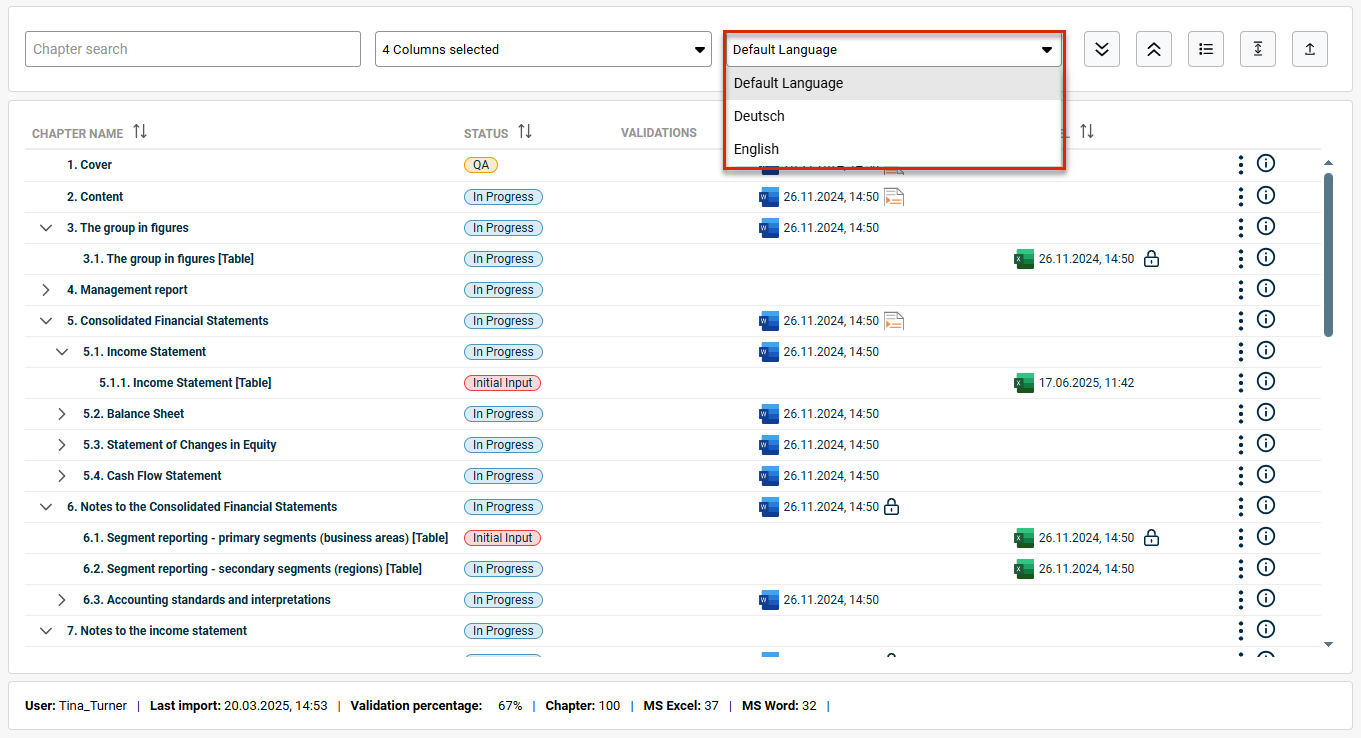
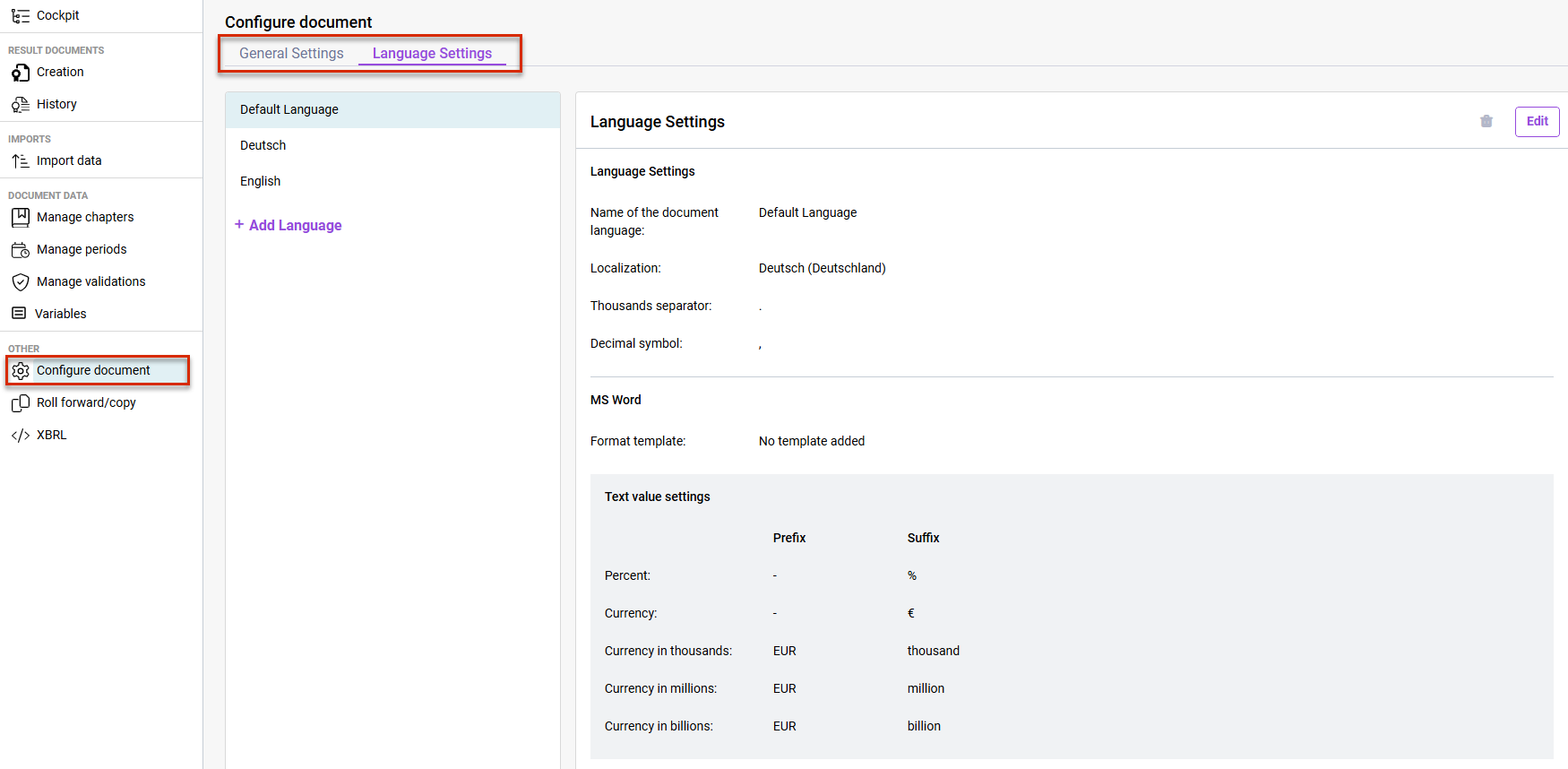
Lucanet Disclosure Management now supports reports in multiple languages. For this purpose, you can add and configure a new document language in the Configure document workspace.
The new language will then be available in the Cockpit and can be used to create reports in multiple languages. A document structure that has been created once will be used automatically in all languages. All language-specific reports of a document refer to the same Excel files, ensuring that data is always consistent across all language-specific reports. With the support for multilingual documents, you save a lot of time because you no longer have to set up your reports multiple times.
Language selection in the 'Cockpit'
Document Status
As a user, you can always see the status of the language variants of a Word document. As soon as you change the language in the Cockpit, the status levels of the selected language are displayed in the Cockpit. A status change is always relevant only for the language currently selected in the Cockpit. If the status changes to red due to a new import and value changes in the default language, the status will also be set to red in the other languages.
Creating Language-Specific Result Documents
You can now create your result documents in any language that has been set up. For this purpose, all available languages are listed in the Creation workspace, allowing you to generate a report in any available language with just one click.
New Design and Structure of the 'Configure document' Workspace
We have made the Configure Document workspace more user-friendly and optimized it for multilingual document support. General settings and language settings are now clearly separated. Each language has its own detail view—making individual adjustments more traceable.
'Configure document' workspace
History of a Chapter
As soon as you work with multiple languages, a chapter’s history can be sorted by the languages you have set up. This allows you to specifically track the history of chapters for a particular language.
From now on, in the Import Management, when defining a connection to the data source, a proxy can be specified if you have selected Log in with username and password in the connection settings. Specifying a proxy is optional. Once a proxy is specified, the connection will be established via the specified proxy.
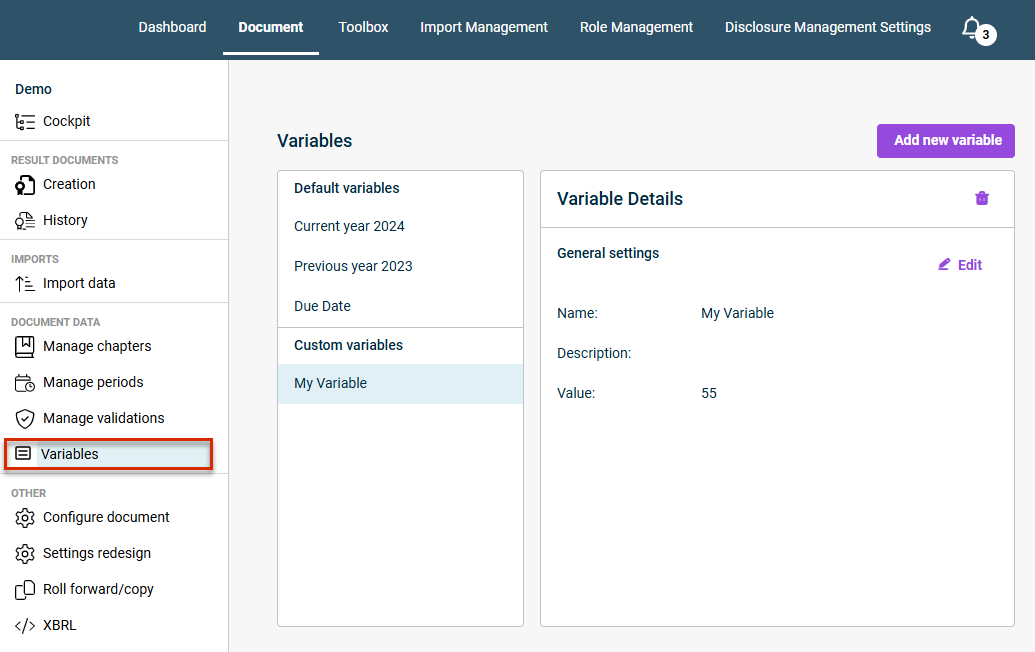
The new Variables workspace is now available, where you can create, edit, and delete custom variables. You can insert the value of a custom variable into any Word or Excel document using the Insert document variable button on the ribbon.
From now on, a group-level report can be created from the subsidiaries' disclosures with the help of the copilot. The function considerably simplifies and automates the process of creating group disclosures. This saves time and reduces errors, as the software consolidates the subsidiaries' responses and creates a compliant report. In addition, the function provides a better overview and control over the sustainability reports, as the user can select the relevant responses and add additional information. The new feature has the following properties:
The software can automatically generate the final ESRS-compliant sustainability report at group level based on the subsidiaries' disclosures.
As a user, you can select a question from the ESG questionnaire and see the various answers provided by the subsidiaries.
You can add additional information.
You can discard the result at any time and regenerate the report.
If the result meets your requirements, you can add it to your document with a single click.
Connections and data sources are now sorted alphabetically in the Import Management area. The predefined connection and data source for Lucanet ESG Reporting are at the top of the list.
The following changes have been made to the user and permission concept to make it clearer and more efficient:
Creating global roles: Global roles assigned to a CFO Solution Platform user in Administration are now automatically transferred to the role management in Disclosure Management. This makes role management much easier and more effective.
Document roles: We have optimized the document roles and permissions. The Document Data Importer role has been removed. All Document Data Importer permissions are now assigned to the Document Editor role.
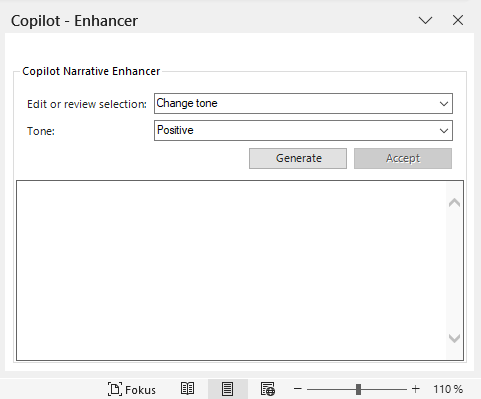
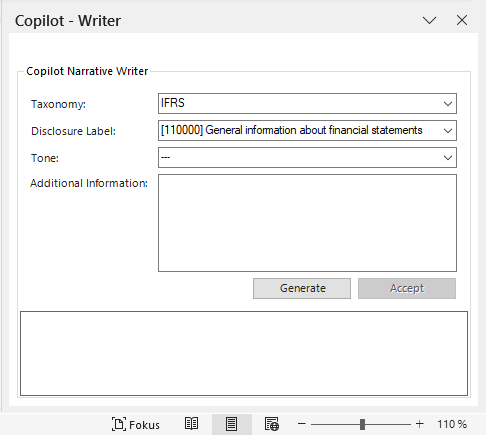
A Copilot with two AI-supported functions is now available in the Word ribbon for Disclosure Management to assist you in creating reports. Both functions can significantly enhance the quality of your texts and considerably reduce the effort required for text creation.
Optimizing texts in Word documents With the following functions, you can optimize your texts in no time:
Change the tone of voice e.g. to positive, neutral, or formal and precise
Shorten or expand the text
Summarize content into bullet points
Create concise headlines
Enrich sections of the document with specific information
Optimize text using the Copilot for Word documents in Disclosure Management
Draft taxonomy-compliant texts \
Another new AI-powered function helps to you efficiently and precisely create taxonomy-compliant reports by automatically generating texts for any disclosure label from the ESRS(European Sustainability Reporting Standards) or IFRS (International Financial Reporting Standards) standards.
For the selected disclosure label, you can provide additional company-specific information in a text field. The new function then automatically generates taxonomy-compliant text sections, incorporating the additional company-specific information into the generated text, if provided.
If you do not provide any additional information, template texts will be generated based on the requirements of the respective taxonomy. You then only need to add the company-specific facts to these template texts. During generation, the report language and document layout are automatically implemented.
Draft text using the Copilot for Word documents in Disclosure Management
The Copilot for Disclosure Management is also characterized by the following features:
Disclosure Management automatically generates the required prompts - you don't have to worry about anything else.
Discard unwanted results or try again until you are satisfied.
If you accept the result, it will be seamlessly inserted into your document.
Disclosure Management now includes two new time-saving functions for inserting ESG tables into an Excel spreadsheet:
Automatic Column Assignments
When inserting an ESG table into an Excel table in Disclosure Management you now have the option to specify whether the programming columns and value columns should be assigned automatically or not. When using automatic assignment, you can also assign periods to the columns in the table before the insertion.
When you click Insert, the table is inserted in MS Excel. The inserted columns are also configured as follows:
The first column is added as the name column.
The columns in the table are used as value columns for the specified period.
The programming columns are inserted into the table on the right.
Automatic Increase of Row Count
When a dynamic table is selected in the Insert table window, you now have the option of automatically extending the table by a certain number of rows. You can use this option, for example, to have placeholders for additional data in the Excel table so that you do not have to manually expand the table later.
You can now save the Office templates and layout robot locally. This allows you to easily upload and use the templates and the layout robot in another report at any time. The download function is available in the settings for a document under Configure document.
You can now export the chapter structure of a document from the cockpit to an Excel file at the click of a mouse. You may choose to do this when you want to discuss the structure of the document with someone who does not have access to Lucanet Disclosure Management, for example.
From now on, tables and texts from the questionnaire of aggregated ESG reports created with the solution Lucanet ESG Reporting can be inserted directly into documents in Lucanet Disclosure Management. As a result, no new report tables have to be created or new report texts compiled. They can simply be transferred with a few clicks instead.
The new feature is configured using the Excel ribbon (for tables) and the Word ribbon (for text values):
and Excel (right) ribbon") Inserting ESG text values and tables using the Word (left) and Excel (right) ribbon
From now on, it is possible to add footnotes to the Oareas of Excel files. For this purpose, footnote columns can be defined using either the Excel ribbon or the context menu. The footnotes stored there are then displayed in the Word documents in the Outareas and can be edited in the data view by means of the detail view for a value.
A column name can now be assigned to cells in MS Excel to distinguish between different value columns within a period in the data view. The column names can be added in MS Excel using either the Excel ribbon or the context menu of a cell.
When configuring the execution of an import in the Import data area, periods previously defined in the data source can now be excluded from the import. For this purpose, the No import option must be chosen for the periods in which data is not to be imported only during the parameterization process.
With this option, data can be imported only in selected periods of a data source without having to define a new data source for this purpose.
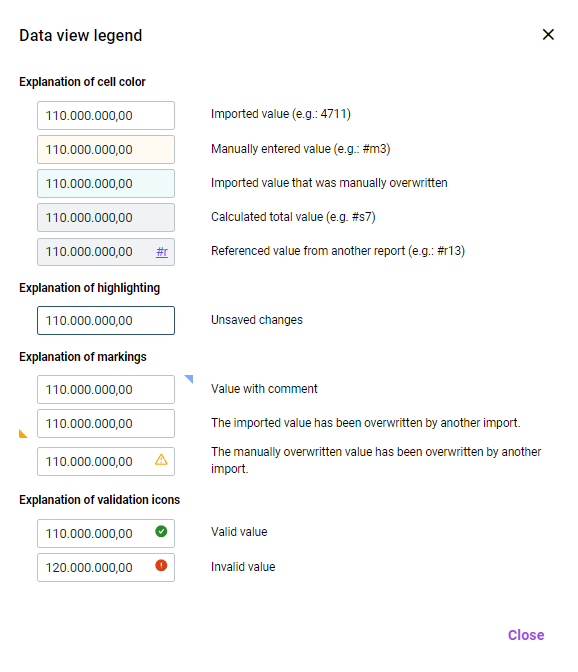
A legend is now available for the data view. It can be opened with a button on the user interface of the data view. The cell colors, highlighting, marking, and validation icons used in the data view are explained in the legend:
A detail view is now available in the data view also for cells that contain text values. This allows, for example, the history of a text value to be displayed and past text values restored.
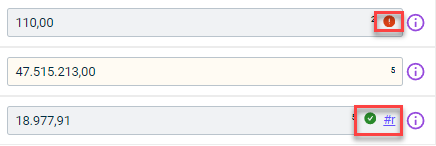
If a value referenced from a different Excel document is displayed in the data view, the data view of the Excel document from which the value comes will now be able to be opened and the value edited directly there by clicking the reference icon.
If a value for which a validation has been configured is displayed in the data view, the data view of the Excel document to be used for the validation will now be able to be opened by clicking the validation icon. This allows faulty validations to be checked more quickly and the underlying values corrected if necessary.