The Disclosure Management notification window issues messages as soon as you perform certain actions. These messages include:

  • Whether it was possible to execute an action
  • When and by whom an action was executed
  • That a triggered action is in the queue (i.e. It could not be executed yet because other actions must be completed first)
  • A button for downloading an extract
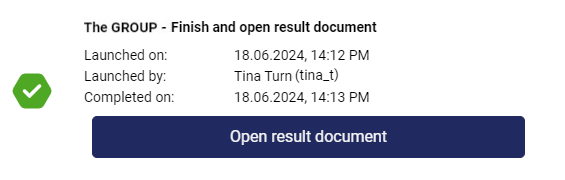
  • A button for opening a result document

To open a notification window:

1

Click the bell icon in the function bar at the top right of the application window to open the notification window.

Opening the notification window
2

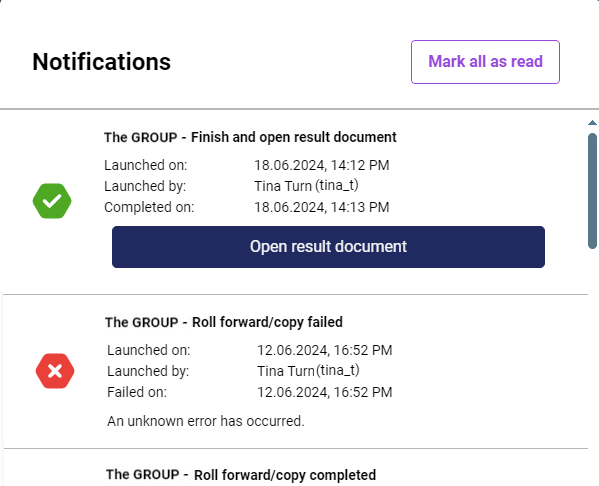
The notification window is displayed as follows, for example:

Notification window in Disclosure Management

The notification window includes the following options:

Marks all messages in the notification window as read

Marks the corresponding message as read.

Cancels the current process. After clicking Cancel, a confirmation prompt appears. You can then confirm or cancel the process cancellation.

The following processes can be canceled:

  • Create extract
  • Import extract
  • Create copy
  • Create update

Downloads the extract created in the Roll forward/copy workspace.

Opens the result document created in the Creation workspace.

There are five notification types:

The action was completed successfully.

Example:

The result document has been created successfully

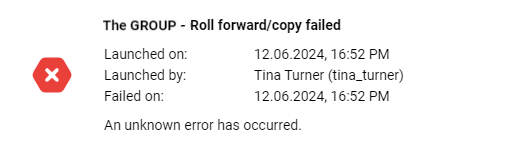
The action has failed.

Example:

The action has failed

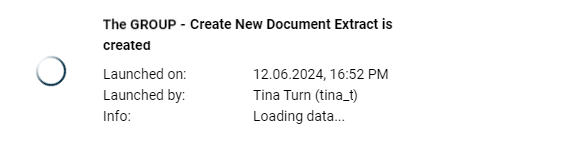
The action is being processed.

Action that is currently being executed

Indicates the place in the queue.

Example:

Position in the queue: 3

Your position in the queue has been reserved.

The data import will automatically start as soon as the previous processes have been completed.

The action was completed with warnings.

Example:

Started on:: 'Date' | 'Time'

Started by: 'User name'

Data source: 'Name of data source'

Completed on: 'Date' | 'Time'

The following warnings appeared during the data import:

  • Warning 1
  • Warning 2
  • ...