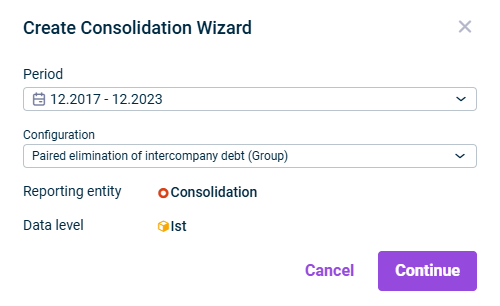
: Name of the wizard.Name : Time period for which the elimination is to be performedPeriod
: Cost center for the postingsCost center : Currency, in which the consolidation postings are to be made. By default, the transaction currency of the consolidation area is used.Currency : Adjustment level with the data for the generation of the consolidation postingsBasis : Adjustment level on which postings are to be madeTarget
If the receivables correspond to the liabilities within the combined pair, the value is displayed in green. If there is a difference, it is displayed in red or green – according to the definition of the threshold value. To obtain detailed information, click the arrow in front of the desired pair combination or item.
: Refreshes the values in the wizard.Refresh : Automatically resolves any differences that may have occurred within a posting. Click on a row that contains differences and then click theResolve differences command.Resolve differences Select the pair combination in the table whose details you want to view or edit.
: Differences above the entered value are highlighted in red in theThreshold for Display area.Pair combinations : Displays the percentage for deferred taxes.Deferred taxes
: Shows or hides theTransaction Types column.Transaction Types

, if only the pair combinations are to be updated.Update pair combinations : If theNote check box is deactivated, any settings already created might be overwritten by the configuration settings of the wizard.Retain settings for already existing combinations , to update all settings in the wizard.Fully update the wizard

: Name of the wizardName : Time period for which the elimination is to be performedPeriod : Cost center for the postingsCost center : Currency, in which the consolidation postings are to be made. By default, the transaction currency of the consolidation area is used.Currency : Adjustment level with the data for the generation of the consolidation postingsBasis : Adjustment level on which postings are to be madeTarget
: Refreshes the values in the wizard.Refresh : Automatically resolves any differences that may have occurred within a posting. Click on a row that contains differences and then click theResolve differences command.Resolve differences : Hides all reporting entities that do not contain any values.Show only reporting entities containing values : Differences above the entered value are highlighted in red in theThreshold for Display area.Pair combinations : Shows or hides theTransaction types/Partner column or theTransaction types column.Partner
If the receivables correspond to the liabilities within the combined pair, the value is displayed in green. If there is a difference, it is displayed in red or green – according to the definition of the threshold value. To obtain detailed information, click the arrow in front of the desired pair combination or item.
Click a displayed difference account to change it. Click to insert a row and select an additional difference account.+ Add Row Change the amounts to be posted to the difference account by clicking the respective amount. Select orDebit from the displayed drop-down list.Credit If necessary, click the trash can icon if you want to delete a difference account.


: Name of the wizardName : Time period for which the elimination is to be performedPeriod
Choose whether you want to orperform consolidation for every month of the time period .for the entire period in the last month : Cost center for the postingsCost center : Currency, in which the consolidation postings are to be made. By default, the transaction currency of the consolidation area is used.Currency : Adjustment level with the data for the generation of the consolidation postingsBasis : Adjustment level on which postings are to be madeTarget
If the receivables correspond to the liabilities within the combined pair, the value is displayed in green. If there is a difference, it is displayed in red or green – according to the definition of the threshold value. To obtain detailed information, click the arrow in front of the desired pair combination or item.
: Refreshes the values in the wizard.Refresh : Automatically resolves any differences that may have occurred within a posting. Click on a row that contains differences and then click theResolve differences command.Resolve differences Select the pair combination in the table whose details you want to view or edit.
: Refreshes the values in the wizard.Refresh : Differences above the entered value are highlighted in red in theThreshold for Display area.Pair combinations Click the displayed difference account to change it. Click to insert a row and select an additional difference account.+ Add Row Change the amounts to be posted to the difference account by clicking the respective amount. Select orDebit in the displayed drop-down list.Credit If necessary, click the if you want to delete a difference account.trash can icon


, if only the pair combinations are to be updated.Update pair combinations : If theNote check box is deactivated, any settings already created might be overwritten by the configuration settings of the wizard.Retain settings for already existing combinations , to update all settings in the wizard.Fully update the wizard

: Name of the wizardName : Time period for which the elimination is to be performedPeriod Choose whether you want to orperform consolidation for every month of the time period .for the entire period in the last month : Cost center for the postingsCost center : Currency, in which the consolidation postings are to be made. By default, the transaction currency of the consolidation area is used.Currency : Adjustment level with the data for the generation of the consolidation postingsBasis : Adjustment level on which postings are to be madeTarget
: Refreshes the values in the wizard.Refresh : Automatically resolves any differences that may have occurred within a posting. Click on a row that contains differences and then click theResolve differences command.Resolve differences : Hides all reporting entities that do not contain any values.Show only reporting entities containing values : Differences above the entered value are highlighted in red in the Pair combinations area.Threshold for Display : Shows or hides thePartner column.Partner
If the receivables correspond to the liabilities within the combined pair, the value is displayed in green. If there is a difference, it is displayed in red or green – according to the definition of the threshold value. To obtain detailed information, click the arrow in front of the desired pair combination or item.
Click a displayed difference account to change it if necessary. Click to insert a row and select an additional difference account.+ Add Row If necessary, change the amounts to be posted to the difference account by clicking the respective amount. If necessary, choose orDebit in the displayed drop-down list.Credit If necessary, click the trash can icon if you want to delete a difference account.


: Name of the wizardName : Time period for which the elimination is to be performedPeriod
Choose whether you want to orperform consolidation for every month of the time period .for the entire period in the last month : Cost center for the postingsCost center : Currency, in which the consolidation postings are to be made. By default, the transaction currency of the consolidation area is used.Currency : Adjustment level in which the consolidation postings are to be madeAdjustment level : Adjustment level with the data for the generation of the consolidation postingsBasis : Adjustment level on which postings are to be madeTarget
: Refreshes the values in the wizard.Refresh : Automatically resolves any differences that may have occurred within a posting. Click on a row that contains differences and then click theResolve differences command.Resolve differences : Hides all reporting entities that do not contain any values.Show only reporting entities containing values : Shows or hides thePartner columnPartner
Click a displayed difference account to change it if necessary. Click to insert a row and select an additional difference account.+ Add Row If necessary, change the amounts to be posted to the difference account by clicking the respective amount. If necessary, click the trash can icon if you want to delete a difference account.

Last updated on Aug 16, 2023