When you have assessed and calculated the components, you can create the postings for these components. The postings are automatically saved in the Lease Accounting database.

Before you save the postings, you can display the components to be posted and preview the pending postings in the Preview & save postings workspace.

Users with a standalone license for Lucanet Lease Accounting can export the postings and import them into other systems, while users with a Consolidation & Financial Planning license can import the postings directly into Consolidation & Financial Planning using a script.

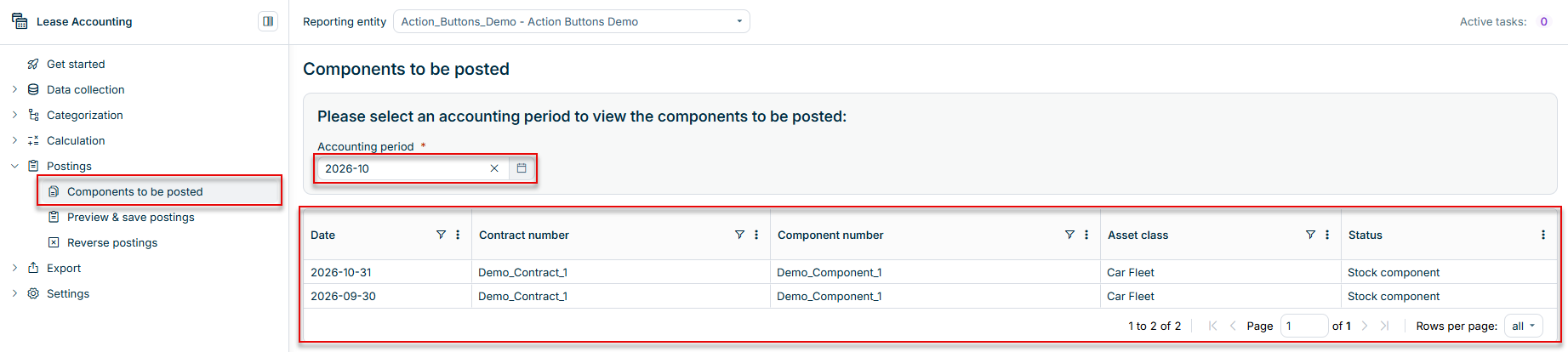
Before you actually create the postings for the previously calculated components, you can display all the components to be posted that have not yet been created by a selected date.

To do this, open the Components to be posted workspace and select the Accounting period up to which you want to display the components that have not yet been posted. The components are then displayed in a table:

Shows the Components to be posted workspace
'Components to be posted' workspace

The Status column indicates whether a component is a new component (NEW_POSITION) that is being added for the first time or a stock component (STOCK_POSITION) that is being updated by the posting.

In the Preview & save postings workspace, you display the pending postings for the calculated components, check them, and save them in the Lease Accounting database.

To preview and save the postings:

1

Navigate to Postings | Preview & save postings.

2

In the Reporting entities drop-down list, select one, several, or all reporting entities (default: the reporting entity you are signed into) for which you would like to create the postings.

If you use an integration between Lease Accounting and Consolidation & Financial Planning, you can import the created postings for multiple reporting entities simultaneously using a script.

3

Under Create postings up to, select the posting period up to which you would like to create postings.

4

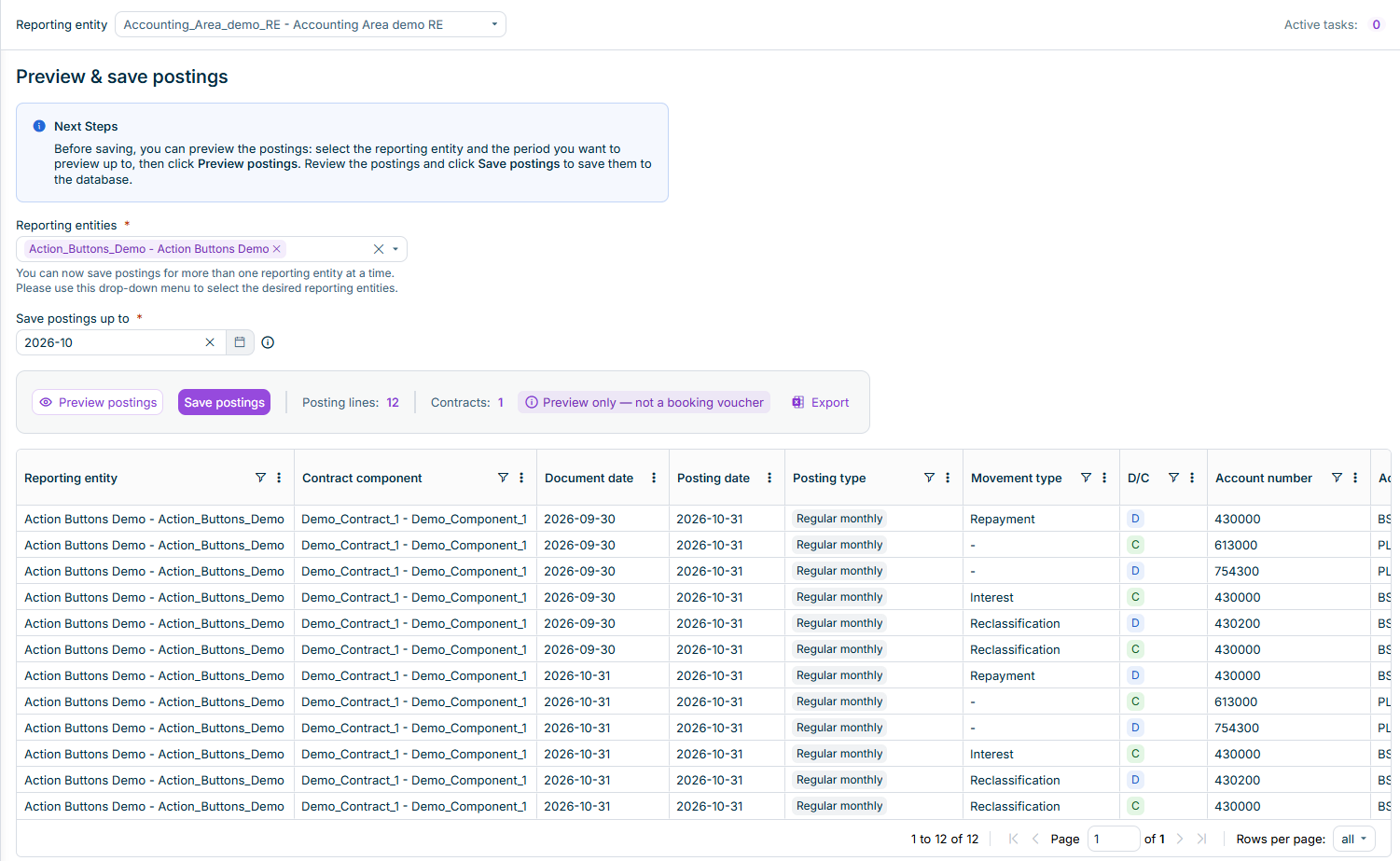
Click Preview postings. The table lists every posting that has not yet been created for the selection, and the number of Posting lines and Contracts is displayed next to the buttons.

Displays the preview table with pending postings in the Preview & save postings workspace.
The preview table with pending postings

The preview does not change any data. Click Export to export the previewed postings as an XLSX file; the exported file is marked as Preview only — not a booking voucher.

5

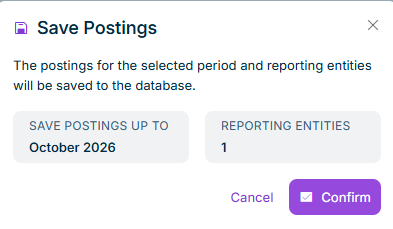
Click Save postings. The Save Postings dialog is displayed:

Displays the Save Postings dialog with the selected period and the number of selected reporting entities.
The 'Save Postings' dialog
6

Confirm the Save Postings dialog, which displays the selected period and the number of selected reporting entities. The postings are saved automatically in the Lease Accounting database.

Save the postings after each month to ensure that the postings receive the correct posting date.

Previewing before saving is optional — you can click Save postings without displaying the preview first.

If the component currency differs from the functional currency of the reporting entity, Lucanet Lease Accounting translates the amounts into the functional currency:

  • The amounts pertaining to the right-of-use asset are translated when the components are calculated and are therefore already displayed in the functional currency in the preview.
  • The lease liability and all related values, such as repayments and interest, are translated when the postings are saved, using the closing rate of the posting period.

The difference arising from retranslating the lease liability at the closing rate is posted separately with the posting type Currency Translation Difference - Lease Liability and recognized in profit or loss. It is calculated individually for the short-term, mid-term, and long-term portions of the lease liability. In the preview table, these posting lines display only the Amount in functional currency; the Amount in contract currency and Exchange rate columns remain empty.

If an exchange rate is missing for the posting period, the affected postings are not created, and a message refers you to the Exchange rate management functional area under Administration, where you can check your currency combinations and rates.

Created postings can be removed from the database after saving by reversing them. For additional information, see Reversing Postings.

This content was generated using AI and reviewed by Lucanet subject matter experts before publication.