The General Configurations workspace in Lucanet Lease Accounting provides essential system-wide settings that establish the foundational parameters for your lease accounting processes. In the workspace, you define the start of fiscal year and the transition date, and you view and upload the transaction plan that determines which accounts Lease Accounting uses for postings.

The start of fiscal year and the transition date must be set before you can create your first contract components, as they define critical operational parameters that cannot be modified once the lease data collection process begins.

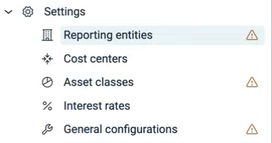
Until you save the start of fiscal year and transition date, a warning icon appears next to General configurations in the Settings menu. The icon disappears once you save these settings.

Shows the 'Settings' menu in Lucanet Lease Accounting with the entries 'Reporting entities', 'Cost centers', 'Asset classes', 'Interest rates', and 'General configurations'. A warning icon is displayed next to 'Reporting entities', 'Asset classes', and 'General configurations'.
Warning icons in the 'Settings' menu

To open the General configurations workspace in Lease Accounting, navigate to Settings | General configurations. The workspace contains the following tabs:

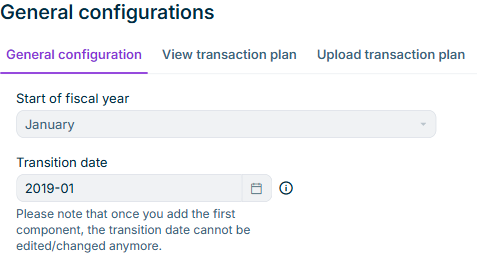
  • General configuration: You enter the start of fiscal year and the transition date for your lease accounting setup.
  • View transaction plan: The posting rules of the transaction plan currently in use are displayed (see Viewing the Transaction Plan in Lease Accounting).
  • Upload transaction plan: If needed, you can upload your own transaction plan. Below the upload area, the upload history of the transaction plans is displayed. Initially, the upload history contains only the default transaction plan from Lucanet (see Uploading a Transaction Plan in Lease Accounting).
Shows the 'General configuration' tab of the 'General configurations' workspace in Lucanet Lease Accounting with the 'Start of fiscal year' drop-down list set to 'January', the 'Transition date' field set to '2019-01', and the message 'Please note that once you add the first component, the transition date cannot be edited/changed anymore.' Next to the 'General configuration' tab, the tabs 'View transaction plan' and 'Upload transaction plan' are displayed.
The 'General configuration' tab

The Start of fiscal year option in Lease Accounting defines when your organization's fiscal year begins, which is essential for accurate lease accounting calculations and reporting periods.

The Transition date in Lease Accounting specifies the month and year when your organization transitions to IFRS 16 lease accounting standards. The transition date is typically the date you first apply the standard, marking the starting point for recognizing lease liabilities and right-of-use assets in your financial statements.

The Start of fiscal year and Transition date fields become disabled and cannot be changed once the first component is created.

The transaction plan in Lucanet Lease Accounting contains the posting rules for all postings. For each transaction, the posting rules define which account Lease Accounting debits and which account Lease Accounting credits. Account assignments can differ by asset class type, so the transaction plan also defines which accounts apply to which asset class type.

Lease Accounting provides a default transaction plan from Lucanet. If your organization needs a different posting schema, for example a split of the lease liability accounts or additional transaction types, you can upload your own transaction plan. Your consultant can help you create the transaction plan.

The View transaction plan and Upload transaction plan tabs are only displayed to users with the Full access administrator or Settings administrator role (see User Roles in Lease Accounting).

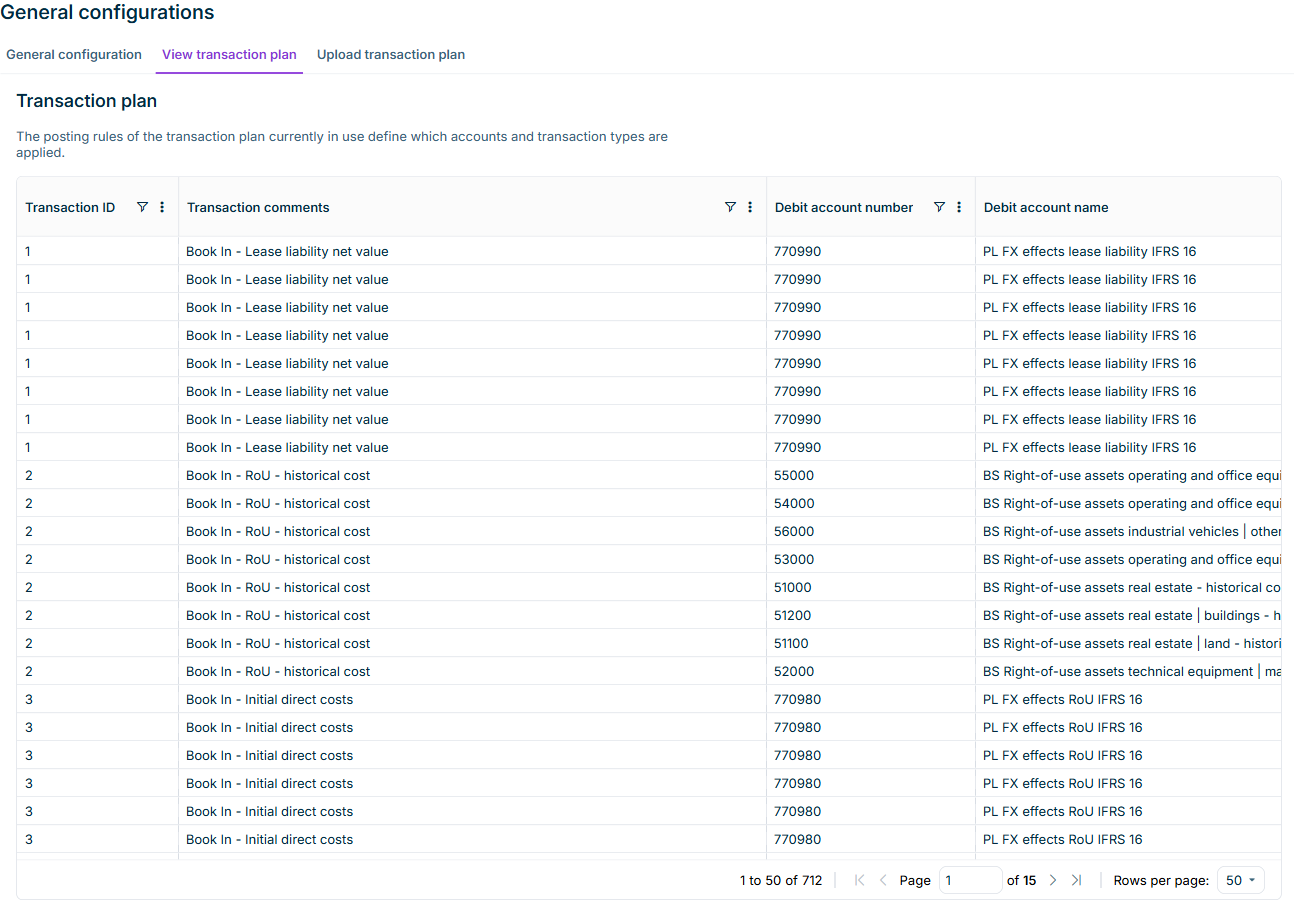
To check which posting rules Lucanet Lease Accounting currently applies, navigate to Settings | General configurations and open the View transaction plan tab. The tab displays the posting rules of the transaction plan currently in use in a table.

Shows the 'View transaction plan' tab of the 'General configurations' workspace in Lucanet Lease Accounting with the posting rules table and the columns 'Transaction ID', 'Transaction comments', 'Debit account number', and 'Debit account name'. Each column header offers a filter icon, and the paging bar displays '1 to 50 of 712'.
The 'View transaction plan' tab

For each posting rule, the table on the View transaction plan tab in Lease Accounting displays the following information:

  • Transaction ID and Transaction comments of the transaction
  • Account number, account name, transaction type, and account type of the debit account
  • Account number, account name, transaction type, and account type of the credit account
  • Posting type of the posting rule
  • Asset class type to which the posting rule applies

A transaction can comprise several posting rules, for example one posting rule per asset class type.

To find specific accounts or transaction types, click the filter icon in a column header and select the values that you want to display. The table displays 50 posting rules per page by default; you can change the number of rows per page in the paging bar.

If you want Lucanet Lease Accounting to post with your own posting schema, upload your transaction plan as an Excel file. The transaction plan applies to all postings that you save after the upload.

To upload a transaction plan in Lease Accounting:

1

Navigate to Settings | General configurations.

2

Open the Upload transaction plan tab:

Shows the 'Upload transaction plan' tab of the 'General configurations' workspace in Lucanet Lease Accounting with the text 'Please attach the transaction plan. Your consultant can help you create and provide it.', the upload area with the text 'Attach file using drag and drop, or browse' and 'Supported formats: XLSX, XLS', the disabled 'Save changes' button, and the 'Upload history' table with the columns 'File name', 'Uploaded by', 'Effective from', and 'Status'.
The 'Upload transaction plan' tab
3

Drag the transaction plan file into the upload area, or click browse and select the file. Lease Accounting accepts one XLSX or XLS file at a time. A CSV file is not accepted, because a CSV file can hold only one of the two tables that a transaction plan requires.

4

Check the result that Lease Accounting displays below the file name:

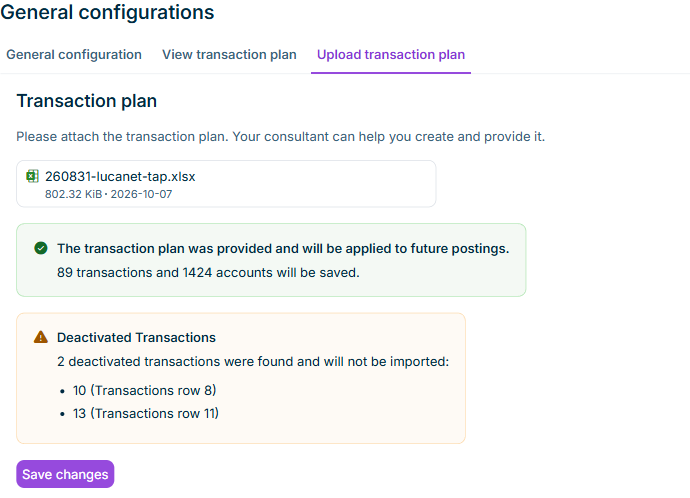
  • A confirmation that the transaction plan was provided, together with the number of transactions and accounts that Lease Accounting saves.
  • Under Deactivated Transactions, the transactions that are deactivated in the file. Lease Accounting does not import deactivated transactions.
  • Under Asset class types not covered, the asset class types for which the transaction plan contains no accounts. Lease Accounting creates no postings for these asset class types, but you can still save the transaction plan (see Asset Class Types Not Covered by the Transaction Plan in Lease Accounting).
Shows the 'Upload transaction plan' tab in Lucanet Lease Accounting after a file has been attached. Below the file name '260831-lucanet-tap.xlsx', the message 'The transaction plan was provided and will be applied to future postings.' with '89 transactions and 1424 accounts will be saved.' is displayed, followed by the 'Deactivated Transactions' box that lists two deactivated transactions, and the 'Save changes' button.
The result after attaching a transaction plan
5

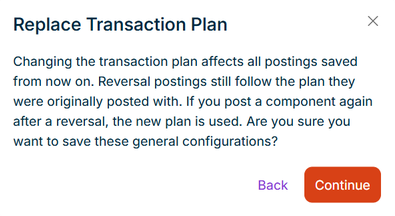
Click Save changes. The Replace Transaction Plan dialog is displayed:

Shows the 'Replace Transaction Plan' dialog in Lucanet Lease Accounting with the text 'Changing the transaction plan affects all postings saved from now on. Reversal postings still follow the plan they were originally posted with. If you post a component again after a reversal, the new plan is used. Are you sure you want to save these general configurations?' and the 'Back' and 'Continue' buttons.
The 'Replace Transaction Plan' dialog
6

Click Continue. Lease Accounting saves the transaction plan as a background task, which you can follow under Active tasks. After saving, the transaction plan is displayed as the active entry in the upload history.

To return to the Upload transaction plan tab without saving, click Back instead. The previous transaction plan then remains active.

The new transaction plan in Lease Accounting affects postings as follows:

  • All postings that you save after the upload use the new transaction plan.
  • Postings that are already saved remain unchanged.
  • Reversal postings follow the transaction plan with which the original postings were saved.
  • If you post a component again after a reversal, Lease Accounting uses the new transaction plan.
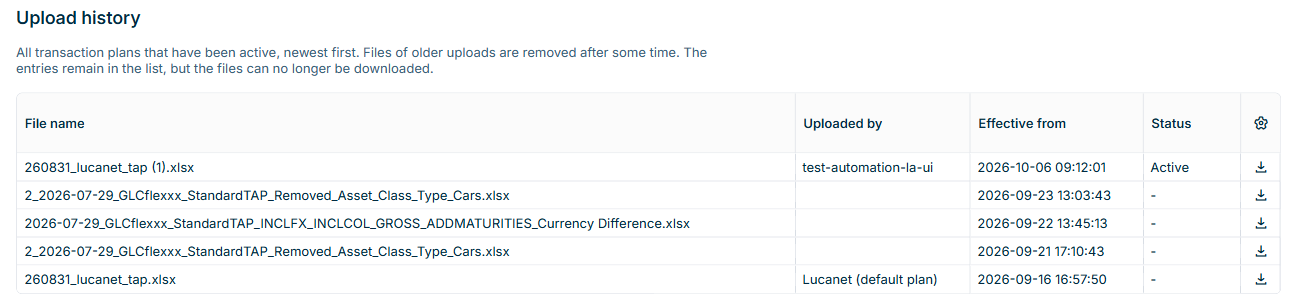
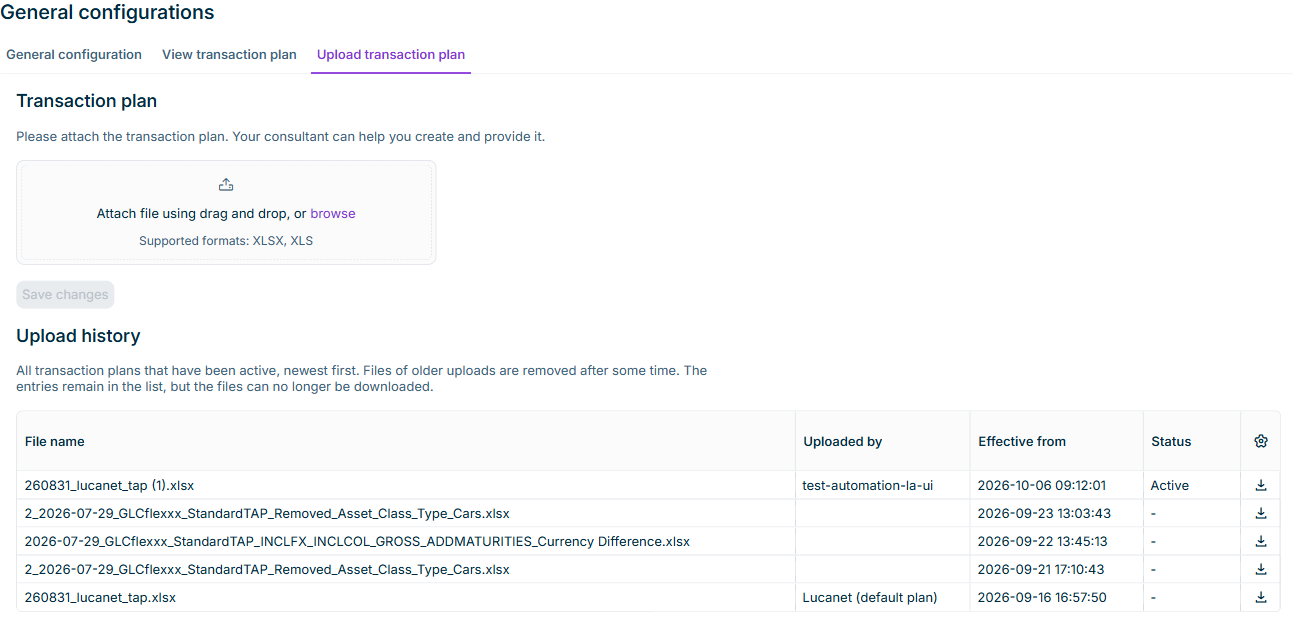
The Upload history on the Upload transaction plan tab in Lucanet Lease Accounting lists all transaction plans that have been active, with the newest entry first. With the upload history, you can trace which transaction plan applied from which point in time.

Shows the 'Upload history' on the 'Upload transaction plan' tab in Lucanet Lease Accounting with the columns 'File name', 'Uploaded by', 'Effective from', and 'Status' and a download icon in each row. The entry with the status 'Active' is listed at the top, and the entry 'Lucanet (default plan)' at the bottom.
The 'Upload history'

The following table describes the columns of the upload history in Lease Accounting:

ColumnDescription
File nameDisplays the name of the uploaded file.
Uploaded byDisplays the user who uploaded the transaction plan. For the default transaction plan that Lucanet provides with Lease Accounting, the column displays Lucanet (default plan).
Effective fromDisplays the date and time from which the transaction plan applies.
StatusDisplays the status of the transaction plan:
• Active: Lease Accounting currently uses this transaction plan for postings.
• -: The transaction plan was active earlier and has been replaced. You can still download the file.
• File no longer available: The transaction plan was active earlier, and Lease Accounting no longer keeps the file. You cannot download the file.

The following notes apply to the upload history in Lease Accounting:

  • To download the file of an entry, click the icon Download icon at the end of the row.
  • The default transaction plan from Lucanet is always listed as the oldest entry. You can download the default transaction plan and upload it again unchanged, for example to return to the standard posting schema or to use the file as a template for your own transaction plan.
  • Lease Accounting keeps the files of the latest 50 uploads. For older entries, the entry remains in the list with its details, but the status reads File no longer available and the file can no longer be downloaded. The file of the active transaction plan is always kept.
  • You cannot edit or delete entries in the upload history.

Lucanet Lease Accounting creates postings for a component only if the transaction plan contains accounts for the asset class type of the component's asset class. If the transaction plan does not cover an asset class type, Lease Accounting displays a warning in the following places:

  • Uploading a transaction plan: Under Asset class types not covered, Lease Accounting lists the asset class types in use for which the new transaction plan contains no accounts. You can still save the transaction plan.
  • Creating or editing an asset class: When you create an asset class with Add new asset class under Settings | Asset classes or edit an existing asset class, you select the type in the Asset class type drop-down list. If the transaction plan does not cover the selected type, the warning Asset class type not covered by the transaction plan is displayed directly below the drop-down list. You can still save the asset class (see Creating and Configuring Asset Classes).
  • Previewing and saving postings: The log of the task lists each contract component that has lease records to be posted but for which no posting was created (see Saving Postings).

To create the missing postings, add the asset class type to your transaction plan and upload the transaction plan again. Lease Accounting creates the postings the next time you save postings.

This content was generated using AI and reviewed by Lucanet subject matter experts before publication.