The Migration workspace lets you move your existing lease portfolio from the IFRS 16 script into Lucanet Lease Accounting. You upload the H2 database file together with the lookup file, run the migration, validate the migrated data, and approve the result. Once the migration is approved, Lease Accounting takes over the carrying amounts of your lease portfolio and you can resume calculations, postings, and exports without recalculation gaps.

Preparing the IFRS 16 script in Lucanet.Financial Client and exporting the H2 database file and the lookup file from it is carried out together with your Lucanet Professional Services consultant. This page describes the steps that follow inside Lease Accounting in the CFO Solution Platform.

To run the migration from the IFRS 16 script to Lease Accounting, you need one of the following roles:

  • Full access administrator
  • Settings administrator
  • Lease operations administrator

Before you start, prepare the following files from your source IFRS 16 script:

  • The H2 database file (.mv.db) exported from the IFRS 16 script. This file contains your leasing components, associated payments and options.
  • The lookup file (XLS or XLSX format) exported from the IFRS 16 script. This file maps source OIDs to their respective transaction currencies and is required so that each migrated component carries the correct component currency.

The migration from the IFRS 16 script to Lease Accounting consists of the following stages:

1

Upload the H2 database file and the lookup file in the Migration workspace.

2

Start the migration with the migration date that applies to your data.

3

Download the migration and component validation reports to identify any data gaps.

4

Validate the migrated data in Lessors, Contracts, and Contract components workspaces.

5

Approve the migration to unlock calculations, postings, and exports.

To upload the migration files:

1

Navigate to Settings | Migration.

2

In the upload area, choose one of the following options to attach the files:

  • Drag and drop both files onto the upload area.
  • Select choose a file and pick both files from your file browser.

The upload area accepts .mv.db database files together with the .XLS and .XLSX lookup files. You must provide both the H2 database file and the lookup file together — the Upload files button only becomes active once both files are present and in their expected formats.

3

Click Upload.

The files appear as a combined entry in the Uploaded databases table with the status Ready to migrate.

Upload only the latest version of the H2 file and its lookup file.

Both files are mandatory and must be uploaded together as one package.

If you upload another package after a migration has finished, Lease Accounting adds the new data to the existing migrated data instead of overwriting it.

You can delete an uploaded file until you approve its migration. Deleting an uploaded file does not remove any data that has already been migrated.

To start the migration:

1

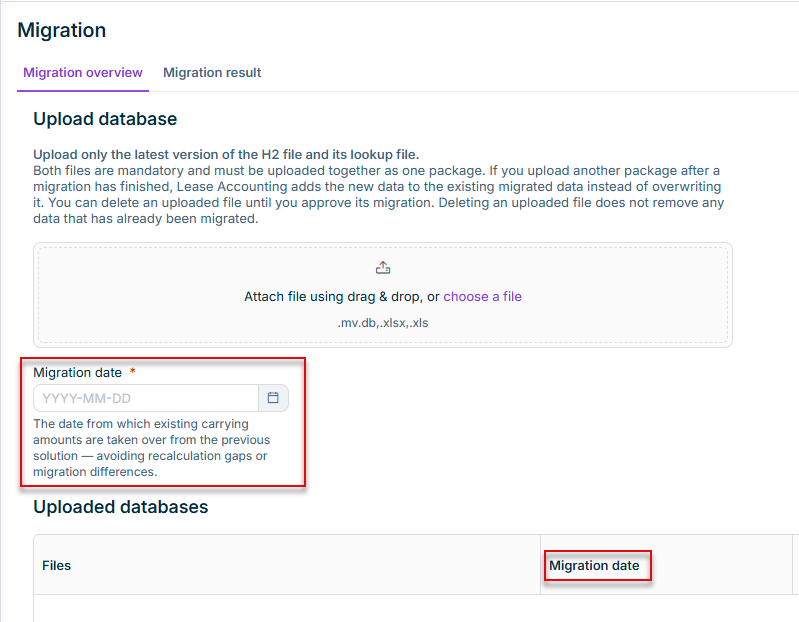
In the Migration date field in the Migration workspace, select the date from which existing carrying amounts for the right-of-use assets are taken over from the IFRS 16 script.

The migration date is used to avoid recalculation gaps or migration differences. Lease Accounting stores the migration date with the uploaded file and shows it later in the Migration date column.

Migration date in the 'Migration' workspace is displayed.
Migration date in the 'Migration' workspace
2

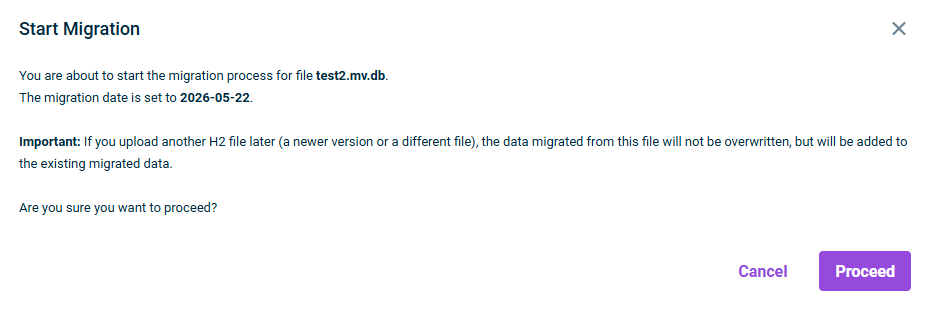
In the Uploaded databases table, select the Start migration icon next to the file you want to migrate. The Start Migration dialog is displayed:

the 'Start Migration' dialog is displayed.
'Start Migration' dialog
3

Review the file name and the migration date, then click Proceed.

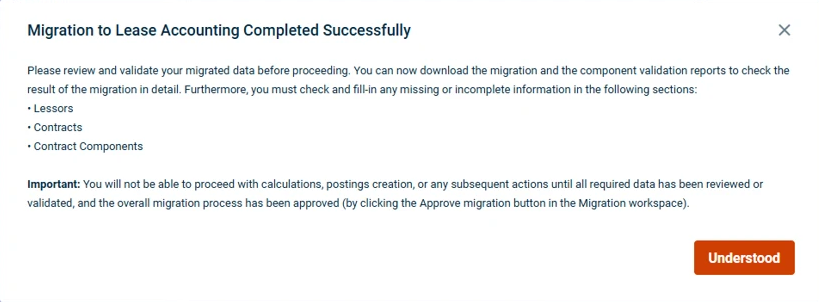
While the migration runs, the Status column displays the progress of the migration. When the migration finishes, the status changes to Migrated and Lease Accounting displays a confirmation dialog:

A dialog confirming that the migration has been completed successfully is displayed.
Migration confirmation

After a successful migration, you must validate the migrated data before you can approve the migration and resume calculations, postings, and exports. The data carried over from the IFRS 16 script may contain placeholder values, missing mandatory information, or zero amounts that need your review.

To help you identify these gaps, Lease Accounting provides two on-demand reports — the Migration report and the Component validation report. Both reports are generated in Excel format and tell you which records need attention, so you know exactly what to correct in the next step.

To download a report:

1

In the Migration workspace, select Migration report or Component validation report above the Uploaded databases table.

The Migration report and Component validation report buttons appear above the Uploaded Databases table once a migration has finished.
Uploaded databases table with the Migration report and Component validation report

The reports are generated in the background. Once they are ready, they are automatically displayed in the Generated reports table in the same workspace.

2

Click the Download icon next to the report to save the Excel file to your computer.

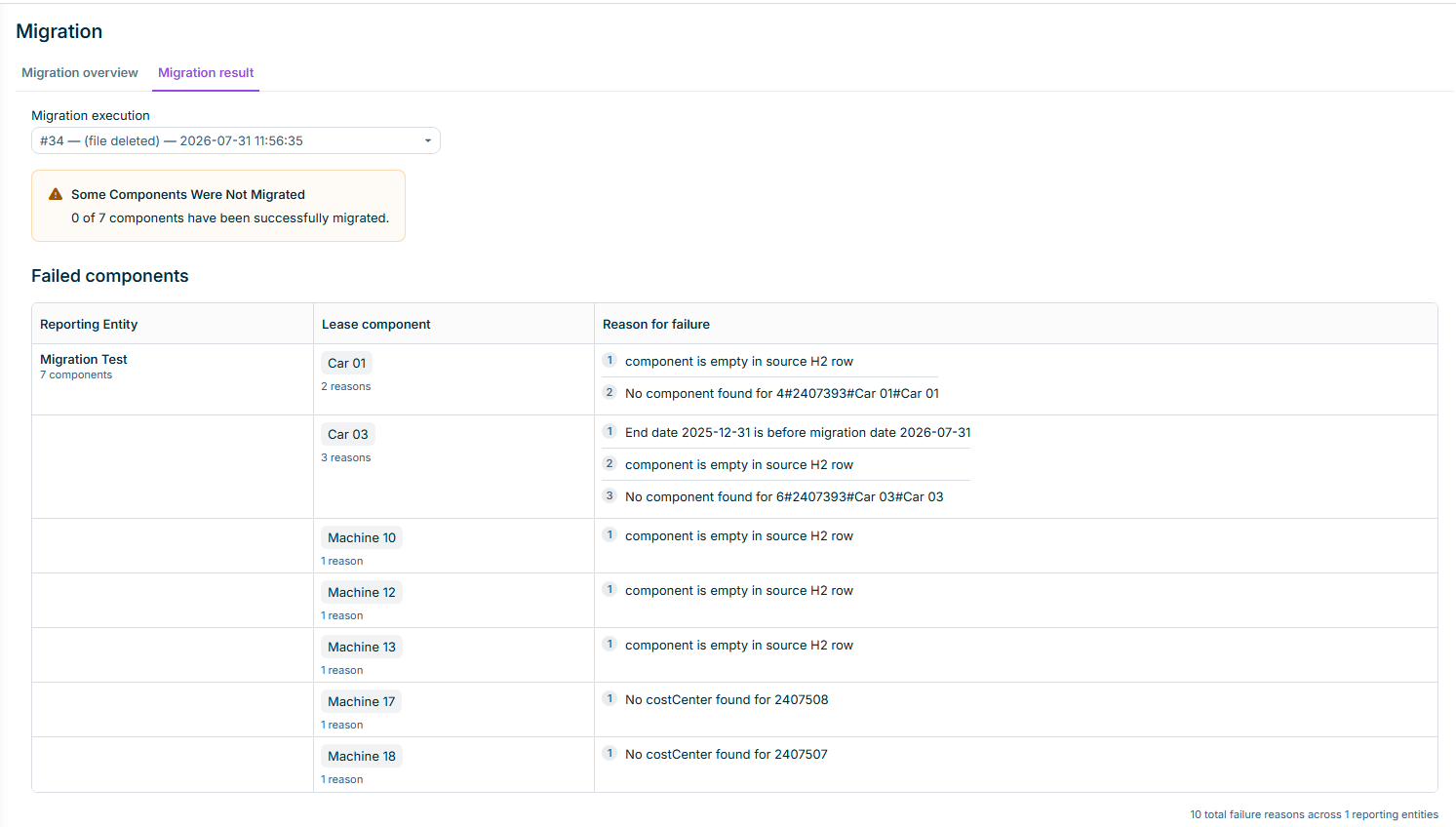
The Migration report lists, for each migrated element (lessors, contracts, contract components, payments, options), whether the element was migrated successfully and, where applicable, the reason for which an element could not be migrated. Use this report to confirm overall data integrity after the migration.

The Component validation report lists every component together with its validation findings — the validation rule that triggered, the message returned, and the result (warning, error, or exception).

After a migration, the report shows two additional categories of findings under Migration from legacy solution:

  • Dummy values — flagged whenever a component field still carries placeholder text from the IFRS 16 script. The finding is an error when the placeholder is in the asset class or component currency, and a warning on any other component field.
  • Zero amounts — flagged as errors whenever an amount field on the component form equals zero, since these usually require review after the migration.

Use this report to find the components that still carry placeholder values from the IFRS 16 script, or that contain zero amounts that may need to be corrected before approval.

After you have the report findings, work through them in Lease Accounting. While the migration is pending approval:

  • Migrated lessors, contracts, and contract components are available under Data collection for review and correction.
  • You can save migrated records even when required fields are empty or still hold placeholder values. Normally, Lease Accounting blocks saving until every required field has a valid value, but this rule does not apply to migrated records while the migration is pending approval. This lets you save partial corrections and return to them across multiple sessions. The full check is restored when you approve the migration — every required field must be complete and free of placeholders before you can approve.
  • The Calculation | Preview workspace remains available so you can review potential calculation results at any time. After the migration is approved, use Calculate and save to finalize the calculations.
  • The Calculation | Calculations workspace, all workspaces under Postings, and Export | Export postings are hidden until the migration is approved.

To review and correct a migrated record flagged in the reports — a lessor, contract, or contract component — proceed as follows:

2

Open the record and review each tab.

3

Replace any placeholder values, complete any missing mandatory information, and select Save.

After you have validated all migrated data, approve the migration.

Select Approve Migration only when you are confident that all data has been thoroughly reviewed and validated.

To approve the migration:

1

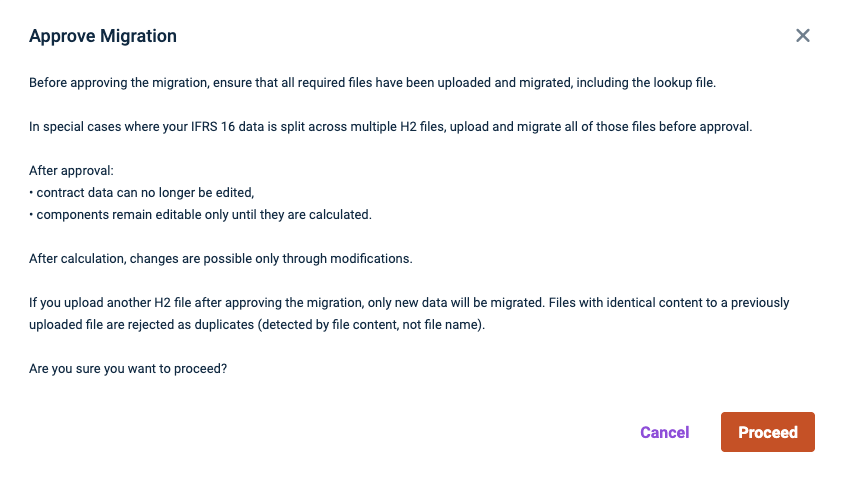
In the Migration workspace, select Approve migration in the top right. The Approve Migration dialog is displayed:

The 'Approve Migration' dialog is displayed.
'Approve Migration' dialog
2

Review the consequences:

  • Contract data can no longer be edited.
  • Components remain editable until they are calculated.
  • Later changes are possible only through standard modifications.
  • Further H2 file uploads after approval will follow the migration workspace rules (such as duplicate file rejection by content, not by file name).
3

Click Proceed.

When approval succeeds:

  • The warning indicators next to Lessors, Contracts, and Contract components are removed.
  • The Calculations, Postings, and Export postings workspaces become available.
  • The migrated files in the Uploaded Databases table receive the status Approved.

Approval is only possible if all migrated records pass standard validation. If any record still has missing mandatory fields or other validation errors, Lease Accounting prevents approval and notifies you of the outstanding issues.

If a migration cannot be completed successfully, Lease Accounting displays the status Failed for the affected file in the Uploaded databases table.

If the migration process fails, try the following steps:

1

Check the uploaded files — ensure the H2 file and its corresponding lookup file are valid and not corrupted.

2

Retry the migration — you can delete the affected file entry and re-upload the files before starting the migration again.

3

Contact support — if the issue persists, please contact your Lucanet administrator or Lucanet Support with the details of this error.

If the H2 file contains records for a reporting entity that does not exist in Lease Accounting, the migration ends with the status Failed and the failure reason names the missing OID.

To recover:

1

Import or create the missing reporting entity in Lease Accounting under Settings | Reporting entities.

2

In the Migration workspace, select the Re-run icon next to the failed file.

The re-run skips records that were migrated successfully in the previous run and only processes records that previously failed or were skipped. You do not need to upload the files again.