The Declaration workspace in the European Sales List (ESL) functional area in Lucanet VAT (Value Added Tax) displays the European Sales List of the selected company and period. The European Sales List contains the intra-Community supplies, services, and triangulations that must be transmitted to the Federal Central Tax Office. VAT fills the entries of the declaration automatically via the import of the ERP report RFASLM00; in addition, you can add entries manually via Add.

The European Sales List page describes the prerequisites under which the European Sales List functional area is displayed.

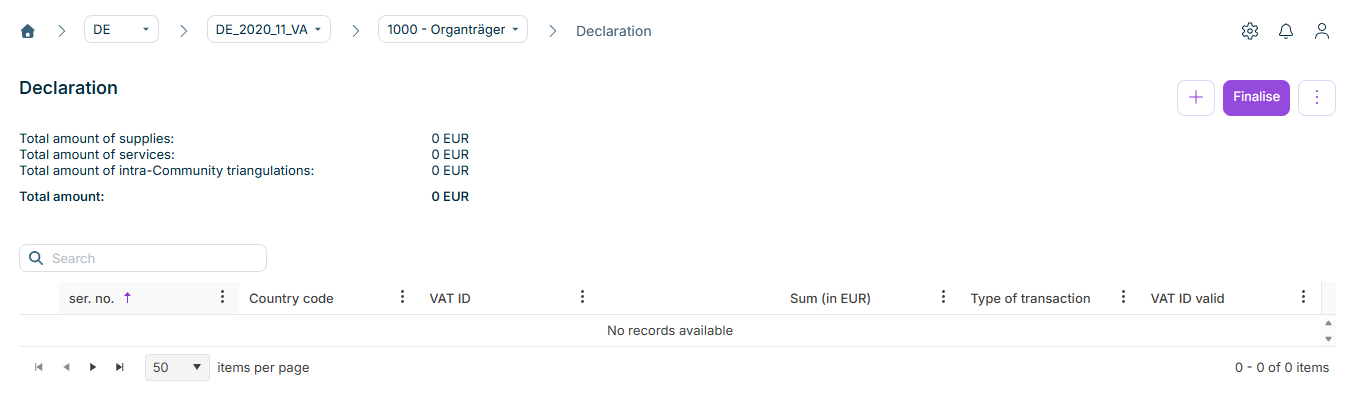
The Declaration workspace can be found under VAT | European Sales List | Declaration and is displayed as follows, for example:

Shows the 'Declaration' workspace of the European Sales List in VAT for the period 'DE_2020_11_VA' and the company '1000 - Organträger' with the plus icon, the 'Finalise' button, the three-dot icon, and the totals 'Total amount of supplies', 'Total amount of services', 'Total amount of intra-Community triangulations', and 'Total amount', each with '0 EUR'. Below them are the 'Search' field and the empty table with the columns 'ser. no.', 'Country code', 'VAT ID', 'Sum (in EUR)', 'Type of transaction', and 'VAT ID valid'.
The 'Declaration' workspace

Above the declaration table, VAT displays the following totals of the European Sales List:

TotalDescription
Total amount of suppliesTotal amount of all intra-Community supplies with type of transaction 0 in EUR
Total amount of servicesTotal amount of all services with type of transaction 1 in EUR
Total amount of intra-Community triangulationsTotal amount of all intra-Community triangulations with type of transaction 2 in EUR
Total amountTotal amount of all entries of the European Sales List in EUR

Columns of the declaration table

The declaration table of the European Sales List in VAT contains the following columns:

ColumnDescription
ser. no.Consecutive number of the entry. The number is assigned automatically.
Country codeTwo-digit ISO country code of the EU member state in which the purchaser is established, e.g. AT, FR, or NL. Exception: For Greece, EL is used instead of GR.
VAT IDVAT identification number of the purchaser or company in another EU member state. Length and format can vary by country.
Sum (in EUR)Consolidated net amount of the tax base per type of transaction and purchaser in full euros without decimal places. Up to three rows can exist for one business partner if intra-Community supplies, services, and triangulations are carried out with this partner.
Type of transactionType of transaction: 0 = intra-Community supplies, 1 = services, 2 = intra-Community triangulations
VAT ID validResult of the check of the VAT identification number, if a check was executed

The values of the European Sales List are transmitted in full euros without decimal places.

To add an entry manually to the European Sales List in VAT:

1

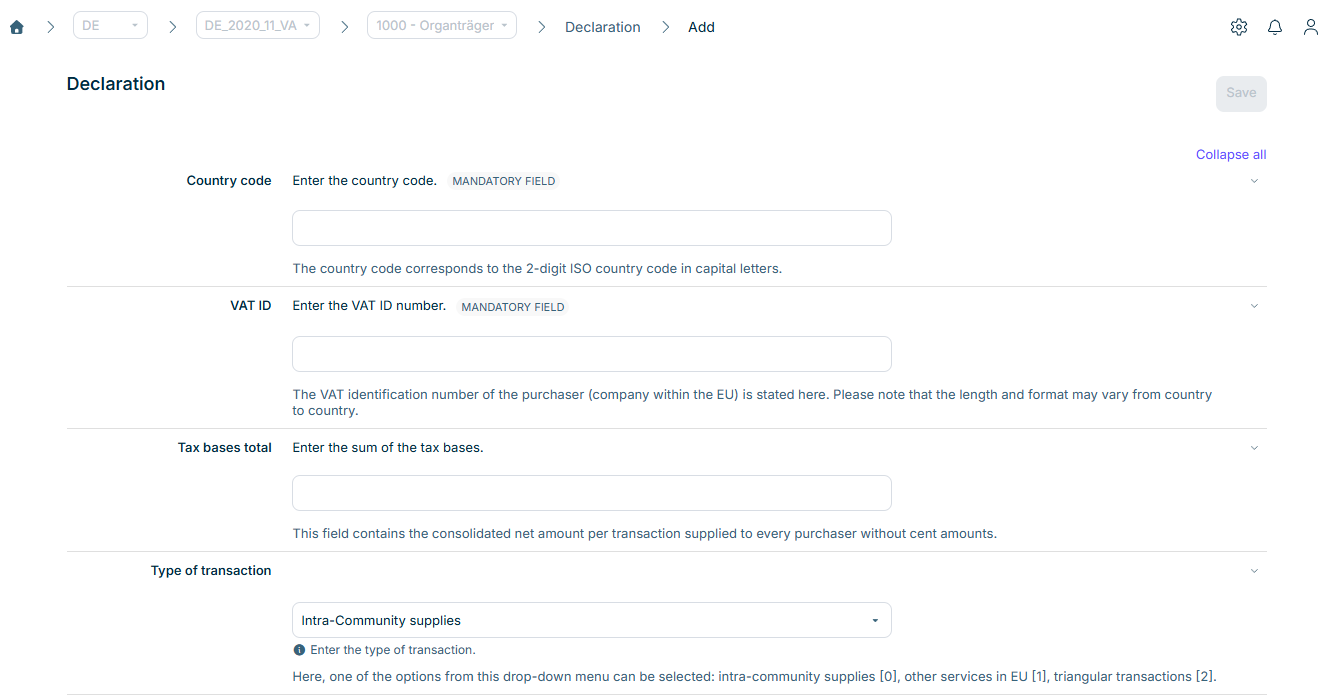
In the Declaration workspace, click AddPlus icon. The Add view is displayed:

Shows the view for adding an entry in the 'Declaration' workspace of the European Sales List in VAT with the 'Save' button, the 'Country code' and 'VAT ID' fields marked as mandatory fields, the 'Tax bases total' field, and the 'Type of transaction' drop-down list with the value 'Intra-Community supplies'.
Adding an entry manually in the European Sales List
2

Fill in the following mandatory fields:

  • Country code: Two-digit ISO country code in capital letters, e.g. AT or FR
  • VAT ID: VAT identification number of the purchaser – a company within the EU. Length and format can vary by country.
  • Tax bases total: Consolidated net amount per type of transaction and purchaser in full euros without decimal places
  • Type of transaction: Type of transaction. Possible values: 0 - Supplies, 1 - Services, 2 - Intra-Community triangulations
3

Click Save to transfer the entry into the declaration.

If you enter the same country code and the same VAT identification number as for an existing entry, VAT sums up the amounts per type of transaction.

Check whether the serial numbers are consecutive. Missing numbers can indicate faulty rows in the import file that VAT did not import.

If you have imported and saved the ERP report RFASLM00 in the Import workspace, VAT transfers the data into the declaration table of the European Sales List automatically. In addition to the imported entries, you can add further entries manually via Add (see section Adding an Entry Manually to the European Sales List in VAT).

For superordinate companies with company members, VAT transfers the ESL data of the company members automatically when you open the Declaration workspace. The workspace displays the time of the last transfer under Last data transfer from company members.

The following also applies to superordinate companies with company members:

  • The Add button is not available – the entries originate exclusively from the company members.
  • You can only finalize the declaration once all associated company members have finalized their declaration.

To finalize the European Sales List in VAT, click Finalise in the top right corner.

Depending on the configuration, the button can be deactivated if certain prerequisites are not yet fulfilled – e.g. if the reconciliations have not been executed yet or contain errors.

After finalizing, you transmit the declaration to the Federal Central Tax Office via the Send declaration workspace.

Use the Open ESL button in the top right corner to reopen a finalized declaration. Alternatively, reopen the declaration via the Month overview or the Year overview.

In VAT, you create a correction of the European Sales List via the Year overview. In a correction, you only enter the correction items – VAT does not display the entries of the previously sent declaration again. For each correction, specify the VAT identification number, the country code, and the correction amount.

Via a drop-down list in the header area of the Declaration workspace, you switch between the original declaration and the corrections and view previous declarations.

Do not create corrections for company members in the individual company member, but always via the Year overview in the overall declaration.

In addition to the general functions, the following functions are available in the context menu of the three-dot icon (⋮) in the top right corner of the Declaration workspace of the European Sales List in VAT:

FunctionDescription
Check VAT IDs - VIESChecks the VAT identification numbers contained in the declaration via the VIES system – the VAT Information Exchange System of the European Commission. The VAT ID valid column displays the result.
Check VAT IDs - BZStChecks the VAT identification numbers contained in the declaration via the Federal Central Tax Office. Only available if the declaration contains German VAT identification numbers.

This content was generated using AI and reviewed by Lucanet subject matter experts before publication.