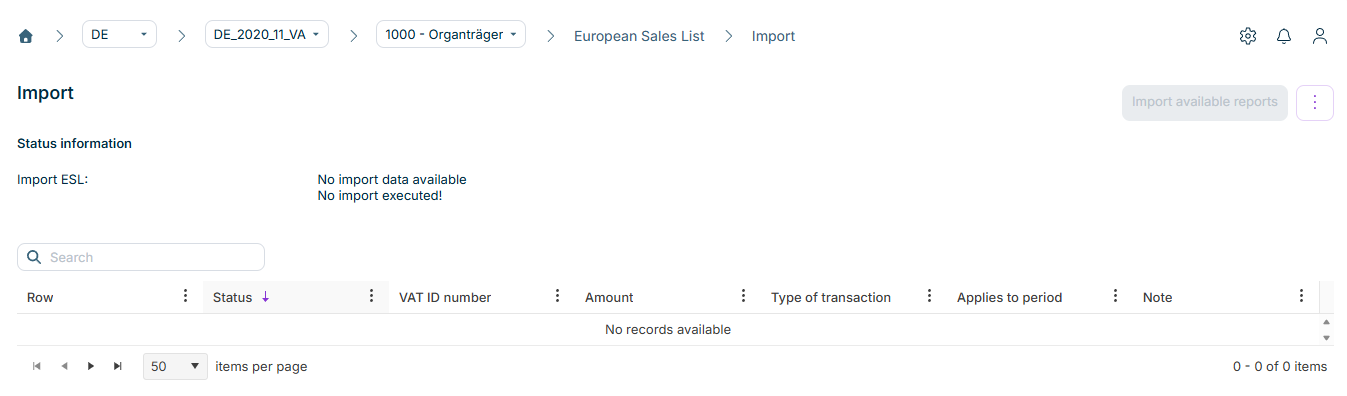
In the Import workspace in the European Sales List (ESL) functional area in Lucanet VAT (Value Added Tax), you import the data for the European Sales List of the selected company and period. The import is based on the ERP report RFASLM00, which contains the ESL-relevant values: intra-Community supplies, services, and intra-Community triangulations.
VAT only imports values without decimal places, as the values in the European Sales List are transmitted in full euros. As a rule, the source systems already generate the import files for the European Sales List without decimal places.
For superordinate companies with company members, VAT transfers the ESL data of the company members into the declaration of the superordinate company automatically (see the European Sales List page).
The Import workspace of the European Sales List in VAT is divided into two areas:
Status information
In the upper area, the Status information section displays the current import status of the European Sales List. Under Import ESL, you can see whether new import data is available, as well as the date, time, and user name of the last import.
Import data table
In the lower area, a table displays the imported ESL records with the following columns:
Column
Description
Row
Consecutive number of the record. The number is assigned automatically.
Status
Import status of the individual record
VAT ID number
VAT identification number of the purchaser or recipient within the European Union
Amount
Net value of the tax base in full euros without decimal places
Type of transaction
Type of transaction in accordance with the Federal Central Tax Office: 0 = intra-Community supplies, 1 = services, 2 = intra-Community triangulations
How you import the ESL data in VAT depends on the interface type assigned to the company in the interface configuration. You reach the interface configuration via the gear icon in the top right corner; it is usually set up at the start of the project.
Only one interface type is active per company – either the webservice import or the network drive import. The manual import is always available in addition, regardless of the configured interface type. If no interface is configured, the manual import is the only import type.
With the webservice import, the source system sends the ESL data directly to the VAT interface. The transmitted data is then available in the Import workspace.
To import the available ESL data in VAT:
1
Check in the Status information section whether new import data is available.
2
Click Import available reports in the top right corner. VAT reads the available data into the import data table.
3
Check the imported records in the table.
4
Click Save to save the import and transfer the data into the declaration. The button is only displayed after you have read in data.
With the network drive import, the source system automatically places the report files in a folder on a network drive. The folder and the naming convention for the files are defined in the interface configuration.
The Import from network drive button is only displayed if the Network drive interface type is assigned to the company in the interface configuration.
To import the ESL data from the network drive in VAT:
1
Click Import from network drive in the top right corner. VAT searches the configured folder for new files for the selected period and reads the recognized data into the import data table.
2
Check the imported records in the table.
3
Click Save to save the import and transfer the data into the declaration.
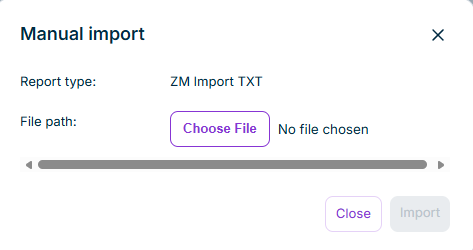
With the manual import, you upload a TXT file containing the ESL data from your local computer.
To import the ESL data manually in VAT:
1
Click Manual import. If an interface type is configured, you find the function in the three-dot menu (⋮) in the top right corner. The Manual import dialog is displayed:
The 'Manual import' dialog
2
Select the file on your local computer via the file selection.
3
Click Import to read in the file.
4
Check the imported records in the table.
5
Click Save to save the import and transfer the data into the declaration.
Only by saving does VAT transfer the imported values into the European Sales List. Without saving, the read-in data is lost when you leave the workspace.
If the company submits the European Sales List quarterly, you cannot import the ESL data in the months outside the reporting month. Use the Preview button to display the available data in these months in VAT without importing it.
In addition to the general functions, the following functions are available in the three-dot menu (⋮) in the top right corner of the Import workspace of the European Sales List in VAT: