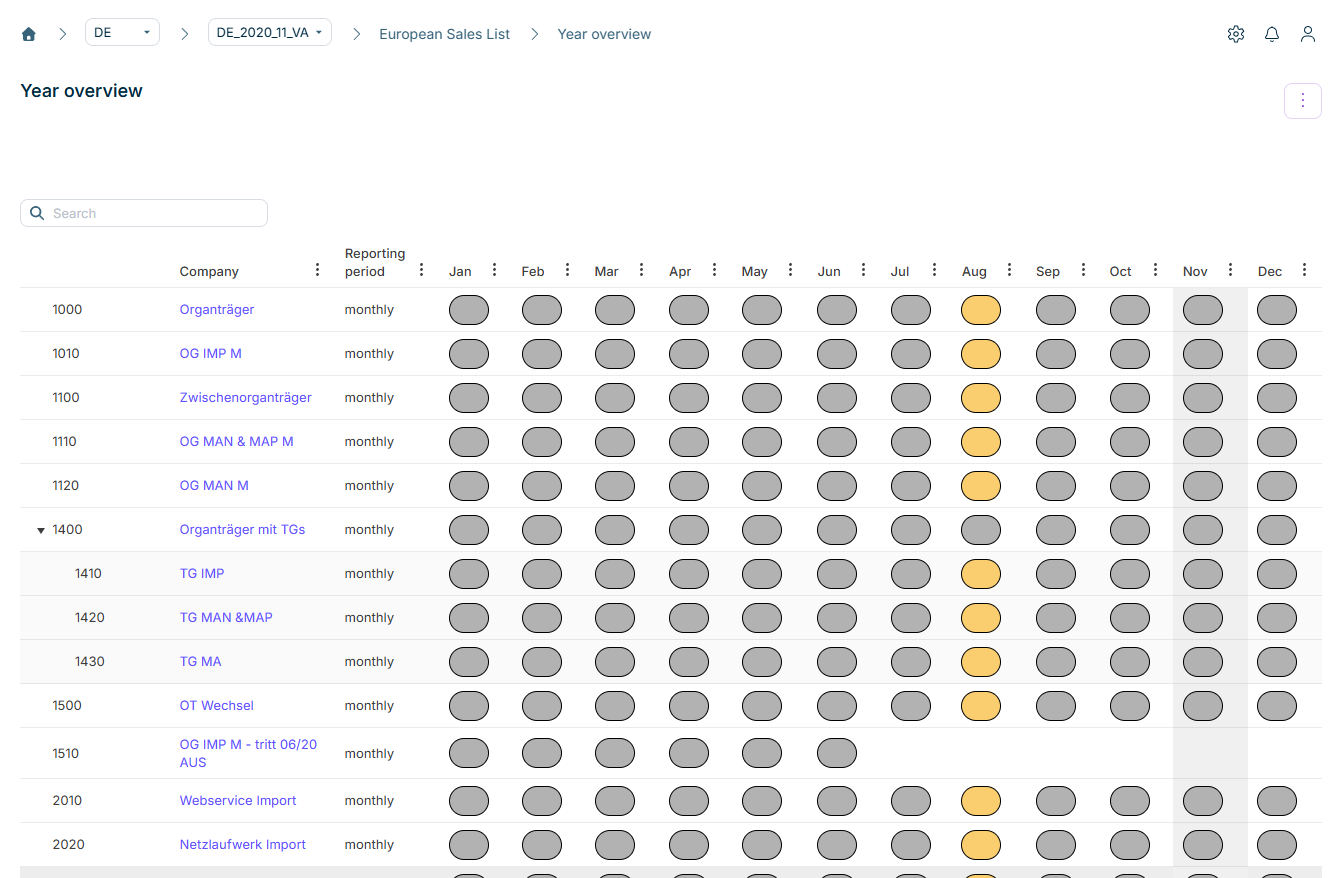
The Year overview under European Sales List (ESL) in Lucanet VAT (Value Added Tax) displays the reporting progress of all companies over an entire year. For each company, a status indicator is displayed per period. The overview has the same structure and the same company hierarchy as the Month overview. The section Structure of the Month Overview of the European Sales List in VAT describes which companies are displayed and how to navigate through the VAT group.
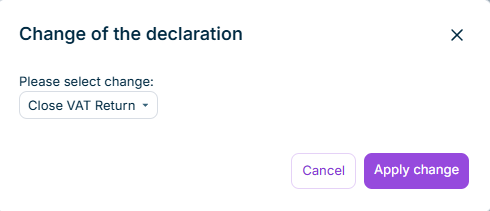
The key difference from the month overview is that the year overview does not contain detail columns for the import or the reconciliations. Instead, the year overview compactly displays the current declaration status per declaration and period, as well as possible follow-up actions.
The table of the year overview of the European Sales List in VAT displays the following columns:
Column
Description
Company
Company number and name. VAT group total rows are displayed in bold. Clicking the name opens the Status workspace of the company.
Reporting period
Reporting frequency of the company, e.g. monthly, quarterly, or yearly
Jan – Dec
Status indicator of the declaration for the respective calendar month. For companies that do not report monthly, only the reporting month is filled; the other months remain empty.
Year
Status indicator for the annual VAT return period, if available
Use the Search field to filter the table by company name or number.
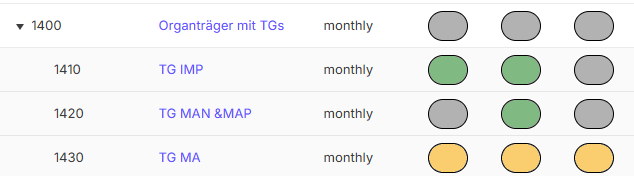
The status indicators in the year overview in VAT are color-coded and display the current processing status of the European Sales List. If the declaration contains one or more corrections, the number of the current correction is displayed in the badge. For companies that do not report monthly, only the respective reporting month is filled; all other months remain empty.
Color-coded status indicators in the Year overview
The colors of the status indicators in the year overview in VAT have the following meaning:
Color
Status
Meaning
Gray
Not started
The processing of the declaration has not started yet.
Yellow
In work
The declaration is being processed.
Green
Closed
The declaration has been finalized.
Blue
Sent
The declaration was sent to the Federal Central Tax Office.
Blue with red border
Transmission error
A technical error occurred during the transmission.