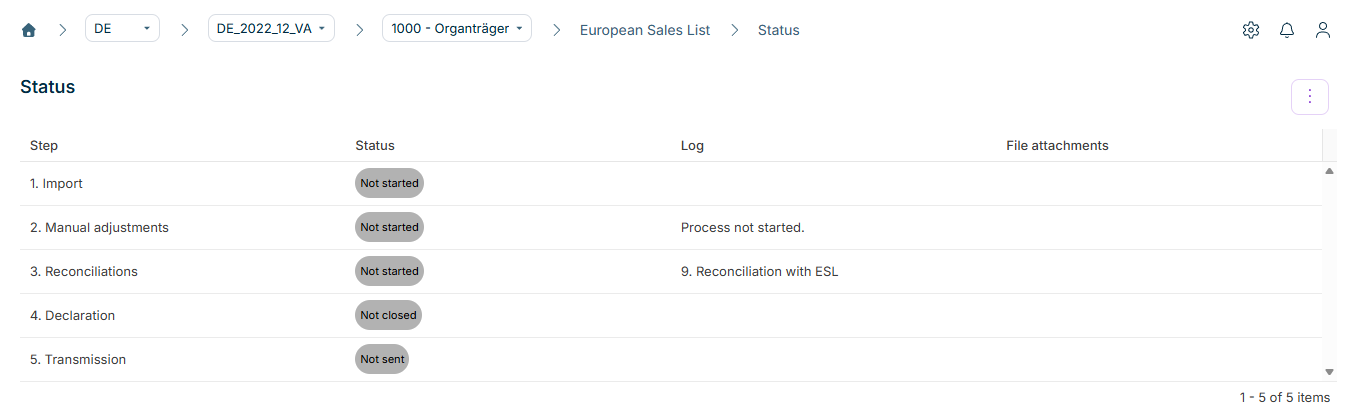
The Status workspace in the European Sales List (ESL) functional area in Lucanet VAT (Value Added Tax) displays the current processing status of the ESL reporting process for the selected period and company. The table presents the individual steps of the process, making it visible at a glance which steps have already been completed and where action is still required.
For an overview of the entire reporting process, see the All Steps at a Glance page. The European Sales List page describes the prerequisites under which the European Sales List functional area is displayed.
The reporting process of the European Sales List in VAT comprises five steps. Each step corresponds to a row in the table of the Status workspace. To process the European Sales List in VAT:
1
Import: Import the ESL data, e.g. the ERP report RFASLM00, in the Import workspace. VAT imports the data automatically from a network drive, or you import the data manually. For superordinate companies with company members, this step covers the transfer of the ESL data from the company members.
2
Manual adjustments: Change the imported data in the Declaration workspace, if required. The step displays whether manual corrections were made after the import.
3
Reconciliations: Execute the reconciliations in the Reconciliations workspace, e.g. the reconciliation of the European Sales List with the preliminary VAT return, that is, reconciliation 9. The Log column displays errors in the reconciliations.
4
Declaration: Finalize the European Sales List in the Declaration workspace. You must finalize the declaration before you can send it.
5
Transmission: Send the European Sales List to the Federal Central Tax Office in the Send declaration workspace. This step only becomes relevant once the declaration is finalized.
Each step of the European Sales List can take one of the following status values. VAT highlights the status values in color so that the processing status is visible at a glance:
Step
Possible status values
Import
Not started: No import has been executed yet. Imported: The import was completed successfully.
Manual adjustments
Not started: No manual adjustments were made. Started: Manual adjustments were made.
Reconciliations
Not started: The reconciliations have not been executed yet.
Declaration
Not closed: The declaration has not been finalized yet. Closed: The declaration has been finalized and can be sent.
Transmission
Not sent: The declaration has not been transmitted to the Federal Central Tax Office yet. Sent: The declaration was transmitted successfully. Transmission error: A technical error occurred during the transmission.
This content was generated using AI and reviewed by Lucanet subject matter experts before publication.