After having familiarized yourself with the structure and general functions of the questionnaire builder in Lucanet ESG Reporting, you can start configuring the ESRS, ESRS 2.0, or VSME questionnaire, i.e., you can define the scope of the questions that you want to include in the questionnaire, and define which reporting entity has access to certain parts of the questionnaire.

To define the questionnaire scope and assign reporting entities in Lucanet ESG Reporting, follow these procedures:

When configuring a new questionnaire in Lucanet ESG Reporting, all elements are included by default. You can include or exclude questions from the questionnaire by activating or deactivating the respective check box. Proceed as follows:

1

Click Edit to start defining the scope. A draft of the original questionnaire is automatically created.

2

Deactivate the check boxes of the elements that you want to exclude from the questionnaire.

3

Click Apply changes to save your draft.

Further information on the scope definition :

  • If you include a superordinate element, all of its child elements will also be included.
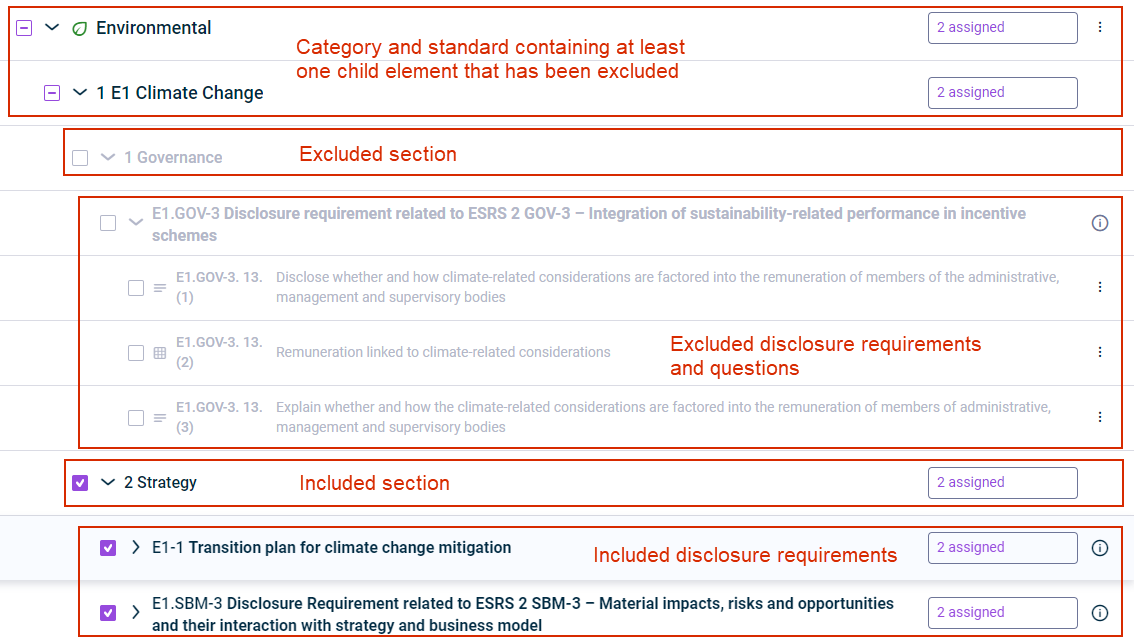
  • If you exclude a child element, the check box of all its superordinate elements will be changed to Partially selected check box icon to visualize that there is at least one question under the superordinate element that has been excluded from the questionnaire.
  • Content that has been excluded is grayed out.

Further information on the questionnaire drafts :

  • You can make multiple changes to the scope of the questionnaire when defining the questionnaire, but also after the data collection has started, i.e. until the data for the ESG report are aggregated.
  • Any element that is excluded due to a change to the questionnaire scope will be hidden from the questionnaire along with any answers, attached files, additional user assignments, or reviews that may have already been created.
  • Any element that was previously excluded and is included again in a later draft will be visible again along with any answers, attached files, additional user assignments, or reviews that may have already been created in the past.
Shows questionnaire inclusion states in Lucanet ESG Reporting. Red annotations identify a partially included category and standard, excluded sections and questions, and included sections and disclosure requirements.
Options for including or excluding questions

Before you exclude a question or a table column, check whether the formula of a formula-based KPI refers to it. An excluded question no longer provides a value, so the KPI can no longer be calculated. Include the question again, or correct the formula of the KPI. Use the Preview option of a KPI to see what its formula refers to.

Optional: map results of double materiality assessment

In case you have chosen ESRS as report guideline and as long as you have not completed the configuration of the ESRS questionnaire, you still have the option to map the results of a double materiality assessment, even if you have deactivated the Double Materiality Assessments option in the master data page.

To do so, return to the master data page and activate the respective option (see Creating an ESG Report). Please keep in mind that this action will undo all configurations that you have made so far to the ESRS questionnaire.

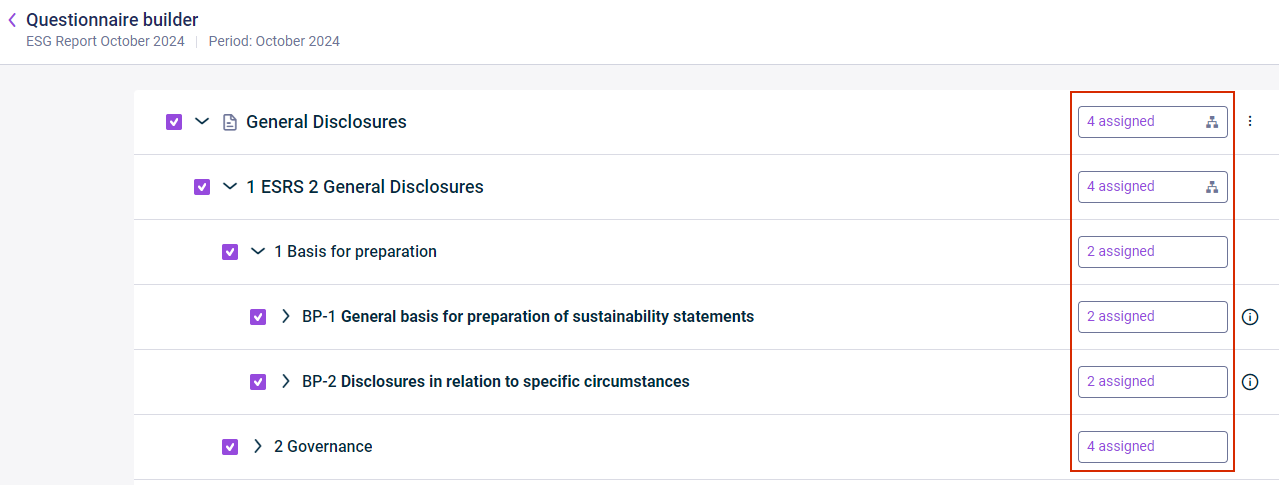
In Lucanet ESG Reporting, all reporting entities that have been defined in the master data administration as data collectors are automatically assigned to the whole ESRS, ESRS 2.0, or VSME questionnaire. However, you can assign the reporting entities to certain parts of the questionnaire to create customized questionnaires and collect data specifically assigned to a reporting entity.

Shows the questionnaire builder in Lucanet ESG Reporting. Highlighted in red are assignment buttons showing '4 assigned' and '2 assigned' for questionnaire elements.
Questionnaire builder with assignment state per element

Assigning or Unassigning Reporting Entities

To assign certain reporting entities to a part of the questionnaire or remove this assignment, click the button of the element for which you want to change the assignments.

Shows reporting entity assignments in Lucanet ESG Reporting. Highlighted in red is the '4 assigned' button for 'General Disclosures'.
Button with assignment state for 'General Disclosures'

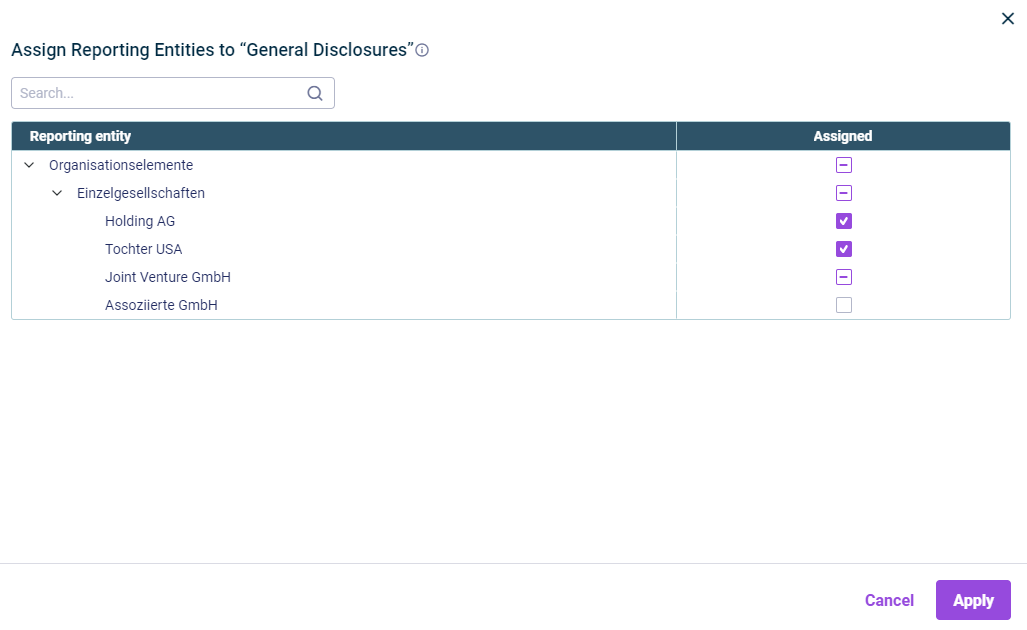
In the subsequently displayed dialog, you can assign or unassign the required reporting entities.

Shows the dialog for assigning reporting entities to 'General Disclosures' in Lucanet ESG Reporting, with a reporting entity hierarchy and selected, partially selected, and unselected check boxes in 'Assigned'.
Assigning reporting entities to the 'General Disclosures' category

Icons for Assignment States

The following icons display reporting entity assignment states in the questionnaire builder in Lucanet ESG Reporting:

IconDescription
Selected check box iconIn the case of an organization element: All of the reporting entities that are part of this organization element are fully assigned to this element (only relevant for users who use Lucanet.Financial OLAP Server).
In the case of a reporting entity: The reporting entity is assigned to this element and to all of the subordinate questionnaire elements.
Partially selected check box iconIn the case of an organization element: The organization element contains at least one assigned and at least one unassigned reporting entity (only true for users who use Lucanet.Financial OLAP Server).
In the case of a reporting entity: The reporting entity is assigned to at least one of the subordinate elements but not to all of the subordinate elements.
Unselected check box iconIn the case of an organization element: None of the reporting entities of the organization element are assigned (only true for users who use Lucanet.Financial OLAP Server).
In the case of a reporting entity: The reporting entity is not assigned to this element or to any of its subordinate elements.

Note: To assign reporting entities to the whole ESRS, ESRS 2.0, or VSME questionnaire or remove this assignment completely, return to the master data administration and manage the reporting entities accordingly.

Note: A formula-based KPI has no assignment of its own. It is visible for a reporting entity only if that entity is assigned to all the questions used in its formula. If you later unassign one of these questions, the KPI is no longer displayed for that reporting entity (see Adding Formula-Based KPIs).

Example of a Configuration

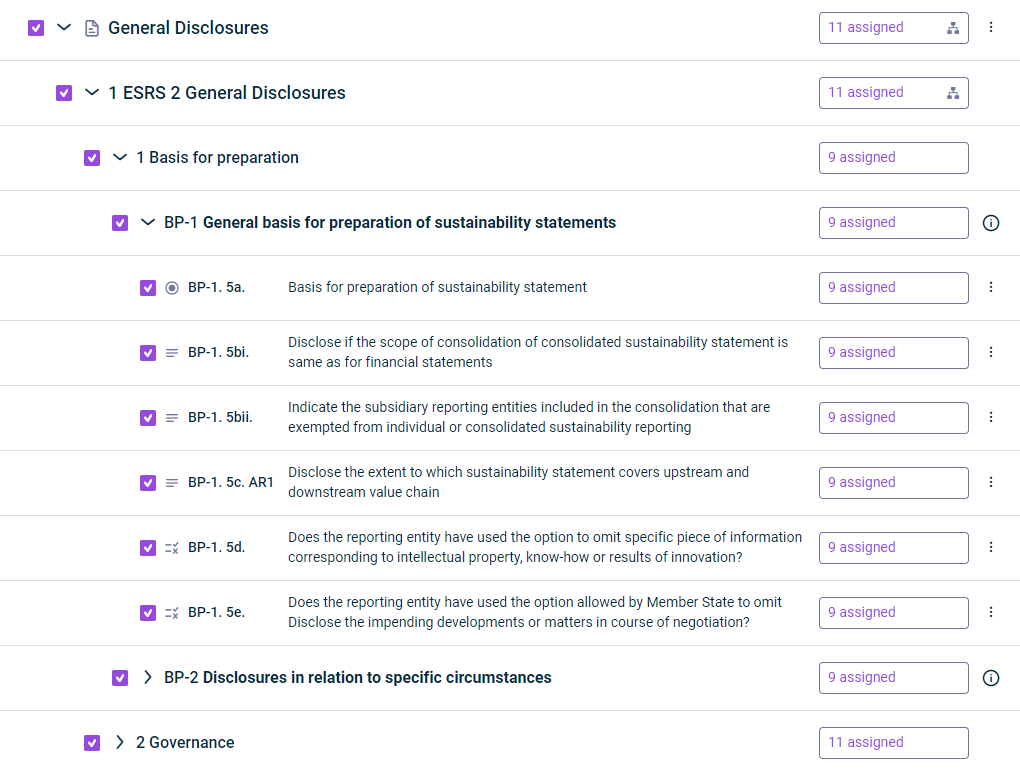
In the following example for an ESRS questionnaire builder, 11 reporting entities have been assigned to the General Disclosures category in total. 9 of the reporting entities are only partially assigned, i.e. in this example, 2 reporting entities cannot access 1. Basis for Preparation.

Shows questionnaire assignments in Lucanet ESG Reporting: 'General Disclosures' has '11 assigned', while '1 Basis for preparation' and its disclosure requirements have '9 assigned'.
Assignment status for the 'General Disclosures' category and its subordinate elements

The tooltip that appears when hovering over the organigram icon reflects this accordingly:

Shows the 'General Disclosures' assignment tooltip in Lucanet ESG Reporting: '9 reporting entities are fully assigned; 2 reporting entities are partially assigned.'.
Tooltip with information of assigned reporting entities

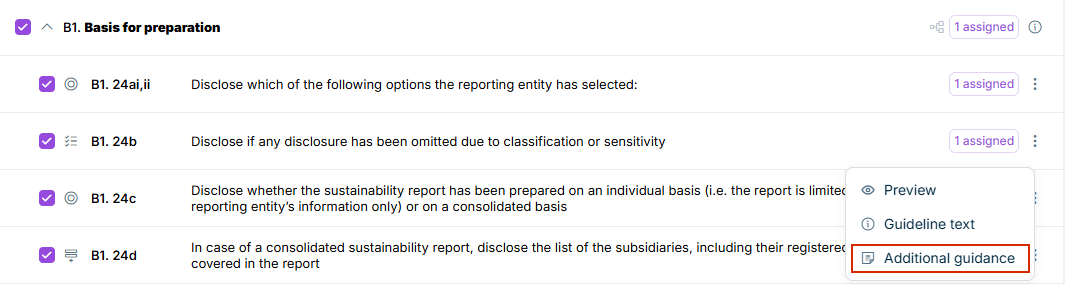
As an ESG Administrator in Lucanet ESG Reporting, you can add additional guidance to individual questions in the questionnaire. You can use additional guidance to supplement the original text of the guideline the question that is based on by providing ESG Data Collectors with company-specific instructions, examples, or internal references directly for each question.

To add additional guidance to a question, proceed as follows:

1

Navigate to the question to which you want to add additional guidance.

2

Click the three-dot icon and choose Additional guidance from the drop-down list.

Shows a question's context menu in Lucanet ESG Reporting with 'Preview', 'Guideline text', and 'Additional guidance'. Highlighted in red is 'Additional guidance'.
'Additional guidance' option for a question
3

In the subsequently displayed panel Additional guidance, enter your text.

4

Click Save.

The additional guidance is now visible to all ESG Data Collectors assigned to this question (see Filling Out Report Questionnaire).

Besides configuring the standard questions in Lucanet ESG Reporting, you can extend the questionnaire with your own custom questions to collect company-specific metrics, voluntary disclosures, or internal KPIs. For details, see Adding Custom Questions.

In Lucanet ESG Reporting, you can also add formula-based KPIs — calculated values that are derived from the answers to other questions of the questionnaire. For details, see Adding Formula-Based KPIs.

This content was generated using AI and reviewed by Lucanet subject matter experts before publication.