As an ESG Administrator, you can add formula-based KPIs to the ESRS, ESRS 2.0, or VSME questionnaire. A formula-based KPI is a calculated value: instead of being answered by an ESG Data Collector, it is calculated from the answers to other questions in the same questionnaire.

This keeps derived metrics, for example ratios, shares, or totals, in the Lucanet CFO Solution Platform, and the derivation is transparent for everyone who works with the report. A manual calculation after data collection is no longer needed.

You add formula-based KPIs in the Questionnaire builder, in the same place as custom questions, that is, in the disclosure requirement they belong to.

As an ESG Administrator, you can only add formula-based KPIs while the questionnaire is editable, that is, while you are working on a draft (see Using the Questionnaire Builder).

A formula combines operands with operators.

Operands

An operand is a value from the questionnaire that is used in the formula calculation. ESG Reporting provides an operand catalog with all operands that produce a number in the questionnaire:

OperandDescription
Numeric and monetary questionsThe answer to a question of the type Numeric input or Monetary.
Static table cellsA single cell of a static table, identified by its row and column. A table question therefore provides as many operands as it has cells.
Dynamic table column totalsThe total of a dynamic table column across all rows the ESG Data Collector enters.
Other formula-based KPIsA KPI that is already defined in the same questionnaire.
Fixed numbersA number entered directly in the formula, for example for a conversion or constant factor.

Questions that do not produce a number, that is, Text input, Yes/No, and Date, are not offered in the catalog and cannot be used in a formula.

Operators

The formula editor provides a toolbar with the following operators:

OperatorMeaning
+Addition
−Subtraction
×Multiplication
÷Division
%Expresses the result as a percentage
( and )Parentheses, to control the order of calculation

You never type formula syntax yourself. Each operand is inserted as a separate element that you can remove individually, and it keeps pointing at the right question even if that question is later renamed.

Proceed as follows:

1

In the Questionnaire builder, click Edit to start a draft.

2

Expand the questionnaire down to the disclosure requirement to which you want to add the KPI.

3

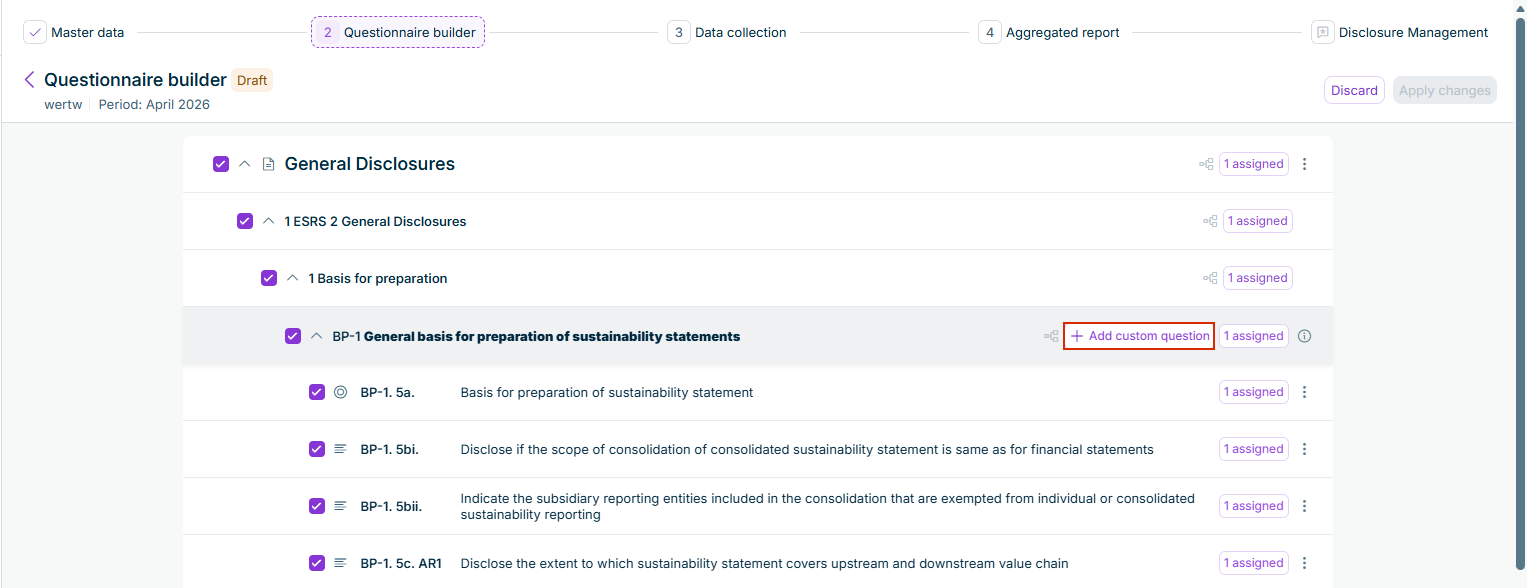
On the disclosure requirement, click + Add custom question.

The '+ Add custom question' button is displayed on the BP-1 disclosure requirement row in the questionnaire builder.
'+ Add custom question' button on a disclosure requirement
4

In the Add custom question dialog, select the Formula-based KPI option in the Custom information section and click Next. The dialog is then displayed as follows:

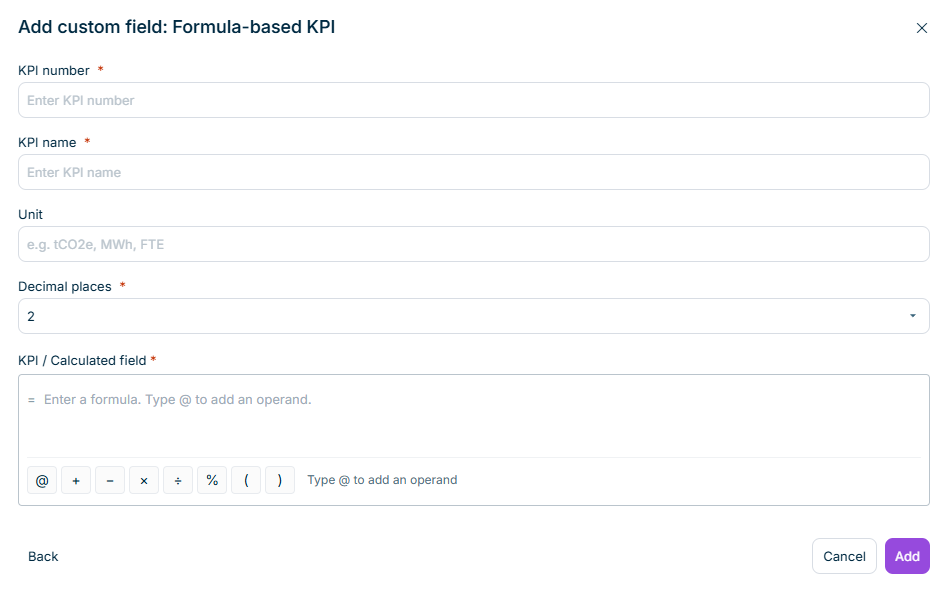
The dialog for creating a formula-based KPI, with the fields for number, name, unit, and decimal places, and the empty formula editor.
Entering the details of a formula-based KPI
5

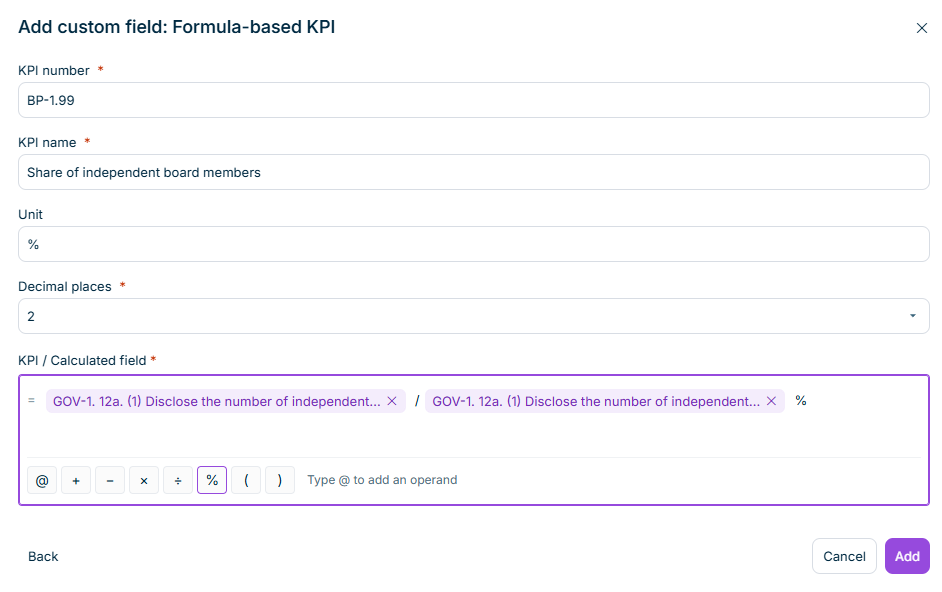
Enter the KPI details:

  • KPI number: The number under which the KPI appears in the questionnaire, for example BP-1.99.
  • KPI name: The name displayed to the ESG Data Collectors.
  • Unit: The unit of the calculated value, for example tCO2e, MWh, FTE, or %.
  • Decimal places: Select 0 or 2 from the drop-down list. The default is 2.
6

In the KPI / Calculated field area, build the formula. You have the following options:

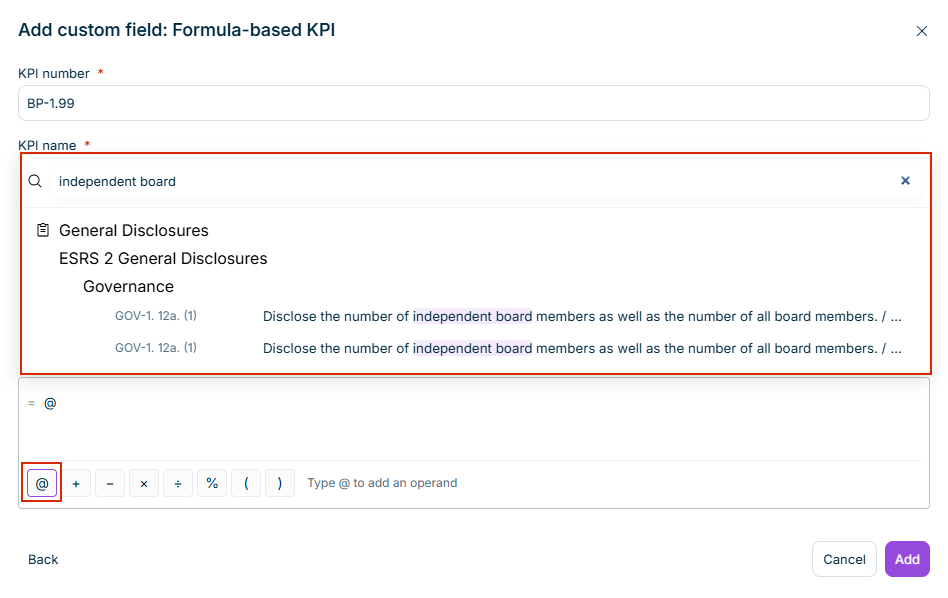
  • Insert operands: Click @ or type @ in the formula field. The operand catalog opens and displays the structure of the questionnaire. Use the search to find an operand by its question number or its text. Click the operand you want to use to insert it into the formula.
  • Insert operators: In the toolbar, click the operator you want to use.
The operand catalog with the search term 'independent board' entered and the matching parts of the question text highlighted.
Searching for an operand in the operand catalog

Repeat until the formula is complete. To remove an operand, click the x next to it.

The formula editor with two operands joined by a division operator and followed by the percentage operator.
A completed formula for a percentage KPI
7

Click Add.

When you add a formula-based KPI, the following applies:

  • The KPI is inserted at the top within the disclosure requirement and is marked with a formula icon.
  • The KPI has no reporting entity assignment of its own. A KPI is displayed to a reporting entity only if that reporting entity is assigned to all the questions used in its formula (see Using the Questionnaire Builder).
  • If the parent disclosure requirement is hidden, the KPI is hidden as well.
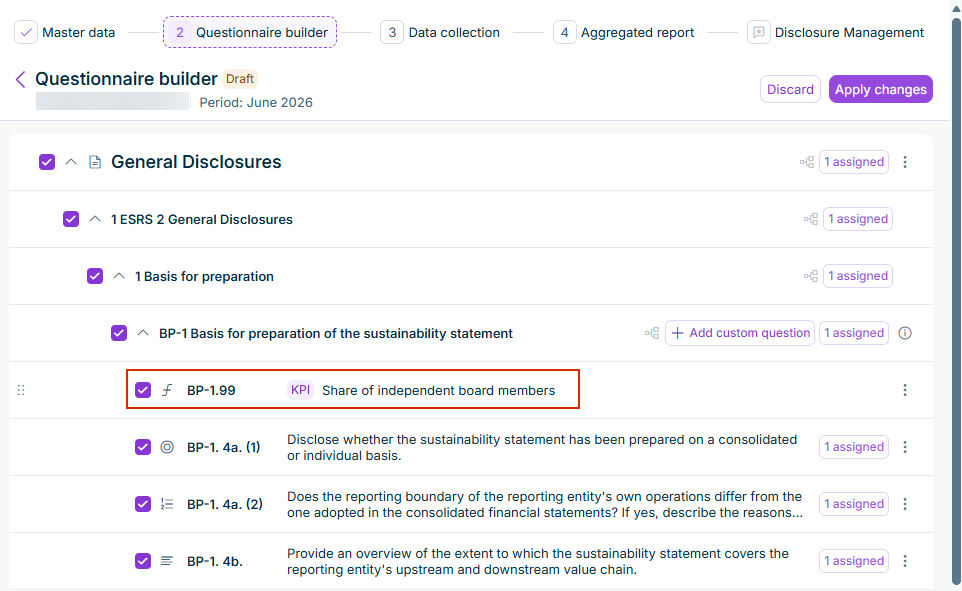
The questionnaire builder showing the new KPI at the top of the BP-1 disclosure requirement, with the formula icon and the 'KPI' badge.
A formula-based KPI in the questionnaire builder

Like custom questions, formula-based KPIs are part of the questionnaire draft. Click Apply changes to save them, or Discard to remove all changes made in the draft.

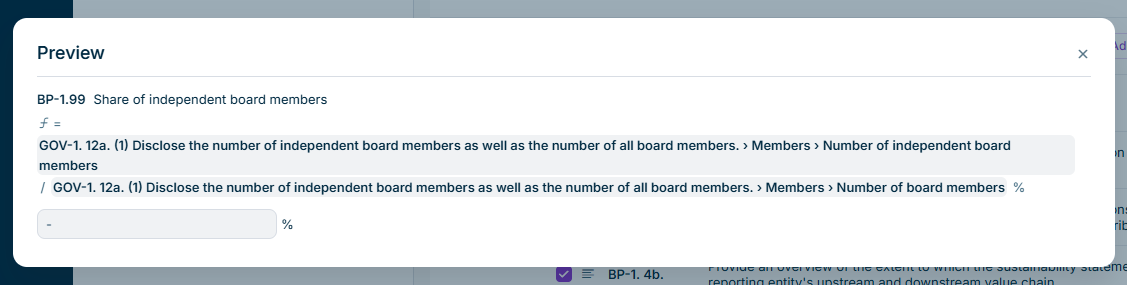
To see how a KPI will appear to the ESG Data Collectors, click the three-dot icon next to it and select Preview. The preview displays the KPI number, the KPI name, the formula in full, and the read-only value field with its unit.

The 'Preview' dialog showing the KPI number, name, the formula with the full path of each operand, and an empty read-only value field with the unit.
Preview of a formula-based KPI

In the formula, each operand is displayed with its complete path — question number, question text, and, for table cells, the row and column — so you can check that the formula refers to the values you intended.

Using the three-dot icon next to the KPI, you can edit or delete the KPI in the same way as a custom question. When you edit a KPI, you change both its details and its formula.

Once data collection has started, the KPI is calculated from the answers of each reporting entity and is displayed as read-only — see Filling Out Report Questionnaire. In the aggregated report, a group value is calculated in addition to the per-entity values — see Generating ESG Report.

This content was generated using AI and reviewed by Lucanet subject matter experts before publication.