As an ESG Administrator, you can extend the ESRS, ESRS 2.0, or VSME questionnaire with your own custom questions. Custom questions let you collect company-specific metrics, voluntary disclosures, or internal KPIs that go beyond the standard framework content, within the same governed data collection workflow.

You add custom questions in the Questionnaire builder, directly under the disclosure requirement they belong to. This page describes how to add, reorder, and delete them.

Custom questions can only be added by an ESG Administrator and only while the questionnaire is editable, i.e., while you are working on a draft (see Using the Questionnaire Builder). ESG Data Collectors and reviewers cannot add custom questions.

When you add a custom question, you first choose its type. The following types are available:

TypeDescription
Text inputFree text field.
Numeric inputNumeric field.
MonetaryAmount of money, formatted in the report currency with 2 decimal places.
Yes/NoYes/no question.
Static tableA table with fixed rows and fixed columns.
Dynamic tableA table with fixed columns and flexible rows, where the ESG Data Collector adds the rows during data collection.
1

In the Questionnaire builder, click Edit to start a draft.

2

Expand the questionnaire down to the disclosure requirement to which you want to add a custom question.

3

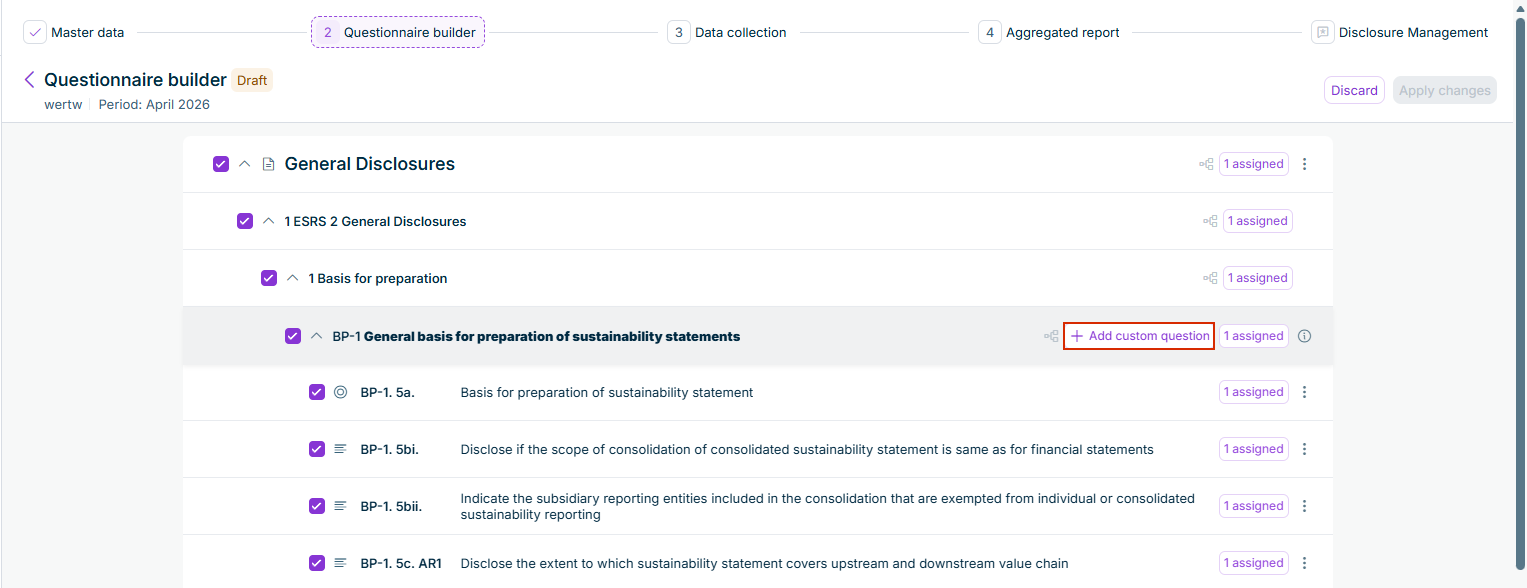
Hover over the disclosure requirement and click + Add custom question.

The '+ Add custom question' button is displayed on the BP-1 disclosure requirement row in the questionnaire builder.
'+ Add custom question' button on a disclosure requirement
4

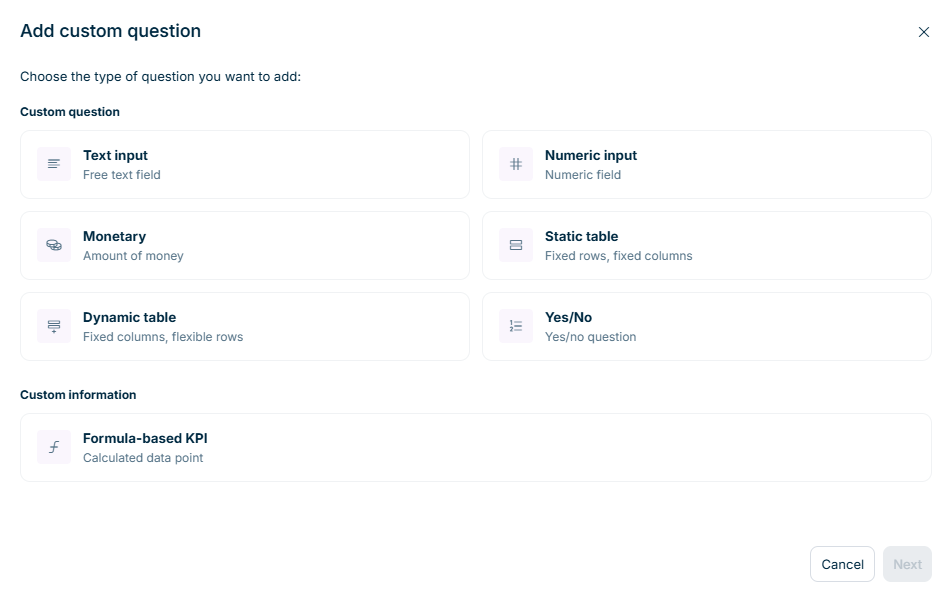
In the Add custom question dialog, select the type of question you want to add, then click Next.

The 'Add custom question' dialog displays six question type cards: Text input, Numeric input, Monetary, Static table, Dynamic table, and Yes/No.
Choosing the type of custom question
5

Enter the question details and complete the question (see Single Questions or Table Questions below).

When you add a custom question, the following applies:

  • The question is inserted at the top of the existing questions within the disclosure requirement.
  • The question is marked with a Custom badge in the questionnaire builder (see Displaying the 'Custom' Badge below).
  • The question is assigned to all reporting entities by default. You can change the assignment in the same way as for standard questions (see Using the Questionnaire Builder).
  • If the parent disclosure requirement is hidden, the custom question is hidden as well.

Custom questions are part of the questionnaire draft. Click Apply changes in the questionnaire builder to save them. Click Discard to remove all changes made in the draft.

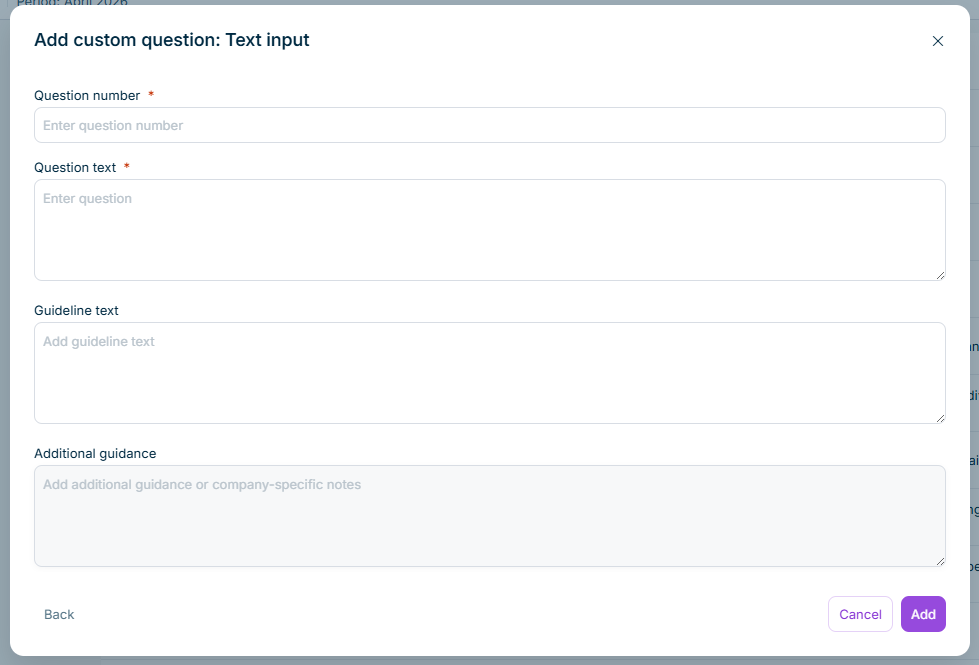
For Text input, Numeric input, Monetary, and Yes/No questions, you go straight to the question details after selecting the type.

Complete the following fields, then click Add:

FieldDescription
Question numberAn identifier of your choice, e.g., CQ-1. It is not renumbered automatically when you reorder questions.
Question textThe question shown to the ESG Data Collector.
Guideline textReference text for the question, comparable to the guideline text of standard questions.
Additional guidanceCompany-specific instructions, examples, or internal references.
The 'Add custom question: Text input' dialog displays the fields Question number, Question text, Guideline text, and Additional guidance.
Entering the details of a single custom question

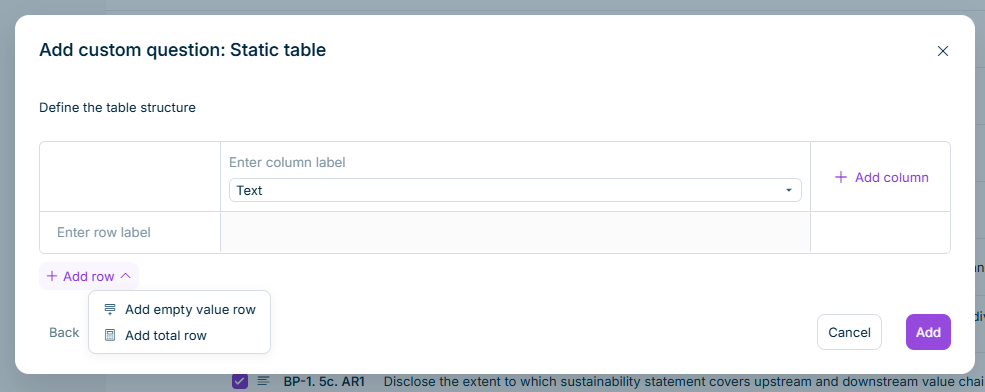
For Static table and Dynamic table questions, you first enter the same question details as for a single question, then click Next to define the table structure. The dialog for adding a table appears as follows, for example:

The '+ Add row' dropdown displays the options 'Add empty value row' and 'Add total row'.
Defining the table structure

On the Define the table structure screen:

1

Click + Add column for each column you need. Enter a column label and select the column type: Text, Numeric, or Monetary.

2

Click + Add row and choose the row type:

  • Add empty value row — a row for the ESG Data Collector to fill in.
  • Add total row — a row that automatically sums the numeric and monetary columns during data collection.

Enter a label for each row.

3

Click Add to create the custom question.

When you delete a column or row from a table question that already contains collected data, a warning appears before the data is removed. Deleting the column or row also deletes the data that has been collected for it.

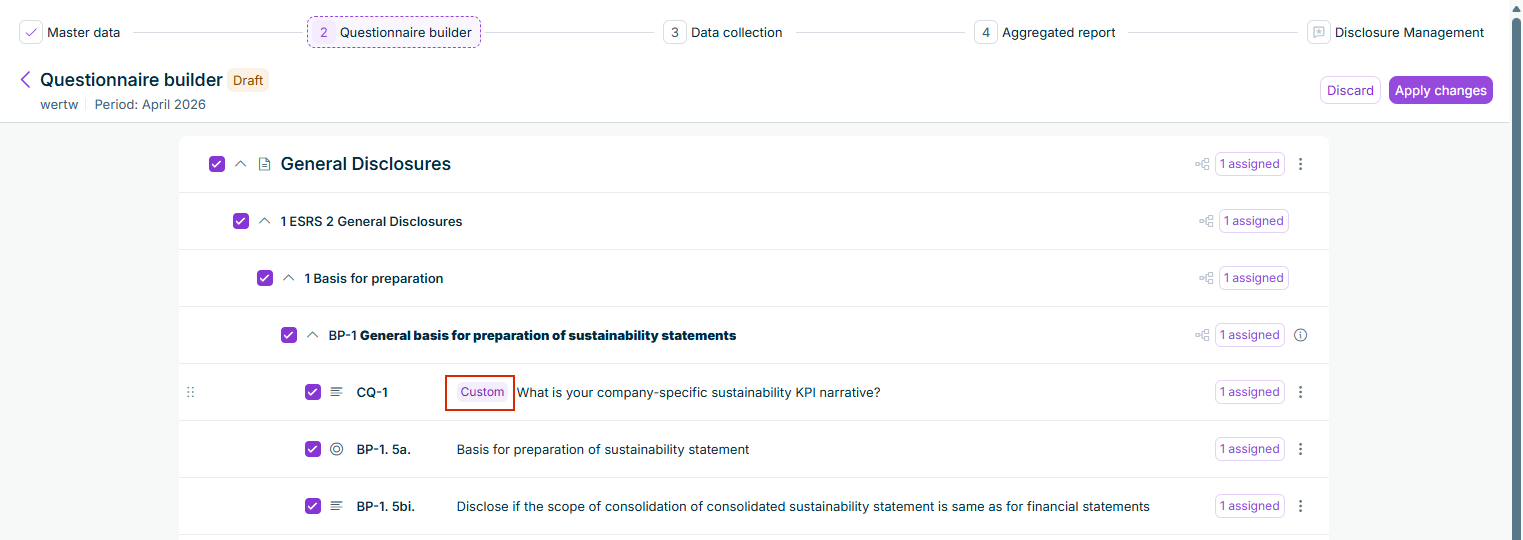
Custom questions are marked with a Custom badge so that you can distinguish them from standard framework questions. The badge is shown:

The badge is not shown to ESG Data Collectors in the data collection interface or to reviewers in the review interface, so that custom questions look and behave like standard questions during data collection.

A custom question with a 'Custom' badge is displayed at the top of the questions in the BP-1 disclosure requirement, with a drag handle on the left.
Custom question with the 'Custom' badge

You can change the order of custom questions within a disclosure requirement:

1

Navigate to the custom question you want to reorder.

2

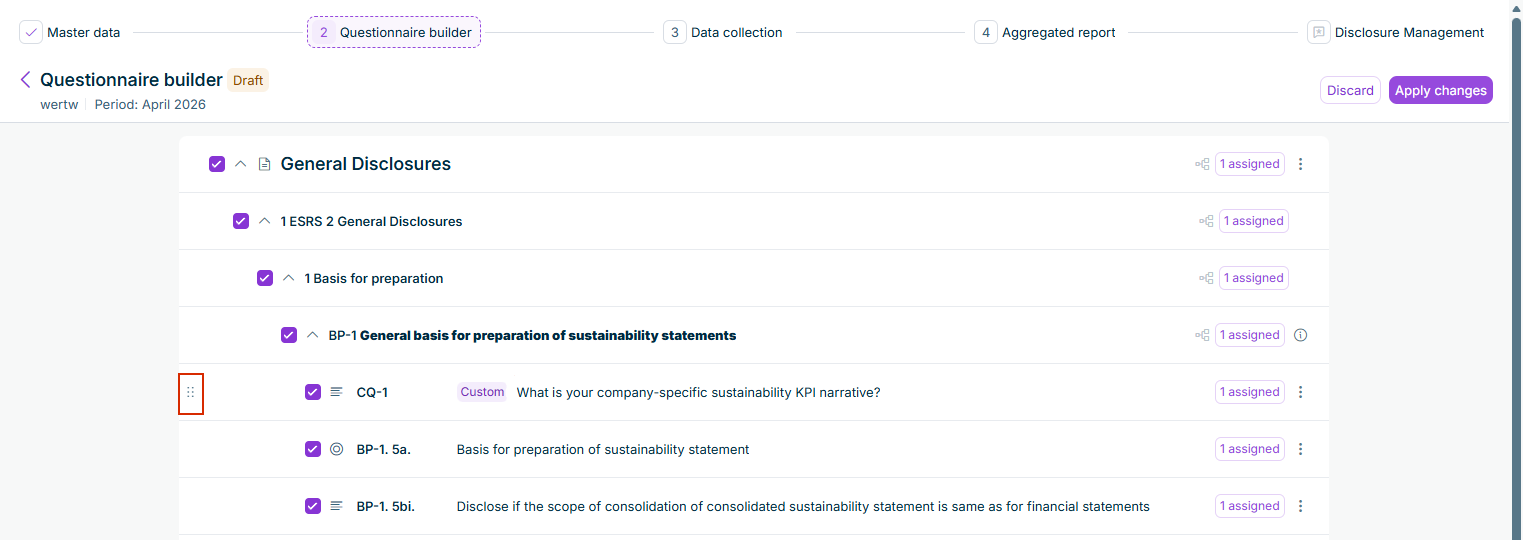
Drag the question to its new position within the same disclosure requirement. You cannot move a custom question into a different disclosure requirement.

3

Click Apply changes to save the new order and data.

The question number does not change when you reorder questions.

A custom question with a drag handle on the left, used to reorder the question within the disclosure requirement.
Option for reordering a custom question

To delete a custom question, click the three-dot icon next to it and select Delete. Remember to click Apply changes to save your changes.

Once your questionnaire is complete, continue with Starting Data Collection. For how custom questions are filled out, see Filling Out Report Questionnaire.