Come and explore the exciting new features of our solution Disclosure Management!
The versions of all solutions that you are currently using and those of the CFO Solution Platform are displayed when you select About Lucanet from the Help section in the CFO Solution Platform.
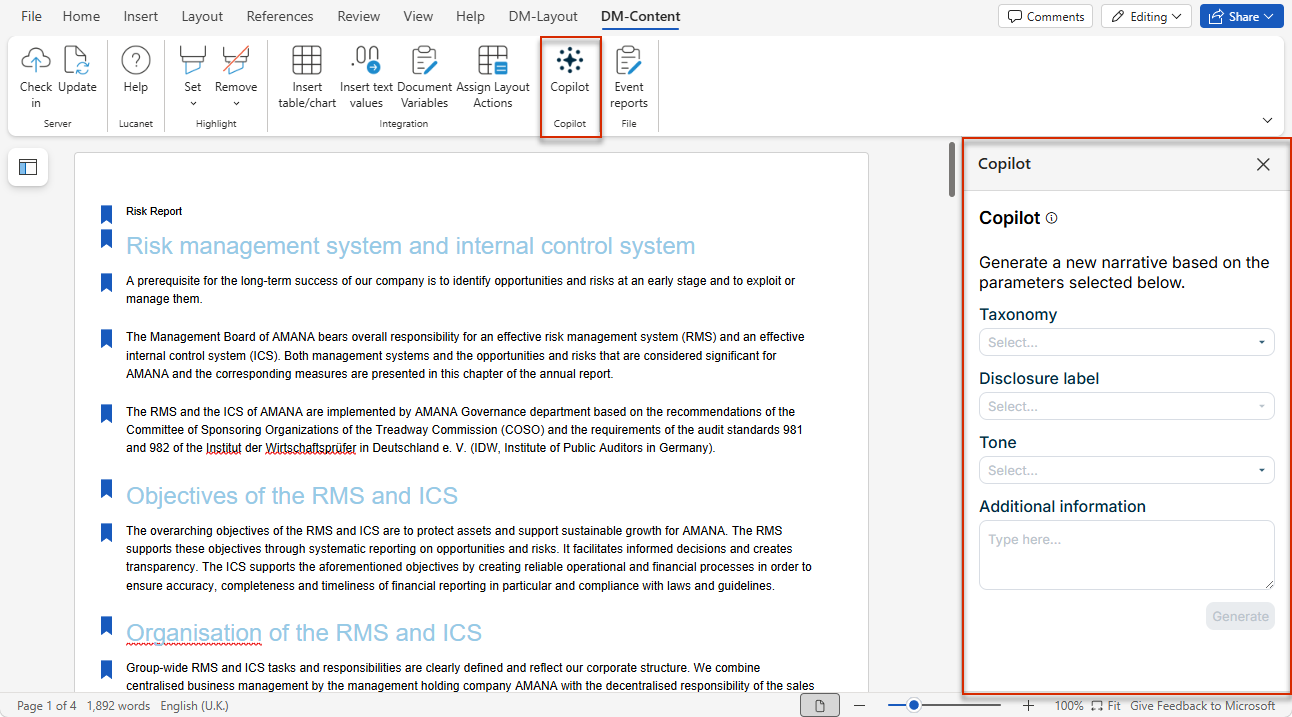
Copilot for MS Word is now also available in MS Office for the Web and MS Office Native, in addition to MS Office for Desktop. The Writer function helps you create taxonomy-compliant report content for IFRS or ESRS faster and more accurately. The Enhancer function lets you adapt existing text to different requirements in seconds, for example by changing the tone, shortening it, or making it more detailed. Copilot automatically detects whether you want to generate new text or edit selected text.
Copilot in MS Word — now also available in MS Office for the Web and MS Office Native
To use Copilot, your Disclosure Management deployment must run at least the "Advanced" license.
For the four options Change tone, Rephrase, Elaborate, and Shorten in the Copilot Enhancer function, the inserted text now keeps the paragraph style the selected text already had, instead of being reset to Word's "Standard" style as before.
The new Area and column assistant takes over detecting outareas and their name, value, and programming columns in MS Excel — in MS Office for the Web and MS Office Native — using AI, as an alternative to configuring them manually. This saves time when setting up MS Excel tables for a report and reduces the risk of manual configuration errors, especially for large or recurring table structures. Detected outareas and columns can be reviewed and adjusted before you save the assignment for use in MS Word exports.
'Area and column assistant' button on the MS Excel ribbon
To use the Area and column assistant, your Disclosure Management deployment must run at least the "Advanced" license.
The Document Quality Manager role (and the global Global Reviewer role) now has write access to Word and Excel files in the Initial Input, In Progress, and QA statuses, instead of read-only access as before. This lets you leave comments directly in the files as a Quality Manager, since commenting in Office for the Web requires an editable session. In the Report Completed status, access remains read-only.
In the document settings, the General settings tab now contains a Chapter roles area with the Inherit chapter roles to sub-chapters option. When you enable it, the Chapter Reader and Chapter Editor roles assigned on a parent chapter automatically apply to all sub-chapters below it, across all levels — including sub-chapters that are created later. This removes the need to grant the same role on every chapter individually. Inherited and explicitly assigned roles accumulate, and existing assignments on sub-chapters remain active.
In MS Office for Desktop, the Layout Actions Assistant now offers Previous and Next. Each applies the current layout action to the selected table without triggering a document update, then selects the previous or next Disclosure Management table in document order. Plain Word tables are skipped, and the task pane shows the layout action of the newly selected table. Previous is disabled on the first Disclosure Management table, Next on the last. In addition, the table selected before a document update is selected again afterwards.
In the document settings, the General settings tab now contains the Replace -0 with field in the MS Word section. Enter the text that should replace negative zero values in Word tables, for example n/a or 0. The replacement applies to all tables regardless of whether a layout template is assigned, and takes effect both when a Word file is opened and when a result document is generated. Leave the field empty to keep negative zero values unchanged.
The text parameters of the Filter, Prefix, Postfix, and Replace processings now resolve document variables. Write %variableName% to insert a document variable's value, and %% for a literal percent sign. A variable can appear anywhere in the parameter, for example contains(FY%year%). This lets you change a value once in the document variable instead of editing every affected mapping, for example when rolling a report forward. The stored configuration keeps the variable rather than the resolved value.
Reimporting a result document is now also available for partial result documents generated from an ad-hoc selection of chapters. Previously, the Re-import result document option was disabled for these documents. During reimport, only the chapters that were part of the original partial result document are considered; all other chapters in the report remain unchanged.
Reimport is only possible for partial result documents generated after this feature was introduced. For partial result documents created earlier, the Re-import result document option remains disabled.
Content Groups can now optionally be mapped to one of firesys's five fixed dynamic-text colors (see Assigning a firesys Color). Building on this mapping, the Information area of the event reports (Layout violations tab) now automatically detects color-coded firesys content in MS Word documents — both text using firesys font shading and table cells with the matching diagonal firesys marker — and lets you migrate every occurrence of a mapped color to its Content Group in one action, instead of manually wrapping each occurrence.
Migration permanently removes the original firesys marker from the document and cannot be undone.
The Language settings, Spaces, Style guide, and Layout check sub-pages of the Configure document workspace now each show a short explanatory note above the configuration area, describing what the setting is used for. You can close the note per sub-page; it does not reappear once closed. An info icon in the page header links to the matching Knowledge Base article for further details.
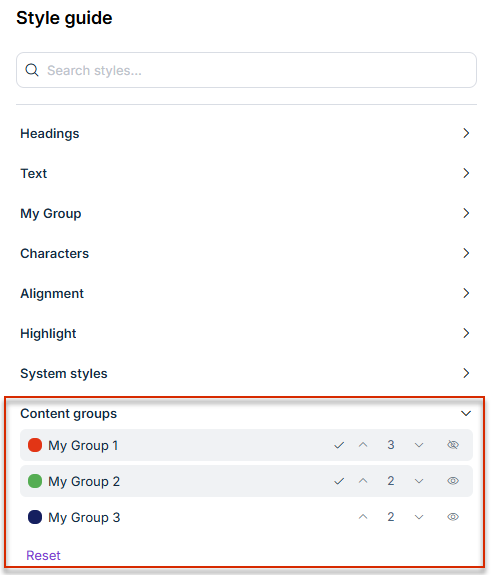
In the Content Groups area in MS Word, each content group now shows the number of its assigned occurrences in the document and provides two arrow icons to jump directly to the previous or next occurrence. Navigation does not change the document — no highlighting is applied, so your own manual highlights are preserved.
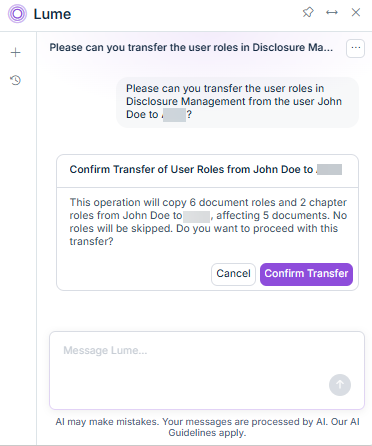
Administrators can now transfer a user's document and chapter roles for Disclosure Management to another user directly via Lucanet Lume, using a natural-language command. Lume reads the roles of both users and shows a preview of the planned changes before making any change: roles to be added to the target user, and roles the target user already has, which remain unchanged. Global roles are not part of the transfer and are listed separately in the preview. Once you confirm, Lume adds the missing document and chapter roles to the target user; the target user's existing roles are kept, and the source user's roles remain unchanged.
Transferring user roles with Lucanet Lume
The feature does not have its own user interface and requires the Administrator role for Disclosure Management, at the Professional license level.
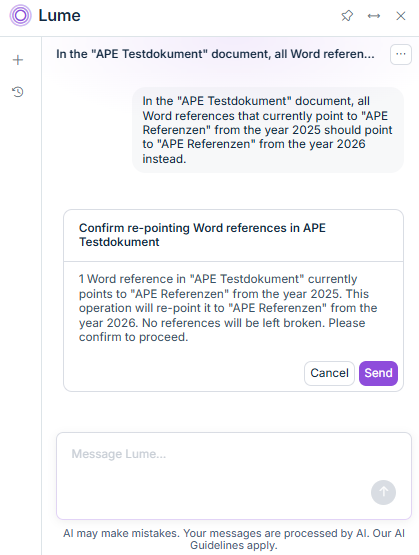
With Lucanet Lume, you can now re-point references to a different source document, for example when the original source document has been updated. In a document, you tell Lume which source document the references should point to instead.
Re-pointing Word references via Lucanet Lume
References pointing to the same old source document are re-pointed together. References whose source document no longer exists are reported as broken and are not re-pointed.
This feature is useful when rolling forward or copying documents that contain Word references.
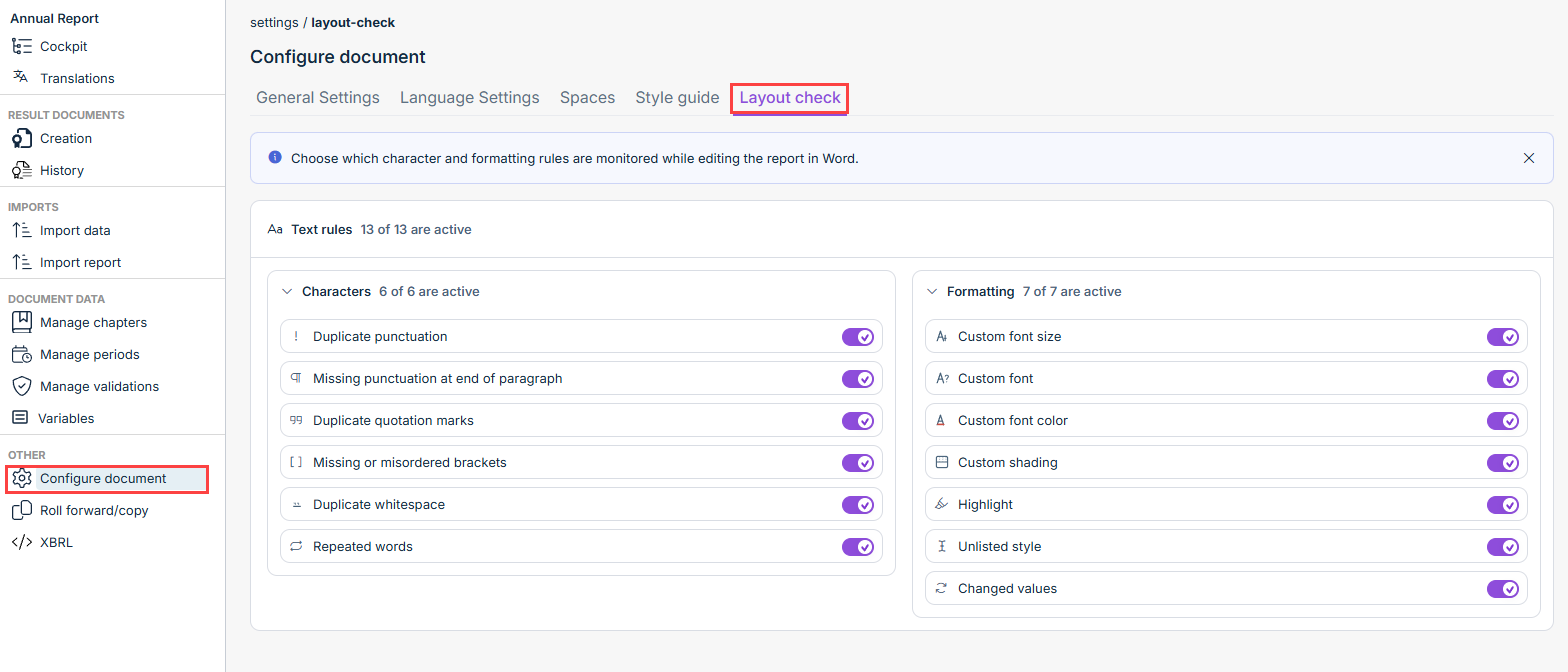
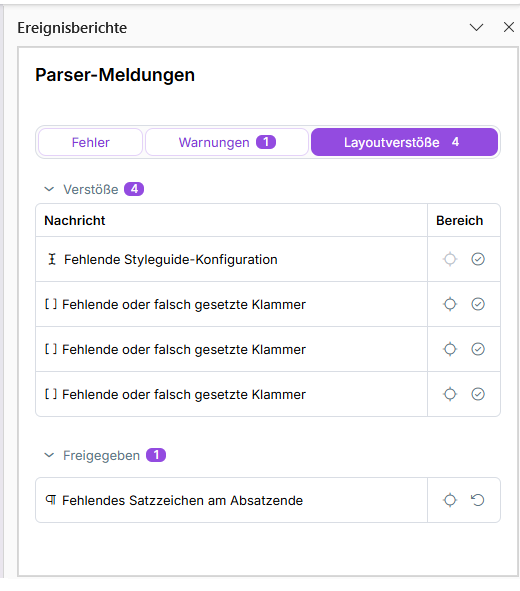
Disclosure Management now includes the Layout Check, an automated check for typography and formatting issues in Word chapters. Layout Check runs automatically when a chapter is checked out or updated, or when a result document is created, and lists violations found in the new Layout tab of the Messages task pane.
Layout Check includes the following functions:
Rules: Predefined rules cover character-level violations (for example, duplicate punctuation, missing sentence-ending punctuation, repeated words) as well as formatting issues (for example, a custom font, font size, font color, or highlighting applied directly instead of through a style). All rules are listed in the Configure document workspace, on the new Layout check tab, grouped under Characters and Formatting. You can enable or disable individual rules per document.
'Layout' tab: Rule violations are shown on the Layout tab with the corresponding count; clicking a violation navigates to its location in the document.
Approving violations: You can approve an individual rule violation, which moves it to a separate section for approved violations; if the affected content is changed afterward, the violation becomes active again. Approvals can also be revoked.
Unlisted style: A style used in the document that is not listed in the Style Guide Manager is flagged as a rule violation.
System styles: Styles from the predefined System styles group, which are required by the system, and the highlight applied by Highlight changed values on refresh, are shown in a separate information area instead of being flagged as a violation.
'Layout check' tab in the 'Configure document' workspace
'Layout violations' tab in the event reports
The layout check feature requires at least the Advanced license level.
Disclosure Management now supports Content groups, letting you tag sections of a Word chapter for different audiences and generate audience-specific result documents from a single document instead of maintaining separate versions.
Content groups include the following functions:
Managing content groups: In the Configure document workspace, the Style guide tab now includes a new Content groups section where you can create, rename, recolor, and delete content groups for a document. Each group has a unique name and color.
Assigning content to a group: In Word, the Style guide section in the ribbon includes the Content groups section, where you can assign a selected text passage to one or more content groups; assigned groups are shown as badges on the section. Text that is not assigned to any group is always included in every result document, regardless of which groups are selected.
Previewing assignments: In the Content groups section, you can highlight all sections assigned to a content group directly in the document to check the assignment. Multiple groups can be highlighted at the same time, and existing highlights are kept when you highlight another group. Highlighting is automatically removed again before check-in.
Creating audience-specific result documents: In the Creation workspace, when creating a result document, each content group can be included or excluded, and optionally highlighted with its group color in the output. Sections assigned to at least one included content group are kept, and unassigned sections are always included. When the dialog opens, all groups are deselected (excluded) by default, and no highlighting is applied.