Come and explore the exciting new features of the Lucanet CFO Solution Platform! We update our CFO Solution Platform on a regular basis to offer you the latest features and improvements.
The versions of all solutions that you are currently using and those of the CFO Solution Platform are displayed when you select About Lucanet from the Help section in the CFO Solution Platform.
You can now test a Data Hub connection at any time to check whether the source system can be reached and whether it accepts the credentials. The test is available in the menu of a connection on the Integrations page and in the connection form, where you can test your settings before you create or save the connection.
This way, you detect an incorrect host, incorrect credentials, or an unavailable source system right away instead of only when an import fails.
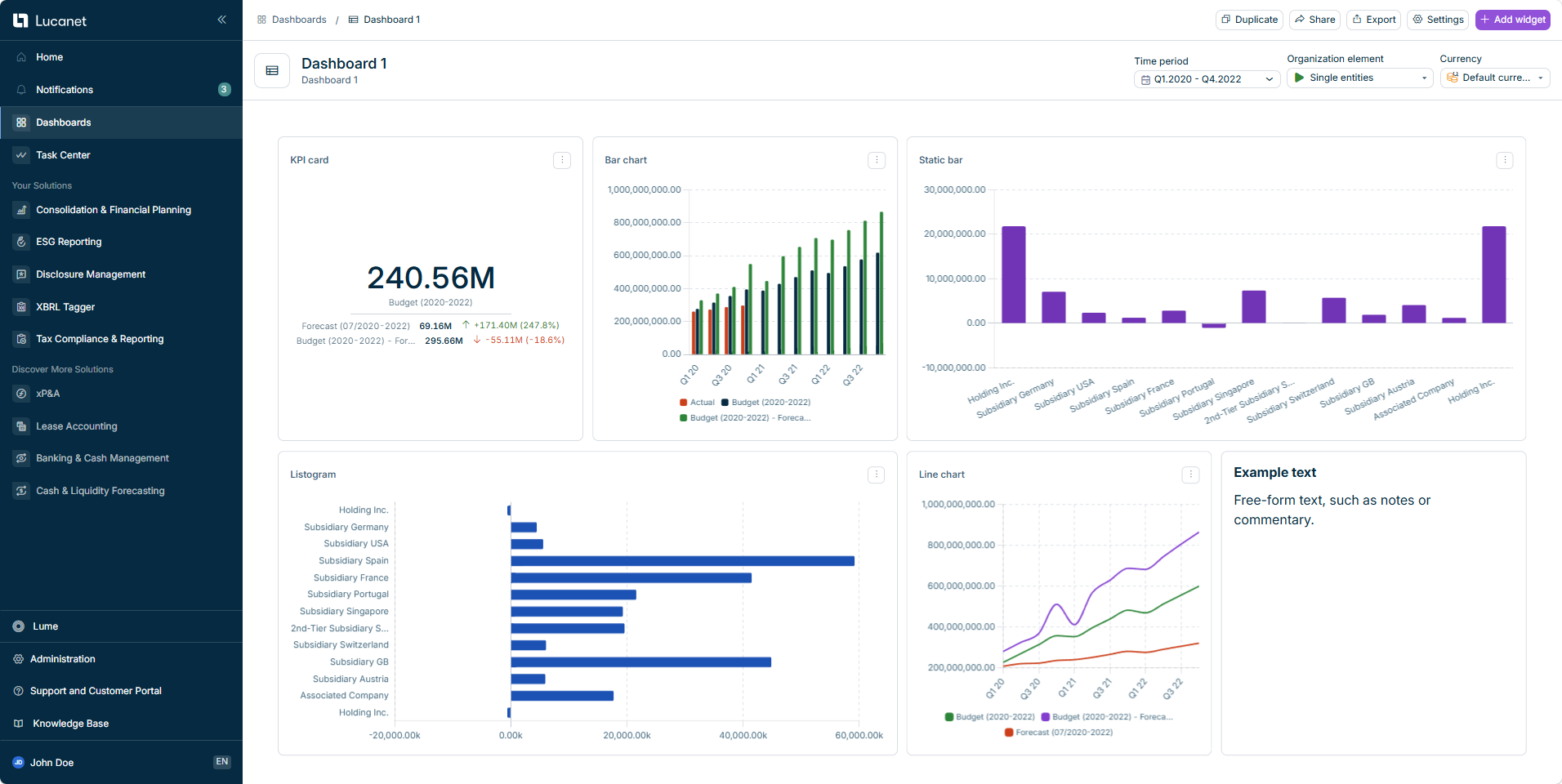
The new Dashboards global function is now available in the main menu of the Lucanet CFO Solution Platform. You can create dashboards that visualize data from Consolidation & Financial Planning using widgets to monitor and analyze your key financial figures in one place.
Each dashboard can combine widgets of different types, such as KPI cards, charts, and text, and provides filters for time period, organization element, and currency that apply to all widgets at once. In a widget, you can compare up to three data levels, for example one actual data level and two planning data levels. You can share dashboards with viewers and export them as PDF or PowerPoint. Using Dashboards requires a Consolidation & Financial Planning license.
An open dashboard is displayed as follows, for example:
Administrators can now set external authentication centrally for all users of the Lucanet CFO Solution Platform. The External authentication workspace contains the new Global authentication settings section with two settings:
External authentication by default: All newly created users automatically use external authentication. External authentication can be deactivated for an individual user.
Enforce external authentication: All users must use external authentication. New users can only be created with external authentication, and existing users are converted automatically and receive an invitation e-mail. Logging in is then only possible through the identity provider.
The Lucanet licenses workspace now contains the AI in the CFO Solution Platform card. On this card, users with the License Manager role can activate and deactivate Lucanet Lume, the agents, and all other AI features at any time. All users receive a notification about the change.
The card is displayed as follows, for example:
'AI in the CFO Solution Platform' card with the status 'On'
Administrators can now define which reporting entities a user can access in Lease Accounting. In addition to the permissions of the user role, the user then only works with the data of the assigned reporting entities.
The reporting entities are assigned with the new Select reporting entities option in the Users workspace. The option is available when you edit an existing user. By default, all reporting entities are assigned to a user.
Lucanet.Script Execution Application (SEA) is now updated automatically. Once a day, from 06:00 local time, SEA checks for a newer version and installs the new version. For SEA installations, the automatic updates mean the following:
Security fixes, bug fixes, and new SEA capabilities reach every installation as soon as they are released.
You no longer need to check each SEA installation individually for updates in Lucanet.Software Manager.
If the computer running SEA was switched off or asleep at 06:00, SEA checks for updates about 5 to 15 minutes after the computer starts or wakes up.
Data Hub now connects to SQL databases through JDBC. Microsoft SQL Server, Oracle Database, and PostgreSQL are available as source systems.
This way, you can connect a database for which no dedicated Lucanet integration exists, for example a regional ERP system. Where a dedicated integration exists, that integration remains the better choice, because it is tailored to the source system.
For every connection, the Version of the connection template of its source system is now displayed as well.
In the configuration of a source dataset, you can now enter a variable instead of a fixed value and select a value for the variable every time you start an import. In the source dataset, you can define the variables together with the values that can be selected for them.
This way, an import brings in only the data that you actually need, for example the data of one period or one company, instead of the complete tables of the source system. A single source dataset covers all of these values, and a later import can replace the data of one value without reading everything again.
Administrators can now activate the TOTP MFA (authenticator app code) authentication method for users who log in with a user name and password. The user receives an e-mail and sets up an authenticator app at the next login. Afterwards, a six-digit code from the app is required at every login.
In the list of users, the icon indicates that multi-factor authentication is active, and you can filter the list accordingly. If a user no longer has access to their authenticator app, administrators can reset the multi-factor authentication for a single user or for several users at the same time.
The homepage of the Lucanet CFO Solution Platform now consists of sections, with Ask Lume as the first section. Further sections that you can add, arrange, and remove for your own user account will follow shortly.
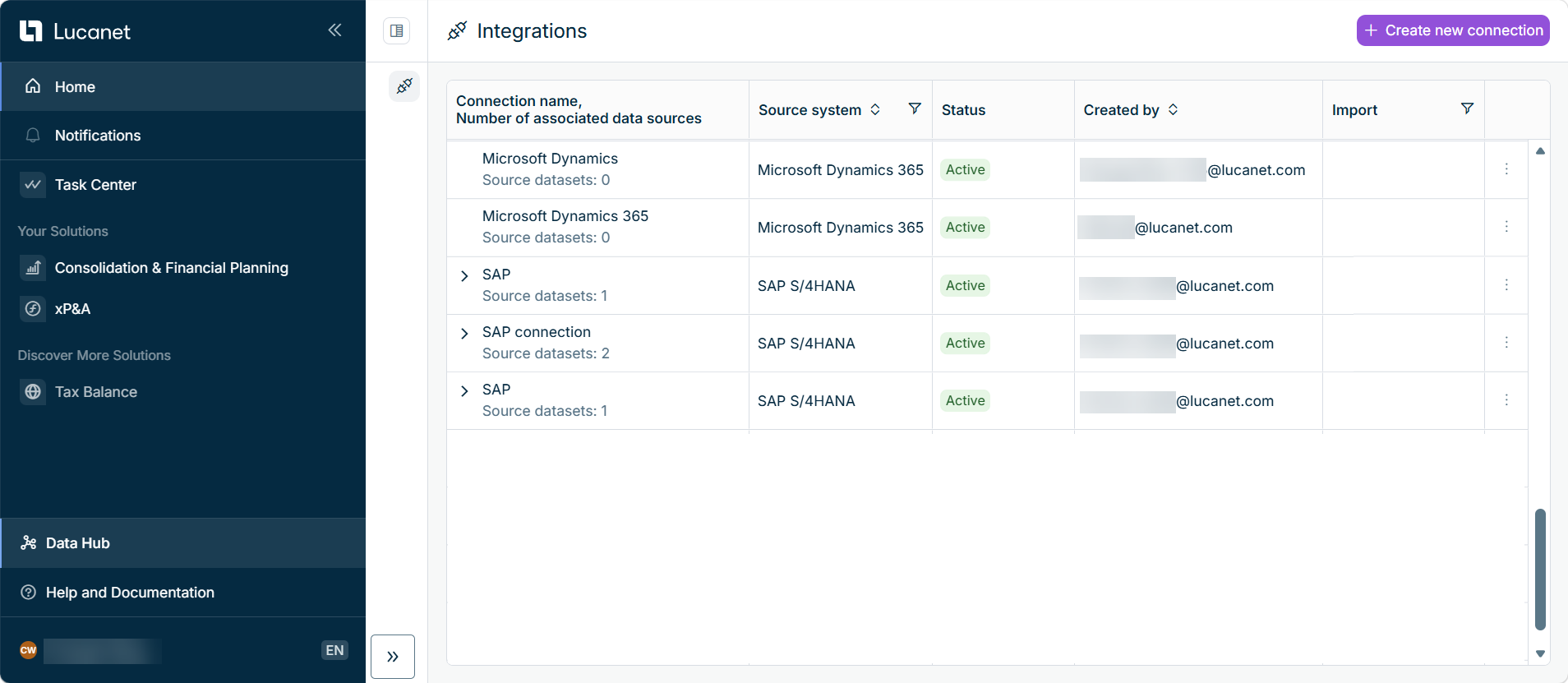
The new Data Hub is now available in the main menu of the Lucanet CFO Solution Platform. Data Hub brings the management of external data integrations together in one central place.
In Data Hub, you can create connections to external source systems. For each connection, you can define one or more source datasets that specify the data to be imported, start an import at any time, and track its progress and results in a detailed execution history.
At release, Data Hub supports connections to SAP S/4HANA and Microsoft Dynamics 365. Integrations with additional solutions and source systems are planned.
Data Hub is activated by Lucanet and is being rolled out gradually, so it is not yet visible for every customer.
Data Hub with its connections and source datasets is displayed as follows, for example:
Data Hub in the main menu of the Lucanet CFO Solution Platform