Some values can be edited directly in the data view Editing Values in the Data View The history of a value or text, for example, can be displayed in the detail view Editing Values in the Detail View You can go from the data view for values for which a validation referenced Editing Values in Linked Documents
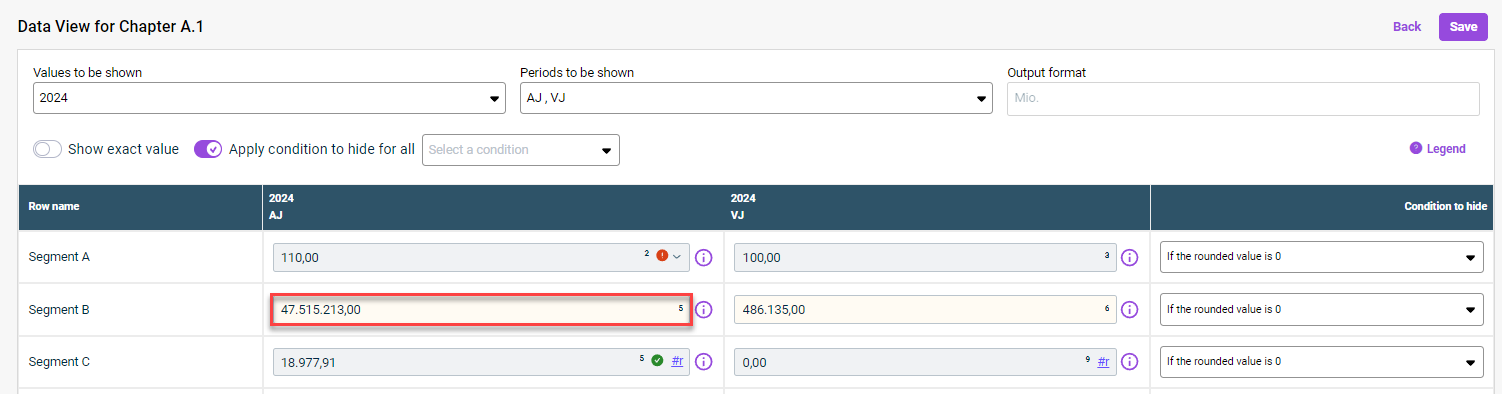

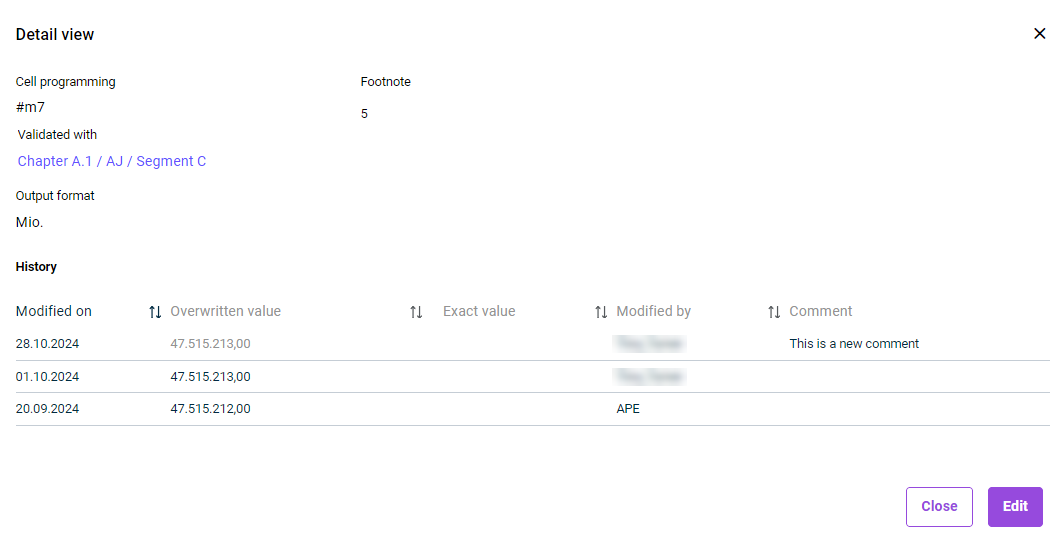
If an imported value (previously not highlighted in color) is manually overwritten blue If an imported value is restored reset Cells for which you have entered a comment blue
Click the name of the document to open its data view and make any adjustments if necessary. | |
Click the name of the document to open its data view and make any adjustments if necessary. | |
If a footnote has already been added to an Excel document (see | |
  |
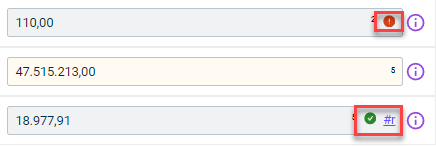
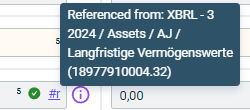
Click the link icon (for one linked document) Click the document name in the tooltip (for several linked documents)
This content was generated using AI and reviewed by Lucanet subject matter experts before publication.