On this page, you will find information about disposition suggestions in Lucanet Banking & Cash Management (BCM). A disposition suggestion contains the specific transfers between the accounts of a disposition group that BCM calculates based on the current account balances and the assigned disposition method. When you process a disposition suggestion, BCM creates payments from the suggestion.

You create disposition suggestions in two ways:

  • Manually: You create a disposition suggestion in the Disposition suggestions workspace, review the transfers, and process the suggestion.
  • Automatically: BCM creates disposition suggestions on a schedule using a processing channel and a processing job and, optionally, processes the suggestions without manual review.

Before you create disposition suggestions, create a disposition method and a disposition group. The disposition method defines how BCM distributes liquidity, the disposition group defines the accounts and the threshold for urgent payments.

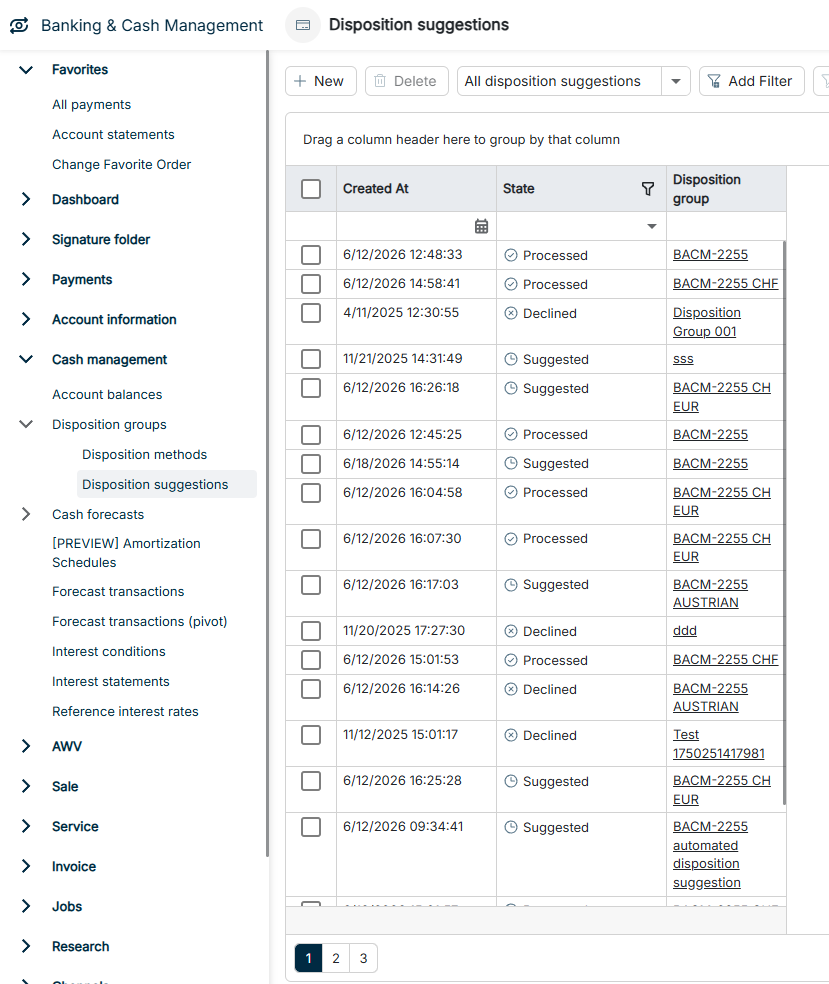
The Disposition suggestions workspace can be found under Banking & Cash Management | Cash management | Disposition groups | Disposition suggestions and is displayed as follows, for example:

The Disposition suggestions workspace is displayed.
'Disposition suggestions' workspace

To create a Disposition suggestion manually:

1

Navigate to Cash management | Disposition groups | Disposition suggestions.

2

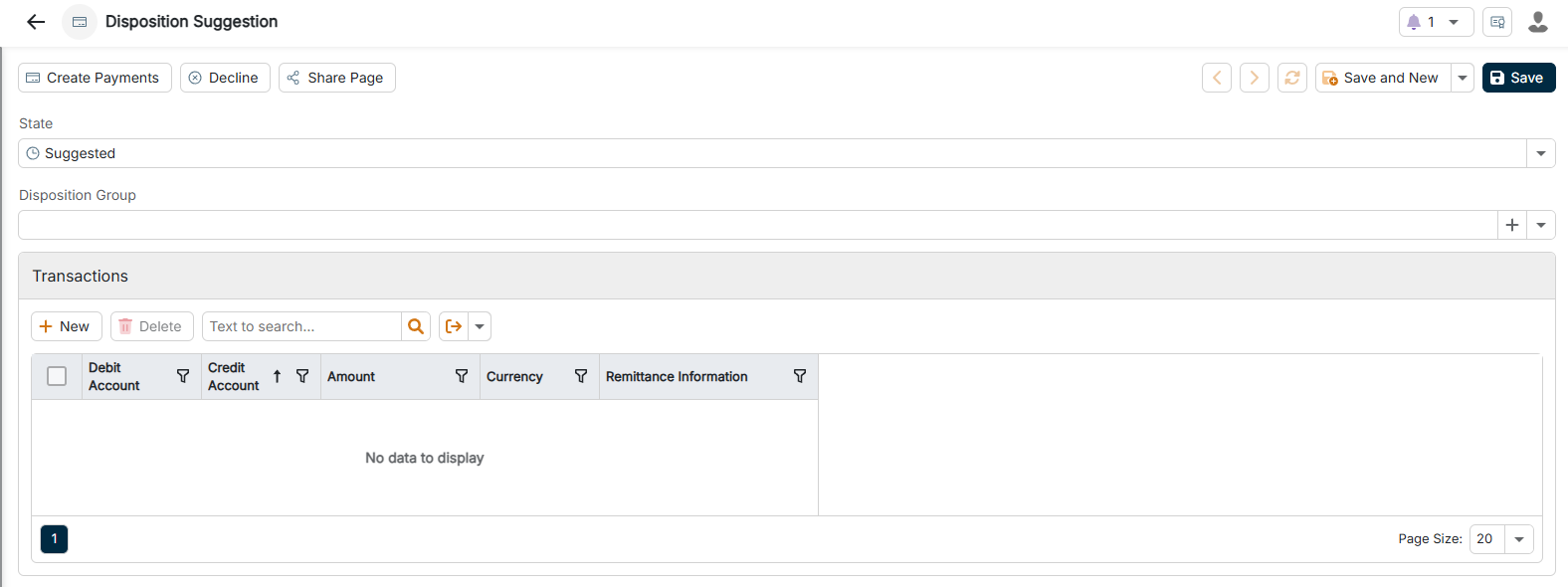
Click the Plus icon in the upper left corner. The configuration of a disposition suggestion is displayed as follows:

The configuration options for a disposition suggestion are displayed.
Configuring a disposition suggestion
3

Configure the disposition suggestion according to your requirements. For more information, see Configuring Disposition Suggestions.

You can also create a disposition suggestion directly from a disposition group: using Create disposition suggestion in the toolbar of the disposition group or + New on the Disposition suggestions tab.

The configuration of a disposition suggestion contains the following options:

OptionDescription
StateStatus of the disposition suggestion, for example Suggested, Processed, or Declined. You can only edit and process disposition suggestions with the status Suggested.
Disposition groupDisposition group whose accounts and disposition method BCM uses for the transfers. You select an existing disposition group from the drop-down list or create a new one using the Plus icon.
TransactionsLists all transfers of the disposition suggestion with the columns Debit account, Credit account, Amount, Currency, and Remittance information. Using + New, you add a transfer manually; using Delete, you remove the selected transfers.

You process disposition suggestions with the status Suggested using the toolbar of the disposition suggestion:

  • Create payments: BCM creates payments between the accounts from the transfers of the disposition suggestion and sets the status to Processed.
  • Decline: BCM sets the status to Declined and does not create any payments.

For BCM to create disposition suggestions automatically, you create a processing channel of type Create disposition suggestion and a processing job that executes this channel on a schedule.

To create a Processing channel for disposition suggestions:

1

Navigate to Channels | All channels | Processing channels.

2

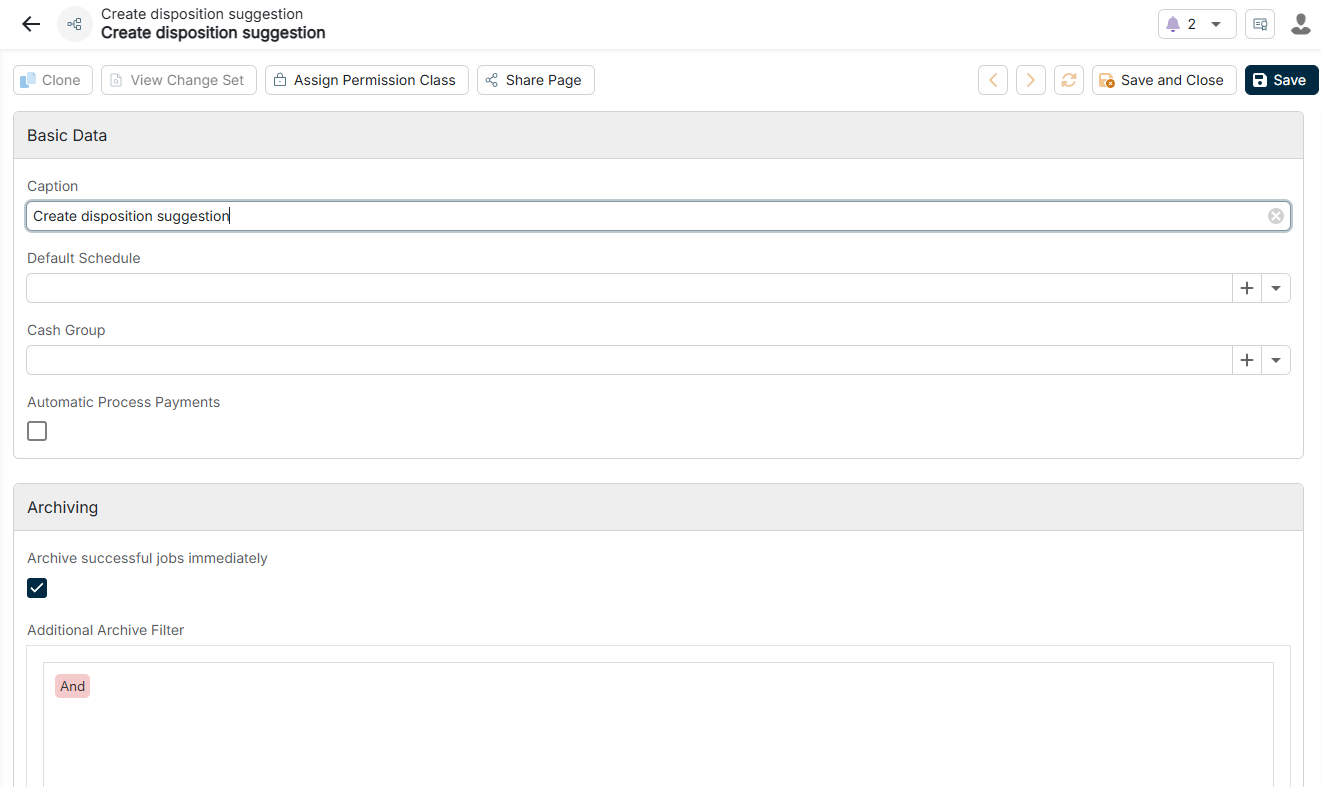
Click the Plus icon in the upper left corner and select Cash | Create disposition suggestion. The configuration of the processing channel is displayed as follows:

The configuration options of the Create disposition suggestion processing channel are displayed.
Configuring the 'Create disposition suggestion' processing channel
3

In the Caption field, enter a name for the processing channel.

4

In the Default schedule field, select a schedule from the drop-down list or create a new schedule using the Plus icon.

5

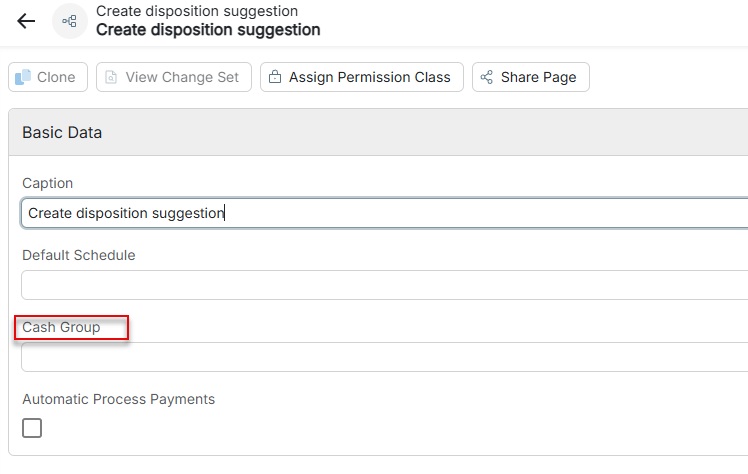
In the Cash group field, select the disposition group for which BCM creates disposition suggestions.

The Cash group field in the processing channel is highlighted.
Selecting the disposition group
6

Activate the Automatic process payments check box so that BCM processes the created disposition suggestions without manual review and creates the payments. Leave the check box deactivated if you want to review the suggestions before processing.

7

If required, assign a permission class to the processing channel using Assign permission class in the toolbar. For more information, see System.

8

Click Save.

To create a Processing job that executes the processing channel:

1

Navigate to Jobs | All jobs | Processing jobs.

2

Click the Plus icon in the upper left corner. The configuration of a processing job is displayed as follows:

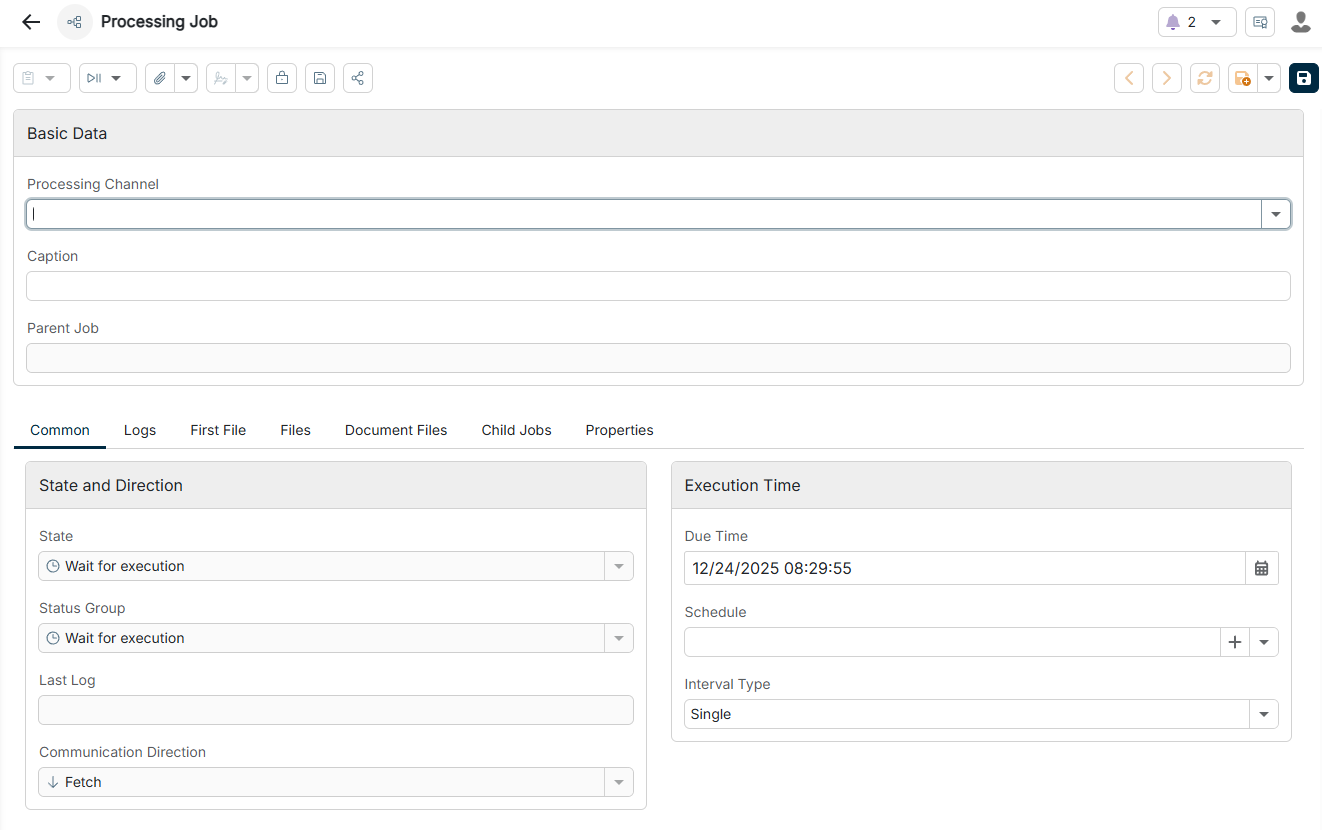
The configuration options of a processing job are displayed.
Configuring a processing job
3

In the Processing channel field, select the processing channel that you created in the section Creating a Processing Channel.

4

In the Caption field, enter a name for the processing job.

5

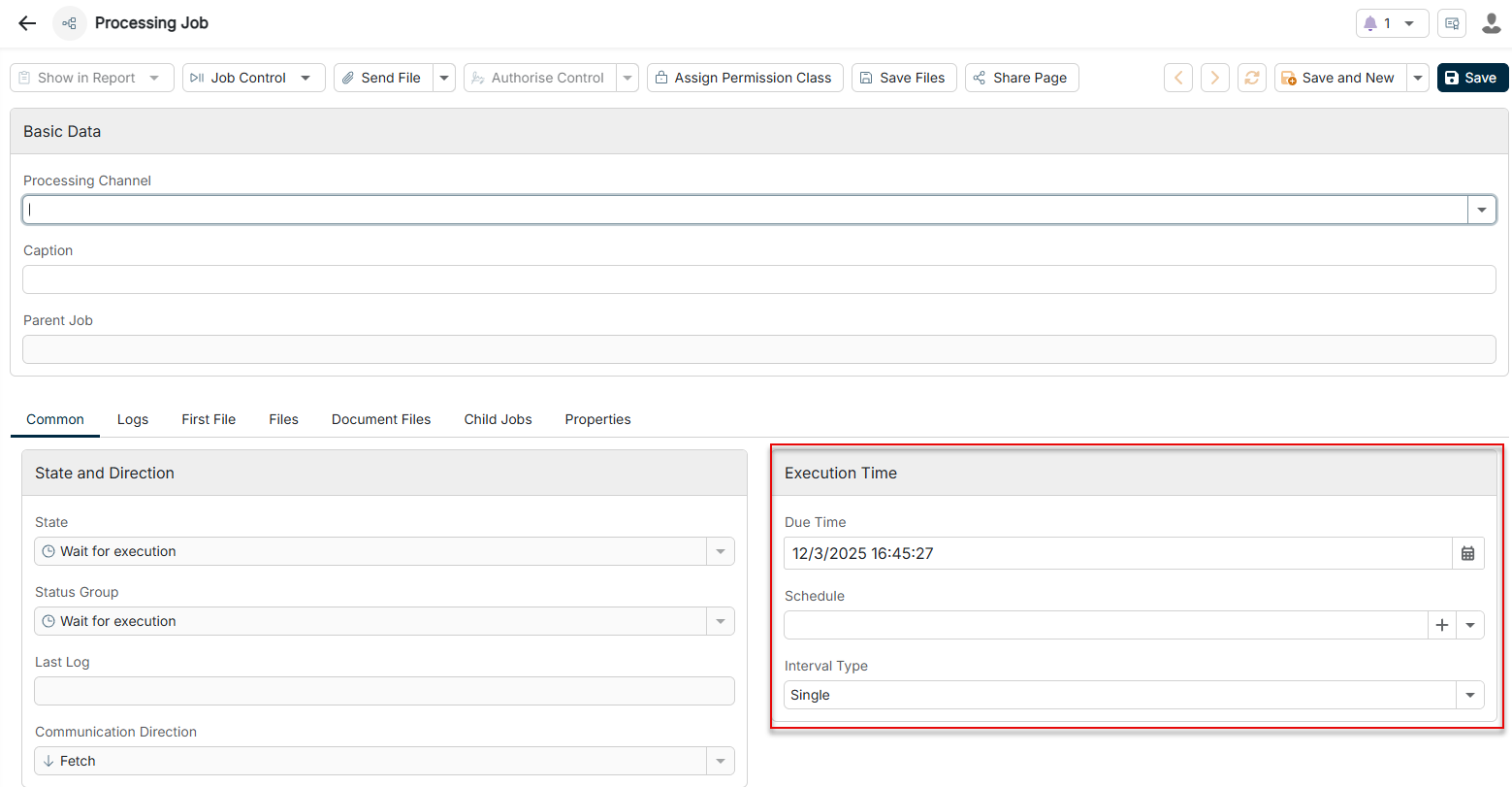
On the General tab in the Execution time area, define when BCM executes the job:

  • Due time: Date and time of the execution
  • Schedule: Optional schedule for recurring executions, which you select from the drop-down list or create using the Plus icon
  • Interval type: Interval of the execution, for example Single for a one-time execution
The Execution time area of a processing job is highlighted.
Defining the execution time for the processing job
6

If required, assign a permission class to the processing job in the Permission class field.

7

Click the button in the upper right corner.

Take the cut-off times of your banks into account when defining the execution time. The bank executes payments that BCM creates after the cut-off time on the next bank working day only.

After you have created the processing channel and the processing job, BCM executes the processing job at the defined execution time and creates a disposition suggestion for the selected disposition group based on the current account balances. If the Automatic process payments check box is activated in the processing channel, BCM immediately creates the payments from the disposition suggestion and transmits them to the bank via the configured channels, for example EBICS. Otherwise, you review and process the disposition suggestion manually. For more information, see Processing Disposition Suggestions. You track the status of the processing job in the Processing jobs workspace.