In the Users workspace in Administration of the Lucanet CFO Solution Platform, you can assign Disclosure Management roles to users for individual documents and chapters. The user then receives the permissions of these roles in addition to the permissions of their user role for Disclosure Management. If a document role or chapter role grants more permissions than the user role, the broader permissions apply.

You can assign document and chapter permissions to users with the Editor, Reviewer, Reader or No specific role user role for Disclosure Management. Users with the Administrator user role already have the permission to edit and save all documents and chapters in Disclosure Management.

The following roles are available for document and chapter permissions in Disclosure Management:

  • Document roles: Administrator, Editor, Quality Manager and Reader. These roles correspond to the Disclosure Management roles Document Administrator, Document Editor, Document Quality Manager and Document Reader.
  • Chapter roles: Editor and Reader. These roles correspond to the Disclosure Management roles Chapter Editor and Chapter Reader.

For the permissions that each role grants, see Assigning Document Roles for Disclosure Management.

You can only assign document and chapter permissions to users whose access to Disclosure Management has already been saved. Save a new user or new access to Disclosure Management first and then assign the permissions in Edit user.

To assign a Disclosure Management document role to a user in the user management of the Lucanet CFO Solution Platform:

1

In the Users workspace, select the user to whom you want to assign document roles.

2

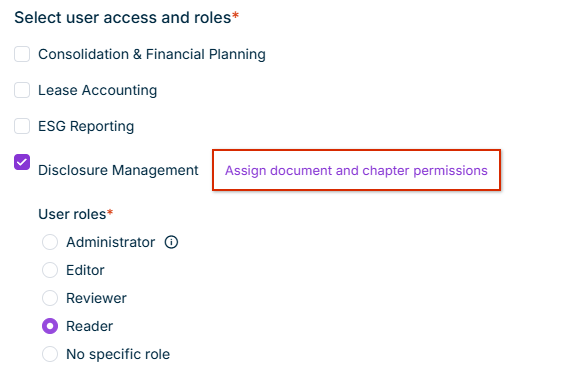
Click Edit user. The Edit User panel is displayed:

Shows the 'Select user access and roles' area in 'Edit User' in the Lucanet CFO Solution Platform with the activated 'Disclosure Management' check box and the user roles 'Administrator', 'Editor', 'Reviewer', 'Reader' and 'No specific role' for Disclosure Management, 'Reader' is selected. Highlighted in red is the 'Assign document and chapter permissions' option next to the check box.
'Assign document and chapter permissions' option in 'Edit User'
3

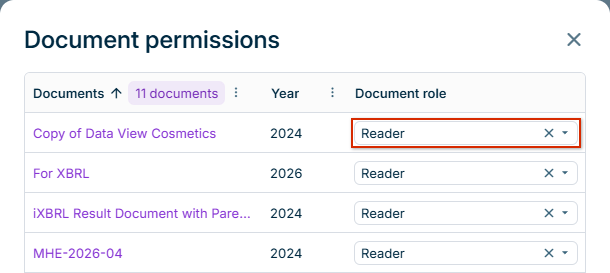
Next to the Disclosure Management check box, click Assign document and chapter permissions. The Document permissions panel is displayed with all Disclosure Management documents and the document role of the user for each document:

Shows 'Document permissions' in the Lucanet CFO Solution Platform with the columns 'Documents', 'Year' and 'Document role' for Disclosure Management. The 'Documents' column header displays the number of documents, '11 documents'. Each row has a drop-down list with the document role, for example 'Reader'. Highlighted in red is the drop-down list of the first document.
'Document permissions' for a Disclosure Management user
4

In the Document role drop-down list of the document, select the role.

To find a document, click the column menu icon Column menu icon next to Documents and enter the document name, or click the column menu icon Column menu icon next to Year and select the years.

5

Click Assign.

The Lucanet CFO Solution Platform transfers all changes to Disclosure Management at once. If one change cannot be saved, none of the changes are applied.

To remove a document role, click the Delete icon Delete icon in the Document role drop-down list of the document and click Assign. For this document, the user role for Disclosure Management then applies again. Chapter roles that are assigned for chapters of this document remain.

You can assign Disclosure Management chapter roles to a user for individual chapters of a document.

To assign a Disclosure Management chapter role to a user in the user management of the Lucanet CFO Solution Platform:

1

Open the Document permissions panel for the user (see Assigning Document Roles to Disclosure Management Users).

2

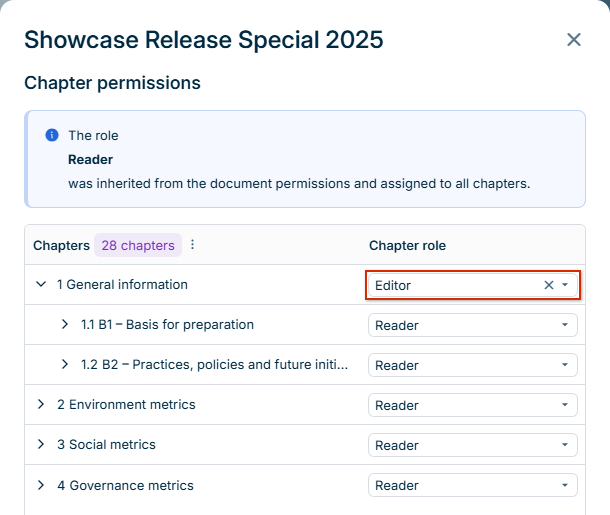
Click the name of the document. The Chapter permissions panel is displayed with the chapters of the document and the chapter role of the user for each chapter:

Shows 'Chapter permissions' for the document 'Showcase Release Special 2025' in the Lucanet CFO Solution Platform with the note 'The role Reader was inherited from the document permissions and assigned to all chapters.' The 'Chapters' column header displays '28 chapters'. Chapter '1 General information' is expanded and displays the sub-chapters '1.1' and '1.2'. Highlighted in red is the 'Chapter role' drop-down list of chapter '1 General information' with the role 'Editor'.
'Chapter permissions' for a Disclosure Management document

The note at the top displays the document role that applies to all chapters for which no chapter role is assigned.

3

To display the sub-chapters of a chapter, click the arrow icon Arrow icon in front of the chapter number.

4

In the Chapter role drop-down list of the chapter, select the role.

5

Click Assign.

By default, a chapter role applies only to the chapter to which it is assigned. If the Inherit chapter roles to sub-chapters option is activated for the document in Disclosure Management, a chapter role also applies to all sub-chapters of the chapter. For these sub-chapters, the Chapter role column displays the role together with the chapter from which the sub-chapter inherits the role. For more information about the option, see Configuring a Document.

To remove a chapter role, click the Delete icon Delete icon in the Chapter role drop-down list of the chapter and click Assign. A chapter role that a sub-chapter inherits from a higher-level chapter cannot be changed in the sub-chapter. To remove this role, remove it from the chapter to which it is assigned.

This content was generated using AI and reviewed by Lucanet subject matter experts before publication.