Depending on your user role, there are several general functions available to you in ESG Reporting, e.g. canceling ESG reports or displaying notes on a specific ESG report. This article describes the available functions depending on the user role.
You can access the data submitted by the reporting entities for an ESG report by
Clicking the desired ESG report in the ESG Reports workspace and then clicking the reporting entity to view the individual data
Navigating to the desired ESG report in the Data Collection workspace and clicking the reporting entity to view the individual data
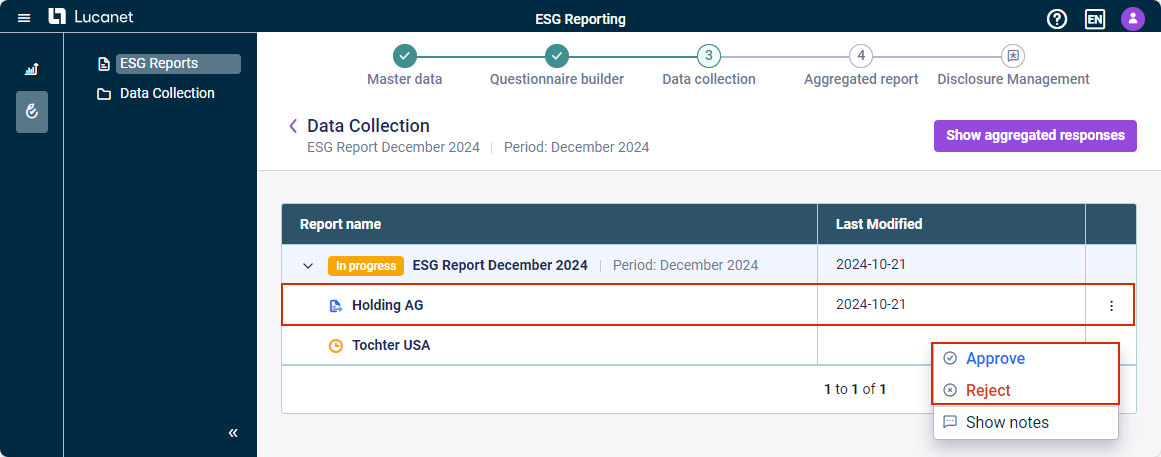
You can approve or reject the data submitted by the reporting entities for an ESG report by
Selecting the desired option directly in the data collection page of a reporting entity
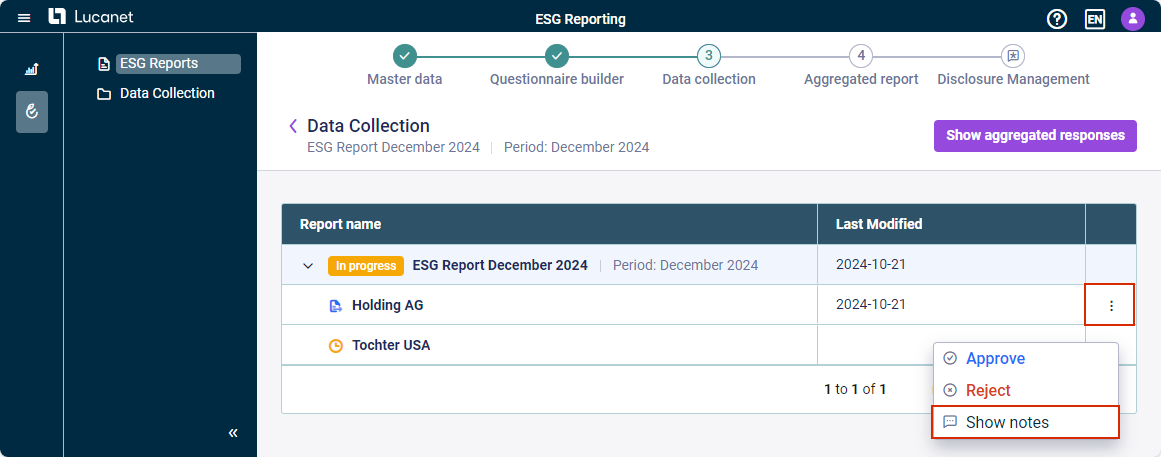
Navigating to the desired ESG report in the ESG Reports or Data Collection workspace and clicking the three-dot icon on the right side of the table to select the desired option from the context menu
Options to access, approve, or reject an ESG report in the 'ESG Reports' workspace
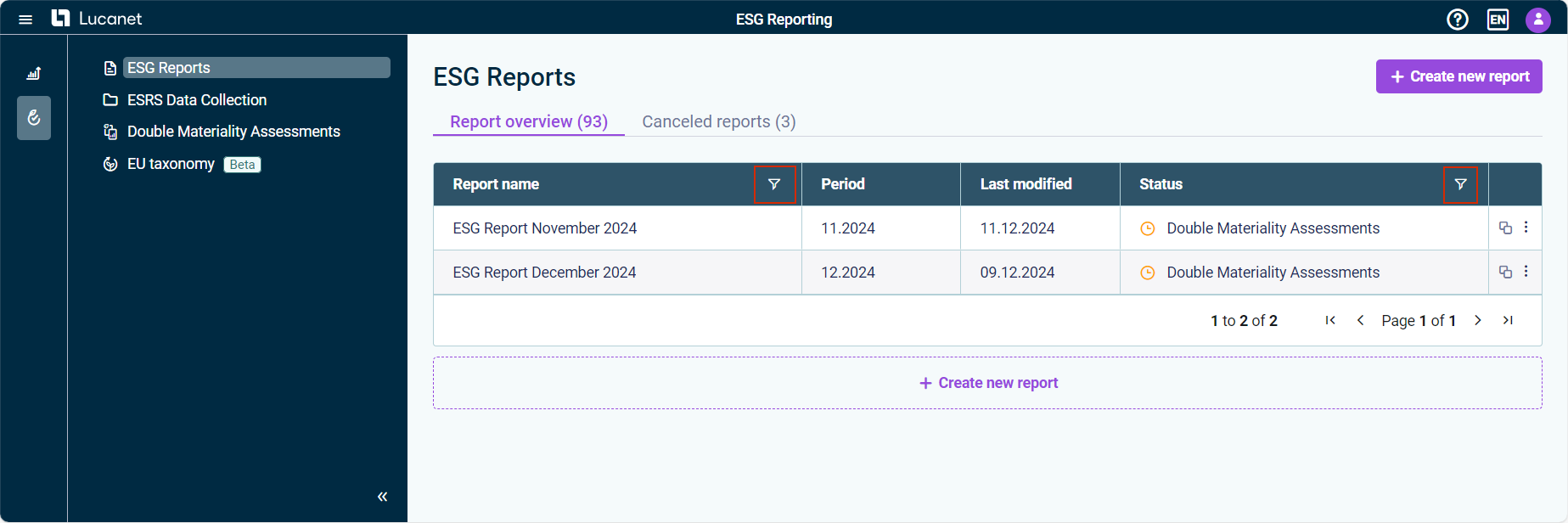
You can filter the list of ESG reports or double materiality assessment reports. Click the filter icon in the respective columns to facilitate the search as follows:
In the ESG Reports workspace, you can filter by name and status, in the ESRS Data Collection workspace you can filter by name only.
In the Double Materiality Assessments workspace, you can filter by name and date of modification.
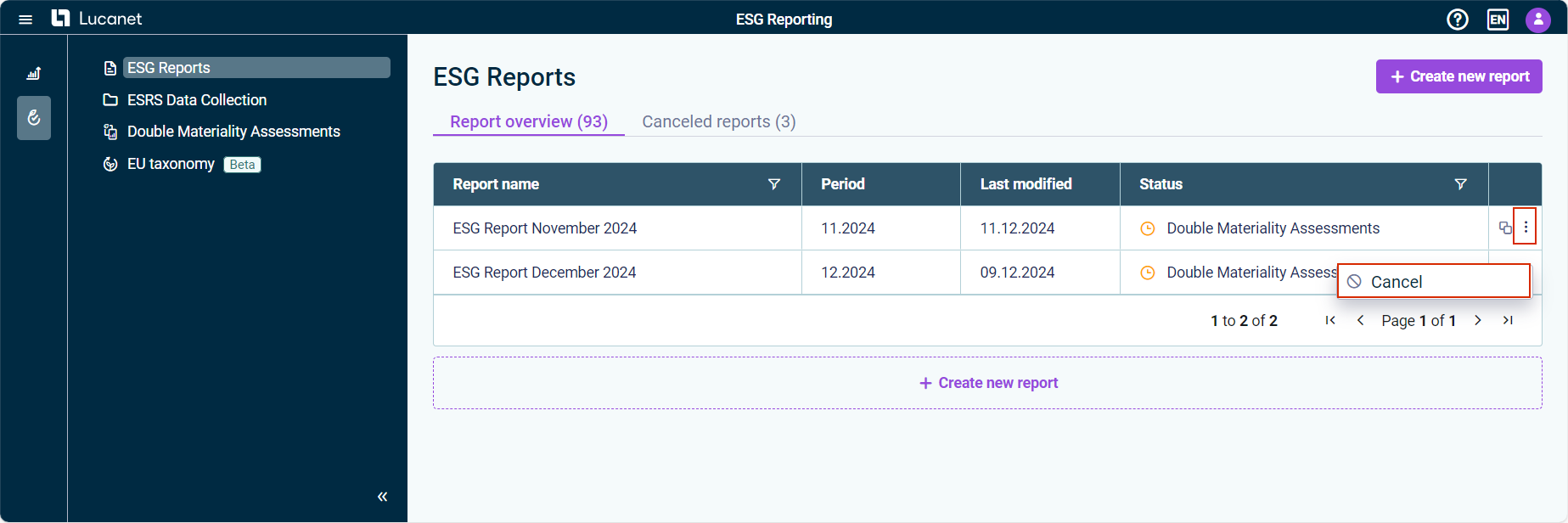
You can cancel ESG reports, i.e. any ESG report that has not yet reached Data aggregation status. This is useful if errors are discovered, for example. Canceled reports are listed separately.
To cancel an ESG report, navigate to the ESG report in the ESG Reports overview that you want to cancel, click the three-dot icon, and select Cancel from the context menu.
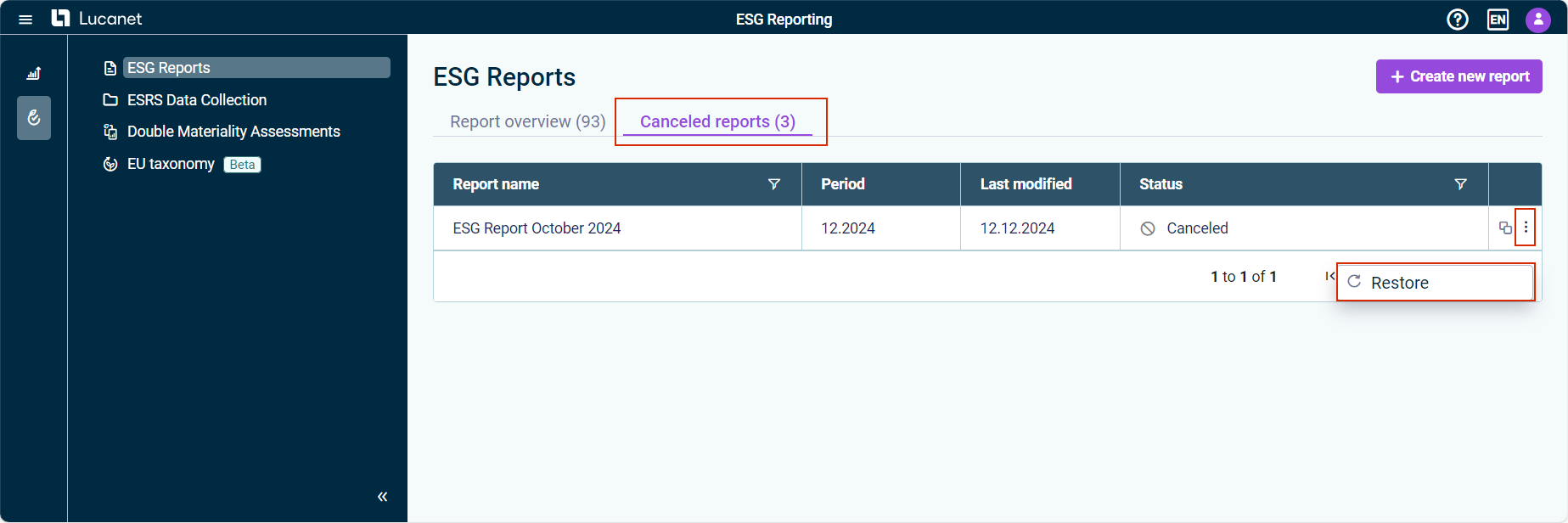
You can restore canceled ESG reports, allowing you to resume work from the point at which the ESG report was canceled.
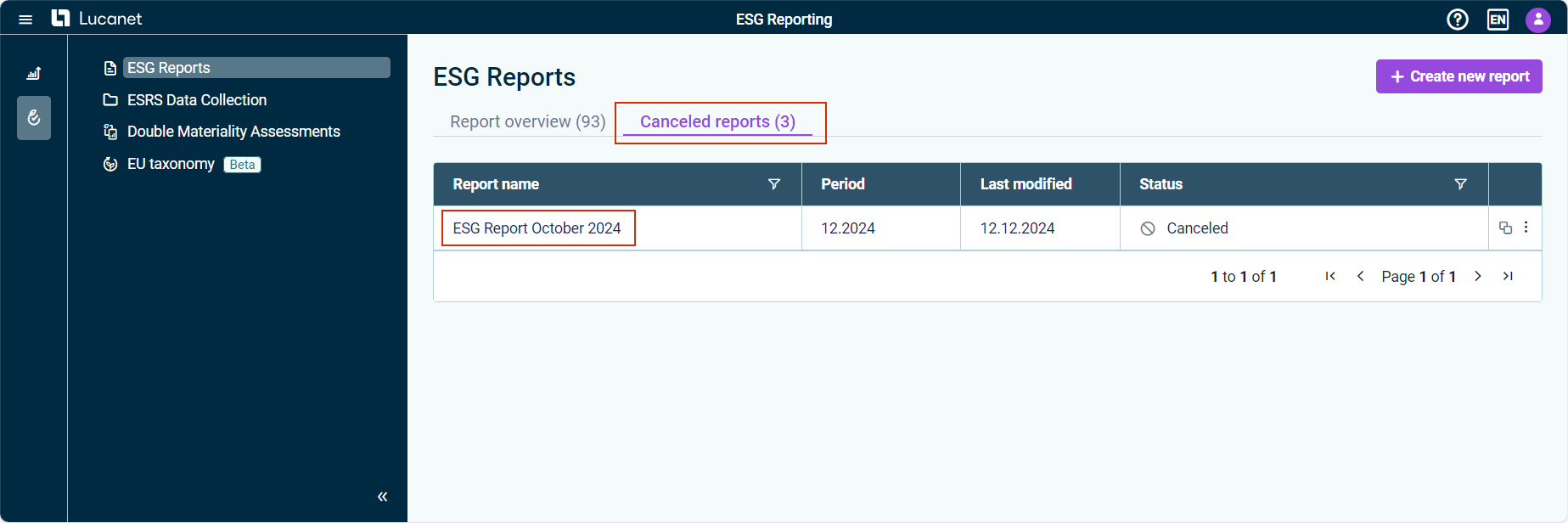
To restore a canceled ESG report, navigate to the ESG Reports or Data Collection workspace and open the Canceled reports tab. Click the three-dot icon and select Restore from the context menu.
You can open canceled ESG reports at the last status of the report at any time.
To open a canceled ESG report, navigate to the ESG Reports or Data Collection workspace and open the Canceled Reports tab. Open any given ESG report by clicking the report name.
You can display notes on an ESG report that were created when data for an ESG report were submitted, approved, or rejected. You have two options to display notes:
Click Show notes on the data collection page of a reporting entity.
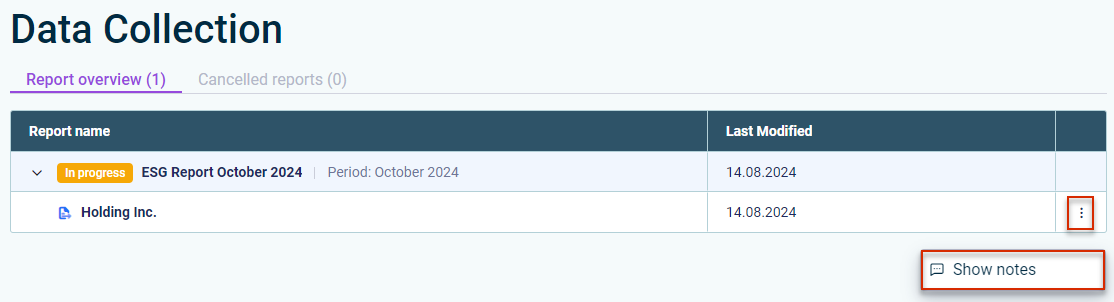
Navigate to the desired ESG report in the ESG Reports or Data Collection workspace and click the three-dot icon on the right side of the table to select Show notes from the context menu.
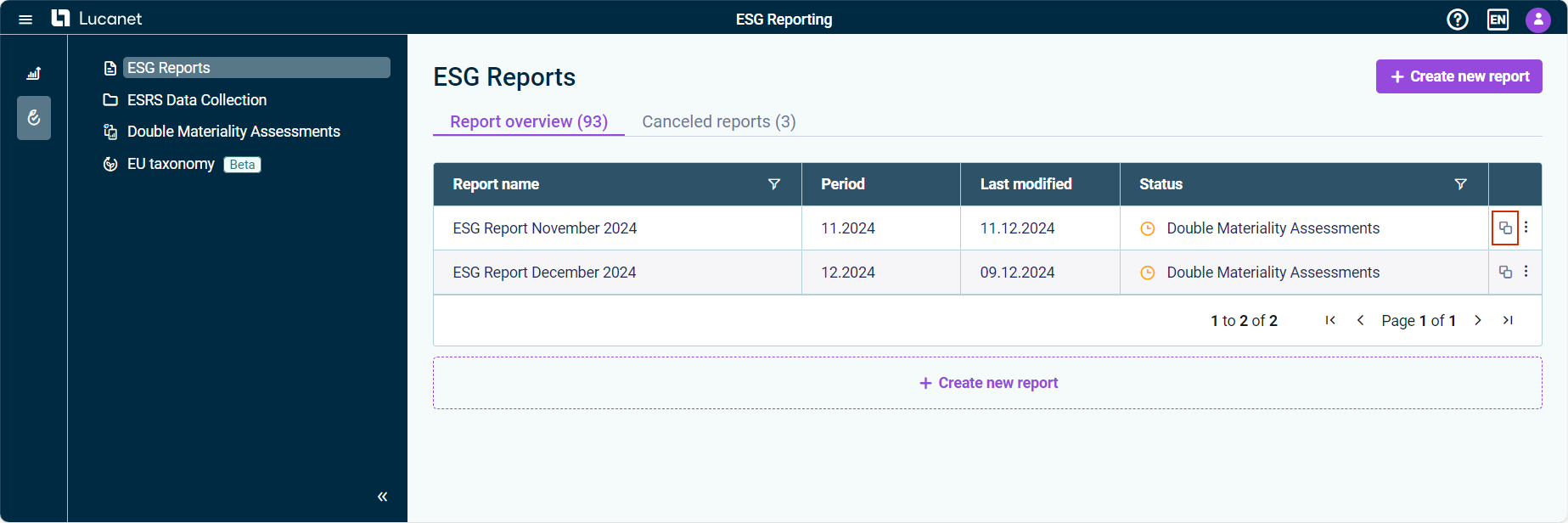
As an ESG Administrator, you can duplicate a report, allowing you to work with existing data from the original ESG report in a separate ESG report (see also Working with Duplicated ESG Reports to learn more about how to duplicate an ESG report and work with duplicated ESG reports).
You can open canceled ESG reports at the last status of the report at any time.
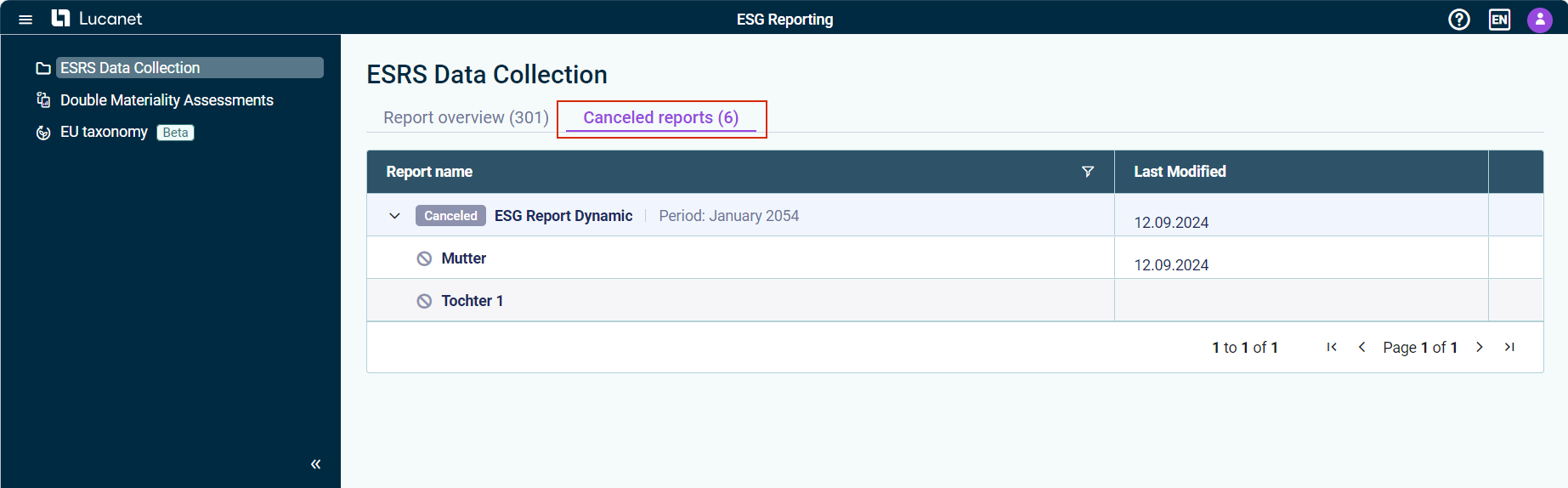
To open a canceled ESG report, navigate to the Canceled Reports tab in the ESRS Data Collection workspace. Open any given ESG report by clicking the report name.
You can display notes on an ESG report that were created when data for an ESG report were submitted, approved, or rejected. Do one of the following:
Click Show notes on the data collection page of your assigned reporting entity
Navigate to the desired ESG report in the ESRS Data Collection workspace and click the three-dot icon on the right side of the table to select Show notes from the context menu.
Displaying notes in the 'Data Collection' workspace
This content was generated using AI and reviewed by Lucanet subject matter experts before publication.