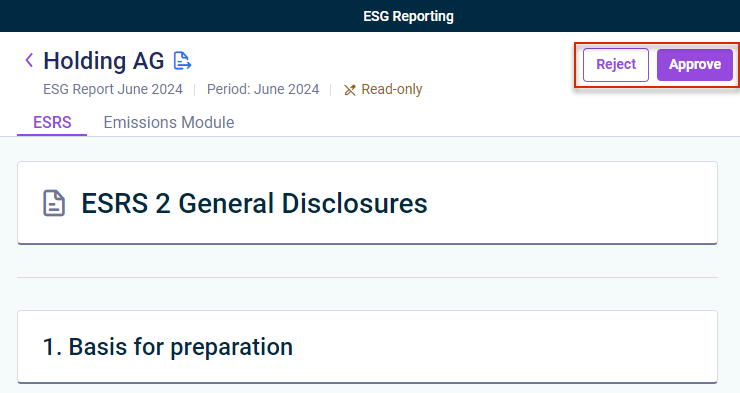
Once the ESG Data Collectors have collected and submitted all the data for both the ESRS or VSME questionnaire and the Emissions Module, as an ESG Administrator, you can check the submitted data and approve them – or reject them, if necessary.
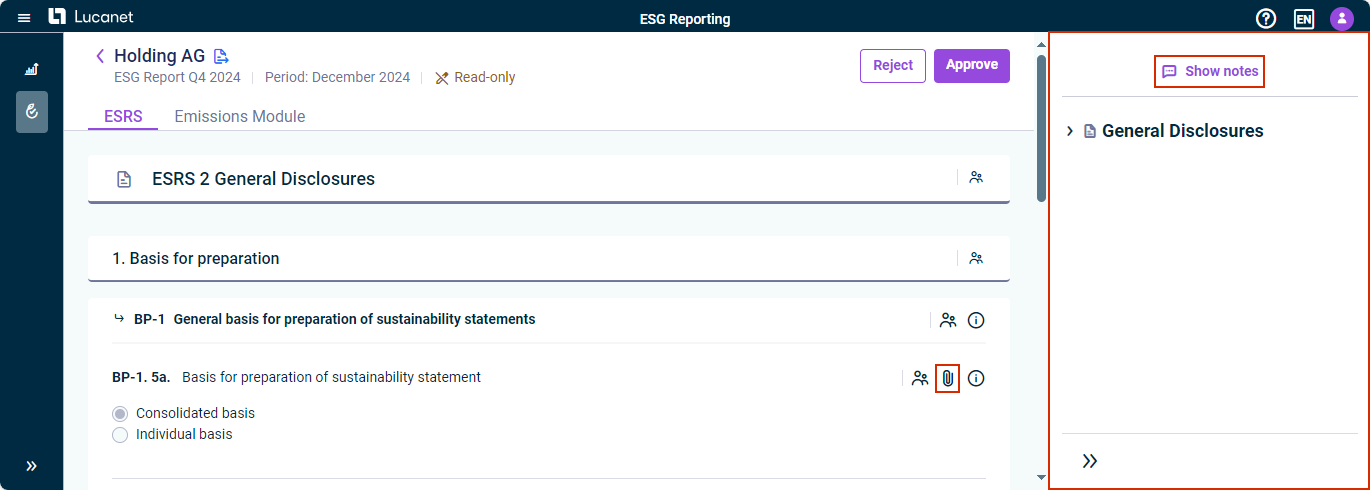
Once the ESG Data Collectors have collected and submitted all the data for both the questionnaire and the Emissions Module, as an ESG Administrator, you can check the data. To do this, navigate to the desired ESG report in the ESG Reports or Data Collection workspace and click the reporting entity whose data you want to check. The data collection page is displayed as follows, for example:
Options to check submitted data of a reporting entity
Use the panel on the right-hand side to navigate between categories, or click Show notes to display any notes left by the ESG Data Collector when submitting their data. You can also click the attachment icon to check if the ESG Data Collector has attached files to provide background information regarding their answer.
In case you need the reporting entities to submit or change report data, you can use the Additional guidance option in the report (see Using the Questionnaire Builder) to add additional guidance or edit existing notes.
Note that changing or deleting additional guidance for a question for which data have already been collected resets the status of that question for the assigned reporting entities.