A connection specifies the authentication settings Data Hub uses to access an external source system, such as SAP S/4HANA or Microsoft Dynamics 365.

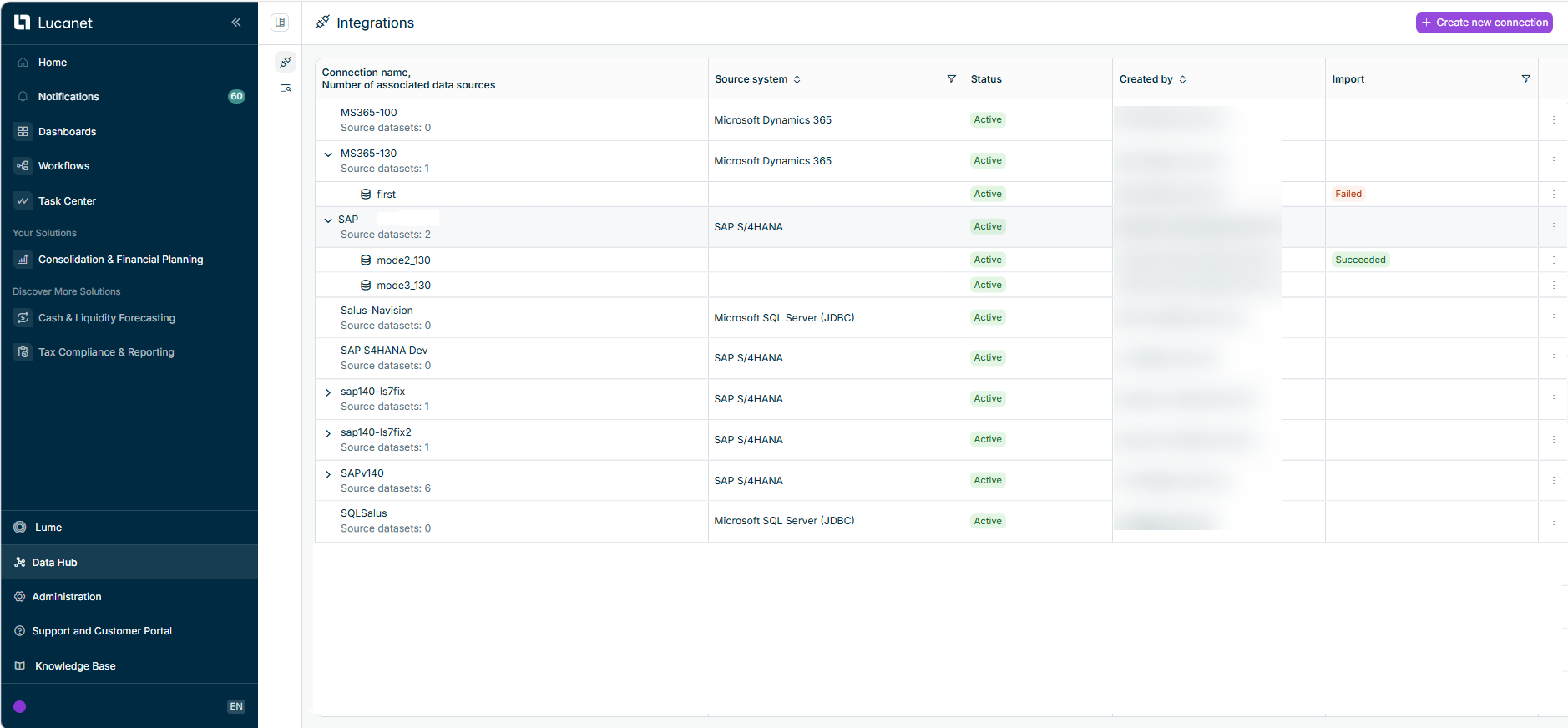
You can manage connections on the Integrations page, which you open from the Data Hub in the main menu. The page lists every connection together with its source datasets: each connection is a parent row that you can expand to display the source datasets that use it.

The Integrations page is displayed as follows, for example:

Integrations page with connections expanded to display their source datasets
Connections and their source datasets on the Integrations page

The overview table on the Integrations page provides the following information for each connection:

ColumnDescription
Connection name, Number of associated data sourcesName of the connection and the number of source datasets that use it.
Source systemExternal system the connection is established to, for example SAP S/4HANA or Microsoft Dynamics 365.
StatusStatus indicating whether the connection is active or inactive.
Created byUser who created the connection.
ImportStatus of the most recent import of the connection's source datasets.

To create a connection:

1

In the main menu, select Data Hub. The Integrations page is displayed.

2

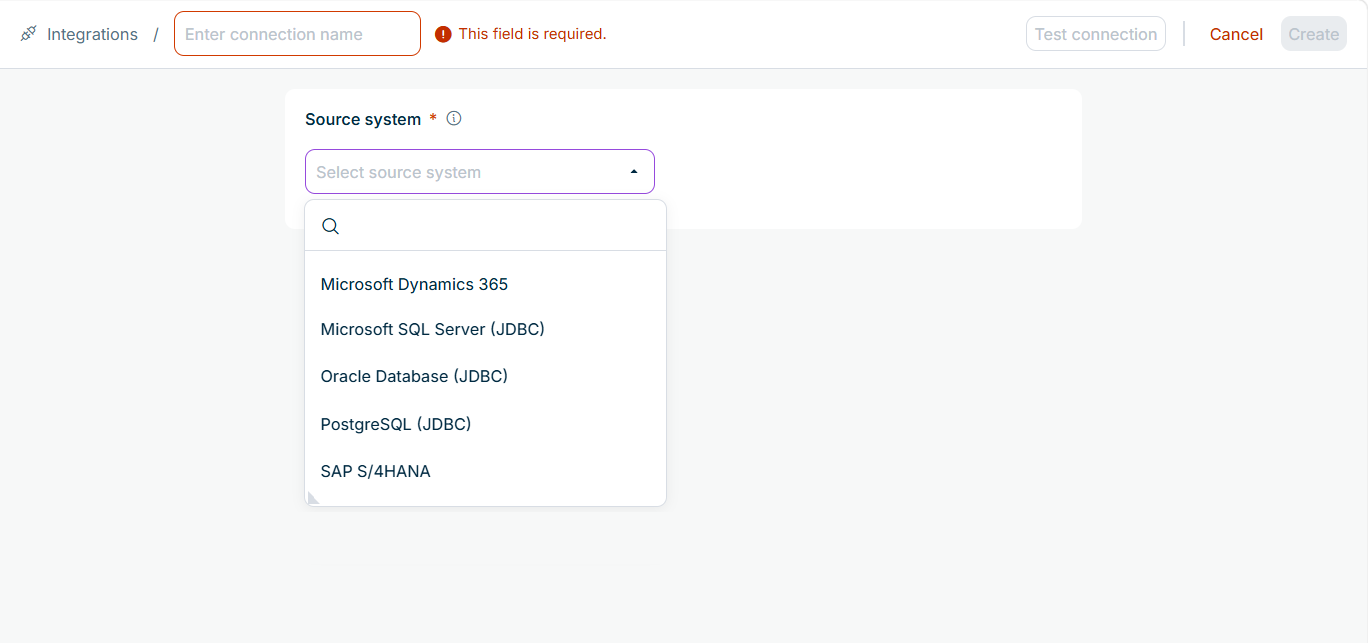
In the top-right corner, click Create new connection. The connection form is displayed as follows, for example:

The connection form with the connection name field and the open 'Source system' drop-down list showing Microsoft Dynamics 365 and SAP S/4HANA
Connection form with the source-system selection
3

Select the source system you want to connect to, for example SAP S/4HANA or Microsoft Dynamics 365.

4

Enter the connection settings for the selected source system. For more information, see Connection Settings below.

5

Click Create. The connection is created and displayed on the Integrations page.

The connection settings depend on the source system you want to extract the data from.

The following settings are the same for every source system:

SettingDescription
Connection nameName that identifies the connection on the Integrations page. Required.
SEA InstanceInstance of the Lucanet.Script Execution Application (SEA) that runs the connection. Required.
DescriptionOptional description of the connection.

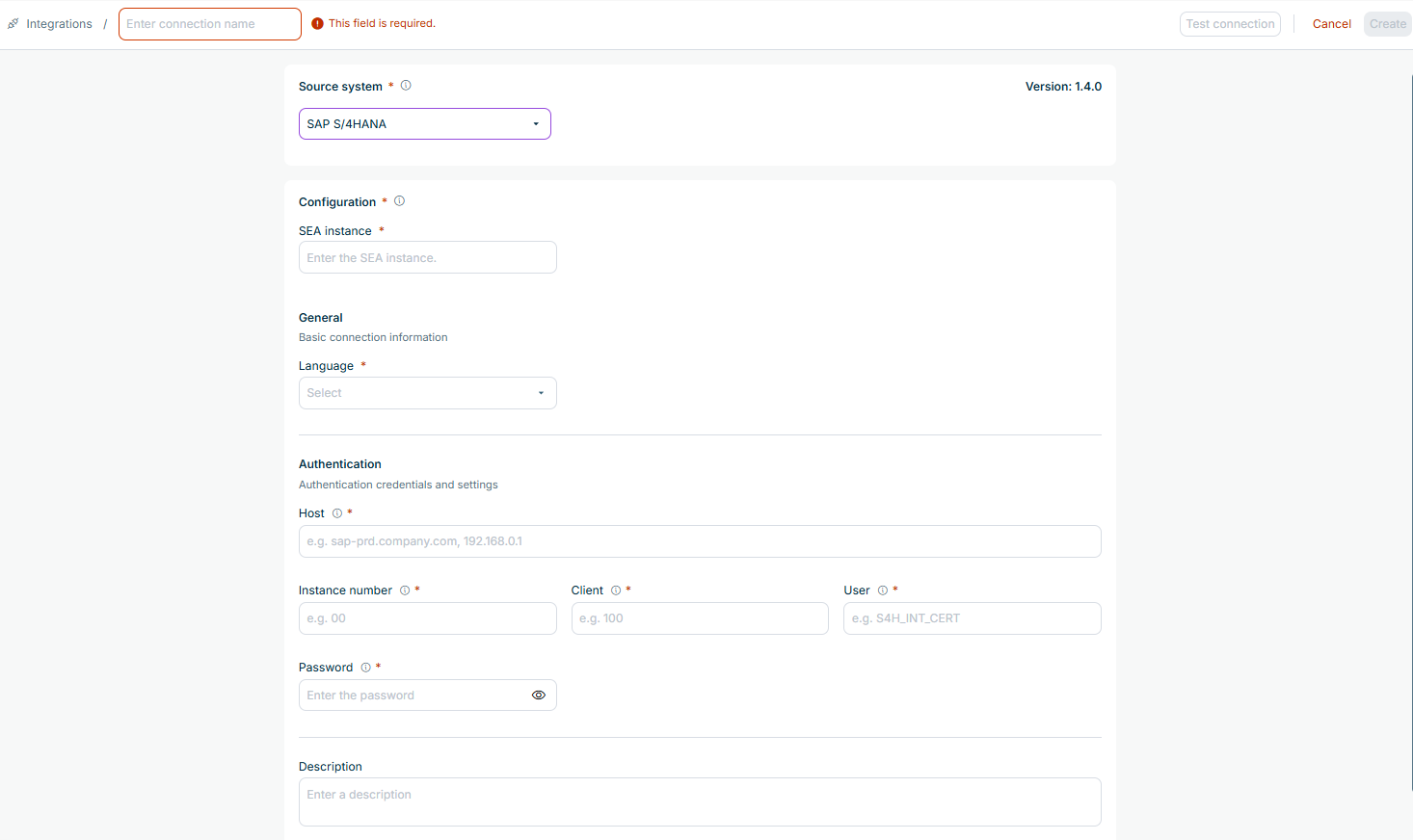
All other settings are specific to the selected source system and define how Data Hub authenticates with it. For example, an SAP S/4HANA connection additionally requires the following settings:

SettingDescription
LanguageLogin language for the SAP system.
HostHost name or address of the SAP system.
Instance numberInstance number of the SAP system.
ClientSAP client to log in to.
UserUser name for the login.
PasswordPassword for the login.

The connection settings for an SAP S/4HANA connection are displayed as follows, for example:

Connection settings for an SAP S/4HANA connection

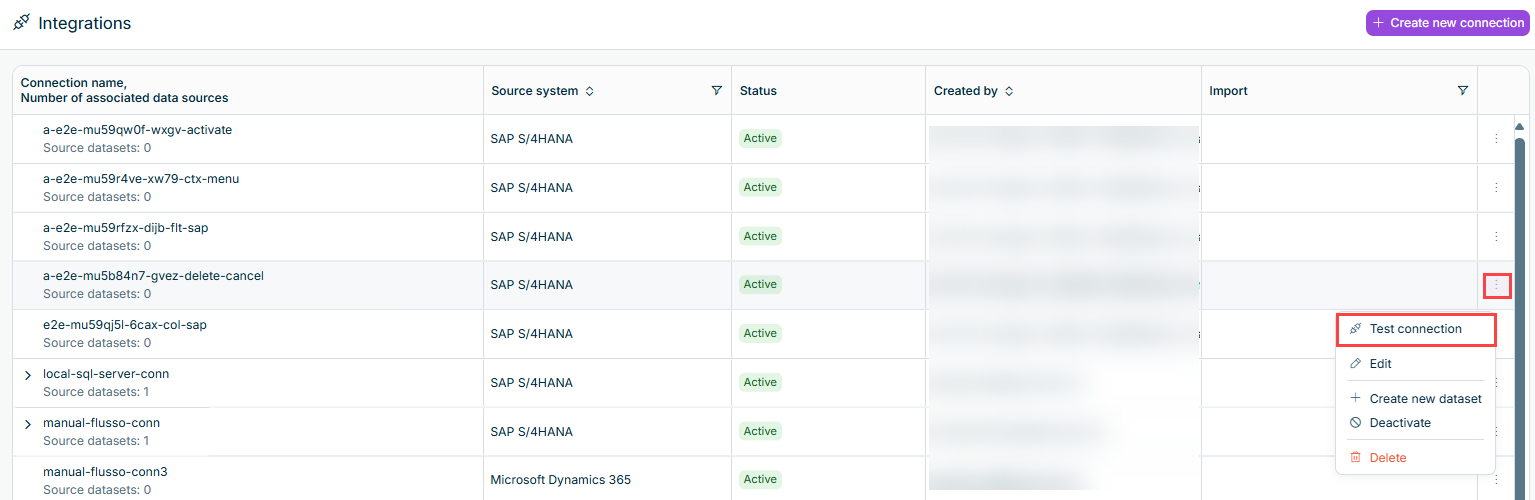
You can manage an existing connection from the icon in the row of the connection on the Integrations page. The following options are available:

OptionDescription
EditOption to view and change the connection's settings.
Create new datasetOption to define a source dataset for the connection. For more information, see Managing Source Datasets.
Deactivate / ActivateOption to set the connection to Inactive or back to Active. While a connection is inactive, it cannot be used for imports, and all its source datasets are inactive as well.
DeleteOption to delete the connection. You can only delete a connection which is not used by any source dataset.

When you deactivate a connection that still has active source datasets, you confirm the change, and the connection together with all its source datasets is set to Inactive. Activating a connection again does not automatically reactivate its source datasets. You cannot deactivate a connection or source dataset while one of its imports is running or queued.