A source dataset specifies which data to import from a source system. Each source dataset belongs to a connection, and a connection can have one or more source datasets. On the Integrations page, each source dataset is displayed as a child row of the connection it uses.

To create a source dataset, click the icon in the row of the connection you want to use to import data and select Create new dataset. Specify the following details, then click Create:

FieldDescription
ConnectionConnection to the system the data is imported from. It is preselected and cannot be changed.
NameName that identifies the source dataset on the Integrations page. Required.
NamespaceTechnical identifier for the source dataset, used to reference its data tables in SQL queries against the data lake (for example, namespace.table_name). It can have up to 255 characters and must be SQL-safe, with no spaces or unsupported special characters. After the first import, the namespace is locked and cannot be changed. Required.
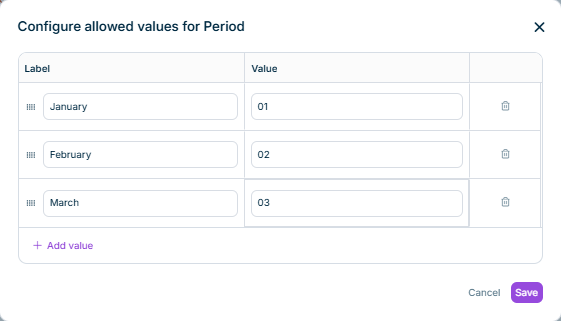
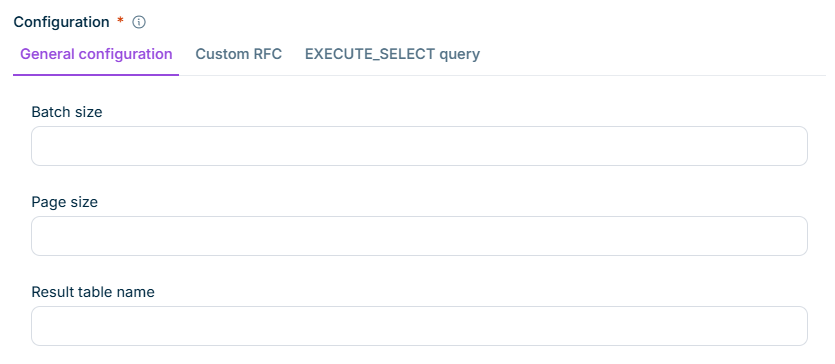
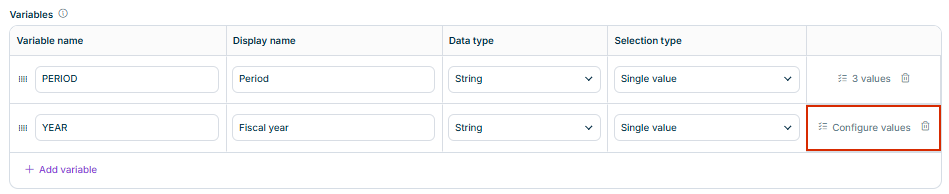
ConfigurationData to import from the source system. For more information, see Source Dataset Configuration below. Required.

The source dataset is created and displayed under its connection on the Integrations page.

The configuration of a dataset defines which data is to be imported. The available options depend on the source system and reflect the data it can provide.

For an SAP S/4HANA connection, the source dataset configuration includes, for example:

  • Upload OData v4 entities: Entities to be imported from the source system, for example an entity that provides general ledger balances.
  • Use fixed navigation filter 'Company': Option to restrict the import to a specific company.
  • Navigation filters: Values used to filter the import, for example a specific company.

You can manage an existing source dataset from the icon in the row of the source dataset on the Integrations page. The following options are available:

OptionDescription
Start importOption to start an import for the source dataset. For more information, see Importing Data.
View execution detailsOption to display the execution history of the source dataset. For more information, see Importing Data.
EditOption to change the name, namespace, or configuration of the source dataset.
Deactivate / ActivateOption to set the source dataset to Inactive or back to Active. An inactive source dataset cannot be imported.
DeleteOption to delete the source dataset.