![]()
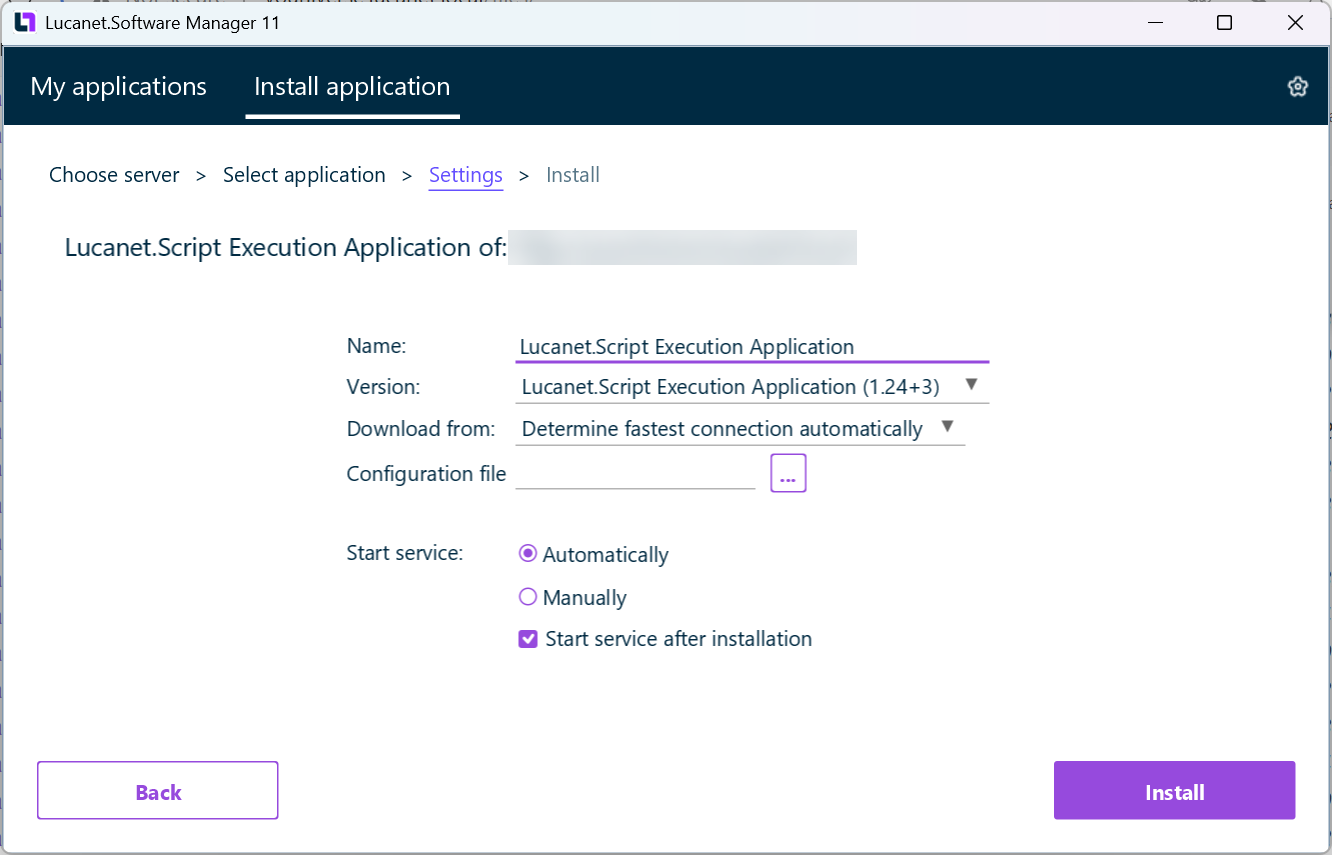
If necessary, update Lucanet.Software Manager to version 11. Start Lucanet.Software Manager. Click the tab.Install application Retain the presetting and clickRetrieve application from Lucanet.Youniverse .Next Choose and clickLucanet.Script Execution Application . Lucanet.Software Manager displays the Settings:Continue Installing SEA in Lucanet.Software Manager
If necessary, change the name in the input field.Name Choose the latest version from the drop-down list.Version From the drop-down list , choose from which download server SEA should be installed. The following options are available:Download from Choose if Lucanet.Software Manager shall determine the download server automatically.Determine fastest connection automatically Choose the desired download server from the drop-down list.
After , upload the ZIP file for theConfiguration file certificate that you downloaded from the CFO Solution Platform in step 1.Receiver Define how the service is to be started. Do one of the following: Choose if the service is to be started automatically when starting the computer.Automatic Choose if the service is to be started manually.Manually
Activate the check box if the service is to be started after installation.Start service after installation Click .Install The Lucanet.Script Execution Application is installed on your computer as a system service. Click when the message Installation completed is displayed.Finished


Last updated on Aug 16, 2023