The SAP S/4HANA (RFC) integration in Data Hub extracts data from an SAP S/4HANA system through RFC and writes it into the Lucanet Data Lake as raw Parquet datasets. From the Data Lake, the data is available for further processing on the Lucanet CFO Solution Platform, for example for VAT and audit use cases or for Lucanet xP&A (Extended Planning & Analysis).

This page describes the technical details and the prerequisites of the SAP S/4HANA (RFC) integration in Data Hub, every step from creating the connection to starting the import, the connection settings, every option of the source dataset configuration, example configurations, a configuration checklist, and the release notes.

This document describes version 1.4 of the SAP S/4HANA (RFC) integration. In the connection form, the version is displayed in the Source system area, for example Version: 1.4.0. Bugfix versions such as 1.4.1 are applied automatically and do not change the options described on this page. The changes of each version are listed in the release notes.

The SAP S/4HANA (RFC) integration uses the script #6000-SAP-RFC and is executed by the Lucanet.Script Execution Application (SEA). It reads the data from the SAP system through the Lucanet SAP RFC interface. Lucanet.Financial Client is not involved.

The SAP S/4HANA (RFC) integration writes the data in raw form. It does not map or transform any values into a target schema: the source columns are stored as they are, with automatic data-type detection. You can join, filter, or map the data later in the Data Lake.

The SAP S/4HANA (RFC) integration in Data Hub requires the following prerequisites. They concern the environment and are not options of the integration:

  • A license for the SAP S/4HANA (RFC) integration. Without a license, SAP S/4HANA (RFC) is not displayed in the Source system drop-down list.
  • A running SEA instance that executes the SAP S/4HANA (RFC) integration
  • The Lucanet SAP RFC transport, installed in the SAP system, and a technical SAP user with the Lucanet RFC role
  • Network connectivity from the SEA instance to the SAP system, for example through a VPN for an on-premises SAP system
  • Confirmation from the customer that the required source tables, for example BKPF and BSEG, exist in the SAP system and can be read. The correct configuration depends on the tables and fields that are actually available in the SAP system, not on the name of the SAP product.
To import data with the SAP S/4HANA (RFC) integration in Data Hub, proceed as follows:

1

Create a connection with SAP S/4HANA (RFC) as the source system and enter the settings for accessing the SAP system. For more information, see Creating a Connection for the SAP S/4HANA (RFC) Integration.

2

Create a source dataset that uses the connection and specify the data to extract from the source system in its Configuration area. A connection can have one or more source datasets. For more information, see Creating a Source Dataset for the SAP S/4HANA (RFC) Integration.

3

Start an import of the source dataset. Before the first import, check the points of the configuration checklist for the SAP S/4HANA (RFC) integration. For more information, see Starting an Import for the SAP S/4HANA (RFC) Integration.

A connection of the SAP S/4HANA (RFC) integration in Data Hub specifies the settings that Data Hub uses to access the SAP system.

To create a connection for the SAP S/4HANA (RFC) integration in Data Hub:

1

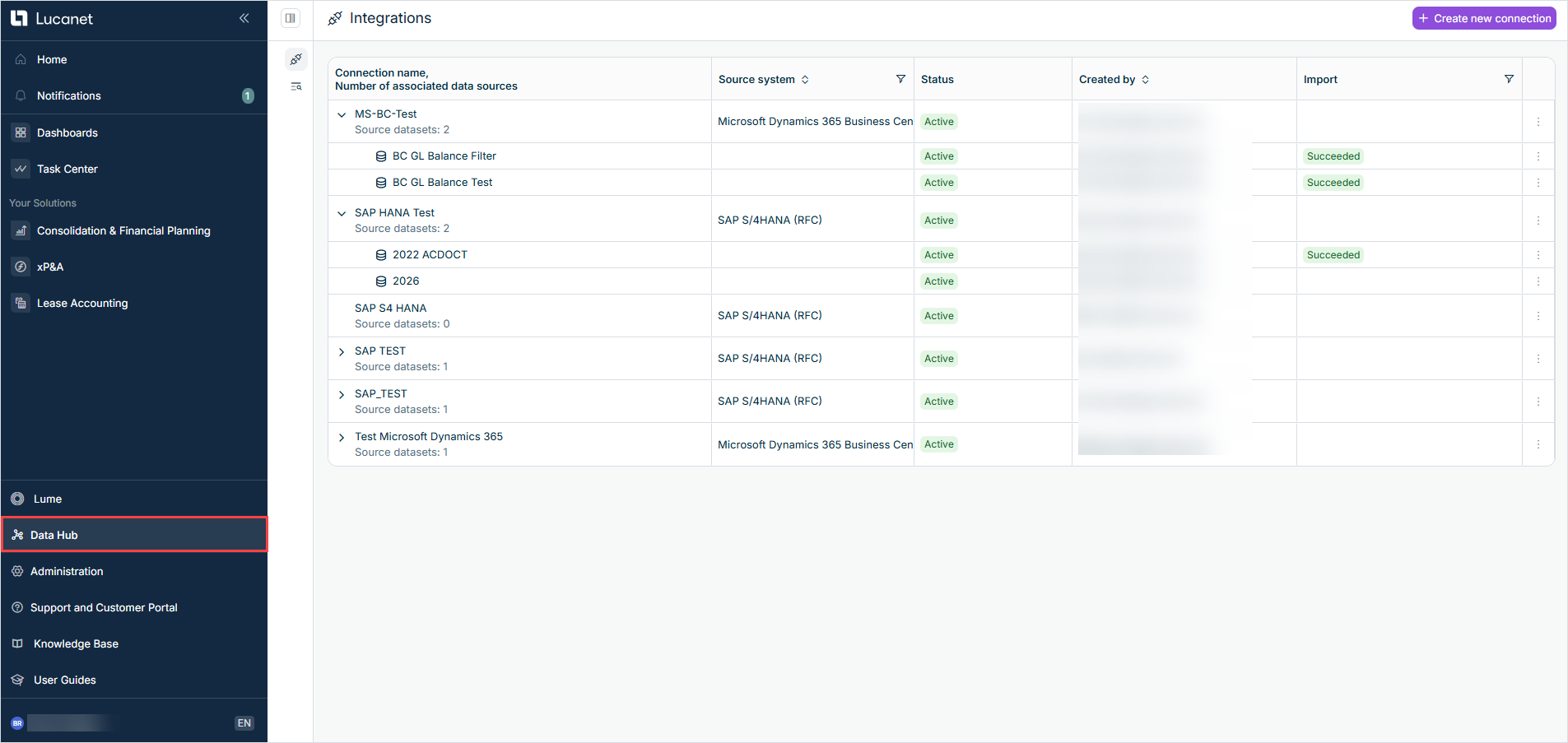
In the main menu, select Data Hub. The Integrations page is displayed as follows, for example:

Shows the 'Integrations' page in Data Hub with the 'Create new connection' button and a table with the columns 'Connection name, Number of associated data sources', 'Source system', 'Status', 'Created by', and 'Import'. The table lists connections with the source systems 'Microsoft Dynamics 365 Business Cen', truncated in the column, and 'SAP S/4HANA (RFC)', all with the status 'Active'. Highlighted in red is 'Data Hub' in the main menu.
Connections and their source datasets on the 'Integrations' page
2

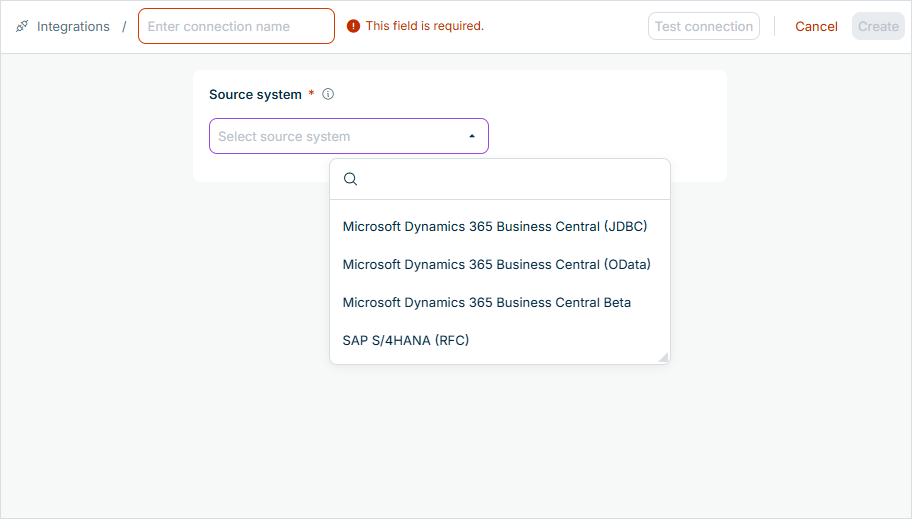
In the top-right corner, click Create new connection. The connection form is displayed as follows, for example:

Shows the connection form in Data Hub with the empty 'Enter connection name' field and the message 'This field is required.', the 'Test connection', 'Cancel', and 'Create' buttons in the top-right corner, and the open 'Source system' drop-down list with the options 'Microsoft Dynamics 365 Business Central (JDBC)', 'Microsoft Dynamics 365 Business Central (OData)', 'Microsoft Dynamics 365 Business Central Beta', and 'SAP S/4HANA (RFC)'.
Connection form with the source-system selection
3

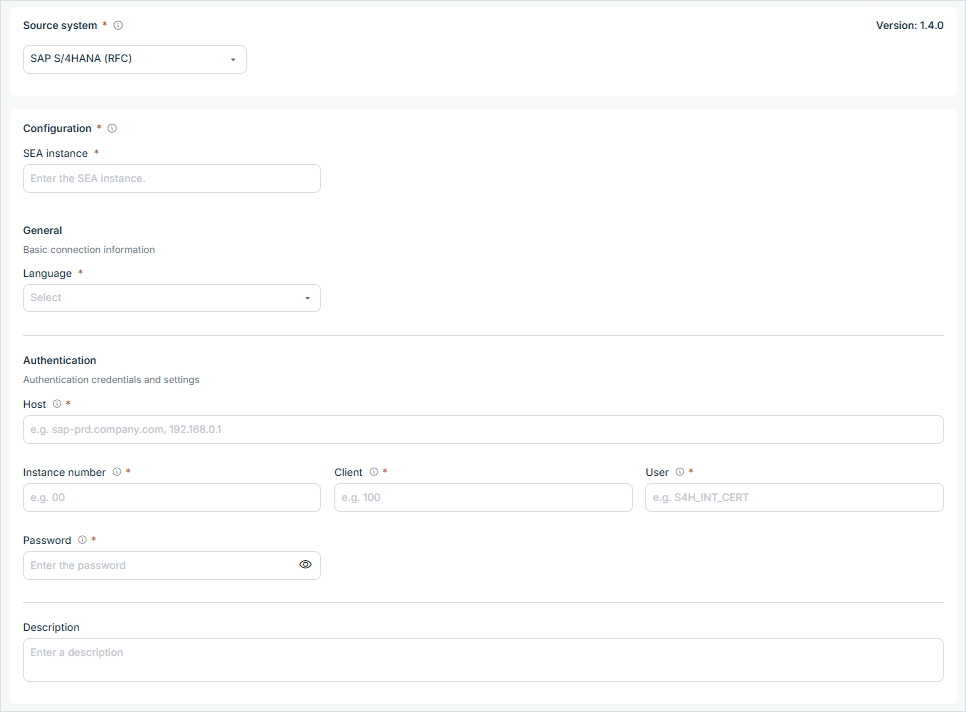
In the Source system drop-down list, select SAP S/4HANA (RFC). The version of the integration is displayed in the top-right corner of the Source system area.

The connection settings of an SAP connection are displayed as follows, for example:

Shows the connection form of an SAP connection in Data Hub with 'SAP S/4HANA (RFC)' selected as the source system and 'Version: 1.4.0'. The 'Configuration' area contains the 'SEA instance' field, the 'General' area contains the 'Language' drop-down list, the 'Authentication' area contains the fields 'Host', 'Instance number', 'Client', 'User', and 'Password', and the 'Description' field is displayed below.
Connection settings of an SAP connection
4

At the top of the connection form, enter a name for the connection in the Enter connection name field. The name identifies the connection on the Integrations page.

5

In the Configuration area, select the SEA instance that runs the connection. For more information, see Lucanet.Script Execution Application.

6

In the General area, select the login language for the SAP system in the Language drop-down list.

7

In the Authentication area of an SAP S/4HANA (RFC) connection, enter the following information:

OptionRequiredDescriptionExample
HostYesHost name or IP address of the SAP serversap.example.com
Instance numberYesTwo-digit instance number of the SAP application server00
ClientYesThree-digit number of the SAP client that the login refers to100
UserYesTechnical SAP user for the RFC connectionLUCANET_RFC
PasswordYesPassword of the technical SAP user(secret)
8

Optionally, enter a description of the connection in the Description field at the bottom of the connection form.

9

Optionally, click Test connection in the top-right corner to check whether Data Hub can reach the SAP system with the settings you have entered. Data Hub tests the settings without saving them. For more information, see Testing a Connection.

10

Click Create. The connection is created and displayed on the Integrations page.

A source dataset of the SAP S/4HANA (RFC) integration in Data Hub specifies which data to import from the SAP system. Each source dataset belongs to a connection, and a connection can have one or more source datasets.

You create a source dataset for the SAP S/4HANA (RFC) integration in Data Hub in three parts, in this order: first the general options of the source dataset, then the tabs of the Configuration area, and finally saving the source dataset.

To specify the general options of a source dataset for the SAP S/4HANA (RFC) integration in Data Hub:

1

On the Integrations page, click the Three-dot icon icon in the row of the SAP S/4HANA (RFC) connection and select Create new dataset.

2

In the Name field, enter a name for the source dataset. The name identifies the source dataset on the Integrations page.

3

In the Connection drop-down list, check the connection. The connection from which you create the source dataset is preselected. If necessary, you can select a different connection. The Configuration area then displays the options of the selected source system. After the source dataset is created, the connection can no longer be changed.

4

In the Namespace field, enter a technical identifier for the source dataset. The namespace is used to reference the data tables of the source dataset in SQL queries against the Data Lake, for example namespace.table_name. The namespace can have up to 255 characters and must be SQL-safe, with no spaces or unsupported special characters.

5

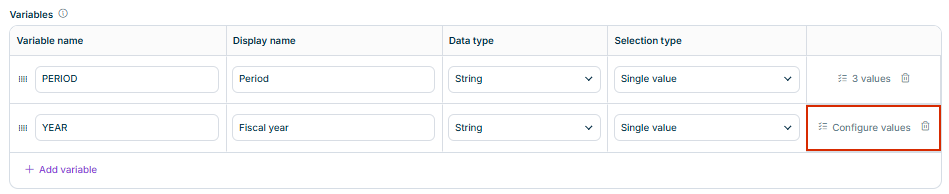
Optionally, define variables in the Variables area. Variables are placeholders in the configuration whose values are selected every time an import is started. For more information, see Variables.

The Variables area is displayed as follows, for example:

Shows the 'Variables' area of a source dataset in Data Hub with the columns 'Variable name', 'Display name', 'Data type', and 'Selection type' and the variables 'PERIOD' ('Period', 'String', 'Single value', 3 values) and 'YEAR' ('Fiscal year', 'String', 'Single value'), and the 'Add variable' button. Highlighted in red is 'Configure values' in the row of the variable 'YEAR'.
Variables area of a source dataset

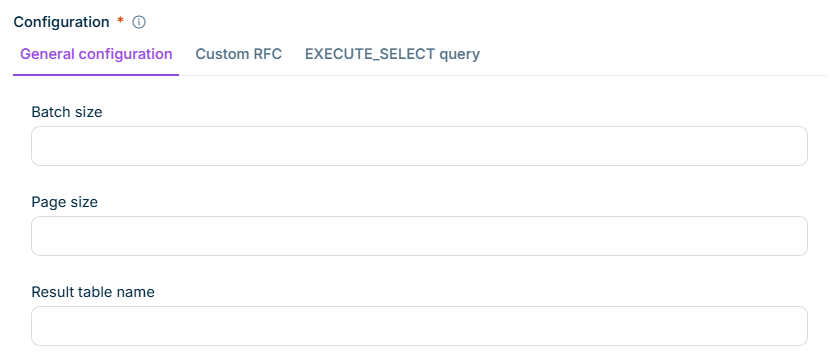
In the Configuration area of an SAP S/4HANA (RFC) source dataset, the General configuration tab contains the options that apply to both extraction methods. The Configuration area of an SAP source dataset is displayed as follows, for example:

Shows the 'Configuration' area of an SAP source dataset in Data Hub with the tabs 'General configuration', 'Custom RFC', and 'EXECUTE_SELECT query'. The 'General configuration' tab is selected and displays the empty fields 'Batch size', 'Page size', and 'Result table name'.
Configuration area of an SAP source dataset

The following table describes the options on the General configuration tab of the SAP S/4HANA (RFC) integration:

OptionRequiredDescriptionExample
Result table nameYesName under which the extracted data is stored as a dataset in the Data Lake. Required for both extraction methodsbseg_2017
Batch sizeNoNumber of records that the SAP system collects per internal fetch. Optional performance setting. If you leave the field empty, the default of 10,000 records is used.10000
Page sizeNoNumber of records that are transferred per download page. Optional performance setting. If you leave the field empty, the default of 10,000 records is used. The page size must not exceed the batch size. A larger value is automatically reduced to the batch size.10000

The SAP S/4HANA (RFC) integration in Data Hub extracts the data in one of two ways:

  • Custom RFC: Calls a customer-specific RFC function module and loads its result table. Use this method when the data cannot be read directly and the customer provides their own function module that returns the data.
  • EXECUTE_SELECT query: Executes a filtered, SQL-style query against the SAP system, including joins between normal tables and a cascade mode for cluster tables such as BSEG. Use this method for filtered or delta-style loads, for example for VAT.

Each extraction method is configured on its own tab of the Configuration area of a source dataset.

For each source dataset, configure exactly one of the two tabs. The integration checks the configuration when the import is executed: if you fill in both tabs or neither tab, or if a required field is empty, the import fails with an error.

If you want the SAP S/4HANA (RFC) integration in Data Hub to load the data that a customer-specific RFC function module returns, use the Custom RFC tab of the source dataset. The integration calls the function module and loads the rows of one of its result tables. As soon as the Custom RFC name field is filled in, the Custom RFC tab is used for the extraction.

The following table describes the options on the Custom RFC tab of the SAP S/4HANA (RFC) integration:

OptionRequiredDescriptionExample
Custom RFC nameYesName of the RFC function module to callZ_GTC_TEST_IMPORT
RFC output table nameYesName of the parameter of the function module that contains the result rows. The integration searches the table, changing, and exporting parameters of the function module for this name, so it works no matter which parameter type the function module uses.ET_DATA
RFC parameter tableNoInput parameters that are passed to the function module. Each parameter is entered in its own row with the columns Parameter, Data type, and Value. The data type is String, ClassicTable, or ImportTable. If you enter a parameter name, the data type and the value are required as well.I_YEAR, String, 2017

The following example shows a source dataset configuration of the SAP S/4HANA (RFC) integration that calls a custom import function module with three input parameters and reads its result table:

OptionValue
Custom RFC nameZ_GTC_TEST_IMPORT
RFC output table nameET_DATA
Result table namerfc_import
RFC parameter tableI_UNIT, String, 1710
I_YEAR, String, 2017
I_PERIOD, String, 01

If you want the SAP S/4HANA (RFC) integration in Data Hub to read the data with a filtered query, use the EXECUTE_SELECT query tab of the source dataset. This is the most flexible extraction method: it supports column selection, filtering, grouping, ordering, joins between normal tables, and placeholders for reusable queries. For SAP cluster tables such as BSEG, it also supports a cascade mode. As soon as the FROM (Source) field is filled in, the EXECUTE_SELECT query tab is used for the extraction.

The following table describes the query options on the EXECUTE_SELECT query tab of the SAP S/4HANA (RFC) integration:

OptionRequiredDescriptionExample
SELECT (Fields)NoComma-separated list of the columns to return. If you leave the field empty, all columns are returned (*). Aliases or expressions, such as AS or functions, make the data-type detection unreliable. Use plain column names instead.BUKRS, BELNR, GJAHR
FROM (Source)YesSource table or join of normal tables. In a join, each table requires an alias. In SAP Business Suite (ECC), do not join the cluster tables BSEG, BSET, and BSEC here. Use the cascade options instead.BKPF
WHERE (Where)NoAny ABAP-compliant filter condition. Can contain ? placeholders, whose values you enter in the Input parameter table.BUKRS = '1710' AND GJAHR = '2017'
GROUP BY (GROUP_BY)NoAny ABAP-compliant grouping. Cannot be combined with the cascade options.BUKRS
ORDER BY (ORDER_BY)NoAny ABAP-compliant orderingBELNR

The Input parameter table on the EXECUTE_SELECT query tab of the SAP S/4HANA (RFC) integration contains the values for the ? placeholders of the query. This way, you can reuse one query with different values.

The table has the columns Data type and Value. It has no column for a parameter name, because each value is assigned to a placeholder by its position. The integration replaces the placeholders as follows:

  • The placeholders are replaced in the order in which they appear in the query fields SELECT (Fields), FROM (Source), WHERE (Where), GROUP BY (GROUP_BY), and ORDER BY (ORDER_BY). Each placeholder receives the value of the next row of the Input parameter table.
  • The data type is String or Integer. A String value is inserted in quotation marks, an Integer value is inserted as it is.
  • If the number of rows does not match the number of placeholders, the import fails with an error.

The variables of a source dataset, such as {{PERIOD}}, are a separate Data Hub feature for loading slices of data into the Data Lake. They are not set through the Input parameter table.

The following example shows a reusable query of the SAP S/4HANA (RFC) integration that is filtered by company code and fiscal year. The values are supplied through the Input parameter table:

OptionValue
FROM (Source)BKPF
SELECT (Fields)BUKRS, BELNR, GJAHR, BUDAT
WHERE (Where)BUKRS = ? AND GJAHR = ?
Input parameter tableString, 1710
String, 2017
Result table namebkpf_1710_2017

The cascade of the SAP S/4HANA (RFC) integration in Data Hub reads the SAP accounting-document tables BSEG, BSET, and BSEC together with their document headers. In SAP Business Suite (ECC), these tables are stored in the cluster RFBLG and cannot be read with a normal SQL join. A normal join, such as BKPF joined to BSEG, fails in the SAP system.

The cascade matters for filtered loads: the posting date (BUDAT) is only stored in the document header table BKPF, while the line items in BSEG can only be selected by company code and fiscal year. Without a link to BKPF, a BSEG load could only be narrowed down to a whole fiscal year, which means roughly 5 to 20 times more data per load than a single period. The cascade first filters the document headers, for example by period, and then reads only the matching rows of the cluster table.

The cascade is only relevant for the tables BSEG, BSET, and BSEC. It is available for every SAP system. In SAP S/4HANA, BSEG is a transparent table that can be read directly, and table ACDOCA is the single source of truth for FI and CO postings. You can still use the cascade there, for example to read BSEG filtered by the document headers.

The cascade of the SAP S/4HANA (RFC) integration processes the data as follows:

  • The query in FROM (Source) is executed first against the header table, for example BKPF, with the period filter in WHERE (Where).
  • For each header row that passes the filter, a second query is executed against the cluster table in CASCADE FROM (CASC_SOURCE). The condition in CASCADE WHERE (CASC_WHERE) links the two tables.
  • The output contains one row per matching row of the cluster table. A header with several line items therefore produces several output rows.
  • A header row without a matching row in the cluster table is not included in the output (inner-join behavior).
  • The order of the rows is not guaranteed. If the order matters, sort the data later in the Data Lake.

The following table describes the cascade options on the EXECUTE_SELECT query tab of the SAP S/4HANA (RFC) integration. The cascade options are required as soon as you use the cascade:

OptionRequiredDescriptionExample
CASCADE SELECT (CASC_FIELDS)Yes, when you use the cascadeComma-separated list of the columns to return from the cluster table. Only native fields of the cluster table are allowed. References to header fields with the DATA- prefix are rejected. For more information, see Header Fields in the Cascade Output.BUZEI, HKONT, DMBTR, WRBTR
CASCADE FROM (CASC_SOURCE)Yes, when you use the cascadeTable to read. Must be one of the following tables: BSEG, BSET, or BSEC.BSEG
CASCADE WHERE (CASC_WHERE)Yes, when you use the cascadeCondition that links the cluster table to the header result. Reference header values with the data- prefix. Additional filters on fields of the cluster table are allowed and can contain placeholders.bukrs = data-bukrs and belnr = data-belnr and gjahr = data-gjahr

The following rules apply to the cascade of the SAP S/4HANA (RFC) integration:

  • The cascade is only available on the EXECUTE_SELECT query tab, and the FROM (Source) field must be filled in.
  • Fill in all three cascade options or none of them.
  • CASCADE FROM (CASC_SOURCE) must contain one of the tables BSEG, BSET, or BSEC.
  • When you use the cascade, FROM (Source) must contain a single header table, not a join.
  • GROUP BY (GROUP_BY) cannot be combined with the cascade.
  • CASCADE SELECT (CASC_FIELDS) can only contain native fields of the cluster table, no header fields.

The output of the cascade of the SAP S/4HANA (RFC) integration contains only fields of the cluster table. Header fields, such as the posting date BUDAT, cannot be added to the cascade output, even though the header is filtered by them. If you reference a header field in CASCADE SELECT (CASC_FIELDS), the integration rejects the configuration.

The following example shows a VAT-style cascade of the SAP S/4HANA (RFC) integration. It loads the BSEG line items of one company code and fiscal year, linked to their BKPF headers. The dataset contains only the line items that match the header selection, including the amount fields as numbers:

OptionValue
FROM (Source)BKPF
SELECT (Fields)BUKRS, BELNR, GJAHR
WHERE (Where)BUKRS = '1710' AND GJAHR = '2017'
CASCADE SELECT (CASC_FIELDS)BUKRS, BELNR, GJAHR, BUZEI, HKONT, DMBTR, WRBTR, ZFBDT
CASCADE FROM (CASC_SOURCE)BSEG
CASCADE WHERE (CASC_WHERE)bukrs = data-bukrs and belnr = data-belnr and gjahr = data-gjahr
Result table namebseg_1710_2017

To save the SAP S/4HANA (RFC) source dataset, click Create. The source dataset is created and displayed under the selected connection on the Integrations page.

After the first import, a source dataset can no longer be edited. Before the first import, all options except the connection can still be changed.

An import of the SAP S/4HANA (RFC) integration in Data Hub extracts the data defined in a source dataset from the SAP system and writes it into the Data Lake. The SAP S/4HANA (RFC) integration checks the configuration of the source dataset when the import is executed.

To start an import of an SAP S/4HANA (RFC) source dataset in Data Hub:

1

On the Integrations page, click the Three-dot icon icon in the row of the source dataset you want to import.

2

Select Start import. If the source dataset uses no variables, Data Hub executes the import immediately.

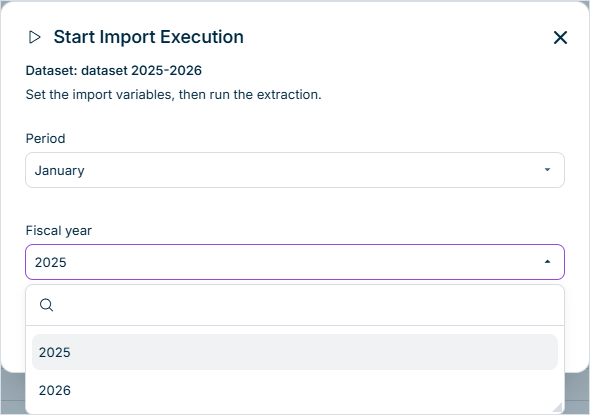
If the source dataset uses variables, the Start Import Execution dialog is displayed as follows, for example:

Shows the 'Start Import Execution' dialog in Data Hub for the dataset 'dataset 2025-2026' with the text 'Set the import variables, then run the extraction.', the variable 'Period' set to 'January', and the open drop-down list of the variable 'Fiscal year' with the values '2025' and '2026'.
'Start Import Execution' dialog of a source dataset with two variables
3

In the Start Import Execution dialog, select a value for every variable of the source dataset, then click Execute.

Data Hub imports the data and records the execution in the execution history of the source dataset. For more information on the execution history, see Importing Data.

After the first import, a source dataset of the SAP S/4HANA (RFC) integration in Data Hub can no longer be edited. Before the first import, check the following points:

  • The connection uses SAP S/4HANA (RFC) as the source system, and the Language and all options of the Authentication area are filled in.
  • The source dataset uses this connection.
  • On the General configuration tab, the Result table name is filled in.
  • Exactly one of the two extraction tabs is used:
    • Custom RFC: Custom RFC name and RFC output table name, plus the RFC parameter table if required
    • EXECUTE_SELECT query: FROM (Source), plus SELECT (Fields), WHERE (Where), and the other query options as required
  • For a cluster table such as BSEG, FROM (Source) contains the header table, all three cascade options are filled in, and CASCADE SELECT (CASC_FIELDS) contains native fields of the cluster table only.
  • If the query contains ? placeholders, the Input parameter table contains exactly one row per placeholder, in the order of the placeholders across all query fields.
  • Batch size and Page size are empty to use the defaults, or set for performance tuning.

The release notes of the SAP S/4HANA (RFC) integration in Data Hub list the changes of each version with new or changed options, newest first. Bugfix versions are not listed.

Version 1.4 is the first documented version of the SAP S/4HANA (RFC) integration in Data Hub. It is based on version 1.4 of the script #6000-SAP-RFC.

This content was generated using AI and reviewed by Lucanet subject matter experts before publication.