If your organization uses a Document Management System (DMS) to store source documents such as invoices or receipts, you can open the original document for a posting directly from its posting data, without leaving Lucanet Consolidation & Financial Planning.
Drilling down to the original document is currently supported for cloud- and web-based Document Management Systems, including SharePoint.
Drill-down to on-premise Document Management Systems is not yet supported.
Drilling down to the original document is only available for a posting if it was imported through a data source with a DMS script assigned in the Display scanned documents field and it has a DMS code populated during import (see Defining a Data Source).
Configuring the DMS script and connecting it to your Document Management System is done by an administrator in the Scripts workspace (see Creating and Executing Scripts). Contact your Lucanet consultant if this has not yet been set up for your organization.
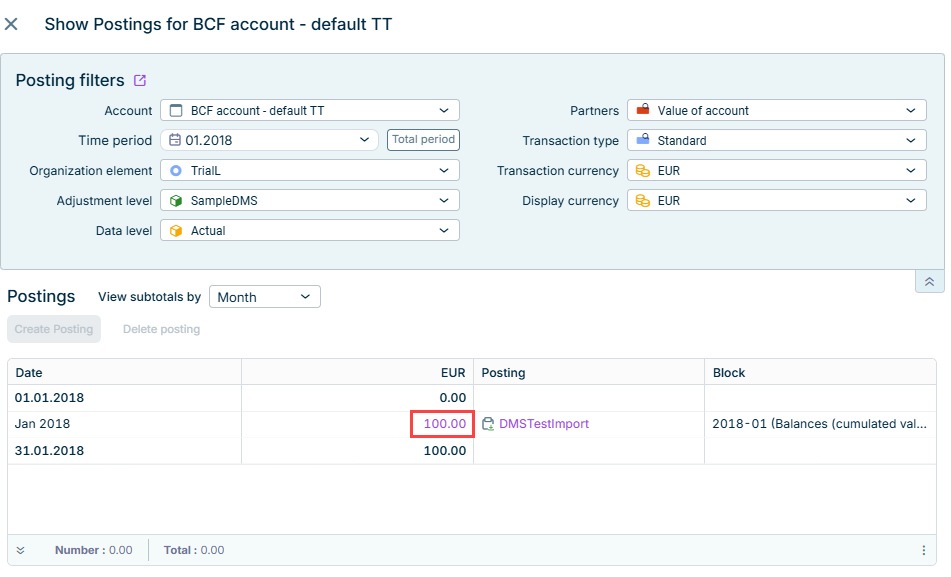
In a ledger or schedule, double-click the desired account value to open the Show Postings dialog (see Show Postings).
2
In the value column, click the link of the value for which you want to view the posting data.
Link of a value to open its posting details
3
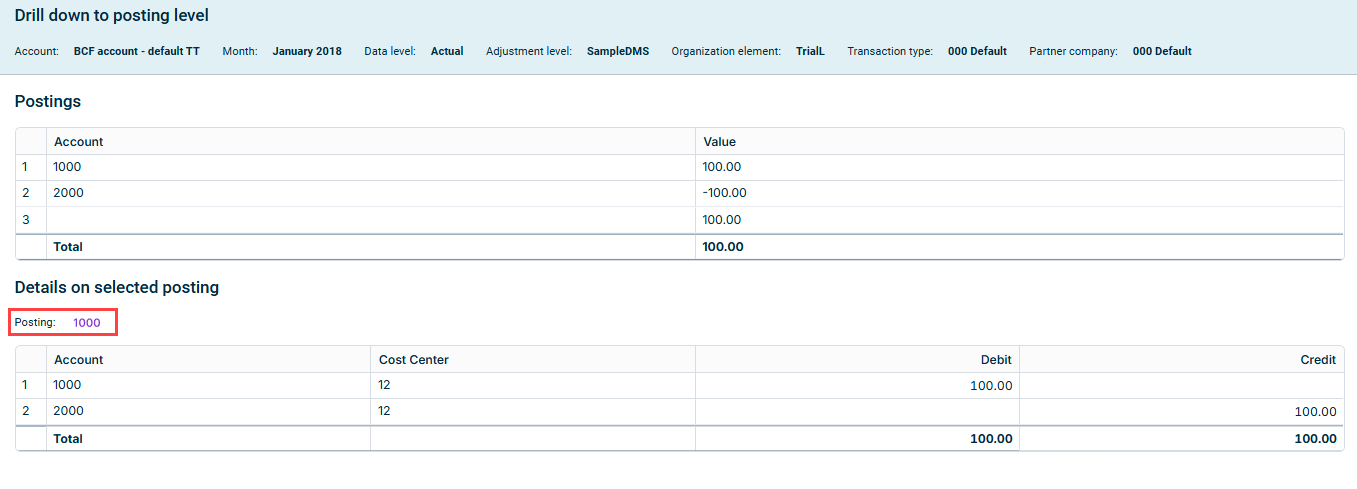
In the Drill down to posting level dialog, select the value for which you want to display the original document and click the link behind Posting.
The Posting link in the 'Details on selected posting' section
Note: Posting is only displayed as a link if the prerequisites listed above are fulfilled. Otherwise, the posting is displayed as plain text.
4
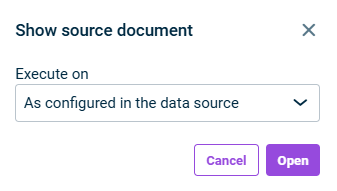
In the Show Source Document dialog, select the desired execution location for the script configured in the data source for displaying scanned documents. The drop-down list is pre-filled with the default configured for the data source.
Note: For scripts that require execution on the local machine, you need to select your on-premise Script Execution Application (SEA) instance.
Show Source Document dialog
5
Click Open. The original document opens in a new browser tab.
If the original document cannot be opened, an error message is displayed, for example:
Message
Cause
System cannot find the file specified
The document could not be located in the document management system, for example because the DMS code does not match a document, or you do not have access to the file.
Other error messages
Any other error returned while the DMS script was executed.
If the error persists, contact your administrator to check the configuration of the DMS script.
This content was generated using AI and reviewed by Lucanet subject matter experts before publication.