In the Scripts workspace as well as in directory structures, scripts can be created, edited, and executed.

Scripts can be used to read out, change, augment, and import data from different systems. Each script contains all instructions required to execute a specific task (e. g. import data into Lucanet.Financial Warehouse).

The Application function is also available in the Scripts workspace. This function can be used to load Lucanet.Script Execution Application (SEA for short) into the workspace.

The scripts used to import data into Lucanet.Financial Warehouse are usually created by Lucanet.Consulting. If necessary, get in touch with your Lucanet contact.

To create a script:

1

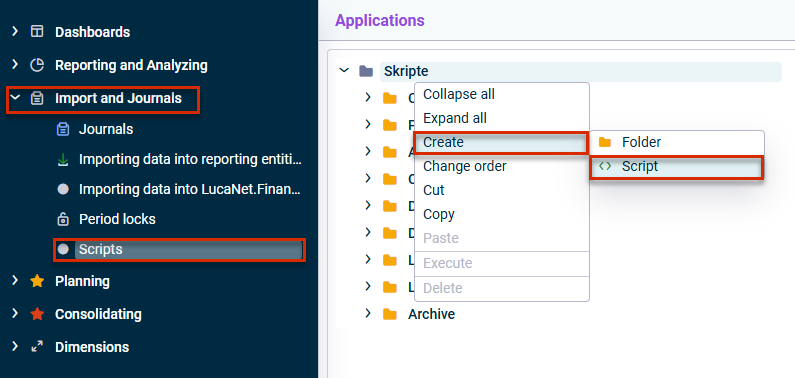
In the overview, click the Import and Journals workspace.

2

In the tree view of the workspace, right-click Scripts or a folder and select the following from the context menu: Create | Script:

Create a new script
3

Choose one of the following options to load the script into the Scripts workspace in the subsequent dialog:

  • Drag and drop the desired script into the dialog.
  • Click browse and navigate to the desired script.
4

The script is created.

5

In the detail view of the script, click Edit to configure the script (see following section).

The following options are available for scripts:

Execute the script (see following chapter)

If necessary, values required for execution of the script must be specified on the Configuration tab.

Open edit mode for the script:

  • Name: name of the script
  • Configuration: values required to execute the script

There is usually a separate documentation for scripts, which describes the configuration of the script.

The Uses tab shows which Lucanet objects (e.g. data sources) access this script.

Lucanet Script Execution Application ( SEA for short) is a Lucanet application that you need if you operate ERP/financial source systems on-premises and want to import data from these systems into the LucaNet CFO Solution Platform using an ETL script.

If you want to import data from ERP source systems and these source systems are operated on premises, you must perform the following steps before importing via script:

1

Create SEA certificate (see Generating and Downloading SEA Certificates).

3

Create SEA in the Scripts workspace as an application (see Installing and Using Lucanet.Script Execution Application).

4

Assign SEA as an application in the data source (see Defining a Data Source)

You can manually execute either individual scripts or all scripts in a folder at the same time.

1

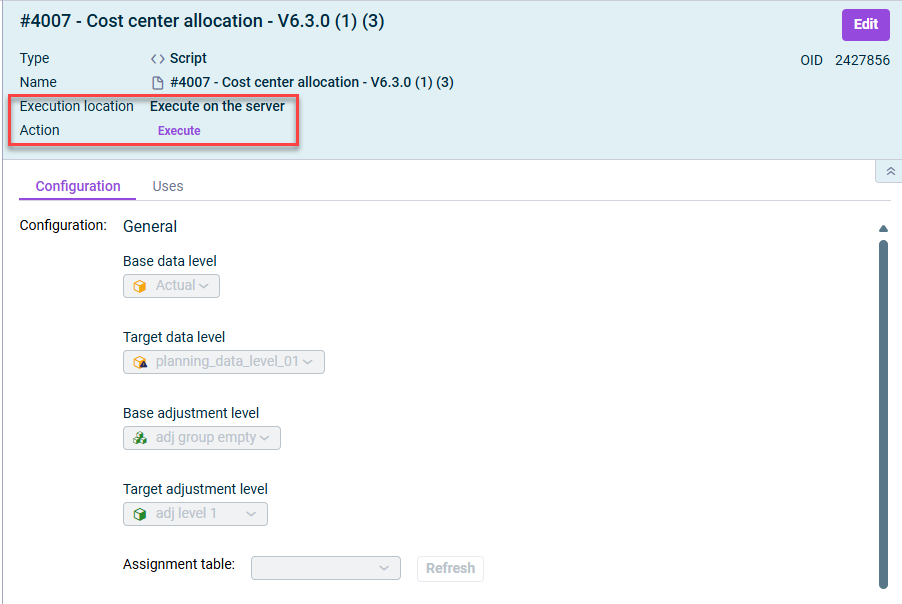
In the Scripts workspace, select the script you would like to execute. The detail view is displayed as follows, for example:

shows the detail view of a script. Highlighted are the sections to configure the execution location and to execute the srcipt.
Executing a script
2

If applicable, choose the Execution location of the script. To do so, open the edit mode and choose if you want to execute the script on the server or on any configured Script Execution Application (SEA).

(For more information on SEA, see the previous chapter and Installing and Updating Lucanet Script Execution Application.)

3

Click Execute.

4

If applicable, specify the configuration values in the Execute - script name dialog.

5

Click Start to start the execution.

1

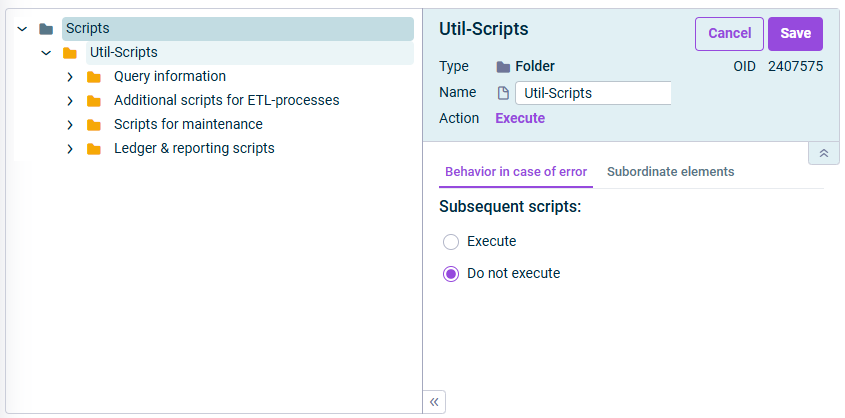
Select the root folder or folder of the scripts you would like to execute together. The detail view is displayed as follows, for example:

Shows the 'Scripts' workspace and the detail view of a folder.
Executing all scripts of a folder
2

If necessary, change the sequence of the scripts using the context menu command Change order.

3

Define whether to continue executing scripts in the event of an error:

  • Retain the preconfigured Execute option if scripts must always be executed, even if an error occurs during execution.
  • Select the option Do not execute if subsequent scripts are not to be executed when one or more errors arise during execution of a script.

Note: To define the behavior in the event of errors when executing folders with subordinate scripts in directory structures, choose either the Continue execution or Cancel execution option.

4

Click Execute.

5

If applicable, specify the configuration values in the Execute - script name dialog.

6

Click Start to start the execution.

By which elements the script is used is displayed on the Uses tab.

You can open the respective element by clicking the link in the Name column: