The element Its unique identifier Its parent when relevant The action performed on the element Depending on the workspace, additional columns
Item Account Reference Formula Total line | |
Posting Data import Posting (Excel-Add-In) Posting (App) Posting (Script) Translation with historical exchange rates Current account interest wizard Loan wizard Transfer actual balance to plan wizard Sheets Elimination of intercompany debt Elimination of intercompany income and expense Inventory consolidation | |
Reporting entity Consolidation reporting entity Cost center Cost center group Total line | |
Organization group (including automatic) Reference to reporting entity Reference to consolidation reporting entity Reference to cost center Reference to cost center group Reference to consolidation area Reference to consolidation unit Reference to consolidation unit group Residual amount Reference to total line Total line (including automatic) | |
Adjustment level Adjustment level for consolidation postings Adjustment level group | |
Transaction type group Transaction type | |
Transaction currency Display currency Exchange rate table | |
General ledger Subledger Statistical ledger Schedule Directory structure | |
Attribute | |
Script | |
Data source Data transformation Executable folder Execution settings | |
Executable folder Data import Data source Assignment table | |
Script App (Next Generation) Connection Lucanet.Excel-Reporting Workflow | |
Item accounting rule configuration Account accounting rule configuration VAT configuration | |
Consolidation area Elimination of intercompany debt Elimination of intercompany income and expense Inventory consolidation | |
Folder (user-created, executable) Reports folder (auto-created) App (Next Generation) Report Consolidated financial statements | |
Group Folder (user-created) Consolidation dimensions folder (auto-created) Consolidation dimension Consolidation dimension element Consolidation areas folder (auto-created) Consolidation area Consolidation unit Consolidation unit group Total line | |
Audit trails - posting Audit trails - exchange rates | |
Partner group Partner | |
Actual data level Planning data level |
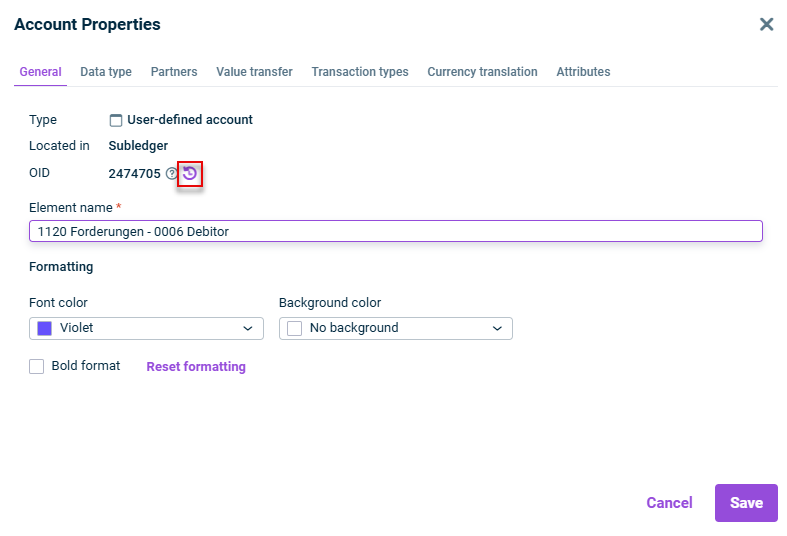
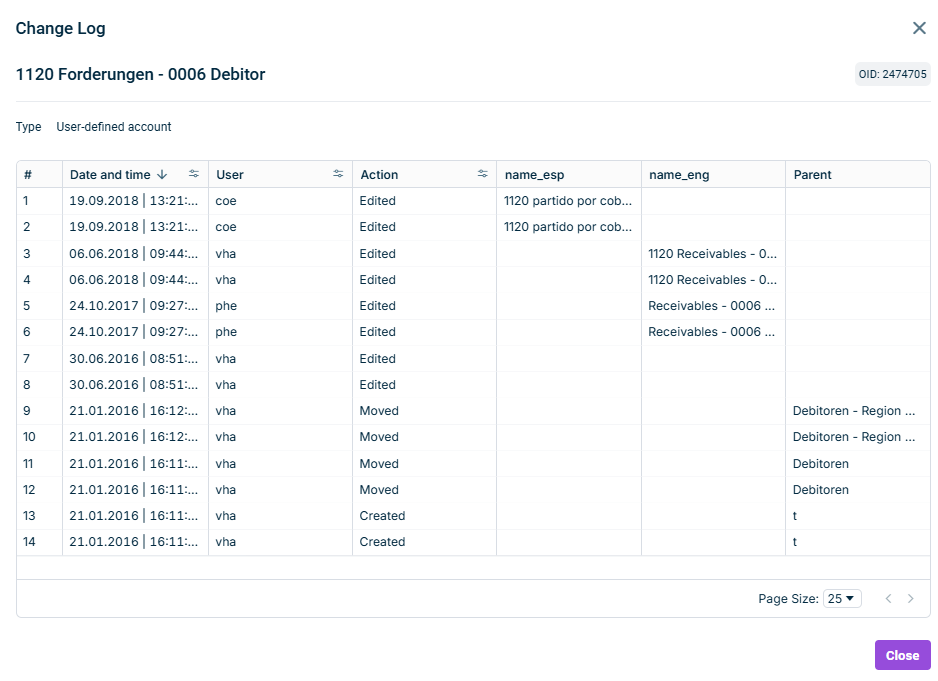
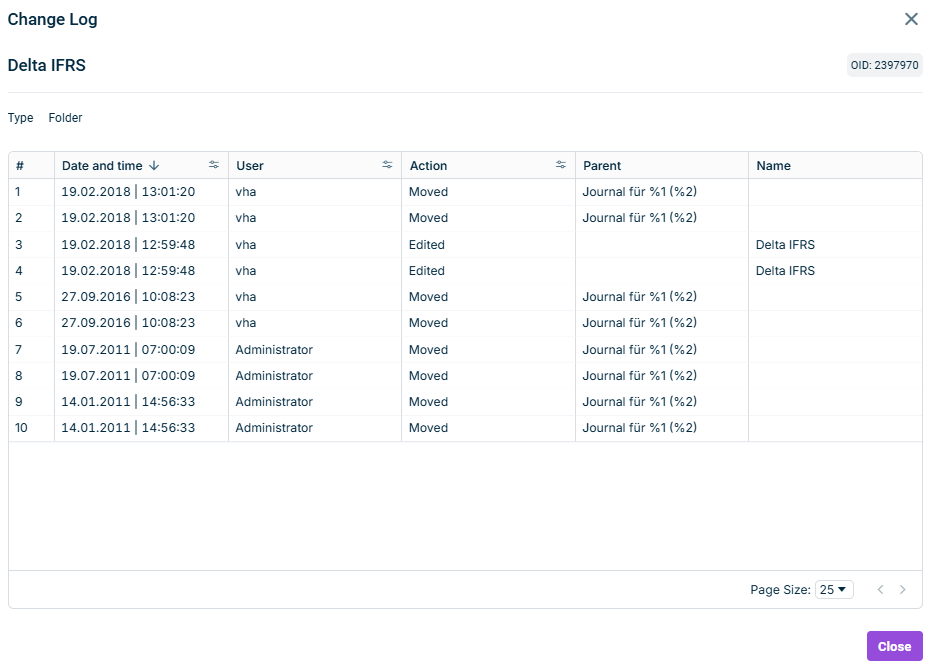
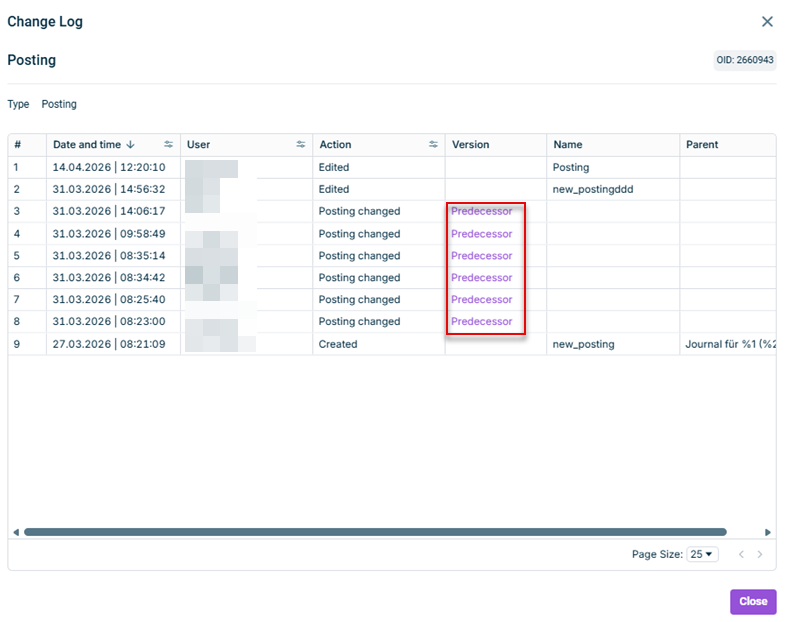
Note that the change log can still list changes without a Version Use the other columns ( Date and time User Action Parent Predecessor
Apps and scripts in a directory structure Scripts Data imports in the Importing data into reporting entities Execution settings in the Importing data into Lucanet.Financial Warehouse Apps in Consolidated financial statements
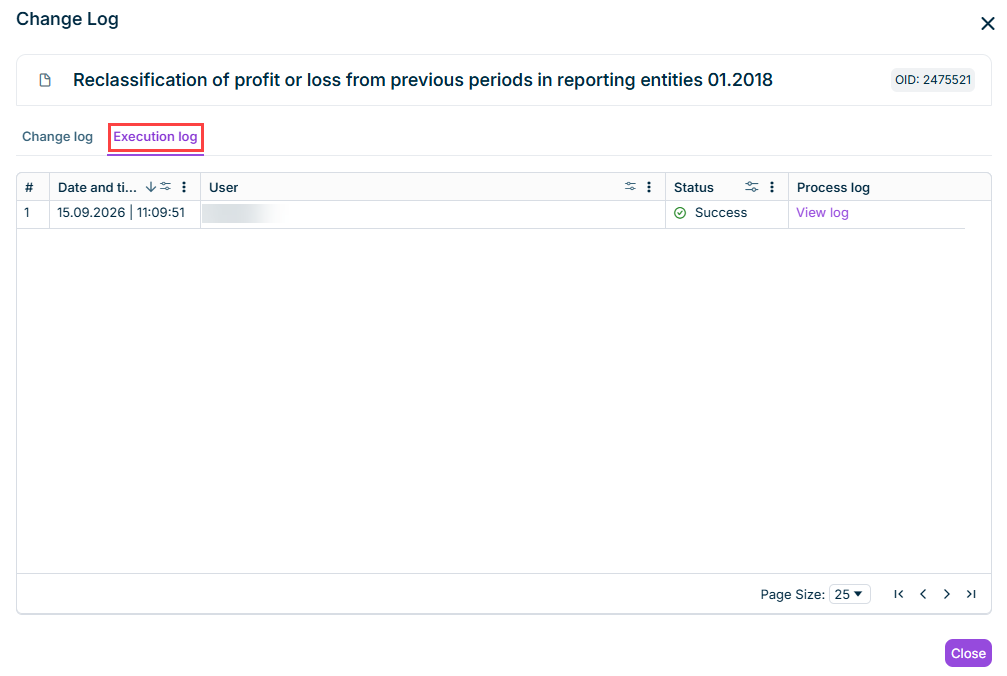

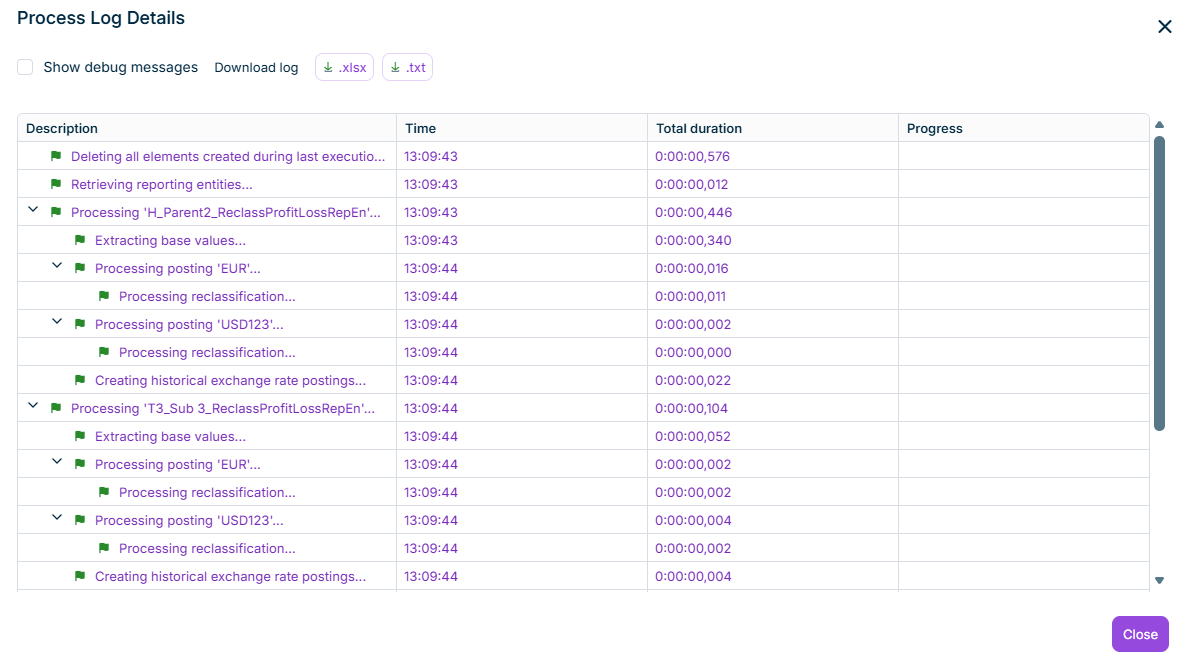
process_log_export_yyyy_mm_dd
This content was generated using AI and reviewed by Lucanet subject matter experts before publication.