All postings in Lucanet are made to accounts. Accounts are only changed by postings and therefore behave the same way as accounts in conventional financial accounting systems.

Besides user-defined accounts in ledgers, there are also accounts in Lucanet that are automatically created and have special tasks. The following accounts are available in Lucanet:

OptionDescription
Item accountBecause it is not possible to post to items, an item account is created automatically if the item is affected by a data import, for example.
Transfer accountEach subledger is assigned a transfer account to the general ledger. All postings to subledger accounts are automatically made to the respective transfer account also in the general ledger.
Debit/credit shift accountA debit/credit shift can be set up for each general ledger account in Lucanet. When a debit/credit shift is performed, the respective account is disclosed either on the assets side or the equity and liabilities side of a balance sheet structure, depending on the balance (credit or debit).
Account for rounding errorsThese accounts disclose rounding errors resulting from currency translations or proportionate consolidations.
Account for differences from currency translationDifferences from the currency translation are incurred whenever different exchange rates are used for the translation of financial statements of foreign subsidiaries into a single group currency. For example, in accordance with the temporal method, some accounts are translated at closing exchange rates and other ones at historical exchange rates. The resulting differences are automatically entered on the respective accounts for differences from the currency translation by Lucanet if the respective option has been chosen for the account.

You can create an account from the context menu of an item or from the context menu of the root folder in ledgers and schedules.

To create an account:

1

Open the ledger (general ledger, subledger, or statistical ledger) and navigate to the item or root folder under that you want to create the account.

2

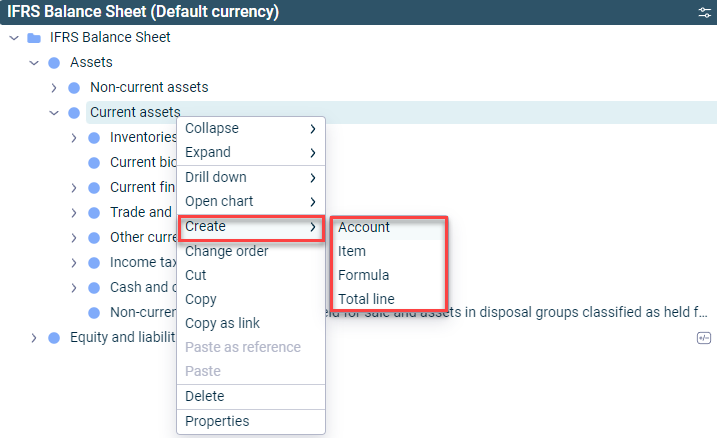
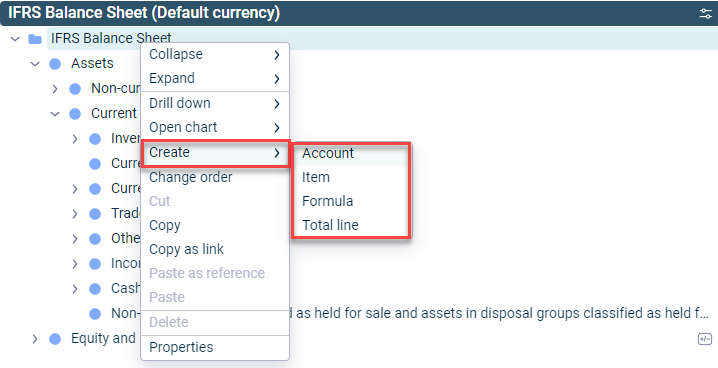
Right-click the item or root folder and choose Create | Account from the context menu.

Creating an account at an item

Creating an account in the root folder

Different options are available for configuring an account, depending on the ledger (general ledger, subledger, or statistical ledger) in which you create the account:

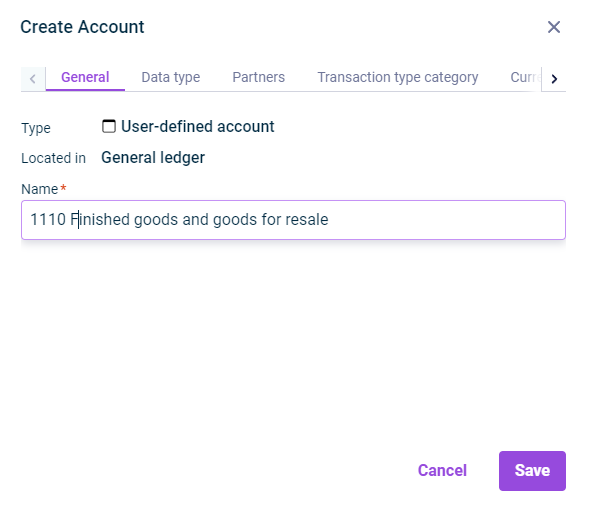
The General tab is displayed as follows, for example:

The 'General' tab in the 'Create Account' dialog is displayed.
'General' tab in the 'Create Account' dialog

The following options are available on the General tab:

OptionDescription
TypeElement type
Located inShows where the account is located
NameAccount name

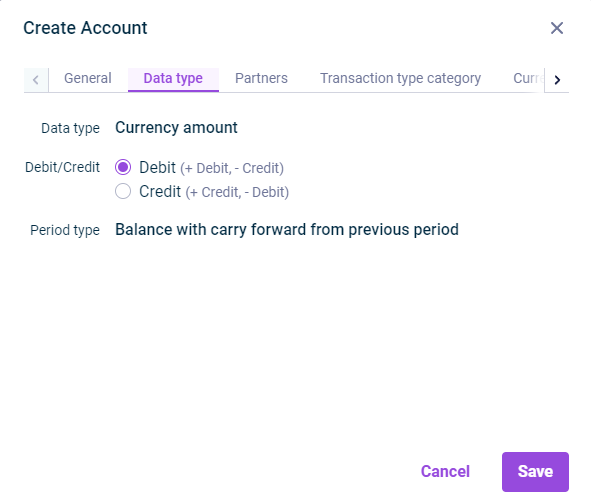
The Data type tab is displayed as follows, for example:

The 'Data type' tab in the 'Create Account' dialog is displayed.
'Data type' tab in the 'Create Account' dialog

The following options are available on the Data type tab:

OptionDescription
Data typeRegardless of the ledger in which it was created, every account in Lucanet can have one of the following data types:
- Currency amount — The value is displayed as currency amount. Accounts of type Currency amount are used to display business transactions in ledgers.
- Percentage — The value is displayed as a percentage. Accounts of type Percentage are used to display percentages of amounts, such as utilization rates.
- Decimal number — The value is displayed as a decimal number. Accounts of type Decimal number are used to display statistical values, such as the number of employees.

Note: Accounts created under an item take on the data type properties of the directly superordinate item.
Debit/CreditChoose whether it is a debit or credit account:
- Debit — Positive values are considered as debit values, negative values as credit values
- Credit — Positive values are considered as credit values, negative values as debit values

Note: Accounts created under an item adopt the debit/credit setting of the directly superordinate item.
Period typeChoose the period type of the account:
- Transaction figure — The value of the account is a transaction figure.
- Balance — The value of the account is a balance.
- Balance with carry forward from previous period — The value of the account is a balance with carry forward from the previous period.

In general ledgers, the period type is, by default, a Balance with carry forward from the previous period and cannot be changed.

Note: Accounts created under an item take on the period type of the directly superordinate item.

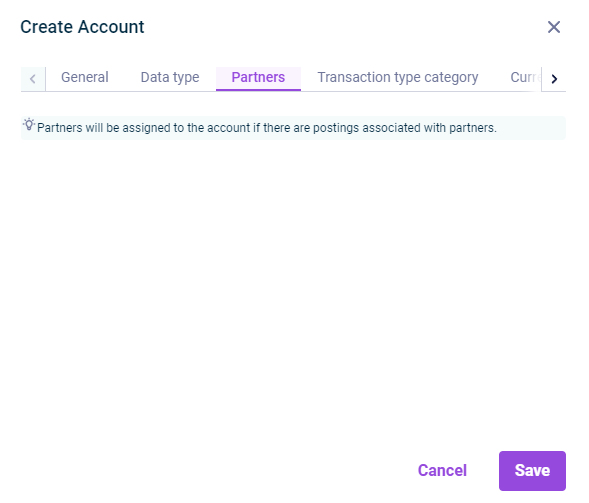
The Partners tab is displayed as follows, for example:

The 'Partners' tab in the "Create account" dialog is displayed.
'Partners' tab in the 'Create Account' dialog

The following options are available on the Partners tab:

OptionDescription
PartnersShows the partner assignment of the account.

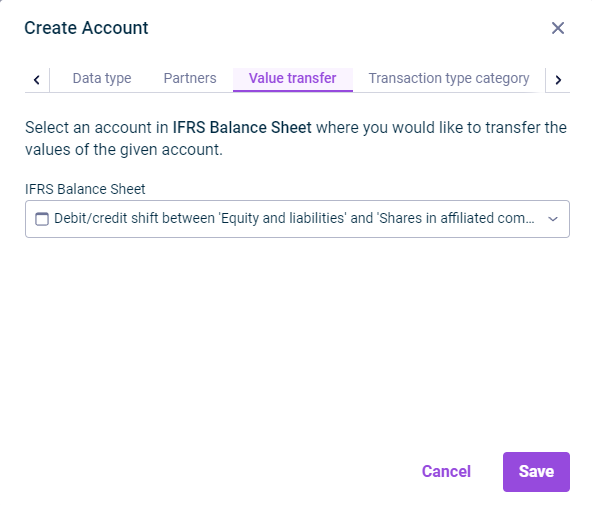
The Value transfer tab is displayed as follows, for example:

The 'Value transfer' tab in the 'Create Account' dialog is displayed.
'Value transfer' tab in the 'Create Account' dialog

The following options are available on the Value transfer tab:

OptionDescription
Transfer accountChoose a general ledger account to that the transfer of the subledger account is to be posted.
Transaction typeTransaction types provide information on the reason for changes to an account. Choose a transaction type for the transfer. The choice of transaction type depends on the transaction type category of the subledger account.

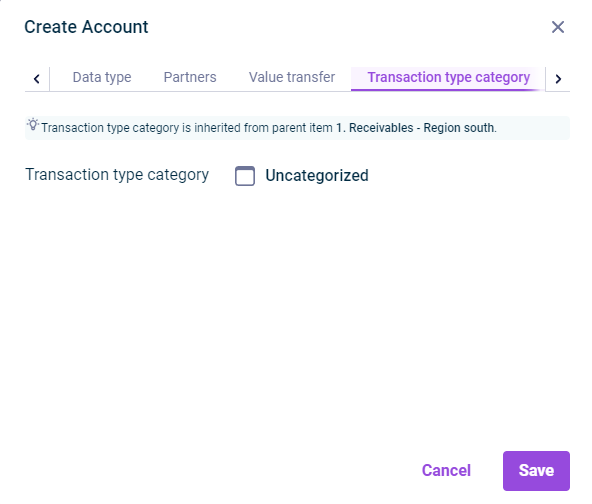
The Transaction type category tab is displayed as follows, for example:

The 'Transaction type category' tab in the 'Create Account' dialog is displayed.
'Transaction type category' tab in the 'Create Account' dialog

The following transaction type categories are available:

OptionDescription
UncategorizedThe account does not have any category.
Fixed assetsAll transaction types defined for the Fixed assets transaction type category are available for the account. The fixed assets are created from items and accounts with this category.
ProvisionsAll transaction types defined for the Provisions transaction type category are available for the account. The provisions are created from items and accounts with this category.
LoansAll transaction types defined for the Loans transaction type category are available for the account. The loans are created from items and accounts with this category.
EquityAll transaction types defined for the Equity transaction type category are available for the account. The statement of changes in equity is created from items and accounts with this category.

The transaction type category is taken from the superordinate item.

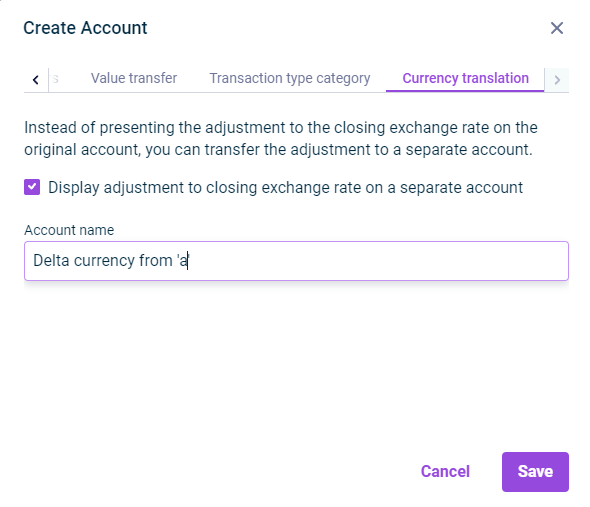
The Currency translation tab is displayed as follows, for example:

The 'Currency translation' tab in the 'Create Account' dialog is displayed.
'Currency translation' tab in the 'Create Account' dialog

The currency translation is available only for accounts with the data type Currency amount and the period type Balance or Balance with carry forward from previous period.

The following options are available on the Currency translation tab:

OptionDescription
Display adjustment to closing exchange rate on a separate accountThe exchange difference in equity (adjustment to the closing exchange rate) can be disclosed on a separate account for each account with the data type Currency amount and the period type Balance or Balance with carry forward from previous period.
If you activate the check box, an account will be automatically created under the item of the account that the differential is posted to. You can change the account name if necessary.

Note: Once you have saved your configuration, the account name is displayed as a link on the Currency translation tab in the Account Properties dialog. You can navigate to the account by clicking the link.

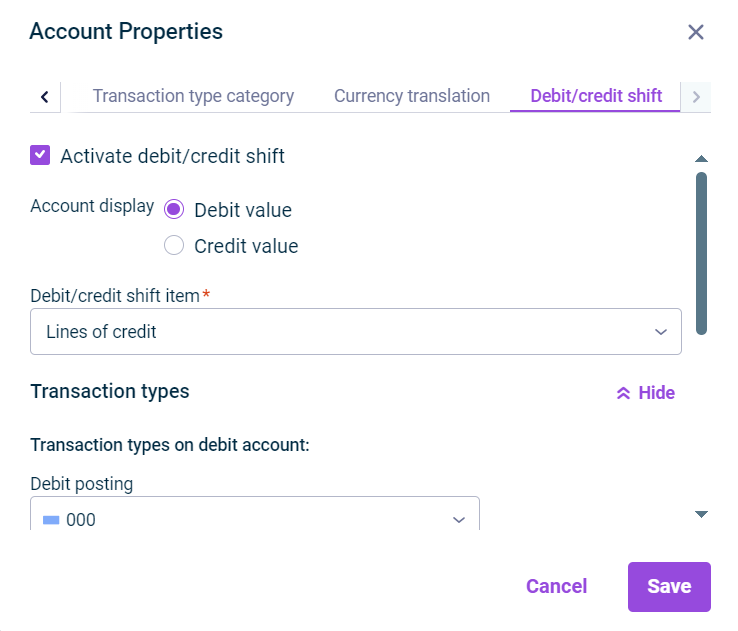
The Debit/credit shift tab is displayed as follows, for example:

Displays the 'Debit/credit shift' tab in the 'Account Properties' dialog.
'Debit/credit shift' tab in the 'Account Properties' dialog

Debit/credit shifts are configured so that negative values for each debit/credit shift are posted as positive values on a contra account. The following options are available:

OptionDescription
Activate debit/credit shiftWhen the check box is activated, further configuration options are displayed.
Account displayDefine whether the debit or credit value is to be disclosed on the debit/credit shift item.
Debit/credit shift itemContra item in the general ledger
Transaction typesClick Show to define the transaction types on the debit account and the transaction types on the credit account:
- Transaction types on debit account: Define for which transaction types the debit/credit shift to the initial item is to be performed.
- Transaction types on credit account: Define for which transaction types the debit/credit shift to the debit/credit shift account is to be performed.
Debit/credit shift per partnerIf you activate the check box, the debit/credit shift is performed at partner level.

The Debit/credit shift tab is only displayed for already created accounts.

The debit/credit shift can only be deactivated for accounts in the general ledger.

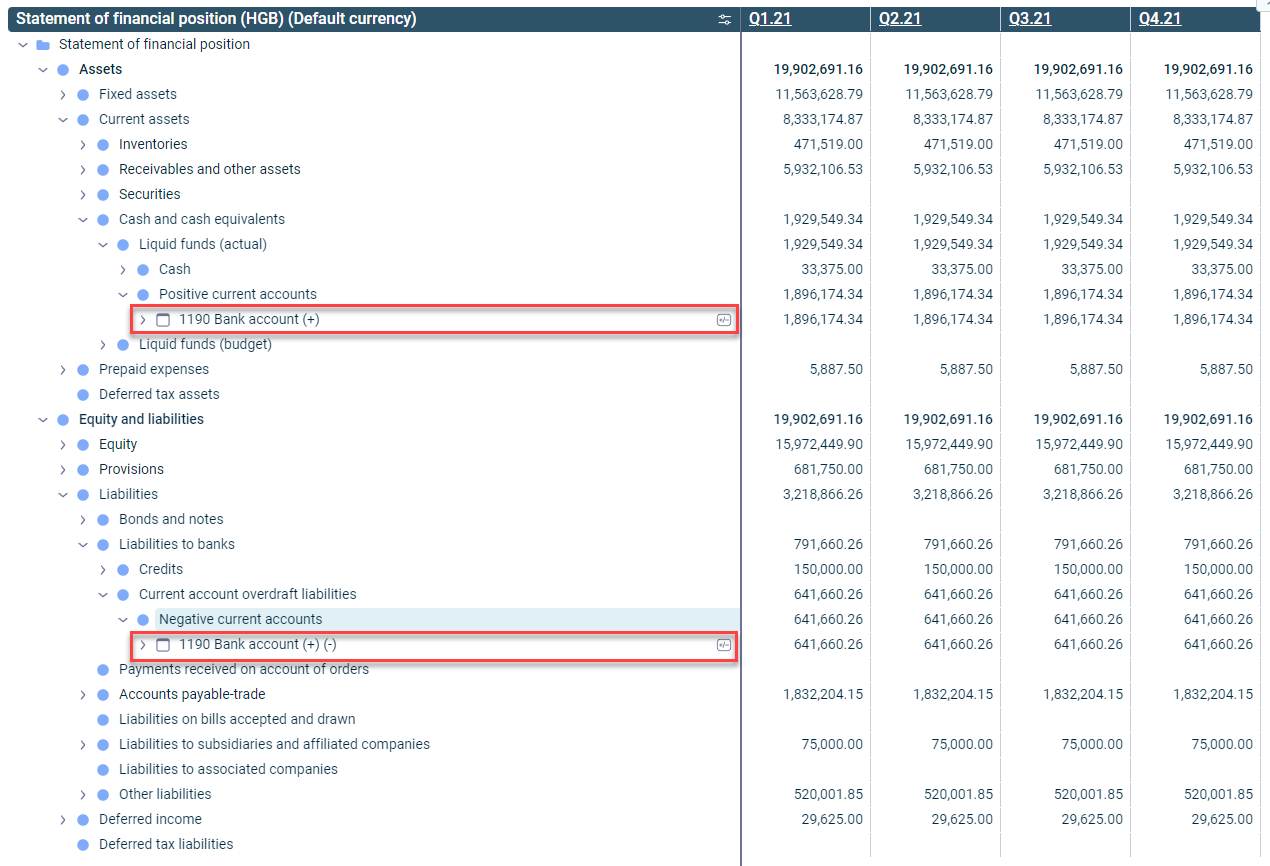
After saving the configuration, the balance is disclosed under the contra item if a negative value is created in the initial account. To display the values, a debit/credit shift account is automatically created under the configured contra item, for example:

An example of an activated debit/credit shift on account level is displayed in the general ledger.
Example of an activated debit/credit shift at account level

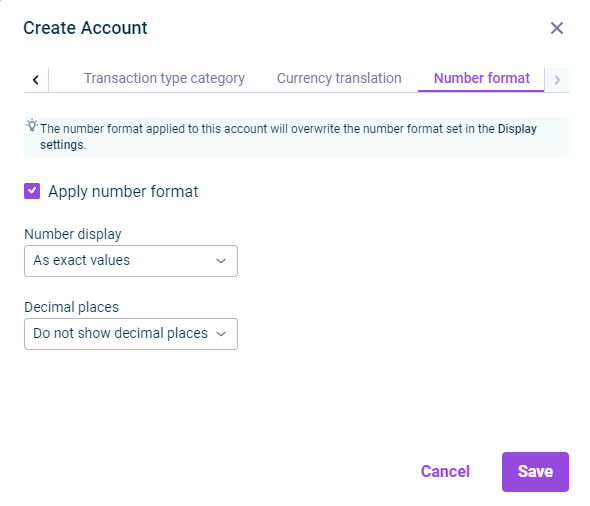
The Number format tab is displayed as follows, for example:

The 'Number format' tab in the 'Create Account' dialog is displayed.
'Number format' tab in the 'Create Account' dialog

On the Number format tab, the way numbers are displayed for a formula can be configured. The following options are available:

OptionDescription
Apply number formatApplies the number format that is different from the display settings
Number displayFormatting of the displayed values
Decimal placesNumber of displayed decimal places

The Number format tab is only displayed for formulas in statistical ledgers.

Configurations on the Number format tab overwrite the number format defined in the display settings.

As soon as a different number format has been configured, the icon is displayed in the account line.

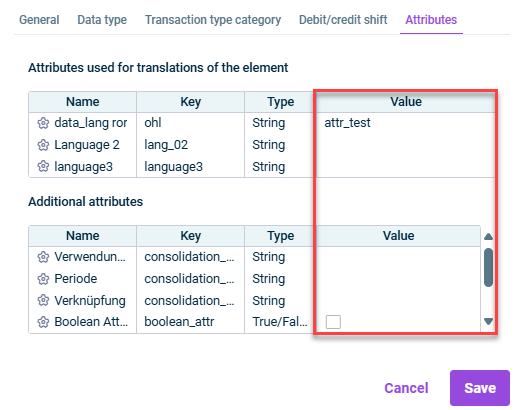
The Attributes tab is displayed as follows, for example:

Shows the attribute configuration of a ledger element
Attributes

Attributes are used to define multilingual or customer-specific names for Lucanet elements.

The Attributes tab displays all attributes that have been defined in Lucanet.Financial Client in the Attributes workspace and are enabled for this dimension.

You can edit the value of an attribute by opening the element's edit mode and clicking on the corresponding row in the Value column.