On this page, you will find information about the signature folder in Lucanet Banking & Cash Management (BCM). In the signature folder, you sign payment runs and EBICS jobs before BCM sends them to the bank. This way you implement the four-eyes principle: depending on the configuration, a payment run requires one or two signatures, and the creator of a payment run must not sign it themselves if you have configured this.

When you sign, BCM checks whether you are authorized to sign for the account of the payment run and whether a stored limit is met. Payments that you create in the workspaces of the Payments functional area and provide for sending are displayed in the signature folder.

The Signature folder functional area can be found under Banking & Cash Management | Signature folder and is displayed as follows, for example:

The Signable workspace in the Signature folder functional area is displayed.
'Signable' workspace in the 'Signature folder' functional area

The workspaces of the signature folder filter the payment runs by their status.

The following workspaces are available in the Signature folder functional area:

WorkspaceDescription
Signable by meDisplays all payment runs that you can sign with your authorization
SignableDisplays all payment runs that still require one or more signatures
Verification of PayeeDisplays all payment runs that require one or more VOP signatures
PendingDisplays all payment runs that are signed but not yet fully processed, for example with the status Wait for execution or Postponed
SuccessfulDisplays all payment runs that BCM has processed completely and successfully
FailedDisplays all failed or canceled payment runs
AllDisplays all payment runs regardless of their status
VEU - currentDisplays, for each EBICS channel, the most recent successful job of the current day for fetching the VEU overview, that is, the job of the order type HVZ or HVU of the logged-in user. If the most recent job of an EBICS channel today does not have the status Successful, BCM does not display a job for this channel.
VEU - allDisplays all jobs of all users that concern the distributed electronic signature (VEU), for example of the order types HVZ for the VEU overview, HVE for adding a signature, and HVS for the cancellation

You need the VEU - current and VEU - all workspaces only if you approve payments using the distributed electronic signature (VEU).

To sign one or more Payment runs:

1

Navigate to Signature folder | Signable by me.

2

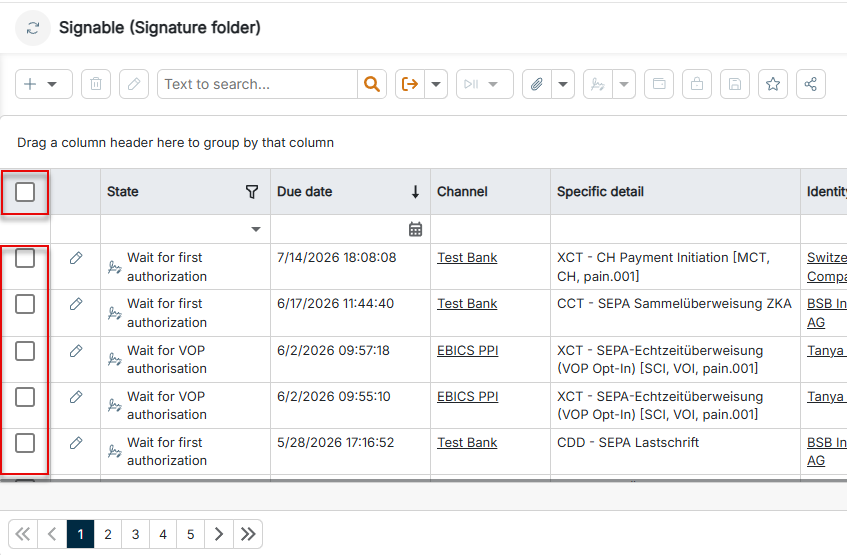
Activate the check boxes of the payment runs that you want to sign in the first column. To select all payment runs, activate the check box in the column header.

The check boxes in the first column of the list view are highlighted.
Selecting payment runs
3

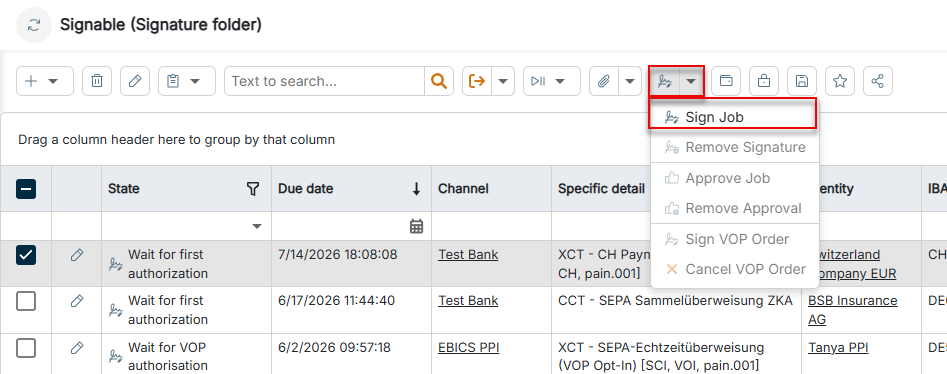
In the toolbar, open the drop-down list of the Sign job button and select Sign job.

The drop-down list of the Sign job button is displayed.
Signing the selected payment runs

BCM checks your authorization and signs the payment runs. If a payment run requires a further signature, BCM continues to display it in the Signable workspace; otherwise, BCM moves it to the Pending workspace.

If you do not have the required authorization to sign the selected payment runs, BCM displays a message. In this case, contact your administrator.

The drop-down list of the Sign job button contains the following further functions:

FunctionDescription
Remove signatureRemoves your signature from the selected payment runs as long as BCM has not yet sent them to the bank
Approve jobApproves the selected payment runs internally without signing them; the approval is an additional internal check before the signature
Remove approvalWithdraws the internal approval of the selected payment runs
Sign VOP jobSigns the VOP job of the selected payment runs with which the bank verifies the payee data
Cancel VOP jobCancels the VOP job of the selected payment runs

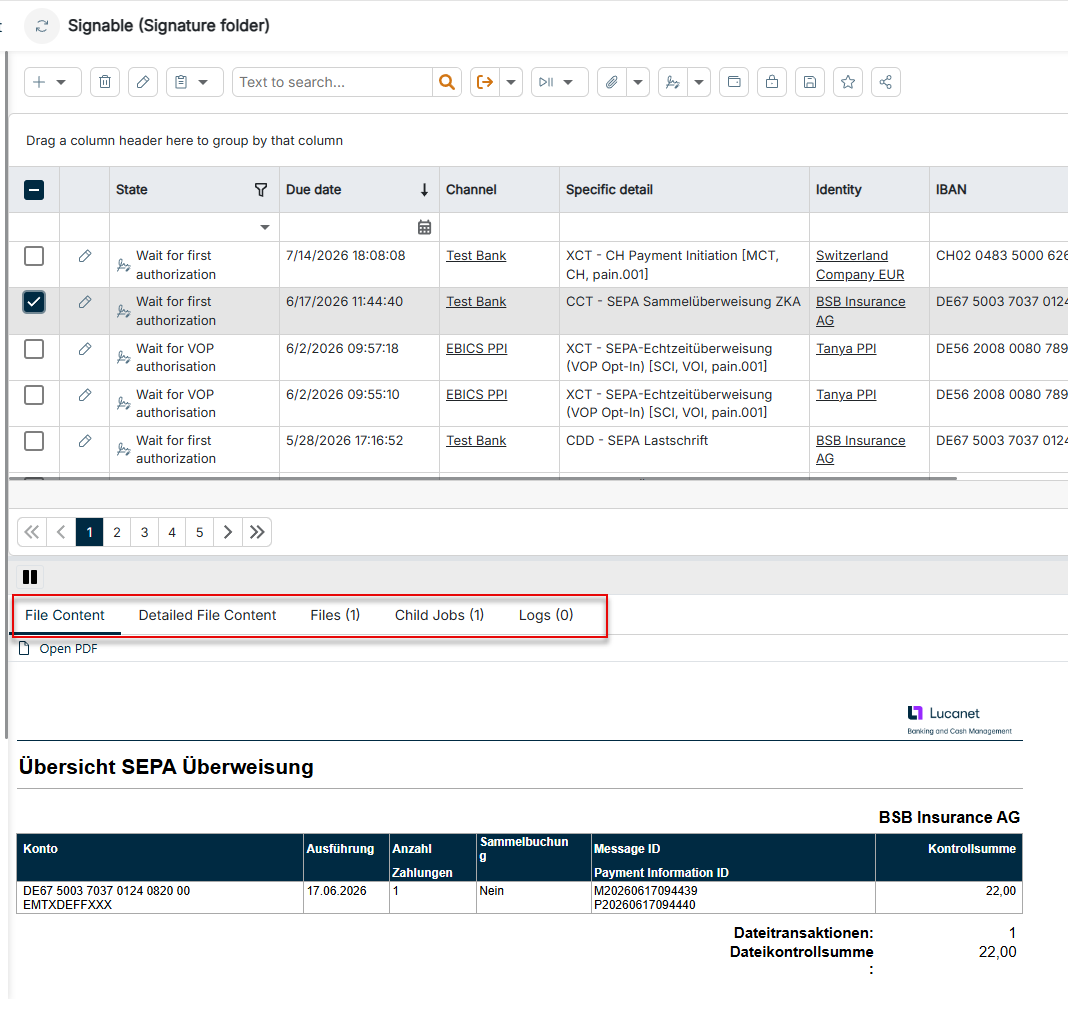
When you click the row of a payment run in the list view, BCM displays tabs with the detail information below the table:

The tabs with the detail information of a payment run are displayed below the list view.
Detail information of a payment run
TabDescription
File contentDisplays an overview of the payment file as a PDF, for a SEPA credit transfer for example account, execution date, number of payments, batch booking, message ID, payment information ID, and check sum. Using Open PDF, you open the overview in a separate window. Which information BCM displays depends on the payment type.
Detailed file contentDisplays, in addition to the overview, the individual payments of the file with payee, remittance information, and amount, so that you can check all payment details before signing
All filesLists all files of the payment run with the columns File, File type, Context information, PDF document(s), Caption, Hash method, and Hash value
Child jobsLists the subsequent jobs that BCM created from the payment run, for example the fetch job for the bank protocol or an e-mail job in case of errors in the bank protocol
LogsDisplays the result of the transfer to the bank server. If a bank protocol already exists, the tab also displays the result of the protocol check.
PropertiesLists the properties of the payment run with Name and Content

When you double-click a payment run, BCM opens the detail view of the job with further tabs, for example General, Signatures, Internal signatures, VOP signatures, and Document files. If a bank protocol exists, the EBICS protocols tab is additionally displayed. The tabs are described in Creating and Configuring Jobs.

In addition to the general functions, the following functions are available in the toolbar of the signature folder workspaces:

FunctionDescription
Create communication jobCreates a new communication job using the Plus icon. For more information, see Creating and Configuring Jobs.
Show selected records in reportGenerates a report on the selected payment runs using the button. In the drop-down list, you select the report type:
- EBICS job: Basic information of the EBICS jobs
- EBICS job (without EBICS protocol): Information of the EBICS jobs without protocol details
- EBICS job (payment data): All payment information and transaction details of the EBICS jobs
- EBICS protocol: Protocol details and transmission information
Job controlControls the processing of the selected payment runs using the drop-down list of the button:
- Postpone: Pauses the processing, for example because information is missing or the payment run is still being checked. You cannot sign postponed payment runs.
- Resume: Resumes the processing of a postponed payment run
- Execute immediately: Executes the payment run immediately without waiting for the schedule or the due date, for example for urgent payments
- Create single job: Creates a one-time single job from a recurring EBICS job, for example the daily fetching of account statements
- Execute again: Executes the payment run again as long as it has not yet received an order number from the bank server, for example if the bank server was not reachable
- Cancel: Cancels the processing, for example for payment runs that are no longer needed or were created incorrectly
- Archive: Moves completed or no longer needed payment runs to the archive. Depending on the status, you must cancel a payment run first before you can archive it.
Send fileOpens the Send file dialog using the button, in which you upload a payment file manually and send it to the bank. In the dialog, you select the File, define the File type, the Caption, and the Hash method in the Content area, and select the Communication channel and the Permission class in the Channel area.
Edit cash forecast settingsOpens the Edit cash forecast settings dialog using the button. Activate the Create forecast transactions check box so that BCM creates forecast transactions for liquidity planning from the selected payment runs, and select the Transaction property that BCM assigns to the forecast transactions.

This content was generated using AI and reviewed by Lucanet subject matter experts before publication.