With the file import via SFTP, you upload the report files of your ERP system to a dedicated storage area of your Lucanet environment, from which Lucanet VAT (Value Added Tax) imports the files. On the Lucanet CFO Solution Platform, the file import via SFTP replaces the classic network drive because the platform does not provide UNC or SMB shares.
You upload the files to the Share/ folder. During the import, VAT reads the Share/ folder, checks every file name against the configured filename pattern, imports the matching files, and then moves them to the Archive/ folder. The upload alone does not trigger an import: A file remains in Share/ until you start an import in VAT.
The following guide is intended for customer IT teams who administer the uploading machine. The guide describes the setup of the SFTP access, the rules for the files, the automation of the upload, and troubleshooting.
If your customer system can send HTTP requests, you can alternatively transmit the data without an export file via the REST import API.
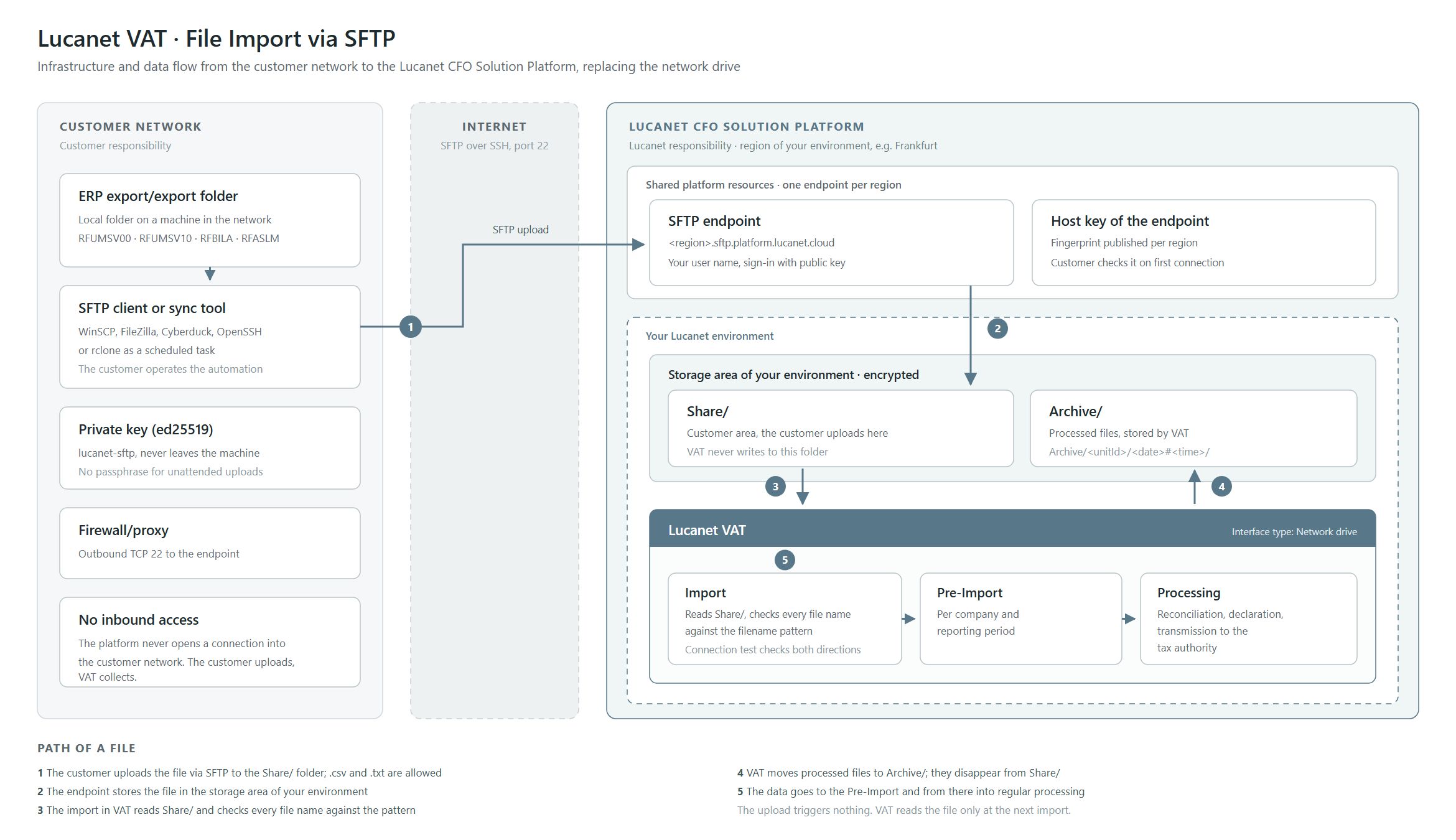
The following diagram shows the infrastructure and the path of a file from the customer network to VAT:
Infrastructure and data flow of the file import via SFTP in VAT
A file reaches VAT via SFTP as follows:
You upload the file via SFTP to the Share/ folder.
The SFTP endpoint stores the file in the encrypted storage area of your Lucanet environment.
The import in VAT reads the Share/ folder and checks every file name against the filename pattern.
VAT moves processed files to the Archive/ folder. As a result, the files disappear from Share/.
VAT stores the data in the Pre-Import. From there, the data goes into regular processing.
The platform never opens a connection into your network. You upload the files, and VAT collects them.
Make sure that the following prerequisites are met in your company before you transfer files to VAT via SFTP:
Machine: A machine in your network contains the export folder and uploads the files. For the setup, you usually need administrator rights on this machine.
Network: Firewall and proxy allow outbound SFTP connections via TCP 22 to the regional SFTP endpoint.
SFTP client: An SFTP client such as WinSCP, FileZilla, Cyberduck, or OpenSSH sftp is installed. For automated operation, you additionally need a sync tool.
Password manager: A password manager holds the backup of the private key.
You receive the following information and files from Lucanet:
the onboarding kit lucanet-sftp-keygen-version.zip with generators for Linux, macOS, and Windows
the host of the SFTP endpoint in the region in which the data of your Lucanet environment is stored
your user name for the SFTP endpoint
the Share/ target folder and a sample file name according to which you name your export files
Lucanet and your IT team share the setup of the file import via SFTP in VAT. The following table shows the steps and the role that executes each step:
Step
Role
Content
1
Lucanet
Lucanet sets up the storage area and the SFTP user for your Lucanet environment.
2
Lucanet
Lucanet creates an interface of the Network drive type in VAT, maintains the filename pattern, and executes the connection test.
3
Lucanet
Lucanet provides you with the onboarding kit, the host, the user name, and the sample file name.
4
Customer
You generate an SSH key pair.
5
Customer
You send only the public key to Lucanet.
6
Lucanet
Lucanet registers your public key, compares the fingerprint with you, and confirms the host and user name.
7
Customer
You allow the connection in the firewall, check the host key, and test the connection.
8
Customer
You upload a test file to the Share/ folder.
9
Customer
You execute the import in VAT and check the result.
10
Customer
You automate the upload and monitor it.
Between step 5 and step 7, you wait for Lucanet. As long as Lucanet has not registered your public key and confirmed the host and user name, every sign-in fails. The failed sign-in is not a misconfiguration on your side, but the handover point in the process.
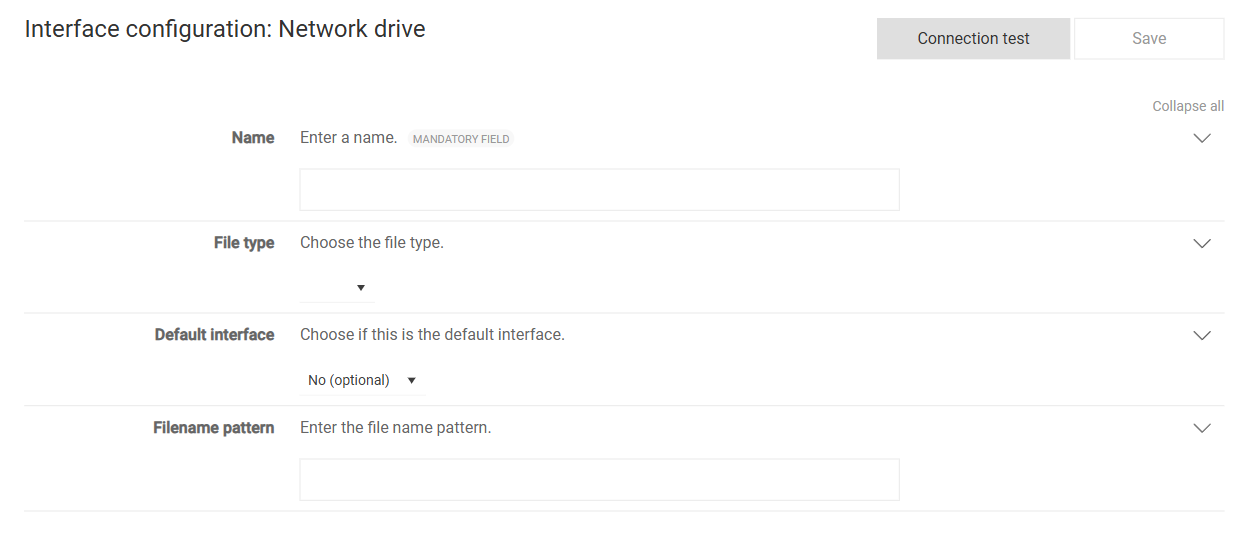
For VAT to find the uploaded files, an interface of the Network drive type exists in VAT. Lucanet creates the interface at the start of the project in the Interface configuration workspace. You access the workspace via the gear icon in the top right corner.
On the Lucanet CFO Solution Platform, VAT hides the Path to netdrive and Path to archive directory fields because VAT automatically uses the Share/ and Archive/ folders of your storage area. In the interface, you maintain the Filename pattern, for example:
text
The page for creating an interface of the Network drive type is displayed in VAT as follows, for example:
The 'Interface configuration: Network drive' page
The Connection test checks reading and writing in one step: VAT reads the Share/ folder and creates an empty test file in Archive/, which VAT then deletes again. Lucanet executes the connection test before you upload for the first time. This way, Lucanet can reliably distinguish permission errors from upload problems.
Lucanet defines the specific filename pattern with you during the project. You receive a sample file name based on the pattern, according to which you name your export files, as described in the File Names for the File Import via SFTP in VAT section.
The sign-in to the SFTP endpoint for VAT uses an SSH key pair of the ed25519 type. You generate the key pair on the machine that will upload the files later. The onboarding kit from Lucanet contains generators for all platforms. Any OpenSSH installation generates the key pair just as well.
To generate the SSH key pair for the file import via SFTP in VAT:
This content was generated using AI and reviewed by Lucanet subject matter experts before publication.