
The processing procedure structures the configuration, validation, review, and dispatch of tax forms.

The process bar shows the current status and controls the available actions.

The structured workflow ensures data quality, prevents faulty transmissions, and creates transparency about the status of all tax reports.

Forms are automatically locked during editing, so that only one person can make changes at a time.

Authorized persons can reset the processing step if necessary in order to make corrections.

Each form goes through a defined processing procedure. The process bar at the top of the detail view shows the current processing step.

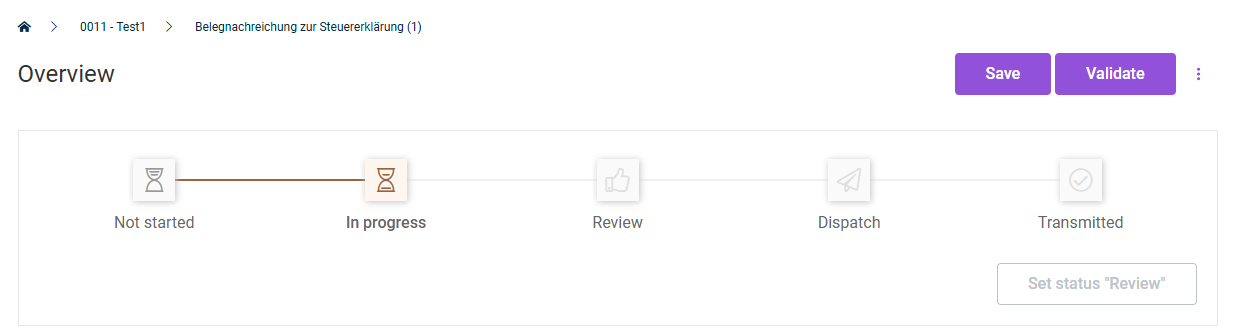
This shows the process bar.
Process bar

The processing procedure comprises the following steps:

StepDescription
Not StartedThe form has been created but not yet edited.
In progressThe form is actively being filled with data and edited.
ReviewThe form is being reviewed. In this step, you can no longer make changes.
DispatchThe form has been reviewed and is ready for transmission.
TransmittedThe form has been transmitted to the tax authority.

The following commands are available in the detail view:

ButtonDescription
Set status "<>"Moves the form to the next specified status within the process. If validation errors are displayed, the system may refuse the status change until the errors have been resolved.
SaveSaves the current entries in the form. Changes are applied without a full validation being performed or the process being moved forward to the next workflow stage. Useful for saving the current state (which may be faulty or incomplete) and continuing later.
ValidateStarts the validation of the entered form data. If errors occur, they are displayed under Overview. Only without validation errors can the process move to the next workflow step.

To configure a form:

1

Open the desired form under My forms.

2

In the process bar, click Set status "In progress".

3

In the Overview, select the responsible local tax office.

This shows the drop-down list for the local tax office in the overview.
Selecting the local tax office
4

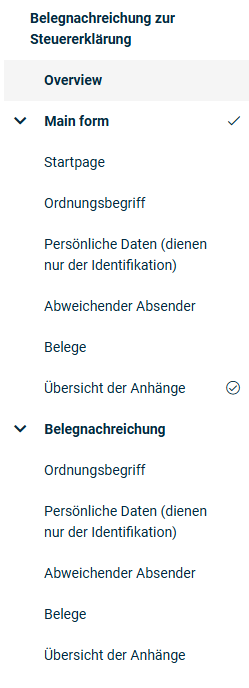
Use the tree structure on the left to navigate between the individual form sections.

These are the workspaces of the form sections.
Form sections
5

Fill in the required fields in each form section.

  • Mandatory fields are marked accordingly.
  • Which fields you need to fill in depends on the selected form type.
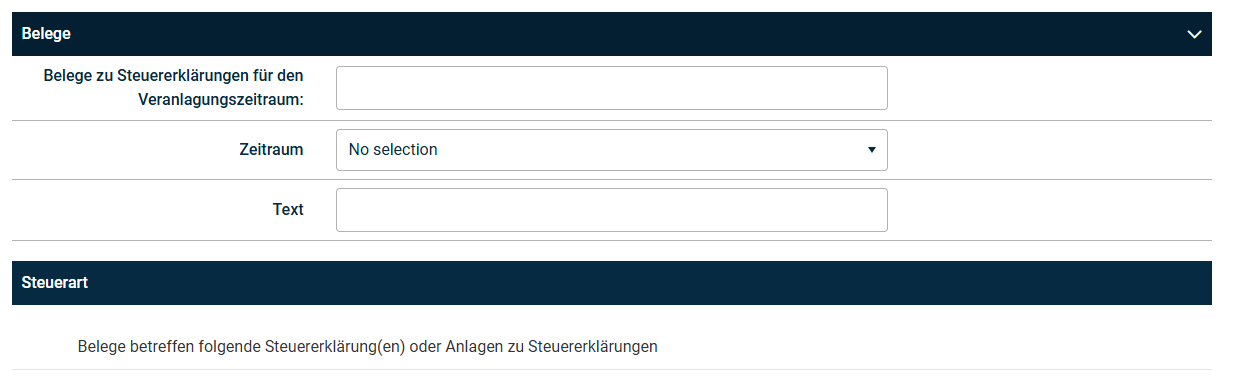
This is an example of how fields are filled in.
Filling in fields, example 'Belege (supporting documents)'
6

Click Save.

The software automatically locks the form while you are editing it.

If the form is already locked by another person, you receive a notification with the name of the person editing it.

See also Locking Forms and Editing Locked Forms.

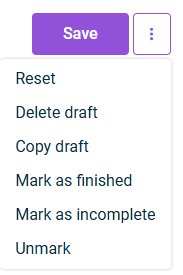
The three-dot icon at the top right of each form section provides the following additional functions:

Three-dot icon.
Additional functions in the form section
FunctionDescription
ResetDiscards all unsaved changes in the current form section. The form section then shows the last saved state again.
Delete draftIrreversibly deletes the entire draft.
Copy draftCreates a copy of the current draft as a new draft and sets the status of the new draft to Not started.
Mark as finishedMarks the current form section in the tree structure with a check mark as finished, in order to track the processing progress.
Mark as incompleteMarks the current form section in the tree structure with a cone icon as incomplete.
UnmarkRemoves an existing marking ("Done" or "Incomplete") from the current form section.

After you have entered and saved all the required data, you can validate the form for completeness and correctness. To do this, click Validate at the top right.

Validation errors are displayed directly at the affected field and in a summary overview.

Possible causes of errors include:

  • Mandatory fields are not filled in
  • Entered values do not match the expected format
  • Plausibility checks were not passed (e.g. total checks)
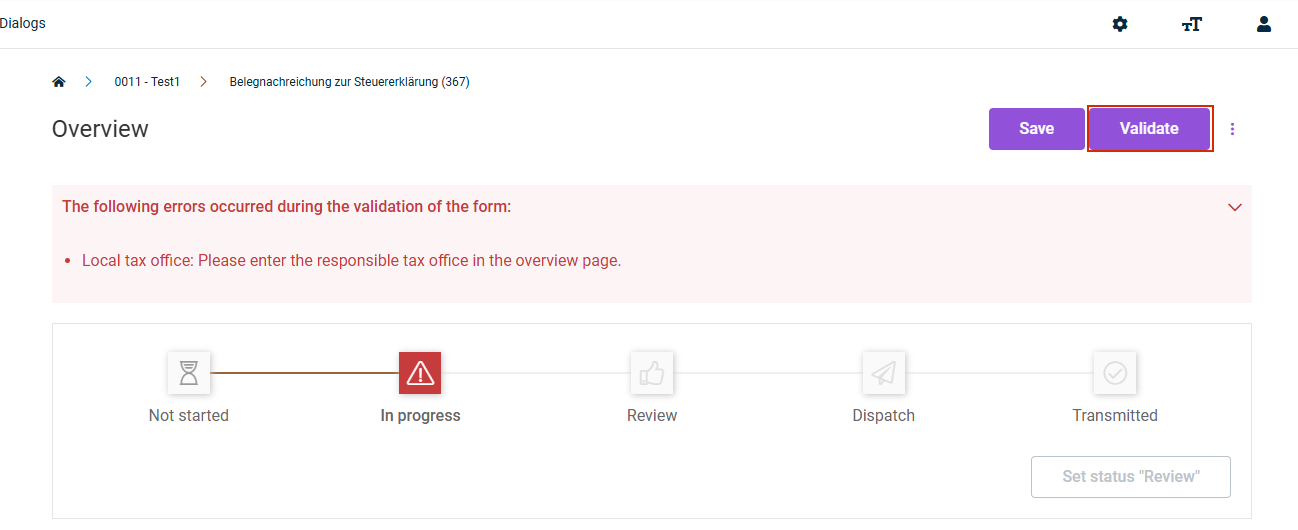
This shows the errors identified during validation.
Error identification during validation

Resolve any displayed errors and validate the form again before proceeding to the next processing step.

After successful validation, you can release the form for review by another person.

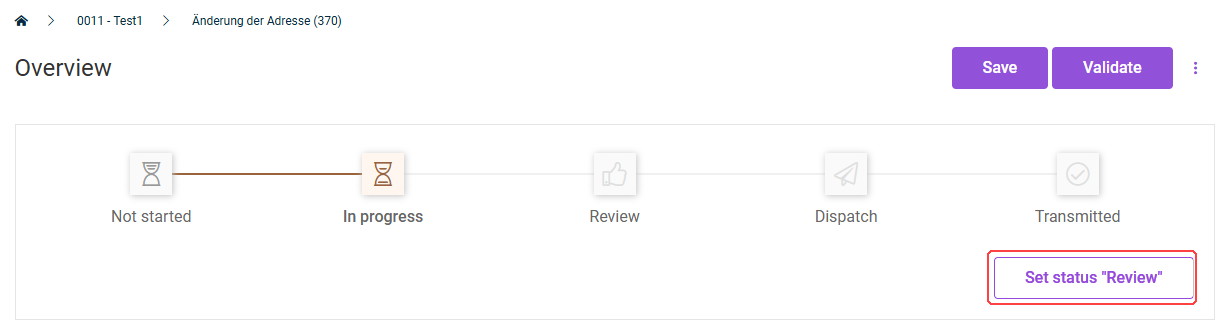
To do this, click Set status "Review" in the process bar and inform the reviewer that they can begin the review.

Here the 'Review' status is reached.
Process bar with the 'Review' status

In the Review status, data changes can no longer be made. If corrections are necessary, you must first reset the form to the In progress status.

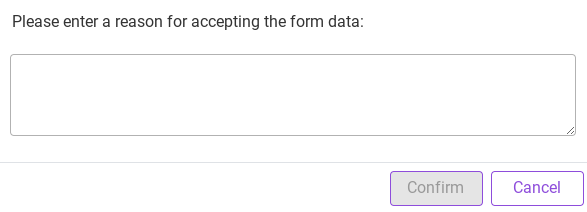
After the review, the reviewer releases the form for dispatch by clicking Set status "Dispatch" in the process bar and entering a reason for accepting the form data in the dialog that then appears:

Dialog for entering a reason for accepting the form data
Dialog for entering a reason

After the form has been released for dispatch, you can proceed with transmitting the form to the German tax authority.

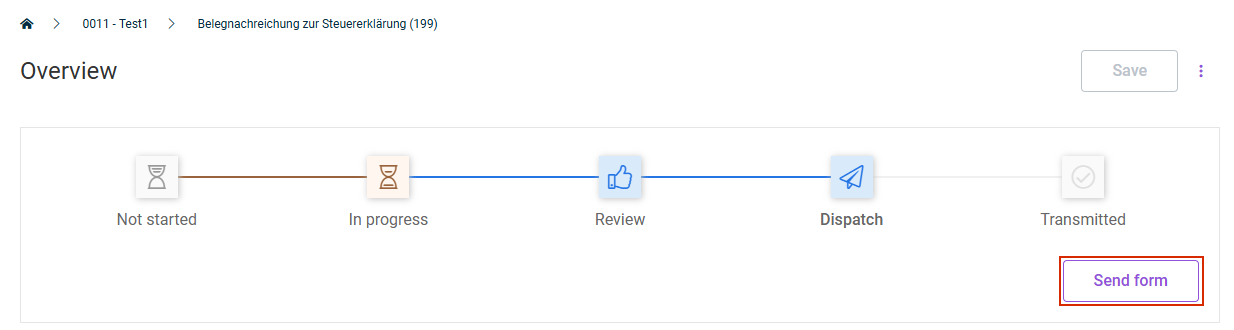
To do this, click Send form in the process bar.

'Send form' button in the process bar
Sending form

Tax Services then transmits the form electronically to the responsible tax authority. You can view the progress of the transmission steps and the transmission results in the form overview.

The transmission process comprises the following transmission steps, which are run through automatically one after another:

OptionDescription
UploadThe form data is prepared for transmission.
EnrichmentThe data is automatically supplemented with required additional information (e.g. local tax office data, tax identifiers).
ValidationThe data is checked against the requirements of the tax authority.
ApprovalThe data is approved for transmission.
ReviewA final review is performed.
SignatureThe data is signed electronically.
TransmissionThe data is sent to the tax authority.
ConfirmationThe tax authority confirms receipt.
CompletionThe process is completed and logged.

During transmission, the form can have the following statuses:

OptionDescription
In processingThe transmission is currently in progress.
FailedThe transmission has failed due to an error. A warning icon is displayed. Check the error and restart the transmission if necessary.
SuccessfulThe transmission was completed successfully.

After a successful transmission, the form changes to the Transmitted status.

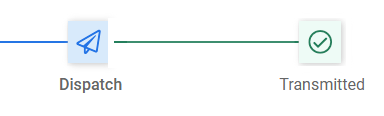
Shows the 'Transmitted' status.
Process bar with the 'Transmitted' status

After the transmission is complete, you can view the results:

To do this, open the transmitted form under My forms.

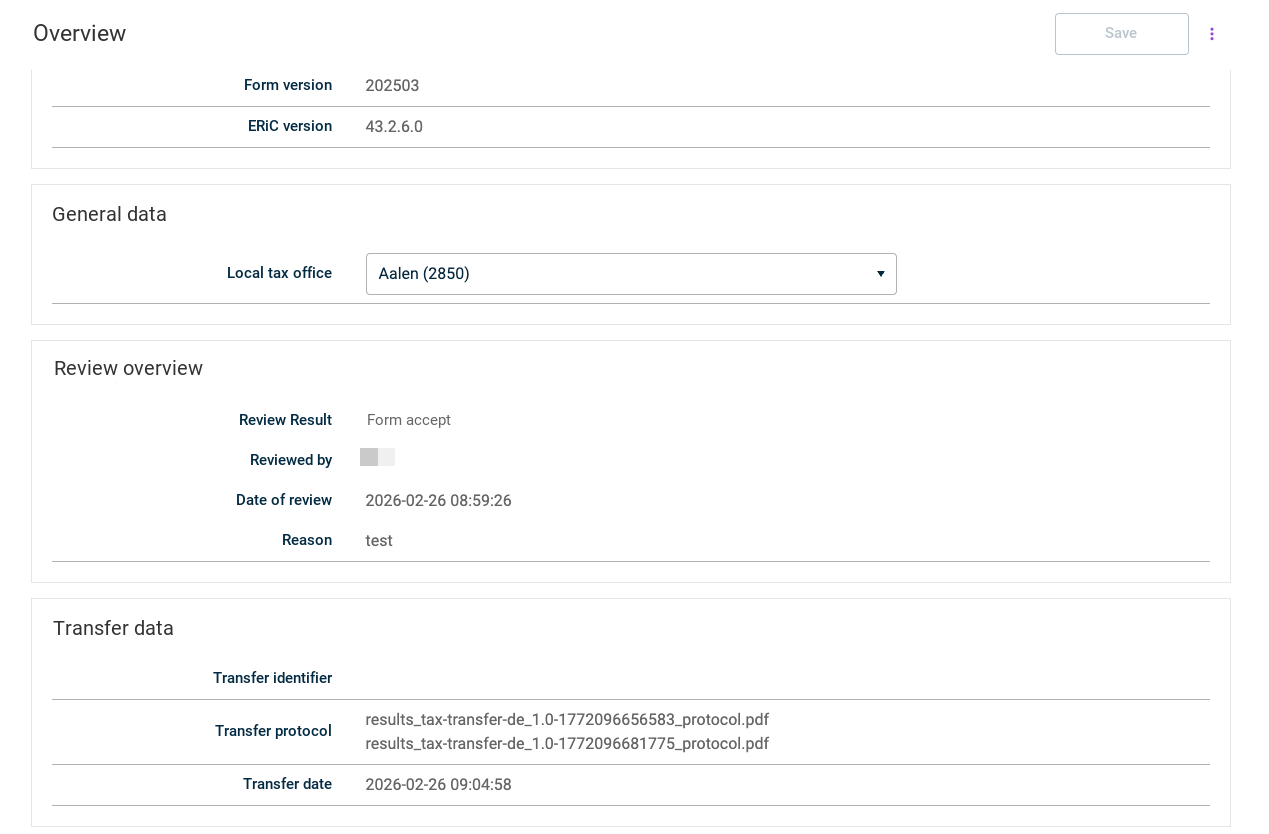
The transmission results are displayed in the form overview.

This shows the transmission results in the form overview.
Transmission results in the form overview

In the case of a successful transmission, the result contains the confirmation from the tax authority. If the transmission fails, the error messages are listed in detail.