If you have previously used another system to create and submit your E-Balance, you can import E-Balance data from that system into Tax Balance via an XML file in the Import from E-Balance workspace.

The following data can be imported:

  • Company and tax balance sheet
  • GCD master data
  • Accounts and mappings
  • Fixed asset schedule
  • Comparison of business assets
  • Development of capital accounts

This function is particularly useful in two scenarios:

  • Data migration from Lucanet.E-Bilanz or Smart Tax Balance
  • Data migration from other providers

With this import function, you can import multiple tax balance instances at once without having to create them manually.

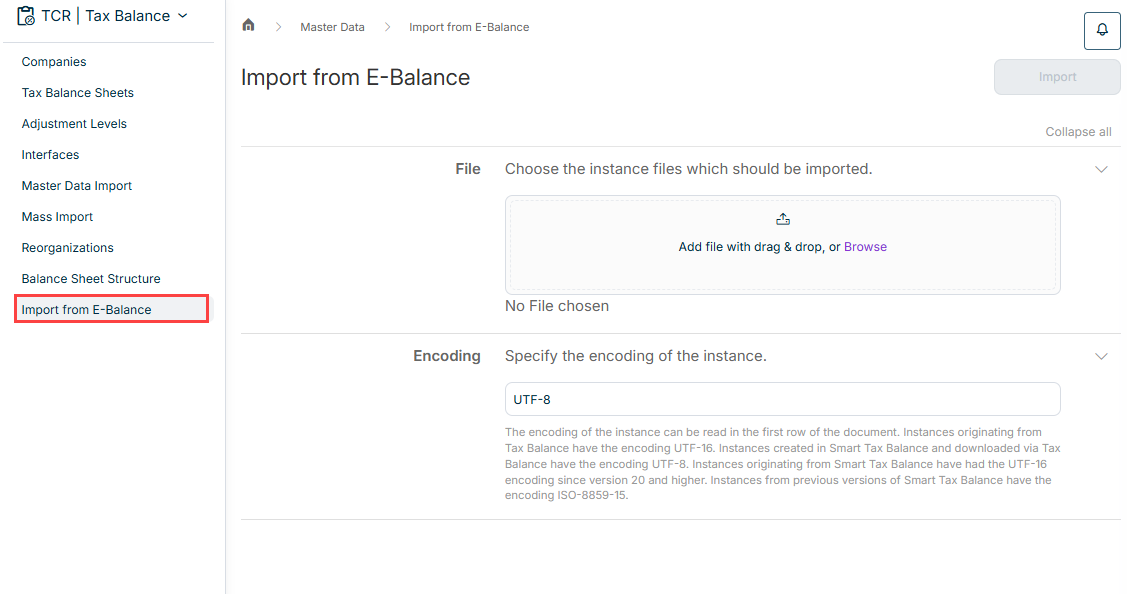
The Import from E-Balance workspace is opened under Master Data | Import from E-Balance.

The workspace is displayed as follows, for example:

Shows the 'Import from E-Balance' workspace
'Import from E-Balance' workspace

To import one or more e-balance sheet instances from another system:

1

Under File, add the XML instance(s) you want to import by dragging and dropping them or by clicking the Browse button.

2

Specify the encoding of the instance.

The encoding of the instance can be found in the first line of the document.

3

Click Import.