A distinction is made between two areas when transmitting the e-balance sheet:

  • GCD (Global Common Data), which specifies which master data are to be transmitted, such as the name of the company, legal form etc.
  • GAAP (Generally Accepted Accounting Principles), which represents the taxonomy for the financial data, such as accounts and items of the balance sheet, P&L, etc.

In Tax Balance, you can assign and adjust the data for the GAAP area you have previously imported to the taxonomy structure under GAAP Reports.

The GAAP Reports functional area is displayed in the tree view as soon as you open a tax balance sheet under Company:

'GAAP Reports' functional area

In the Balance Sheet workspace, you can:

  • Display the values mapped to the balance sheet and P&L statement structure
  • Show accounts
  • Display, adjust, and add adjustments

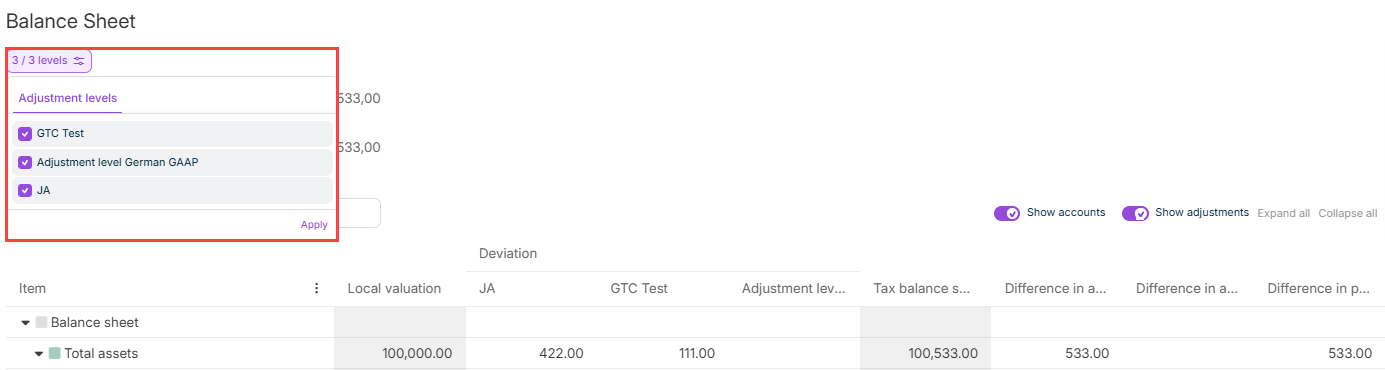
To display only values of specific adjustment levels, you can restrict the selection of adjustment levels in the drop-down list at the top left edge:

Selection of adjustment levels

Click the row of an account or an adjustment to open the detail view and edit the details. How to proceed is described in Accounts and Adjustments in the following.

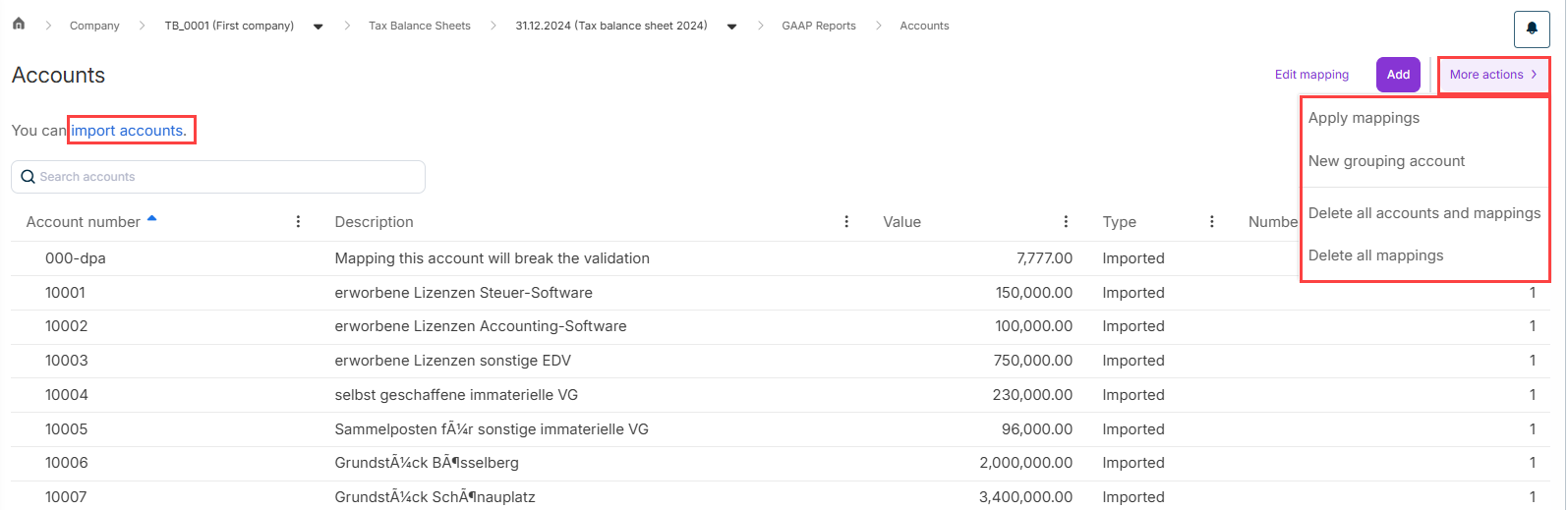
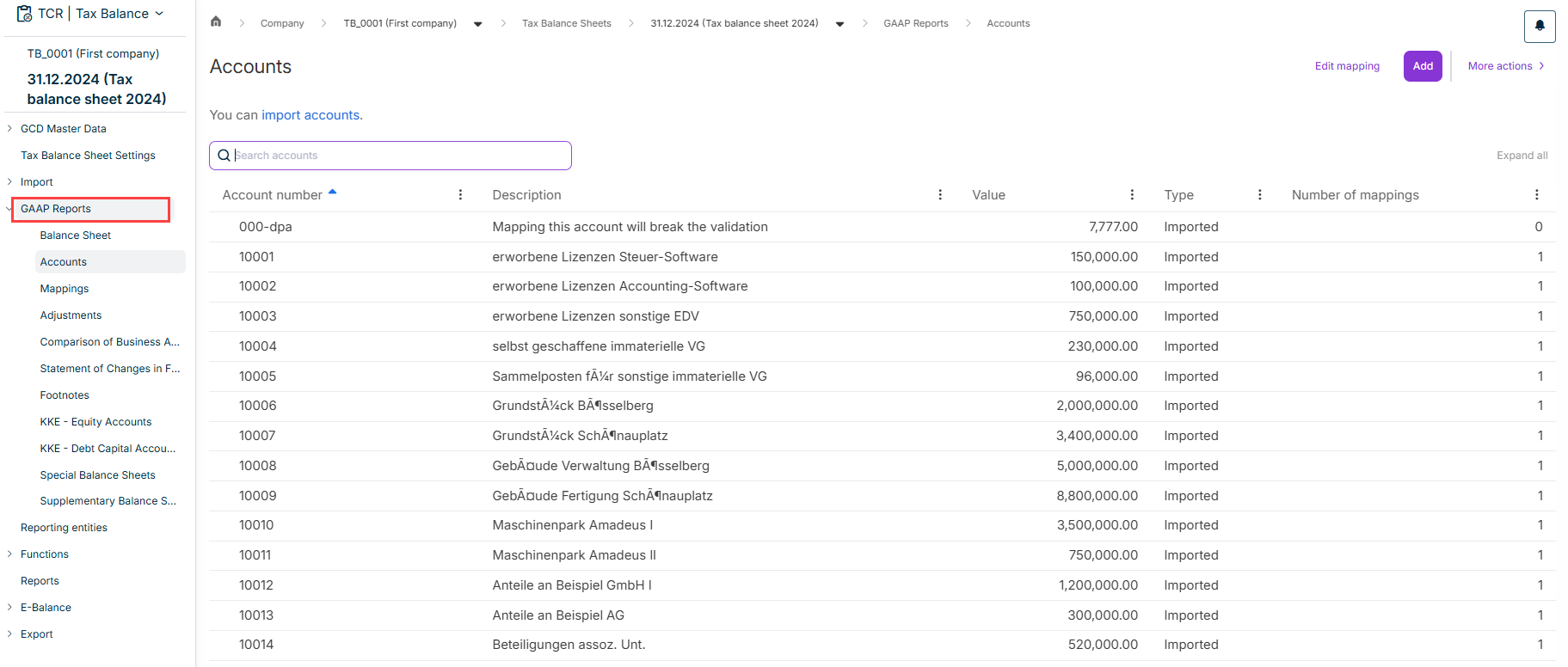
The accounts for your GAAP reports are managed in the Accounts workspace:

Shows the ‘Accounts’ workspace. Highlighted in red is the Import Accounts function, Add, and the ‘More Actions’ menu.
Functions for the 'Accounts' workspace.

The following functions are available for accounts:

  • Import accounts

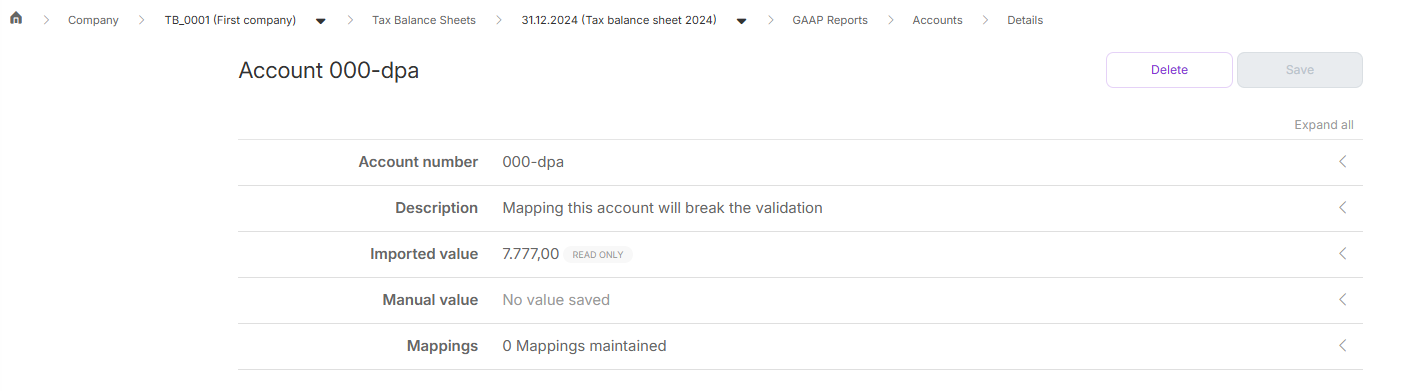
  • Display and, if necessary, adjust details for imported, manually created, and virtual accounts by clicking the account.

  • Via the More actions menu, you can:

    • Apply existing mappings
    • Create a new grouping account
    • Delete all accounts and mappings
    • Delete all mappings

You can also create accounts and the corresponding taxonomy mapping manually. To do this, click Add and enter the account number, a description, and the manual value for the account in the displayed dialog. You can additionally assign the taxonomy item for the account under Mappings.

Editing account details

You can assign taxonomy items the imported, manually created, or virtual accounts in the Mappings workspace.

To do this, drag and drop the accounts on the left side to the desired taxonomy item on the right side.

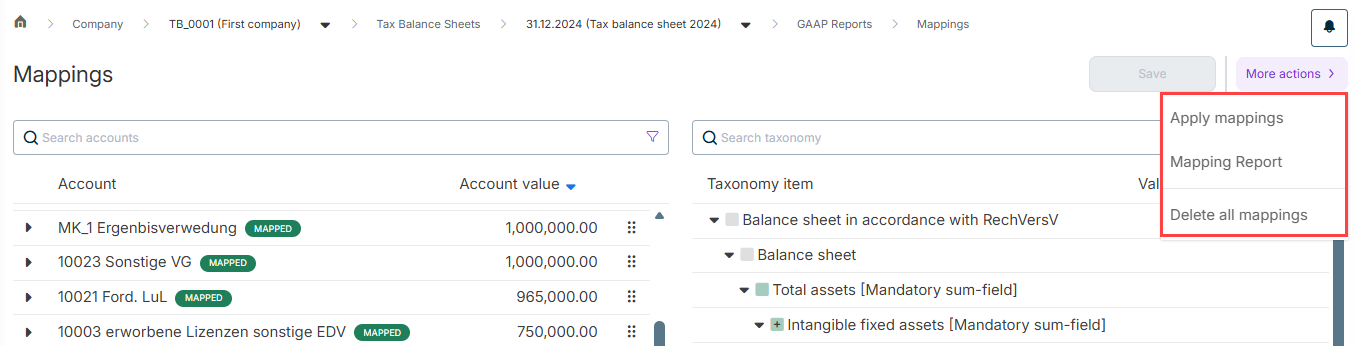
With the More actions menu, the following functions are also available:

  • Apply mappings from the previous year or any tax balance sheet. A wizard will guide you through the necessary steps.
  • Create a Mapping Report in XLSX format that provides information on mapped and unmapped accounts as well as grouping accounts.
  • Delete all mappings that have already been made.
Shows the Mappings workspace. The options in the More Actions menu are highlighted in red.
More actions for mappings

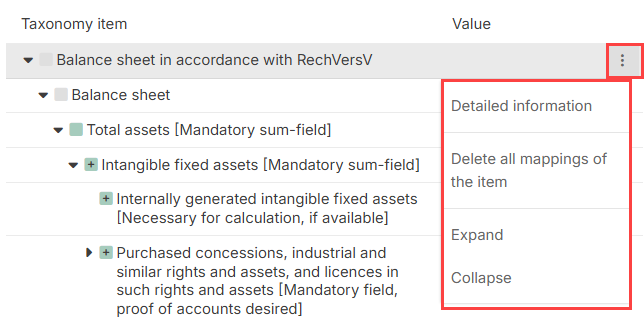
With the three-dot menu of a taxonomy item, you can also:

  • Display detailed information on the taxonomy item
  • Delete all mappings of the item
  • Expand or **collapse all subordinate items

    **
Three-dot menu of a taxonomy item

In the Adjustments workspace, you can enter tax deviations based on commercial-law values at adjustment levels and create any company-specific adjustment levels required for this purpose.

For detailed instructions, see Creating and Configuring Adjustments.

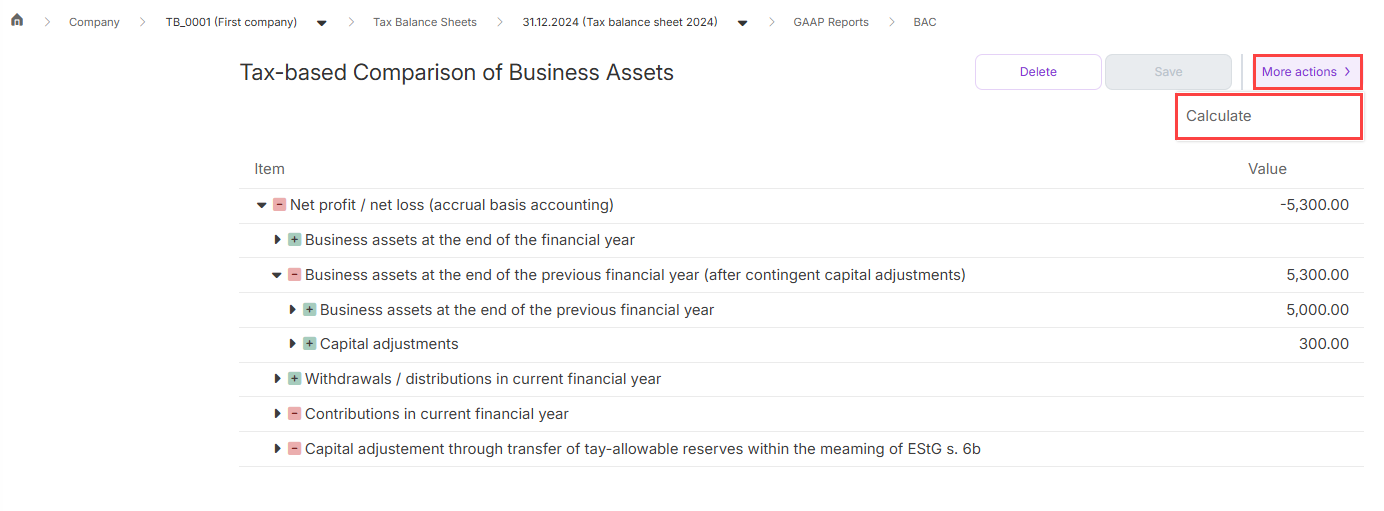
You can calculate the comparison of business assets in the Comparison of Business Assets workspace.

To do this, open the More actions menu at the top right and click Calculate.

Calculating business asset comparison

If necessary, you can edit the calculated values manually by double-clicking the value.

The values of the comparison of business assets are calculated in accordance with the specifications of the technical guidelines of the taxonomy. At corporations, the values are calculated from the balance sheet of the current year and the balance sheet of the previous year. At partnerships, the values are calculated from the balance sheet and the capital account development of the current year.

Any values that have already been entered manually or calculated previously will be deleted. This action cannot be undone.

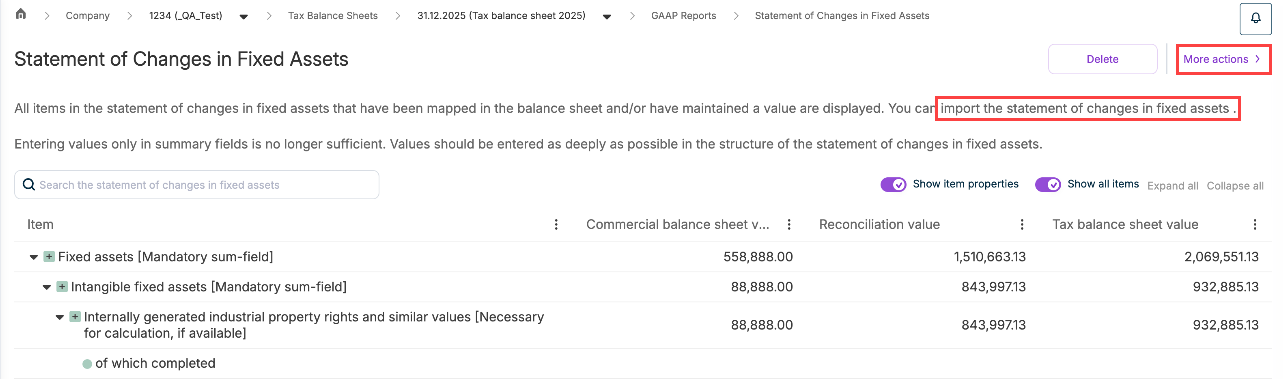
In the Statement of Changes in Fixed Assets workspace, all items of the statement of changes in fixed assets that have been mapped in the balance sheet and/or for which you have maintained a value are displayed. Furthermore, you can import a fixed asset schedule or transfer the closing balance from the previous year to the fixed asset schedule via the More actions menu:

Shows the upper section of the asset history area. The “More actions” menu and the command for importing an asset history are highlighted.
Options for the statement of changes in fixed assets

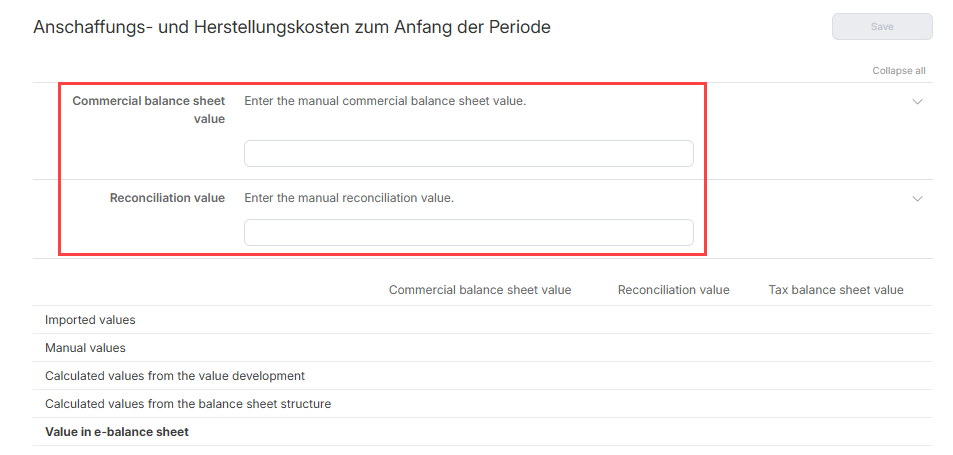
If necessary, you can enter or edit the displayed values by clicking the desired item in the table and then selecting the item in the Asset schedule structure. The following dialog is displayed, where you can enter the values:

Editing values in the fixed asset schedule

Activate the Show item properties option to display taxonomy-based properties in square brackets after each item, indicating whether the tax authority requires a value to be entered for that item.

The following item properties are displayed, for example:

  • Mandatory field
  • Mandatory sum field
  • Necessary for calculation, if applicable
Shows a section of the fixed asset schedule. The option Show item properties and the resulting item properties displayed next to the items are highlighted in red.
Item properties in the fixed asset schedule

You can add footnotes to items in the Footnotes workspace.

Adding footnote
Adding footnote

Proceed as follows:

1

In the Footnotes area, click Add.

2

Enter a meaningful title for the footnote.

3

Enter the content of the footnote.

4

Choose the item(s) to which the footnote should be added.

5

Click Save.

If explanations of several items are to be summarized in one footnote, we recommend transmitting this footnote to the Tax explanatory report item in the Notes section of the report.

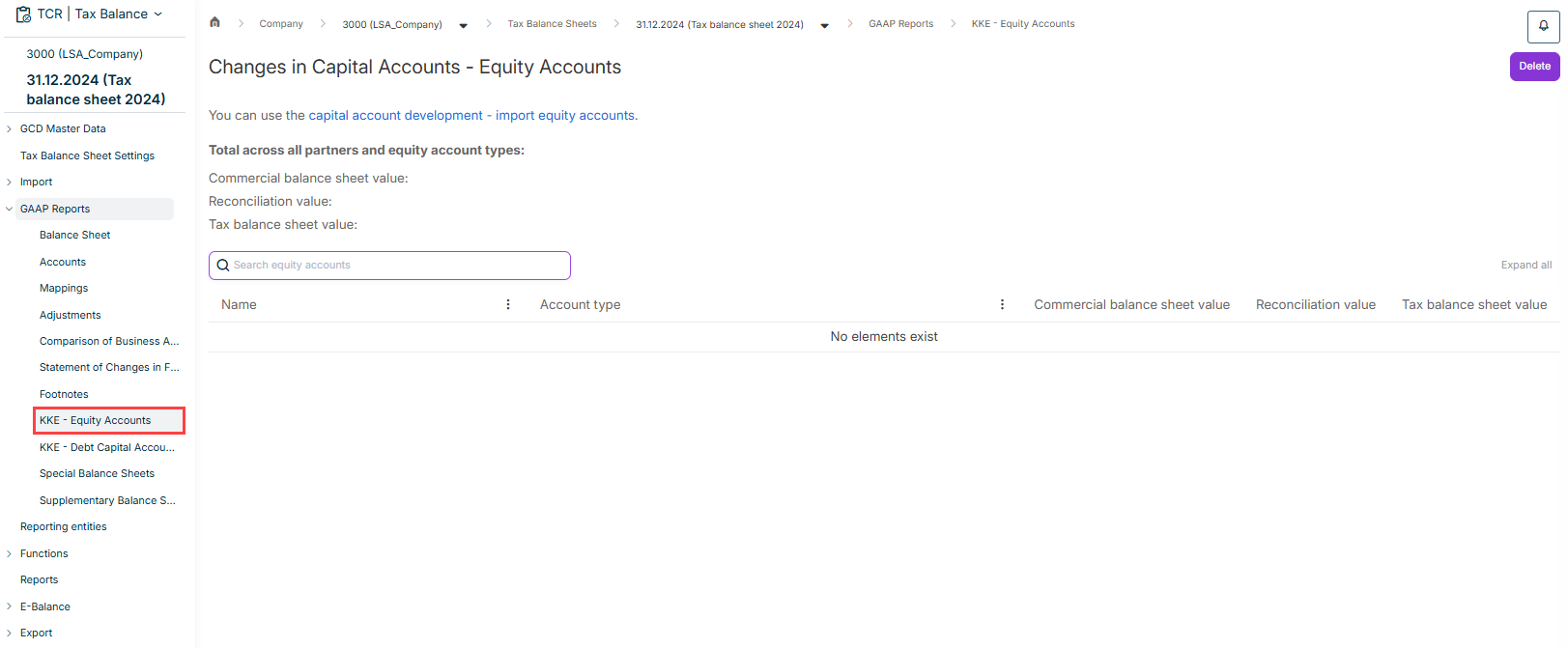
You can enter the values for the development of equity accounts in the KKE - Equity Accounts workspace.

To do this, click the desired item in the Account type column and enter the values for the respective items in the displayed dialog by clicking the corresponding field.

Editing the values of an equity account

You can also apply the closing balances from the previous year via the More actions menu.

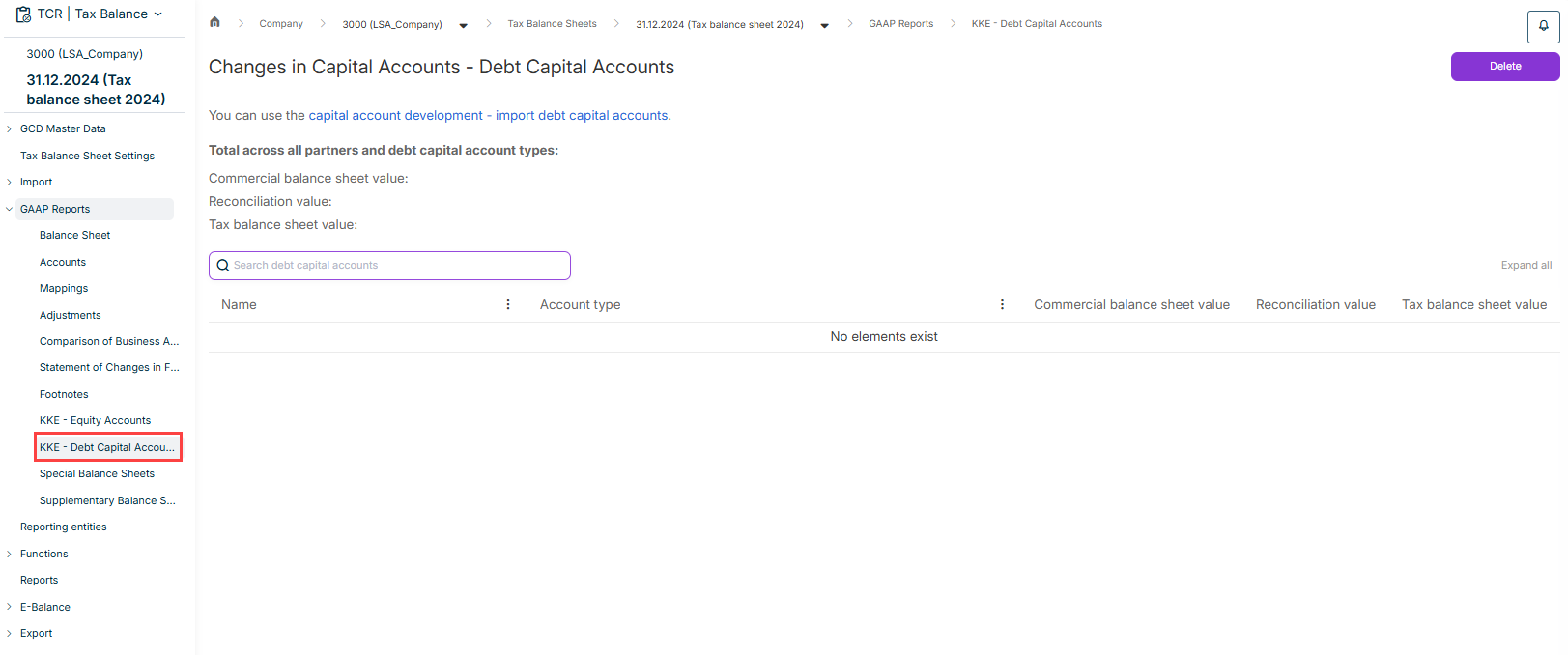
You can edit the values for the development of debt capital accounts in the KKE - Debt Capital Accounts workspace.

To do this, click the desired item in the Account type column and enter the values for the respective items in the displayed dialog by clicking the respective field.

Editing the values of a debt capital account

You can also apply the closing balances from the previous year via the More actions menu.

You can add issues for individual partners and then edit the values of the issues in the Special Balance Sheets workspace.

You can also transfer the closing balances from the previous year to the special balance sheet via the More actions menu:

Only partners who have announced the special balance sheet in the GCD master data of the overall company and whose affiliation overlaps the balance sheet period are available for selection.

You can add issues for individual partners and then edit the values of the issues in the Supplementary Balance Sheets workspace.

You can also transfer the closing balances from the previous year to the special balance sheet via the More actions menu:

Only shareholders who have announced the supplementary balance sheet in the GCD master data of the overall company and whose affiliation overlaps the balance sheet period are available for selection.