You can use this import process to import the following data for the tax balance sheet in Tax Balance to the taxonomy structure you have chosen:

  • Accounts
  • Statement of changes in fixed assets
  • Equity accounts
  • Debt capital accounts

The import is performed by means of a CSV file. How to proceed is described in Importing Data Using a CSV File.

In addition, you can import data into Tax Balance from the following Lucanet modules:

  • Reporting entities (This function must be licensed separately. If you have any questions, please contact your Lucanet contact person)
  • Tax Data Hub
  • Income Taxes

After you have imported the data, you can assign the items and accounts to the structure of the chosen taxonomy in the GAAP reports workspace.

Before you can execute an import, the corresponding interface must first be configured.

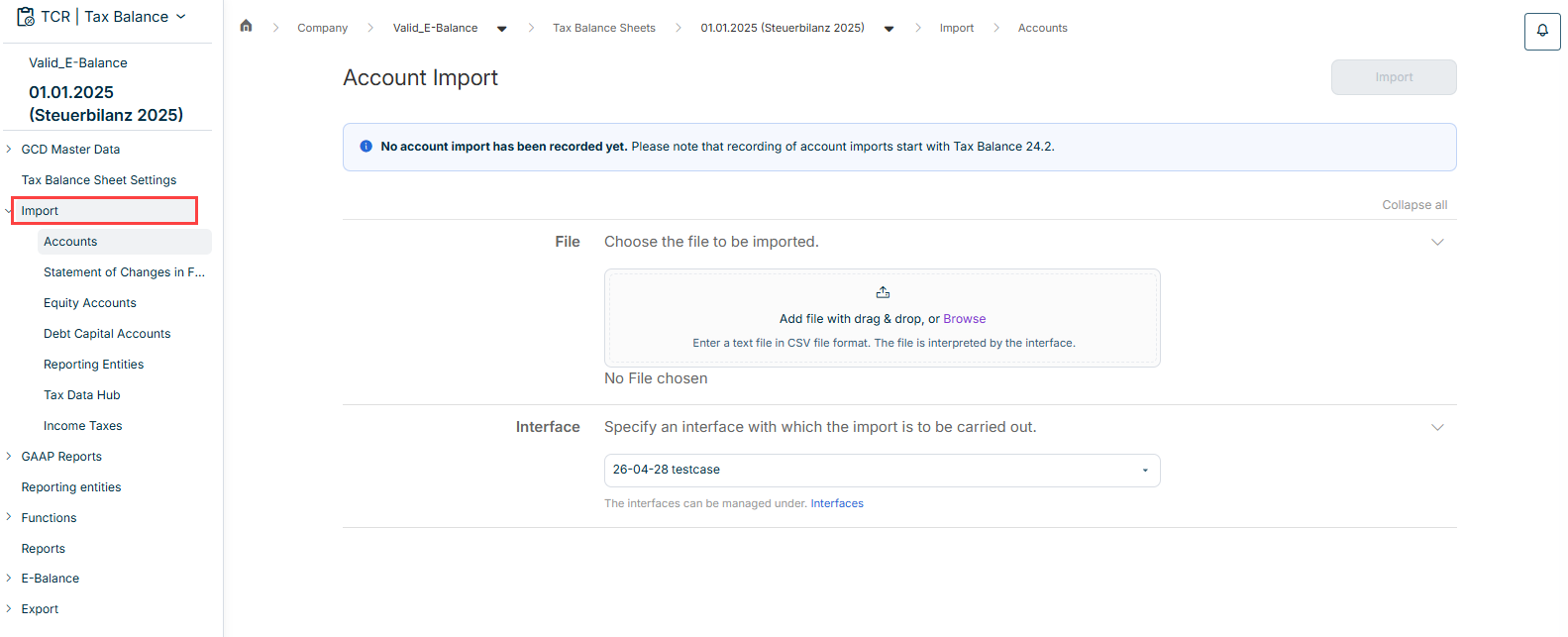
In Tax Balance, the Import workspace is displayed in the overview as soon as you open a tax balance sheet under Company:

Shows the 'Account Import' workspace in Tax Balance for the tax balance sheet '01.01.2025 (Steuerbilanz 2025)' with the 'File' section ('Add file with drag & drop, or Browse') and the 'Interface' section with the interface '26-04-28 testcase'. The tree view under 'Import' lists 'Accounts', 'Statement of Changes in F...', 'Equity Accounts', 'Debt Capital Accounts', 'Reporting Entities', 'Tax Data Hub' and 'Income Taxes'. Highlighted in red is the 'Import' entry in the tree view.
'Import' workspace

How to import accounts, fixed asset schedules, equity accounts, and debt capital accounts using a CSV file is described in the following.

To import data using a CSV file in Tax Balance, proceed as follows:

1

Click the area for the desired data type in the tree view under Import.

2

Add the file to be imported by means of drag and drop or click Browse to add the file.

Note: Only files in CSV format are allowed.

3

Choose the previously defined interface to be used for the import.

4

Click Import.

Proceed as follows to import data from the Tax Data Hub in Tax Balance:

1

Click the Tax Data Hub area in the tree view under Import.

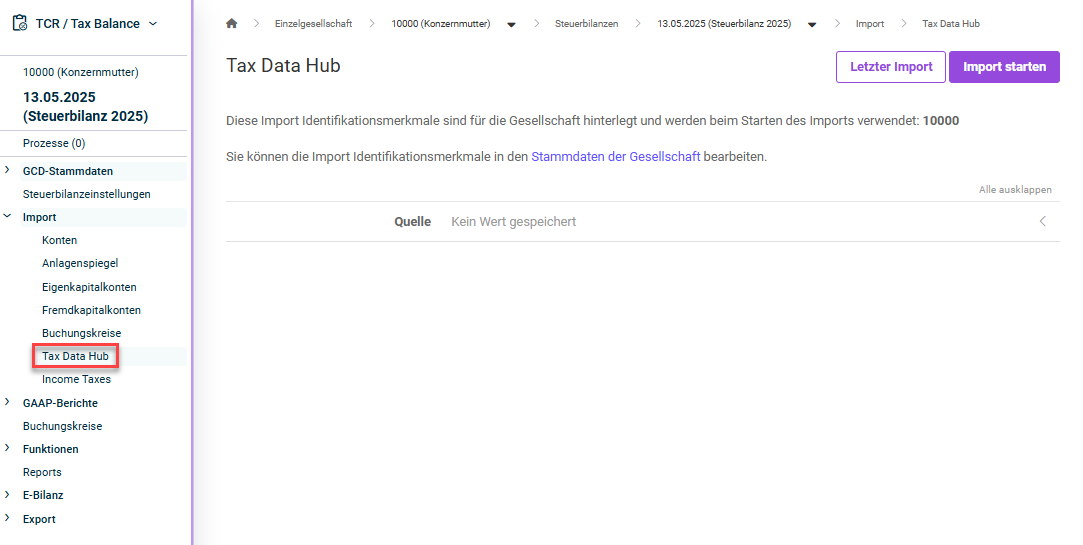
The area is displayed as follows:

Shows the 'Tax Data Hub' area under 'Import' in Tax Balance with the German UI: the buttons 'Letzter Import' and 'Import starten', the text 'Diese Import Identifikationsmerkmale sind für die Gesellschaft hinterlegt und werden beim Starten des Imports verwendet: 10000', and the field 'Quelle' with 'Kein Wert gespeichert'. Highlighted in red is the 'Tax Data Hub' entry in the tree view.
'Tax Data Hub' area
2

Choose the source from the Tax Data Hub module to be used for the import.

3

Click Start import.

The import process in Tax Balance is carried out by means of the Income Taxes module, which allows the Mapping Engine function to be used.

For the import, the interface of type Income Taxes must be defined in Tax Balance and the interface with the direction Import (enhanced) must be defined in the Income Taxes module.

After you have executed the import in Tax Balance, you can display the status and, in the case of a failed import, the details.

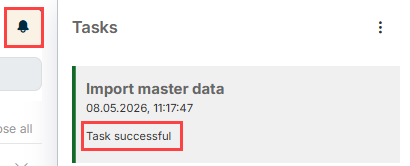
To do this, click the bell icon to open the job monitor. The status of the import task is then displayed below the task:

Shows the 'Tasks' panel in Tax Balance with the task 'Import master data' from '08.05.2026, 11:17:47' and the status 'Task successful'. Highlighted in red are the bell icon and the status 'Task successful'.
Job status in the job monitor

In the case of a failed execution, click the corresponding task to display the error details.

This content was generated using AI and reviewed by Lucanet subject matter experts before publication.