To import your financial data from source systems, you must first define the interfaces used to import them from these systems.

Interfaces in Tax Balance are used to define specific settings for the import behavior and import parameters.

The Interfaces workspace in Tax Balance can be opened under Master Data | Interfaces.

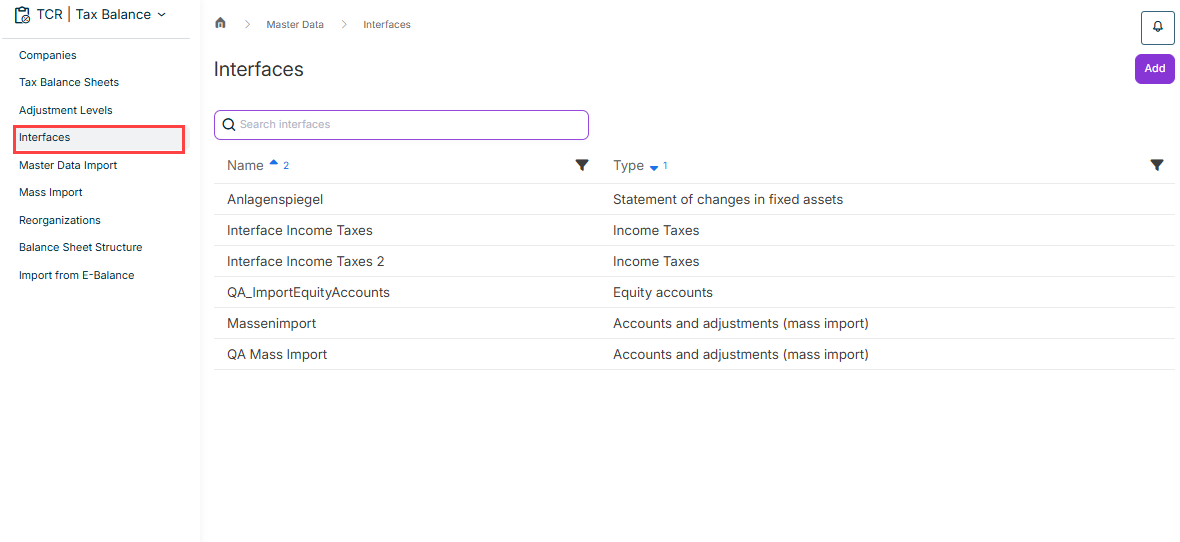
The workspace displays an overview of all interfaces that have already been created and is displayed as follows, for example:

Shows the 'Interfaces' workspace under 'Master Data' in Tax Balance with the 'Add' button, the 'Search interfaces' field, and a table with the columns 'Name' and 'Type' listing interfaces such as 'Anlagenspiegel' of the type 'Statement of changes in fixed assets', 'Interface Income Taxes' of the type 'Income Taxes', 'QA_ImportEquityAccounts' of the type 'Equity accounts', and 'QA Mass Import' of the type 'Accounts and adjustments (mass import)'. Highlighted in red is the 'Interfaces' entry in the navigation.
'Interfaces' workspace

To create a new interface in Tax Balance:

1

In the Interfaces workspace, click Add.

2

Choose the type of interface, i. e. which data you want to import or from which source system you want to import data. The following options are available for selection:

  • Statement of changes in fixed assets
  • Reporting Entities
  • Equity accounts
  • Debt Capital accounts
  • Import of data from the Income Taxes module
  • Accounts and adjustments
  • Accounts and adjustments (as mass import for multiple companies)
  • Determination of taxable profit for special cases
3

Enter a name for the interface.

4

Click Save.

5

Configure the options available for the respective interface type.

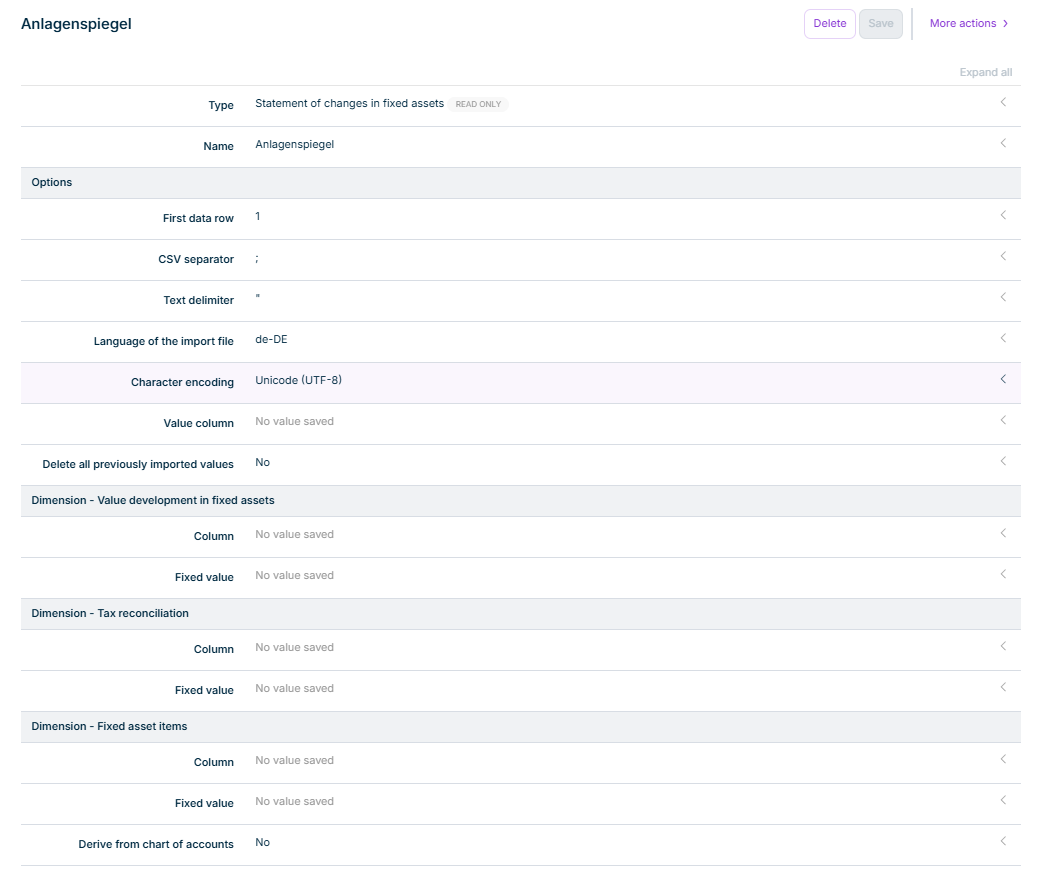
For an interface for importing a statement of changes in fixed assets in Tax Balance, the following options are configured, for example:

Shows the configuration of the interface 'Anlagenspiegel' in Tax Balance with the 'Delete', 'Save', and 'More actions' buttons, the 'Type' field set to 'Statement of changes in fixed assets' with the 'READ ONLY' label, the 'Name' field, the 'Options' section with 'First data row' ('1'), 'CSV separator' (';'), 'Text delimiter' ('"'), 'Language of the import file' ('de-DE'), 'Character encoding' ('Unicode (UTF-8)'), 'Value column', and 'Delete all previously imported values' ('No'), the sections 'Dimension - Value development in fixed assets', 'Dimension - Tax reconciliation', and 'Dimension - Fixed asset items' with the fields 'Column' and 'Fixed value', and the 'Derive from chart of accounts' field ('No').
Configuring an interface using the example of a statement of changes in fixed assets

To edit an interface in Tax Balance, click the desired interface in the overview table.

You can then edit and save the displayed details.

To use data from an interface already configured in another interface, you can create a copy of the interface in Tax Balance. To do this, click the More actions menu in the overview table and choose the Copy command.

Shows the details of the interface 'Anlagenspiegel' in Tax Balance with the 'Delete', 'Save', and 'More actions' buttons, the 'Type' field set to 'Statement of changes in fixed assets' with the 'READ ONLY' label, and the 'Name' field set to 'Anlagenspiegel'. Highlighted in red are the 'More actions' menu and its 'Copy' command.
Copying an interface

A copy of the interface is automatically created with the name suffix (copy) and you can edit and save the details.

This content was generated using AI and reviewed by Lucanet subject matter experts before publication.
