With the Import wizard in Tax Administration, you import users, currencies, units, company structures and tax group structures from one shared Excel workbook. Tax Administration checks the data areas contained in the workbook and guides you through the import steps in a fixed order. For each data area, you decide whether to save the data or to skip the step.

The Import wizard workspace is located in Tax Administration under Master data | Import wizard.

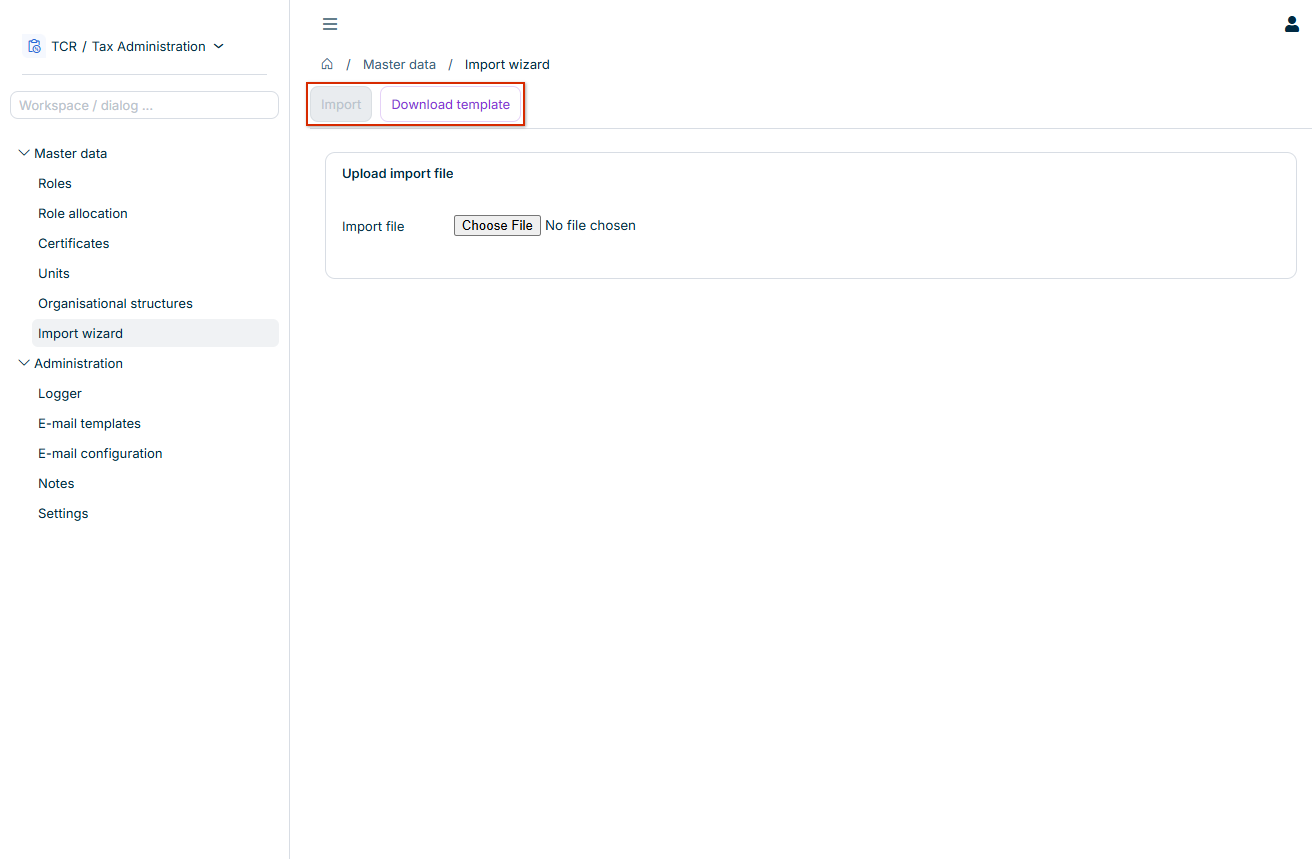
Shows the 'Import wizard' workspace in Tax Administration with the 'Import' and 'Download template' buttons and the 'Upload import file' section with the 'Import file' field and no file chosen. Highlighted in red are the 'Import' and 'Download template' buttons.
'Import wizard' workspace in Tax Administration

The following prerequisites apply to an import with the import wizard in Tax Administration:

  • You have the import permission for the respective data areas. For a data area without import permission, Tax Administration displays a message. Click Next to continue without saving.
  • You use a current import template from Tax Administration and keep the technical sheet names and the named ranges of the template.
  • The unit codes and relationships in the workbook match each other. Units that a structure uses must already exist or must be saved in the preceding step for units.
  • The respective import area is not locked by another user.

In the Import wizard workspace of Tax Administration, you download a template via Download template: Users, Currencies, Units, Company structure or Tax group structure. The template contains the specifications for the fields and example values. Also use these specifications for additional columns of the connected modules.

To prepare a workbook for several data areas in Tax Administration:

1

Download the current templates for the required data areas.

2

Open MS Excel.

3

Prepare one shared workbook in the current template format with the required data areas. Keep the technical sheet names and the named ranges of the template format.

4

Enter the data to be imported according to the specifications of the template.

5

Save the workbook as an XLSX file.

Tax Administration recognizes the following data areas by their sheets:

Data areaSheetsContent
UsersusersContains the user master data.
CurrenciescurrenciesContains the currency master data.
UnitsunitsContains the unit master data and validity periods.
Company structurescompanyStructures, companyStructureLinksContains the structure master data and the related unit relationships.
Tax group structurestaxGroupStructures, taxGroupStructureLinksContains the tax group structures and the related unit relationships.

For company structures and tax group structures, two sheets belong together in each case. Do not remove either of the related sheets. Tax Administration cannot process a workbook that contains only one sheet of a structure pair.

In the companyStructures sheet, the Import ID connects a structure state with the relationships in the companyStructureLinks sheet. In the relationship sheet, enter the related Import Parent ID, the Unit code and the Parent unit. For the top unit of the structure, the parent unit remains empty. Each structure requires exactly one top unit.

The Participation amount and Consolidation fields describe the relationship in a company structure. For numbers, Boolean values and dates, use the formats from the template. The validity dates in the structure sheet determine when the structure state applies.

To upload a prepared import file in Tax Administration:

1

Open Master data | Import wizard.

2

In the Import file field, select the prepared Excel file.

3

Click Import.

4

Check the data areas that Tax Administration has recognized in the workbook.

The import wizard in Tax Administration processes the existing data areas in the following order:

  1. Users
  2. Currencies
  3. Units
  4. Company structures
  5. Tax group structures

Tax Administration checks the data of a step before saving and displays it in a preview.

To check and save the import steps in the import wizard of Tax Administration:

1

Only in the Company structure and Tax group structure steps: In the Structure type field, select Standard or a configured structure type and click Parse sheet. If no further structure types are configured, Tax Administration reads the table directly.

2

Check the data in the preview, in particular the unit codes, validity periods and structure relationships:

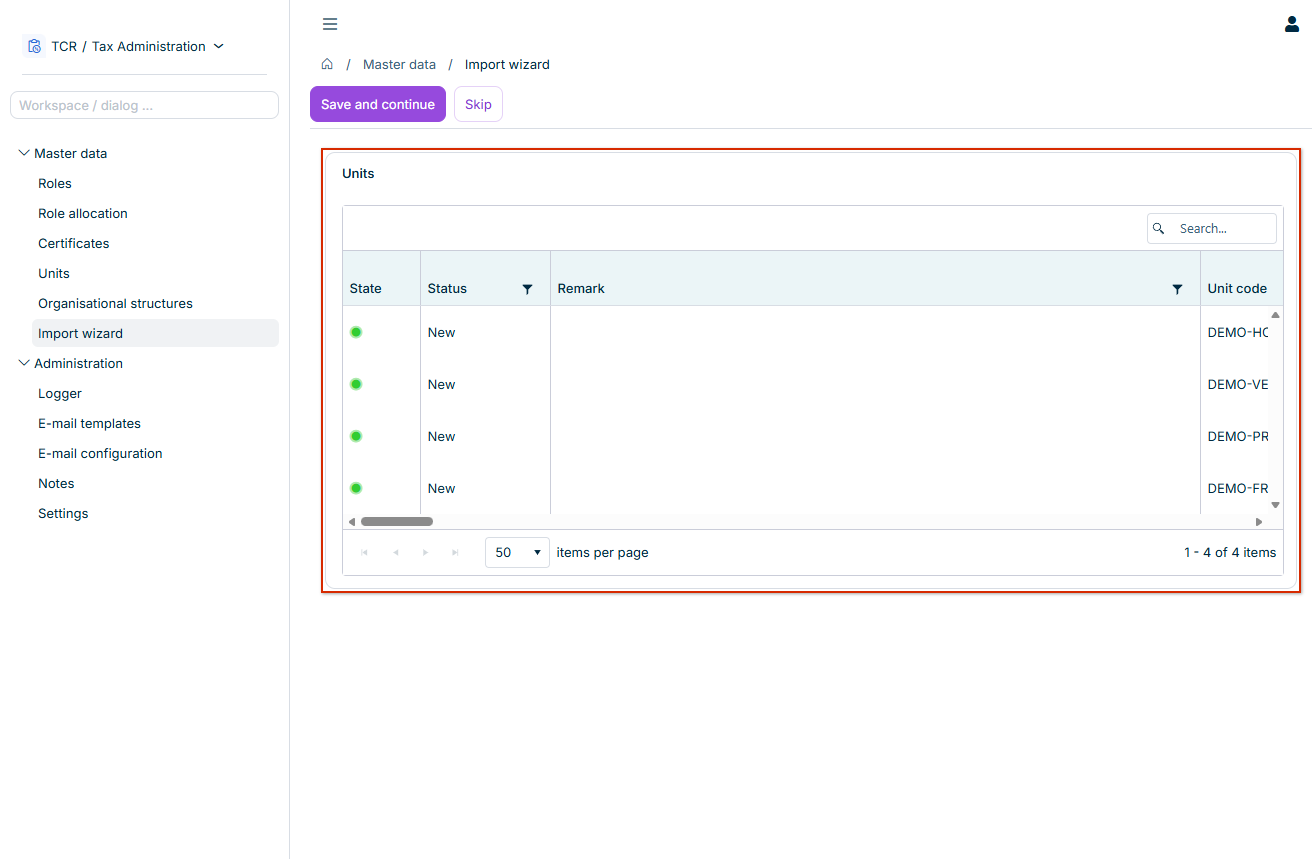
Shows the 'Units' import step of the import wizard in Tax Administration after a workbook has been uploaded, with the 'Save and continue' and 'Skip' buttons and the preview with the 'State', 'Status', 'Remark' and 'Unit code' columns and four units with the status 'New'. Highlighted in red is the preview of the 'Units' data area.
Import preview of the 'Units' data area in Tax Administration

For user imports, Tax Administration marks unchanged users with No change.

3

Click Save and continue to save the data of the step, or click Skip to skip the step without saving.

If the preview contains errors, you cannot save the step. Skip the step, correct the workbook and then import the data area again.

4

Repeat these steps for each further data area. After the last step, Tax Administration displays the import result (see Checking the Import Result in Tax Administration).

Tax Administration saves each import step individually. If you skip a later step, a later step fails or you leave the import wizard, the data that has already been saved is retained. Canceling does not reset the entire import.

If you leave the import wizard in Tax Administration during an import, for example by clicking Cancel or by opening another workspace in the navigation, Tax Administration displays a confirmation dialog. Click Continue import to return to the current import step, or click Cancel import to discard the import data that has not been saved yet. If you cancel the import via Cancel, Tax Administration then returns you to the workspace from which you opened the import wizard.

If you upload a workbook via Import from Excel, for example in the Units workspace, and the workbook also contains sheets of other data areas, Tax Administration automatically redirects you to the import wizard.

After the import steps, Tax Administration displays the result for each data area. For a saved data area, Tax Administration displays how many entries it created, corrected, added or left unchanged. If no entry has changed, Tax Administration displays No changes.

The following further results are possible in Tax Administration:

ResultMeaning
SavedConfirms that Tax Administration has saved the data area. Tax Administration only displays this result if the result contains no information on new or changed entries.
SkippedMarks a step that you have skipped without saving.
Skipped (no permission)Marks a step that Tax Administration has not saved because the import permission is missing.

If Tax Administration cannot save a data area, the import wizard stays in this step and displays an error message. You can save again or skip the step.

Then check the imported master data in the respective workspaces. Click Start a new import to begin another import in Tax Administration. Click Back to overview to return to the workspace from which you opened the import wizard.

If errors occur during an import in Tax Administration, check the following causes:

  • Incomplete structure sheets: Add the missing sheet of the structure pair.
  • Invalid unit codes or relationships: Correct the unit codes and the assignment to the parent unit. Check whether the required units were actually saved in the preceding step.
  • Missing permission: Have the import permission for the affected data area checked before you import the data area again.
  • Locked import area: Wait until the other user releases the import area. The regular company structure import and the structure change import for company structures use the same edit lock. The same applies to tax group structures.

If steps have already been saved, prepare a corrected file for the data that is still pending. Before you repeat the import, check which data Tax Administration has already imported.

This content was generated using AI and reviewed by Lucanet subject matter experts before publication.