With the Structure change import in Tax Administration, you import dated changes to company structures or tax group structures from an Excel file. The file describes events, for example adding, removing or moving a unit. Tax Administration calculates the affected structure states from these events and displays a preview before saving.

To import complete structures, use Import from Excel in the Organisational structures workspace or the Import wizard. For more information, see Importing Master Data with the Import Wizard in Tax Administration.

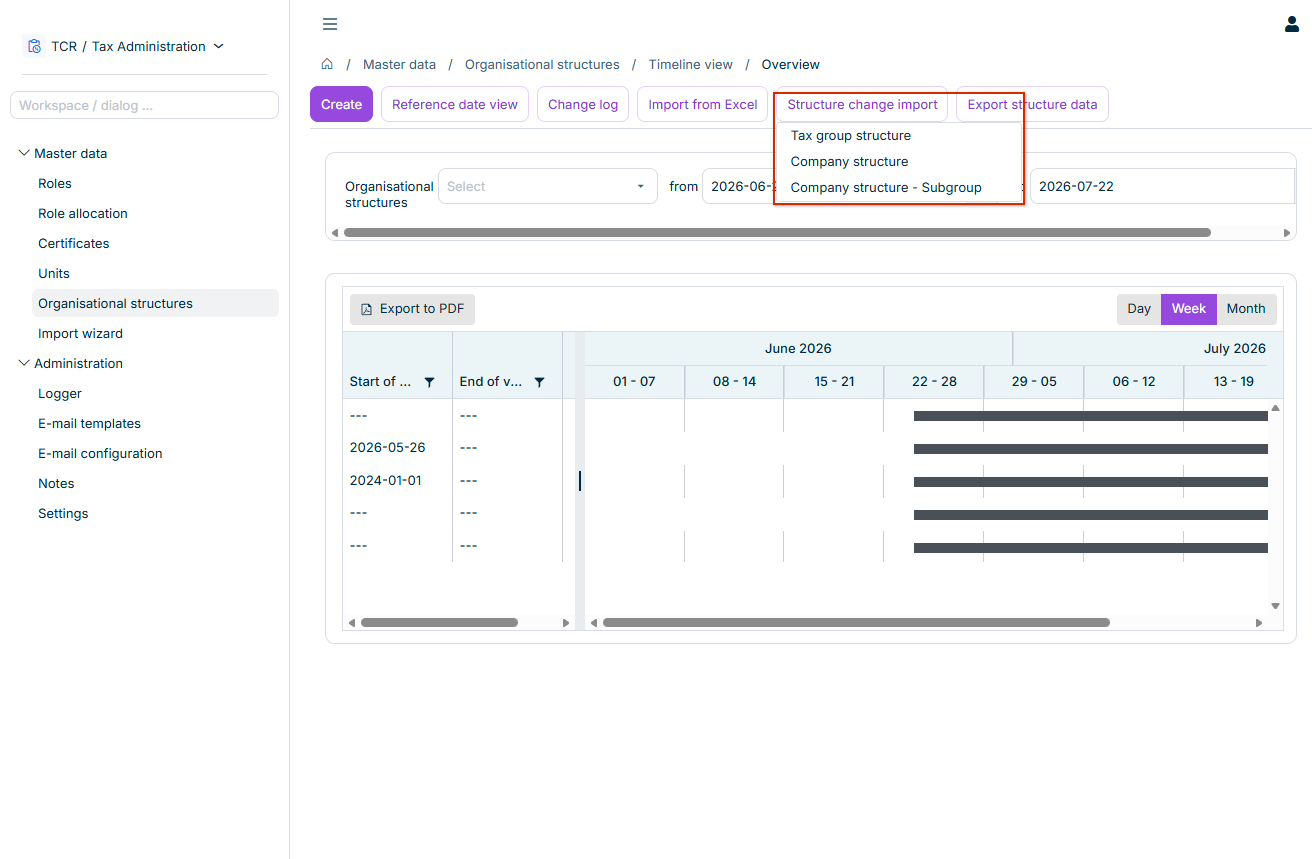
In Tax Administration, the Organisational structures workspace is located under Master data | Organisational structures. In this workspace, select Company structure, Tax group structure or another available structure type from the Structure change import menu.

Shows the 'Organisational structures' workspace in Tax Administration with the opened 'Structure change import' menu and the entries 'Tax group structure', 'Company structure' and 'Company structure - Subgroup'. Below, the timeline displays the 'Start of validity' and 'End of validity' columns and the validity period of each structure as a bar. Highlighted in red are the 'Structure change import' button and its menu.
'Structure change import' menu in the 'Organisational structures' workspace in Tax Administration

For the structure change import in Tax Administration, you need an import permission for organisational structures. The affected structures and units must exist in Tax Administration. Use the template of the structure type you want to change.

The regular company structure import and the structure change import for company structures use the same edit lock. The same applies to tax group structures. If another user is using the respective import area, wait until the other user has finished the import.

In Tax Administration, you download the current template of the selected structure type in the workspace for the structure change import. The workbook contains the structureChanges worksheet. Keep the worksheet name and the named ranges of the template unchanged.

To prepare a change file for Tax Administration:

1

Download the template for the selected structure type.

2

Open the template in MS Excel.

3

Enter one row per change in the structureChanges worksheet.

4

Save the workbook as an XLSX file.

The template for structure changes in Tax Administration contains the following fields:

FieldMeaning
Event typeDetermines which change Tax Administration executes. Use one of the technical event types from the following table.
Effective dateDetermines the date from which the change applies. Use an Excel date or the date format of the template, for example 2025-01-01.
Structure nameIdentifies the structure in which the change applies.
Affected unitIdentifies the unit by its unit code.
Parent codeSpecifies the unit code of the previous or associated superordinate unit.
New parent codeSpecifies the unit code of the new superordinate unit when moving a unit.
New percentageDefines the participation amount for company structures when adding, moving or changing the ownership of a unit.
New consolidationDefines the consolidation setting for company structures. Use the Boolean values of the template, for example true or false. The entry is optional: if it is missing for ADD_ENTITY, Tax Administration sets the value to false; for MOVE and OWNERSHIP_CHANGE, the previous value is retained.

The fields New percentage and New consolidation belong exclusively to the template for company structures. The template for tax group structures does not contain these fields.

Tax Administration applies the changes to the latest structure state of the specified structure. The effective date must lie within the validity period of this structure state. Each effective date starts a new structure state that ends on the day before the next effective date. The last structure state ends with the end of the validity of the structure.

Tax Administration supports the following event types in the structureChanges worksheet:

Event typeChangeCompany structureTax group structure
REMOVE_ENTITYRemoves the relationship of the affected unit to the superordinate unit in the Parent code field as of the effective date. If the unit has further superordinate relationships, these are retained.YesYes
ADD_ENTITYAdds the affected unit under the specified superordinate unit as of the effective date.YesYes
MOVEMoves the affected unit from the previous to the new superordinate unit as of the effective date.YesYes
OWNERSHIP_CHANGEChanges the participation amount and, if specified, the consolidation setting as of the effective date.YesNo

If several events have the same effective date, Tax Administration processes REMOVE_ENTITY first, then ADD_ENTITY, then MOVE and finally OWNERSHIP_CHANGE. If there are several changes on the same date, check the resulting relationships particularly carefully.

To check a change file before saving in Tax Administration:

1

Open the structure change import for the required structure type.

2

Upload the prepared Excel file.

3

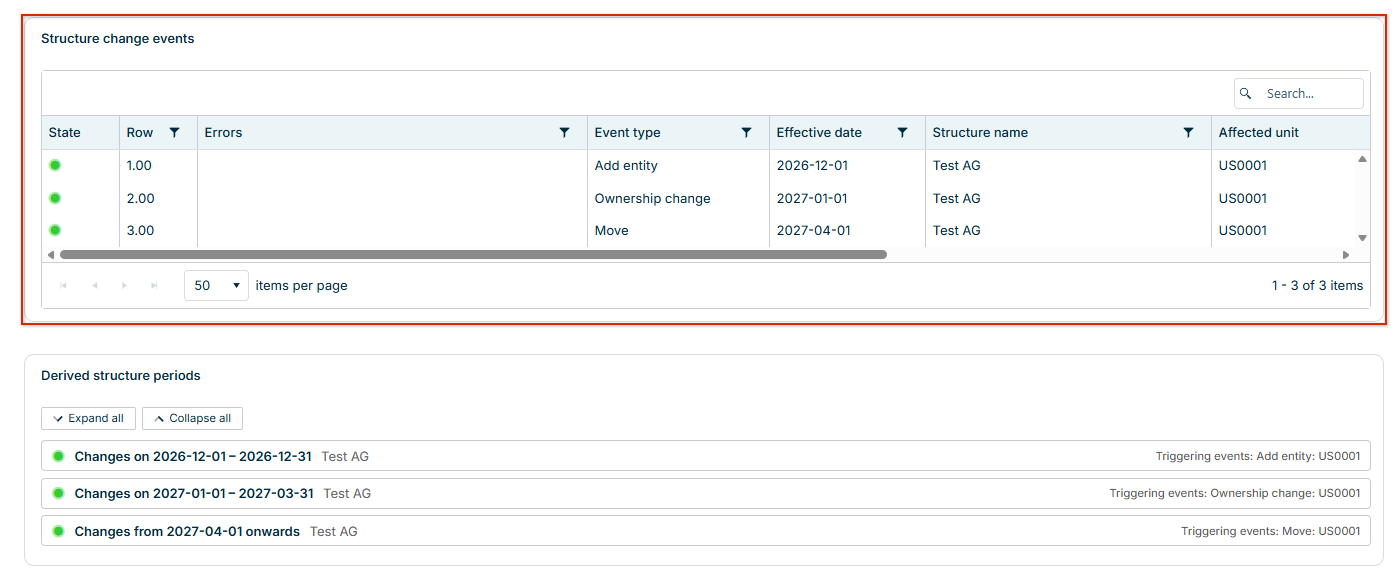
In the preview, check the detected events and effective dates in the Structure change events area:

Shows the preview of the structure change import in Tax Administration. The 'Structure change events' area lists, in the columns 'State', 'Row', 'Errors', 'Event type', 'Effective date', 'Structure name' and 'Affected unit', three events without errors for the structure 'Test AG' and the unit 'US0001': 'Add entity' as of '2026-12-01', 'Ownership change' as of '2027-01-01' and 'Move' as of '2027-04-01'. The 'Derived structure periods' area with the 'Expand all' and 'Collapse all' buttons displays the periods 'Changes on 2026-12-01 – 2026-12-31', 'Changes on 2027-01-01 – 2027-03-31' and 'Changes from 2027-04-01 onwards', each with its 'Triggering events'. Highlighted in red is the 'Structure change events' area.
Preview of a structure change import in Tax Administration
4

In the Derived structure periods area, check the resulting structure states and unit relationships.

5

If the Errors column in the Structure change events area displays validation errors, correct the workbook and upload the corrected file again.

In Tax Administration, only saving applies the checked structure changes to the master data. Save the changes after checking the preview. Then check the structure states for the affected effective dates in the Organisational structures workspace.

If you leave the workspace before saving, Tax Administration does not apply the uploaded changes. Changes saved earlier are retained.

If errors occur in the structure change import in Tax Administration, check the following information:

  • Structure type: Use the template of the selected structure type. An OWNERSHIP_CHANGE is not permitted for tax group structures.
  • Unit codes and structure names: Use the values that exist in Tax Administration.
  • Effective dates and relationships: Check whether the previous superordinate unit is correct for the effective date and whether the new relationship leads to the required structure state.
  • Value formats: Use the date, number and Boolean formats of the template.
  • Edit lock: Let a parallel regular structure import or structure change import of the same structure type finish first.

This content was generated using AI and reviewed by Lucanet subject matter experts before publication.