In the Units workspace, you maintain the units, i.e. companies, branches, and other entities subject to reporting that are used across the Tax Compliance and Reporting modules. Each unit has a unit code, a name, validity dates, and additional master-data attributes; changes are tracked in a change log.

The unit itself and its unit code originate in Income Taxes — a unit only becomes available to Pillar 2 and CbCR once it exists there. The attributes you maintain in the Units workspace, for example whether a unit is a constituent entity, its GloBE status, or its validity period, are what the reporting modules read for that unit. The modules match the two by unit code.

If a unit is not created in Income Taxes, it will not appear in Pillar 2 or CbCR — even if the attributes for it already exist in Tax Administration.

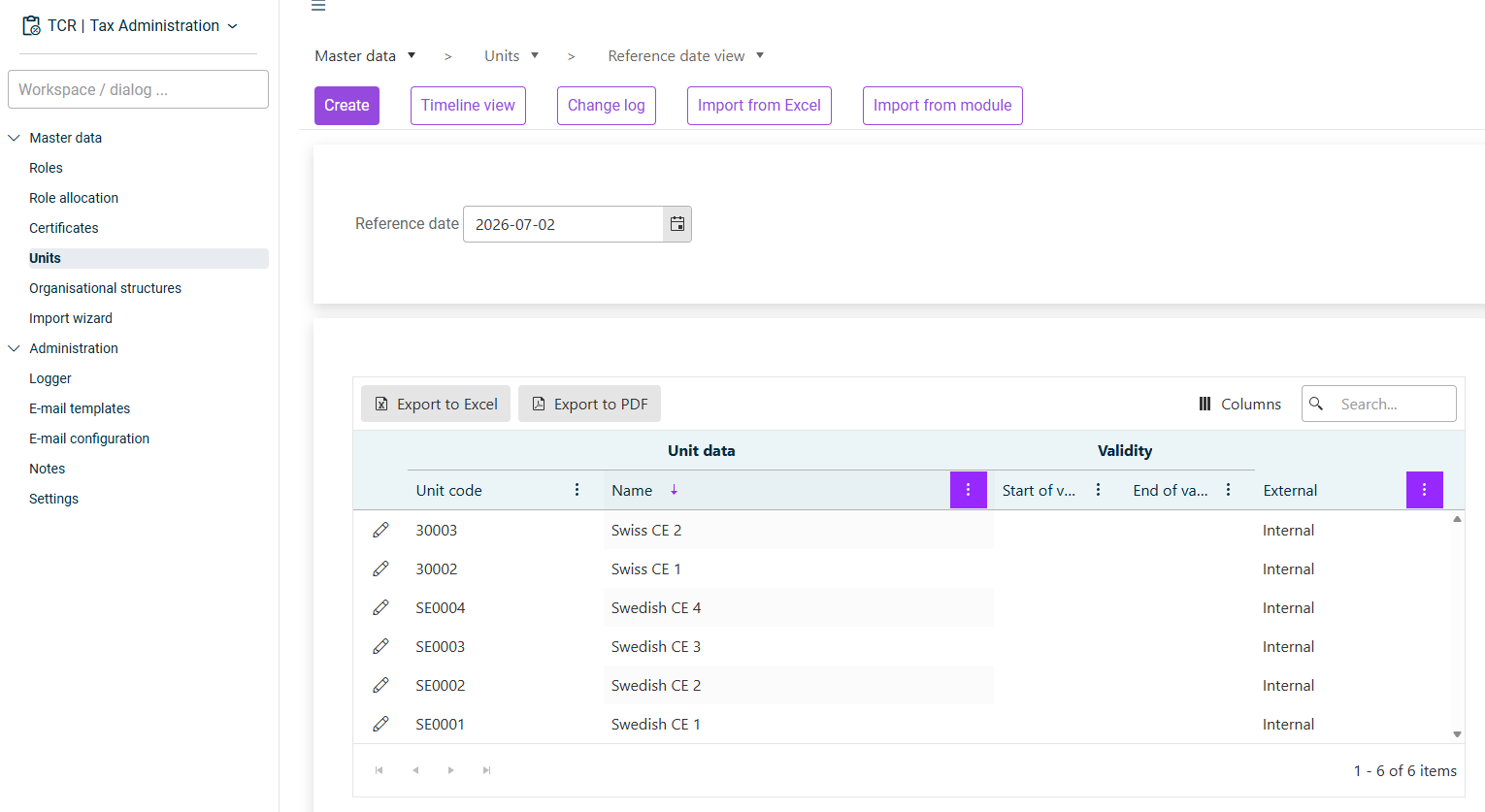
The Units workspace can be found in the Master data folder of the Tax Administration module and is displayed in the Reference date view by default.

Units workspace in Reference date view showing the Create, Timeline view, Change log, Import from Excel and Import from module buttons, a Reference date filter, and the unit list with Unit data and Validity column groups
'Units' workspace in 'Reference date view'

The list shows all units that are valid on the selected reference date. It groups the columns under Unit data (Unit code, Name), Validity (Start of validity, End of validity), and External (Internal or External). Use the pencil icon in a row to edit a unit.

The following actions are available at the top of the workspace:

ActionDescription
CreateOpen the create form to add a new unit.
Timeline viewSwitch to a Gantt-style timeline that visualizes each unit's validity period.
Change logOpen the change history for all unit changes.
Import from ExcelImport units from an Excel file.
Import from moduleImport units from another Tax Compliance and Reporting module.
Export company dataExport the current unit master data to Excel.

The toolbar above the table additionally provides a search field and the actions Export to Excel, Export to PDF, and Columns (to show or hide columns).

The Reference date field at the top of the workspace controls which units are listed. Only units whose validity period contains the selected date are displayed. Change the date to inspect the unit master data as of any past, current, or future point in time.

To create a unit, proceed as follows:

1

Click Create.

2

Under Unit data, enter the Unit code and Name of the unit, and an optional Comment.

3

Under Validity, set the Start of validity.

4

Click Save.

When creating a unit, you can only enter the unit code, name, comment, and start of validity. All further master data — including the tax, organization, and Pillar 2 / CbCR attributes described below — is maintained by opening an existing unit for editing (the pencil icon in the unit list).

For Pillar 2, a practical start of validity is 31 December 2023, since that is the point from which the Pillar 2 legislation applies and unit changes need to be traceable from then on.

Open a unit from the list to edit its full master data. In addition to Unit data and Validity, the detail form provides these sections:

  • Tax and organization data — VAT identification number, Tax file number, Tax group for corporation tax and income tax, (Sub-)Group, Legal form, Tax law, Field of activity, and an External setting that marks the unit as internal or external.
  • Bank details — one or more bank accounts, including IBAN, BIC, bank name, description.
  • Address blocks for the unit.
  • Income Taxes — the Pillar 2, CbCR, and Public CbCR attributes described below.

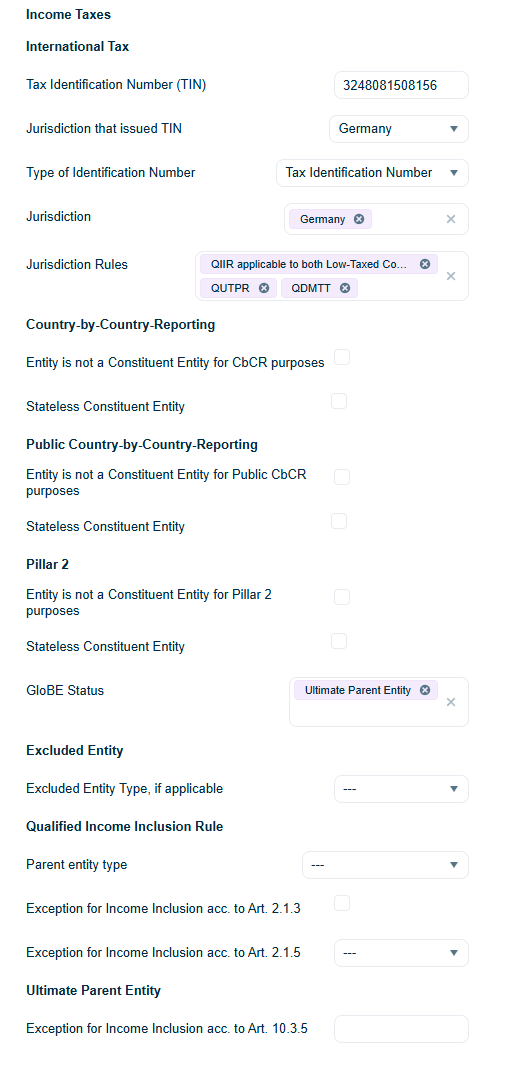
The attributes that drive how a unit is treated in Pillar 2 and CbCR are maintained in the Income Taxes section of the unit detail form, organized into the following subsections.

Income Taxes section of a unit detail form, showing the International Tax fields (TIN, Jurisdiction, Jurisdiction Rules), the Country-by-Country-Reporting and Public Country-by-Country-Reporting check boxes, the Pillar 2 fields with GloBE Status set to Ultimate Parent Entity, and the Excluded Entity and Qualified Income Inclusion Rule sections
The 'Income Taxes' section of a unit, with the Pillar 2 and CbCR attributes maintained
FieldDescription
Tax Identification Number (TIN)The unit's tax identification number.
Jurisdiction that issued TINThe jurisdiction that assigned the TIN.
Type of Identification NumberClassifies the number. Options include Tax Identification Number, Functionally equivalent number, and GIR designated number — use one of the latter when the unit has no conventional TIN (for example in a jurisdiction without a classic tax system).
JurisdictionThe jurisdiction(s) the unit belongs to (multiple selection possible).
Jurisdiction RulesThe Pillar 2 rules the unit is subject to (multiple selection possible): a qualified Income Inclusion Rule (QIIR), a qualified UTPR (QUTPR), and a qualified domestic minimum top-up tax (QDMTT).

Each of these subsections offers the same two settings, applied separately to regular CbCR and to Public CbCR:

  • Entity is not a Constituent Entity for CbCR purposes / … for Public CbCR purposes — set for units that should not be considered a constituent entity for that report, e.g. units that exist only for consolidation or tax-accounting reasons.
  • Stateless Constituent Entity — set for stateless CEs.
  • Entity is not a Constituent Entity for Pillar 2 purposes — set for units that should not be considered in Pillar 2.
  • Stateless Constituent Entity — set for stateless CEs; each stateless CE is treated as its own group in the calculation.
  • GloBE Status — the unit's role under the GloBE rules (multiple selection possible), for example Ultimate Parent Entity, Constituent Entity, or Permanent Establishment.

The ultimate parent entity is classified here, on the constituent entity, by setting its GloBE Status to Ultimate Parent Entity. Once saved, the CE appears in the UPE selection lists of the CbCR and Pillar 2 Group Data Collection and the connected calculation areas. If a UPE drop-down list in those modules is empty, it is almost always because no CE has yet been classified as UPE here. There is no separate UPE configuration on the CbCR or Pillar 2 side.

  • Excluded Entity Type, if applicable — set when the unit is excluded from the scope of Pillar 2 under Art. 1.5 of the OECD GloBE Model Rules.

An Excluded Entity Type (Art. 1.5) is not the same as Entity is not a Constituent Entity for Pillar 2 purposes. Excluded Entity Type marks a unit that is out of scope by rule; Entity is not a Constituent Entity for Pillar 2 purposes is a technical setting for units that exist only for consolidation or tax-accounting reasons.

  • Parent entity type — the parent-entity classification, where applicable.
  • Exception for Income Inclusion acc. to Art. 2.1.3 — check box for the corresponding exception.
  • Exception for Income Inclusion acc. to Art. 2.1.5 — drop-down list for the corresponding exception.
  • Exception for Income Inclusion acc. to Art. 10.3.5 — drop-down list for the ultimate parent entity, where applicable.

Permanent establishments are created like any other unit — manually or via import. In addition to the standard fields (name, Tax Identification Number, jurisdiction), set the unit's GloBE Status to Permanent Establishment.

The Units workspace offers two views of the same data:

  • Reference date view — table of units valid on a single date.
  • Timeline view — Gantt-style chart showing each unit's validity period across a configurable Week / Month / Year range. Useful for spotting gaps or overlaps in validity.

Click Timeline view at the top of the workspace to switch; the same control then offers Reference date view to switch back.

A unit can have several consecutive time states, each with its own start and end of validity. When a CE changes materially — a restructuring, a change of characteristics, the sale of part of the group — create a new time state rather than overwriting the existing values. The earlier version is retained for past periods, so historical calculations remain reproducible. When a report is generated, the system automatically selects the time state that applies to the relevant fiscal year; no manual selection is needed. Use the Timeline view to see which state applied when.

  • Changes to units are recorded in the change log. Use the Change log button to open the history.
  • The Excel import expects the columns required by the unit master data; use Import from Excel to download a current template before preparing the file.
  • Use Import from module to copy unit master data from a different Tax Compliance and Reporting module instead of preparing an Excel file.

To build an import file from your current data, use Export company data to export the present state to Excel, adjust it, and re-import it. The export doubles as a ready-made, self-describing import template with the correct column mappings.