You can create, duplicate, share, export, and delete dashboards, edit their details, and apply dashboard filters. This page describes how to manage dashboards. For details on adding and configuring widgets, see Dashboard Widgets.

To create a dashboard:

1

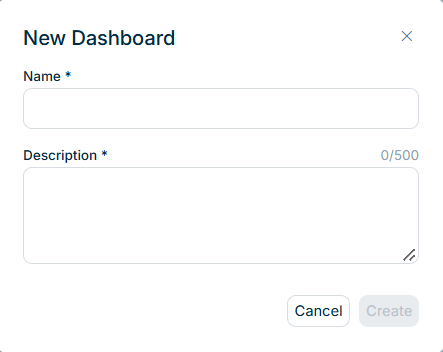
On the Dashboards start page, click New. The New Dashboard dialog is displayed as follows, for example:

The 'New Dashboard' dialog with the Name and Description fields.
'New Dashboard' dialog
2

Enter a Name for the dashboard. The name is required.

3

Enter a Description. The description is required and can have up to 500 characters.

4

Click Create. The dashboard is created and opened so that you can add widgets.

When a dashboard is open, you can use the dashboard filters to control the data displayed across all widgets at once. The following filters are available:

FilterDescription
Time periodDefines the reporting period for the dashboard. You can display the data split by month, quarter, or year.
Organization elementDefines the organization element whose data is displayed, for example an organization group.
CurrencyDefines the display currency for the dashboard values.

The Organization element and Currency drop-down lists display only the values you are permitted to see in Consolidation & Financial Planning (CFP). For example, if you only have access to one organization element or one currency in CFP, only that value is available here.

A dashboard has two access roles:

RoleDescription
OwnerThe user who created the dashboard. The owner can configure, edit, share, duplicate, export, and delete the dashboard. There is one owner per dashboard.
ViewerA user the dashboard has been shared with. A viewer has read-only access: a viewer can view and duplicate the dashboard, but cannot change, share, or delete it. A dashboard can have multiple viewers.

Users with the Administrator role have access to all dashboards, including dashboards created by other users and dashboards that have not been shared with them. Administrators can open, edit, share, export, and delete any dashboard. If a dashboard loses its owner, for example because the owner's account is deleted, an administrator is notified and can take over managing the dashboard. The dashboard remains available to its viewers.

If you do not have permission to view a widget's underlying data, either as a viewer or as an administrator, the widget is displayed blurred, with a message to request the required permissions.

To create a copy of a dashboard, select Duplicate from the dashboard's three-dot menu Three-dot menu icon on the Dashboards start page, or open the dashboard and click Duplicate in the toolbar. A copy of the dashboard is created, including its widgets and configuration.

If the copy contains widgets whose underlying data you do not have permission to view, those widgets remain blurred, and the only available action is Delete, so you can remove them and clean up the dashboard.

When you share a dashboard, the selected users become viewers with read-only access.

To share a dashboard:

1

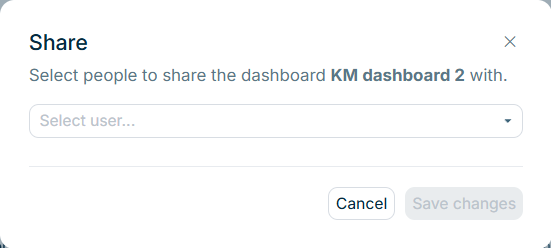
Select Share from the dashboard's three-dot menu Three-dot menu icon on the Dashboards start page, or open the dashboard and click Share in the toolbar. The Share dialog is displayed as follows, for example:

The 'Share' dialog with the field for selecting users.
'Share' dialog
2

In the Select user field, select the users you want to share the dashboard with.

3

Click Save changes. The selected users receive read-only access and are notified that the dashboard has been shared with them.

When a dashboard is shared with you, you receive a notification by e-mail and in the Notifications section. You can then duplicate the dashboard but not change it. If you duplicate a shared dashboard, you become the owner of the copy and can choose whether the copy stays shared with the original users or becomes private.

To stop sharing a dashboard, open the Share dialog. To remove access for a single user, click the Delete icon icon next to that user. To remove all sharing at once, select Make private. Click Save changes to apply the change.

You can export a dashboard as a file. To do so, open the dashboard, click Export in the toolbar, and select one of the following options:

  • Export as PDF
  • Export as PowerPoint

To view a dashboard's details or edit the name and description, open the dashboard and click Settings in the toolbar. The Settings dialog displays the following information:

  • Created by and Created at
  • Last modified by and Last modified at
  • Owner
  • Shared with
  • Name and Description

Edit the Name or Description as needed and click Save changes.

On an open dashboard, you can arrange the widgets on the dashboard grid. Drag a widget to move it to a different position, and drag the edges of a widget to resize it.

To delete a dashboard, select Delete from its three-dot menu Three-dot menu icon on the Dashboards start page. Only the dashboard owner and administrators can delete a dashboard. Viewers cannot delete a dashboard that has been shared with them.

This content was generated using AI and reviewed by Lucanet subject matter experts before publication.