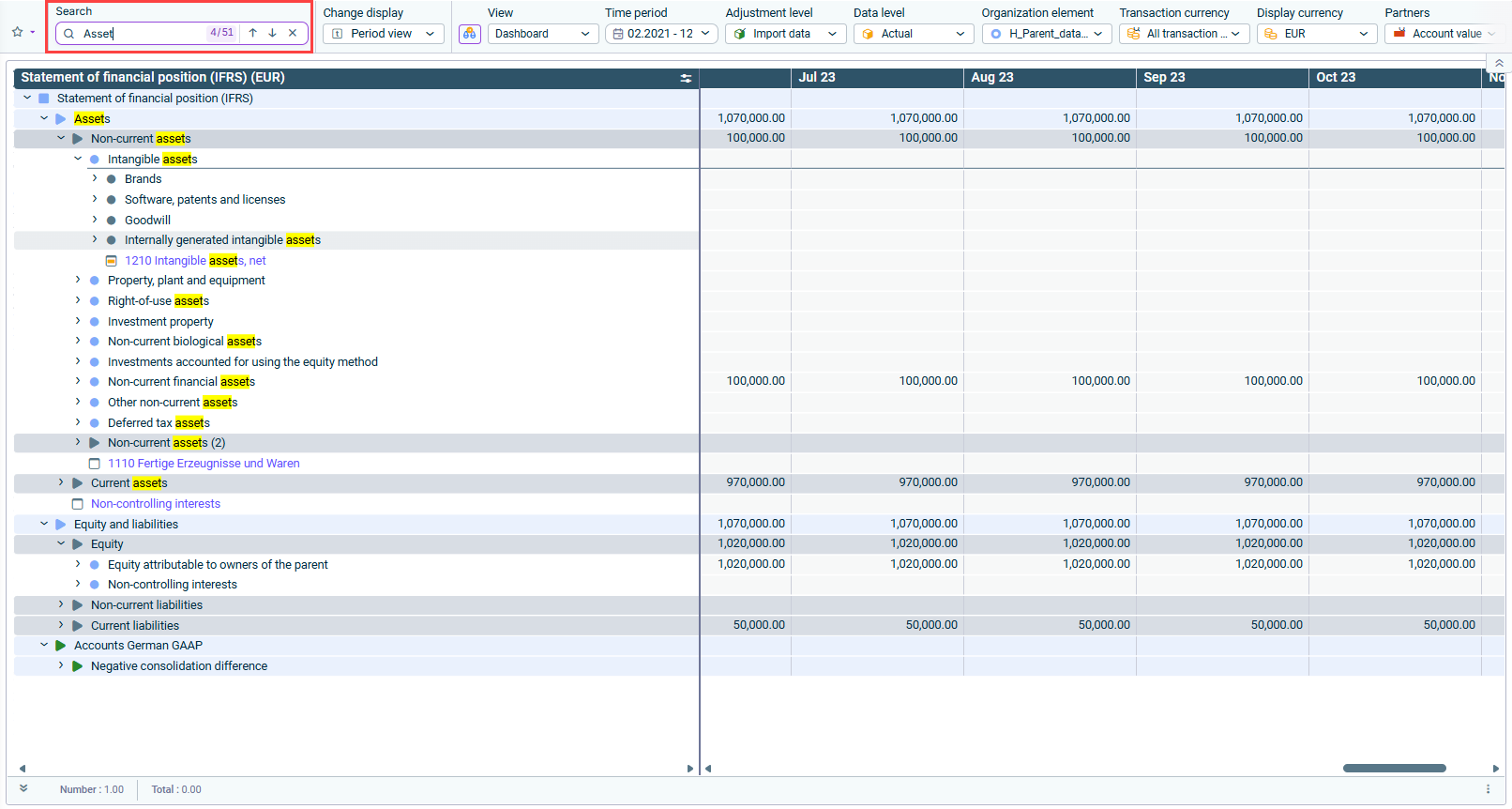
The Search field in the dimension bar lets you find ledger elements — such as items, accounts, formulas, folders, references, and total lines — directly in ledgers and schedules. It is especially useful for large or deeply nested hierarchies, where the element you are looking for may be several levels down, hidden by a collapsed superordinate element, or excluded by a display setting.
To search for an element in a ledger or schedule in Consolidation & Financial Planning, click into the Search field in the dimension bar and enter part of the name of the element you are looking for.
Press Enter to confirm the search.
All matching elements are highlighted, and any collapsed superordinate elements are automatically expanded as needed to display the first matching element, which is also selected.
A counter next to the search field shows your current position among all matches, for example 3 / 8. Navigating past the last match leads you back to the first one.
Search field in the dimension bar
The search is not case-sensitive, and it matches your input anywhere in the element's name — at the beginning, in the middle, or at the end.
Use the navigation arrows next to the search field, or the Up and Down arrow keys, to jump to the previous or next matching element.
Click Clear (×) next to the search field, or press Esc, to clear the search.
Your search text is retained after you confirm it, so you can keep working while still seeing the highlighted matches. The search field is cleared automatically when you navigate to another workspace.
Search results include all elements in the by Item hierarchy — items, accounts, formulas, folders, references, and total lines. Drill-downs other than by Item (for example, by organization element or by adjustment level) are not part of the search.
If none of the ledger elements' names match your search input, the search field displays No results.
If you have activated any option under Hide empty rows and columns in the display settings — for example for the accounts/items dimension — starting a search displays a dialog asking you to reset hidden rows and columns. Continuing the search turns off that setting so all results are visible.
This content was generated using AI and reviewed by Lucanet subject matter experts before publication.