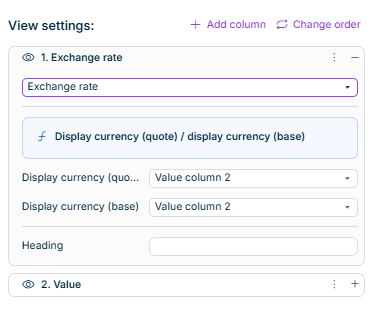
Choosing a view in the tree view of a ledger or schedule displays the associated dimension bar. The configuration of the view defines which dimensions can be configured in the dimension bar.

In Lucanet Consolidation & Financial Planning you can create and configure your own views with any desired columns. In addition to the default view for displaying time series, organization elements and adjustment levels, any desired multi-column comparative views can also be displayed for all evaluations.

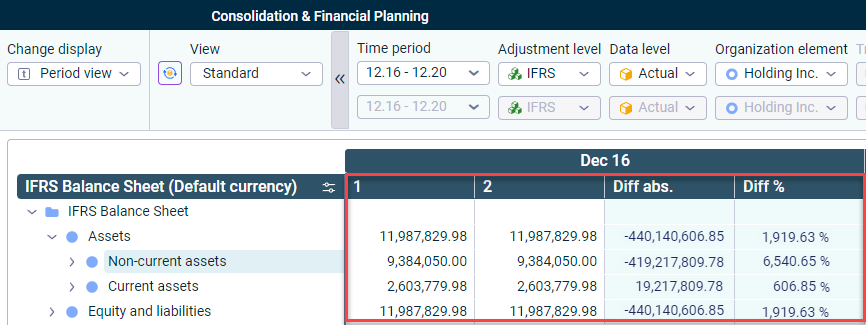
For columns in views, there are three different column types that can be assigned to a column (see Adding and Deleting Columns and Defining Column Types). The following figure shows a view with four columns. The first two columns are value columns. The third column is a column of type Absolute difference, the fourth column is of type Difference %.

User interface with different column types is displayed.
View with column types

The following steps must be carried out to create and configure a new view:

1

Creating a view (see Creating Views)

2

Creating the desired columns (see Adding or Deleting Columns)

3

Defining the column type (see Defining Column Types)

4

Configuring columns (see Configuring Columns)

5

Saving view

To create a new view:

1

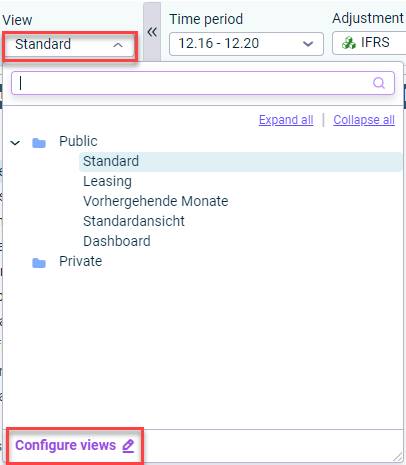
Click in the dimension bar in the Reporting and analyzing workspace the View drop-down list and click Configure views.

The button 'Configure views' is displayed in the drop-down list 'View'.
'Configure views' in the 'View' drop-down list
2

In the tree view, navigate to the public or private folder and choose .

3

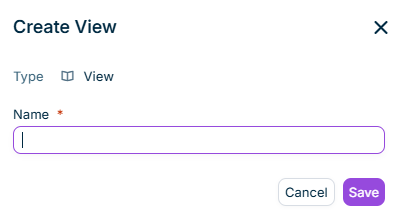
Choose New | View to create a new view. The dialog is displayed as follows:

Dialog for creating a new view
4

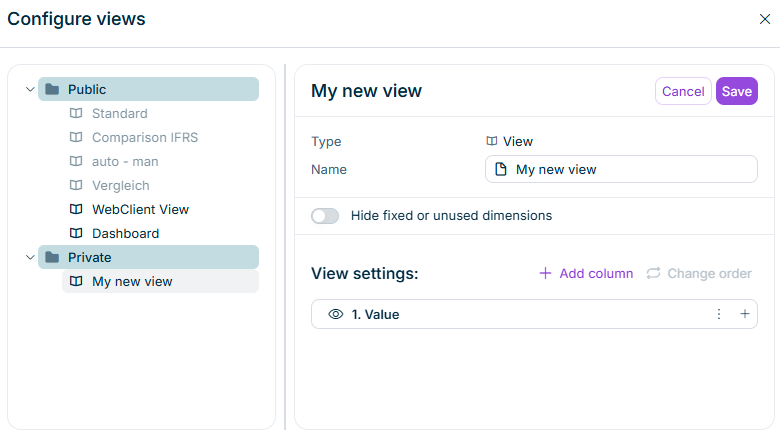
Enter a name and use Column settings to configure which dimensions can be set in the dimension bar (see Configuring Columns).

5

Click Save settings to create the view.

Click Add Column + to add the desired column. For each view, you can freely configure how many columns should be displayed in account hierarchies.

The following options are available for columns:

The column settings for views are displayed. Further information can be found in the description.
Column settings for views
IconDescription
Add columnCreates a new column
Changes the position of the column
Hides or shows the column
Duplicates the column
Deletes the column

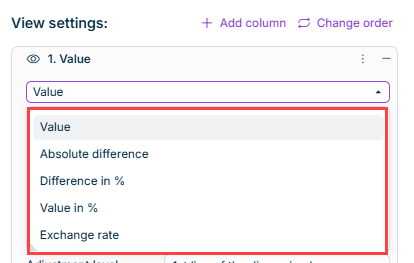
For each column, choose the desired column type from the column types drop-down list. The following column types are available:

The column types for views are displayed.
Column types for views

The column types Absolute difference and Difference in % are only available for selection if there are at least two columns.

Column typeDescription
Value columnIs used to display a value from the data model in a column.
Absolute differenceIs used to display the difference between the values of two columns in a single column in the tree view.
Difference in %Is used to display the relative difference between the values of two columns in a single column in the tree view.

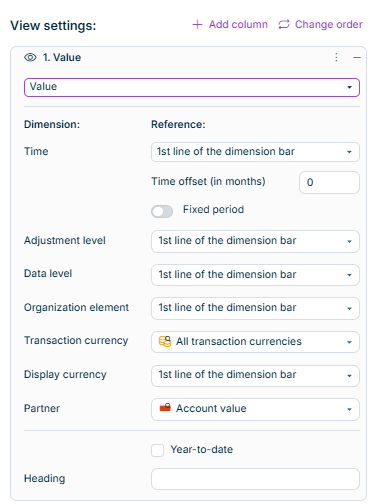
For each column, click to configure the column. The configuration options differ depending on which column type is selected:

The column settings for the column type 'Value column' is displayed
Column settings for the column type 'Value column'

Defines the dimension bar row to which the period window should belong.

If necessary, enter a time offset in the Time offset (in months) input field. With a time offset of twelve months, you can configure the display of values from the previous year, for example. Proceed as follows:

  • Specify the number of months that the time offset is to comprise.
  • If necessary, reset the time offset with the input 0.

Specifies to which dimension bar row the dimension should belong, or whether a fixed dimension element should be specified.

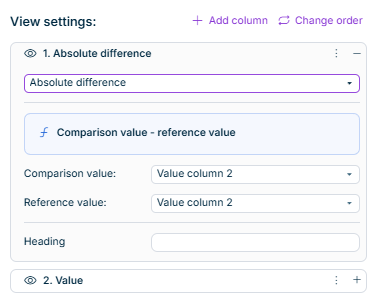
The column settings for the column type 'Absolute difference' are displayed. Further information can be found in the description.
Column settings for the column type 'Absolute difference'
DimensionReference
Comparison valueColumn that contains the comparison value
Reference valueColumn whose value is to be subtracted from the value of the Comparison value column
HeadingCustomized column heading
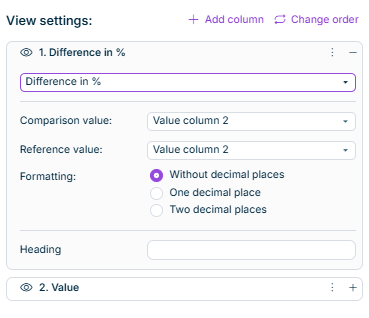
The column settings for the column type 'Difference in %' are displayed. Further information can be found in the description.
Column settings for the column type 'Difference in %'
DimensionReference
Comparison valueColumn that contains the comparison value
Reference valueColumn whose value is to be subtracted from the value of the Comparison value column
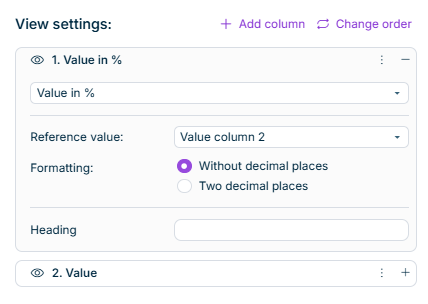
FormattingDefines whether the percentage value is to be displayed Without decimal places or with 2 decimal places.
HeadingCustomized column heading

Views for configuring the dimension bar in account hierarchies can be defined in both Lucanet. Financial Client and Lucanet Consolidation & Financial Planning. The views defined in Lucanet. Financial Client can be activated for use in Lucanet Consolidation & Financial Planning.

To activate a view from Lucanet. Financial Client for use in Lucanet Consolidation & Financial Planning:

You have to enable marketing cookies to play this Vimeo video.

The video also offer Spanish subtitles. To enable Spanish subtitles, click the CC button in the bottom-right corner, then use the gear icon (Settings) to select Español.